
Revenue
Revenue records and reports.
Overview
Suger Console provides a comprehensive view of revenue records and reports.
Revenue records and reports are generated on successful payments of invoices. These records help track invoice amounts, collectable amounts, disbursements, and refunds.
The Revenue dashboard turns marketplace billing streams into organized tables and charts, so finance, RevOps, and customer success teams can reconcile payouts, analyze revenue mix, and audit individual accounts.
Revenue Reports
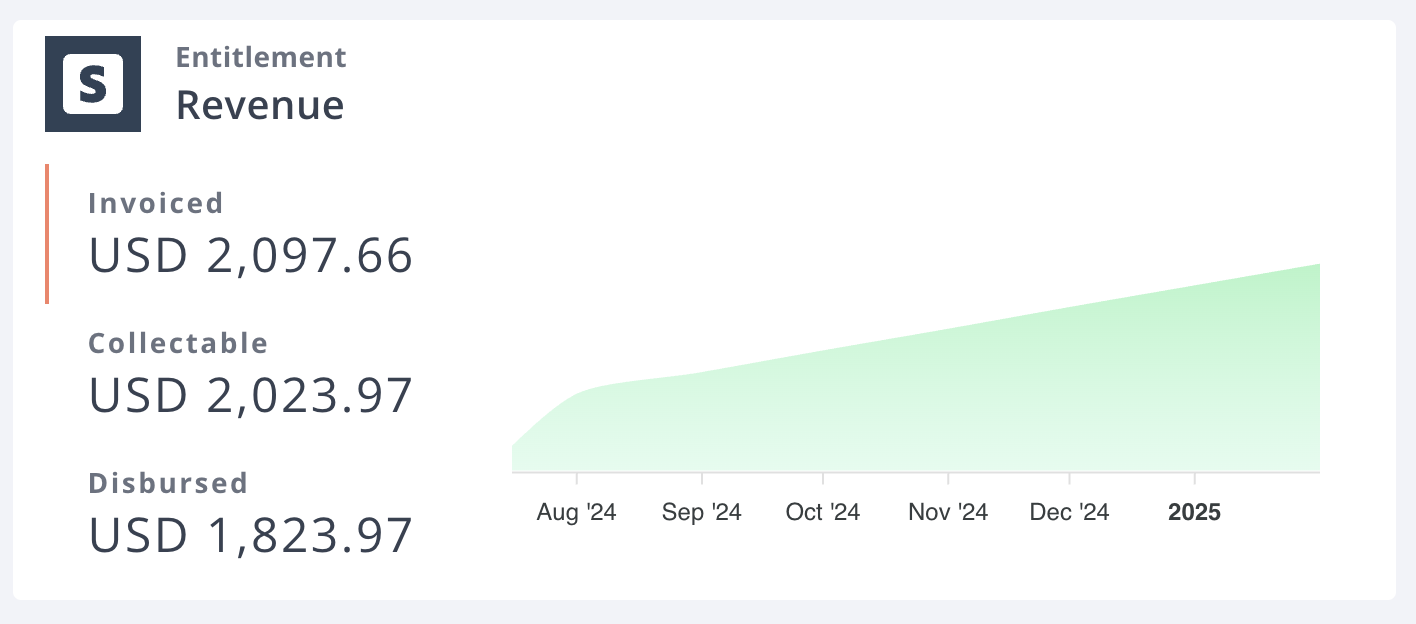
Revenue reports provide visual insights through graphical charts, available in different sections of the Suger Console.
Where to Find Revenue Reports
- Buyer Detail Page – Displays revenue data for an individual buyer:

- Entitlement Detail Page – Shows revenue data for a specific entitlement:
Types of Revenue Reports
Revenue reports are aggregated by date and categorized into three key metrics.
| Category | Description | Formula | Key Date |
|---|---|---|---|
| Invoiced 🧾 | Total amount billed on the invoice. | — | Invoice issue date |
| Collectable 💸 | Amount that can be collected after fees and credits. | (Total Payment - Partner Fee) + Credits | Invoice Payment due date |
| Disbursed 💰 | Amount sent to the seller after deducting partner fees. | Total Payment - Partner Fee | Payment Disbursement date |
FAQ
In Suger, I can see two different amounts: Invoiced and Collectable. What is the difference between them?
The invoiced value is the amount your customer was invoiced. The collectable amount is the amount AWS will pay once the fees are deducted.
Understanding Important Dates
- Invoice Date: The date when the invoice was issued.
- Payment Due Date: The deadline for the buyer to complete the payment.
- Disbursement Date: When the payment is successfully processed and transferred to the seller.
Revenue Records
Revenue records are detailed financial records associated with invoices and payment transactions.
There are two types of revenue records: joined records and raw records.
Joined Records
A joined record is directly linked to an invoice, sharing the same ID.
It is created by consolidating all payment transactions associated with the invoice into a single comprehensive record. This aggregated, customer-centric view is ideal for understanding an account’s overall financial health and tracking exactly what each buyer owes.
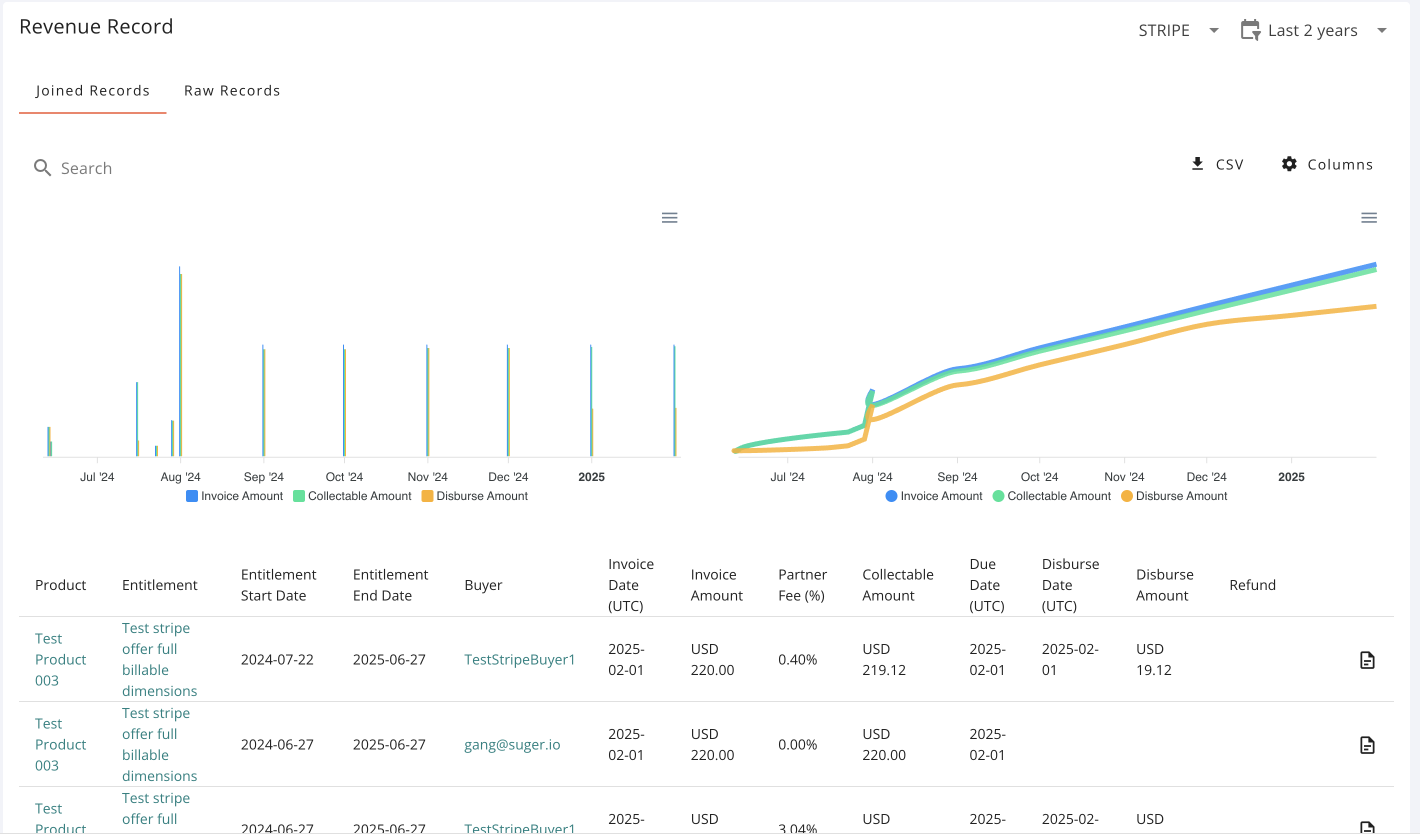
The columns available in this view include:
- Contract & CRM identifiers:
Product,Entitlement,CRM Opportunity ID,Offer External ID,Buyer,Country,Category,Channel - Timeline metrics:
Entitlement Start Date,Entitlement End Date,Invoice Date,Due Date,Disburse Date - Financial calculations:
Invoice Amount,Partner Fee,Partner Fee (%),Collectable Amount,Disburse Amount,Tax Amount - Reconciliation fields:
Payment ID,Earning ID,Invoice ID,Bank Trace ID,Disbursement Reference Number - Refund adjustments:
Refund Invoice Date,Refund Invoice Amount,Refund Disburse Date,Refund Disburse Amount - Channel partner context:
Reseller Name,Reseller ID
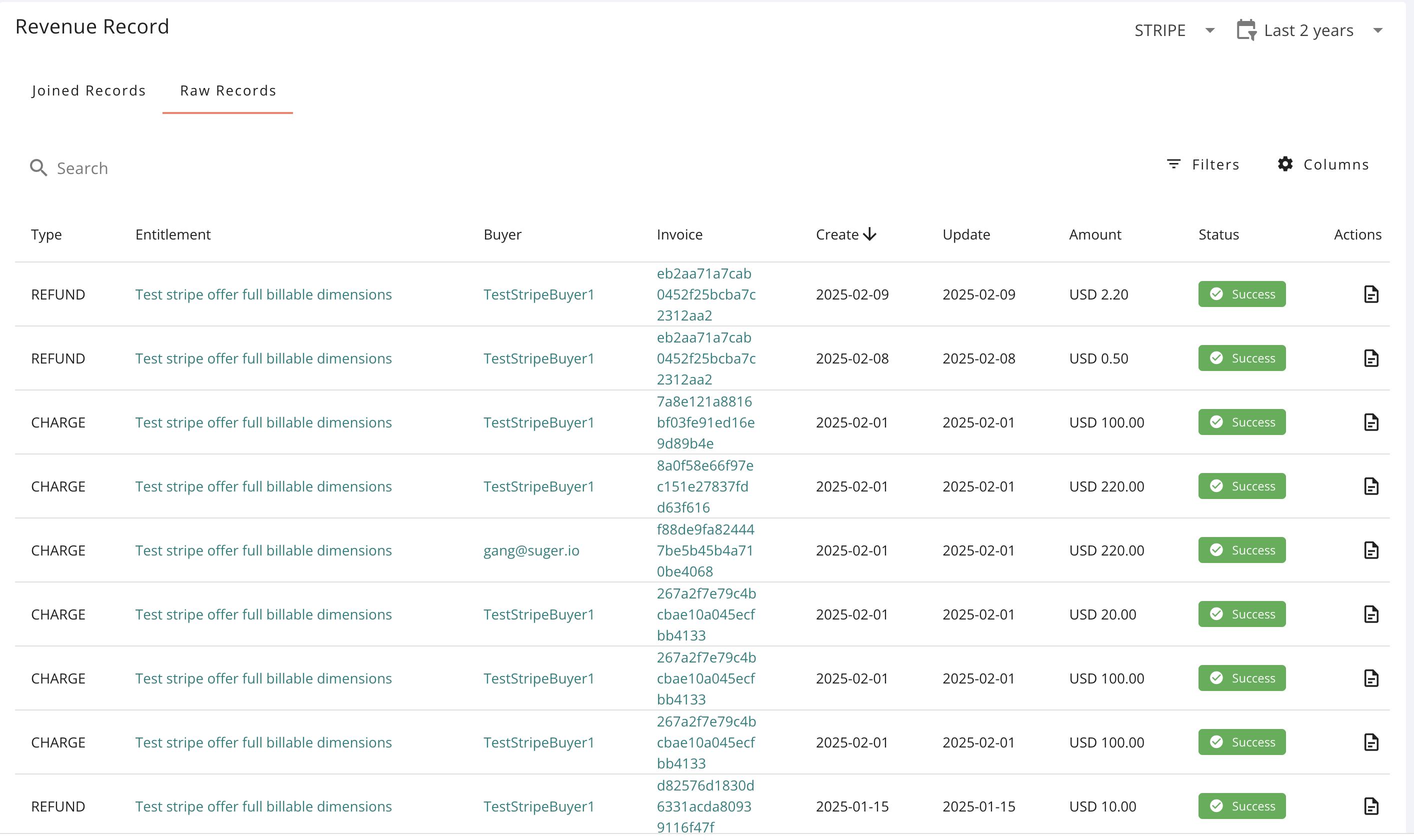
Raw Records
A raw record represents one payment transaction associated with an invoice, surfaced exactly as it is emitted from the cloud provider’s native billing system. Use this view to audit individual line items or run deep reconciliation checks against your actual marketplace payouts. For details, see payment transactions.
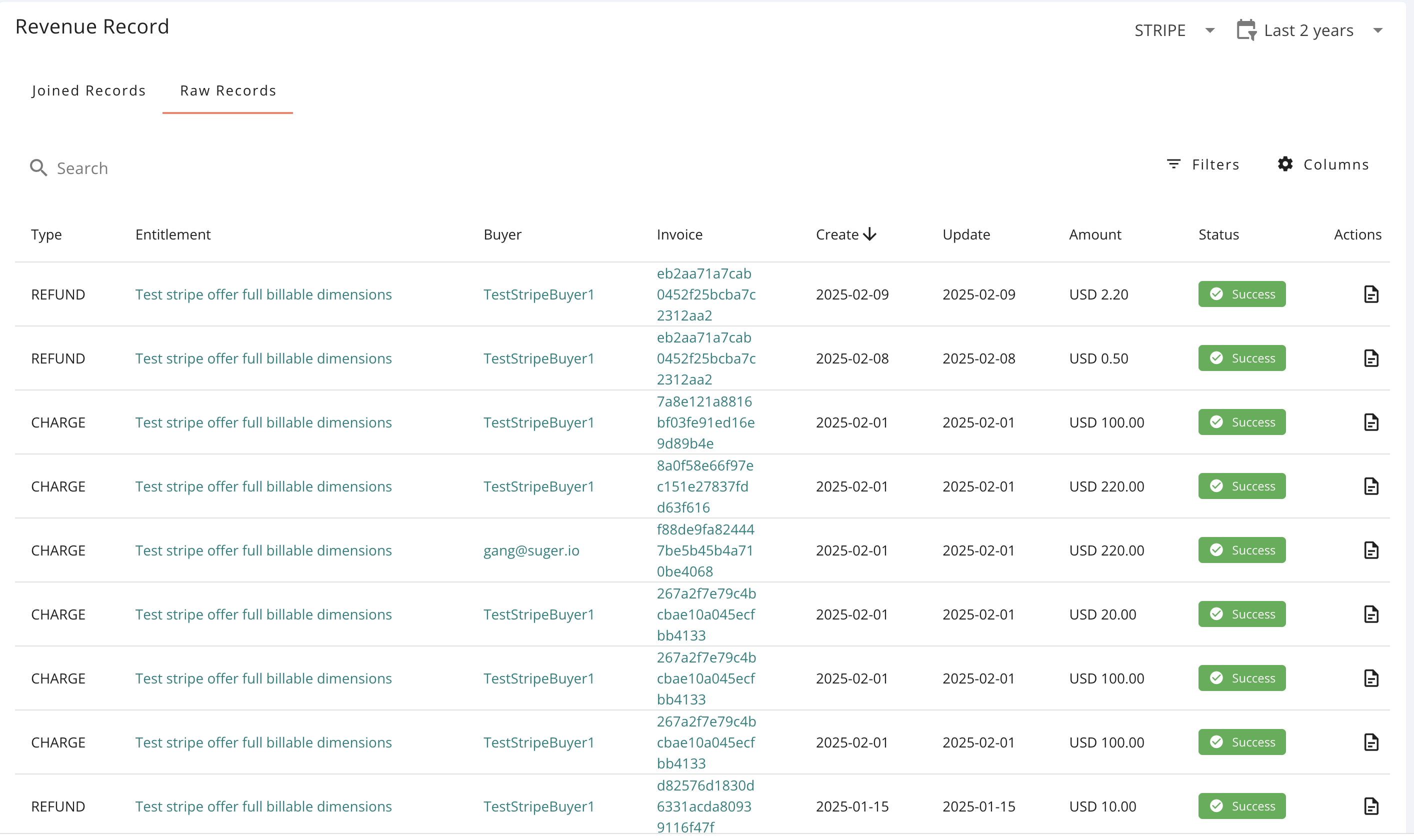
The columns available in this view include:
- Transaction identifiers:
Date,Partner,Product,Entitlement,Buyer,Disbursement Reference Number - Status & type controls:
Type,Status,Amount
Check if an Invoice Has Been Paid
You can confirm whether an entitlement has been invoiced and paid from either the entitlement detail page or the Revenue tab.
- Open the Entitlement section and search for the active entitlement you want to check.
- Click the entitlement and scroll down to the Revenue Record tab.
- Review the revenue record details, presented in three columns:
- Invoice amount
- Collectable amount
- Disbursement amount
- Check the line items — invoice paid, partner fee, partner fee (%), collectable amount, due date, and actual disbursement date.
- Estimate the payment terms for each cloud marketplace by comparing the Due Date with the Disbursement Date.
For a broader view across all entitlements, open the Revenue tab, where invoice date, invoice amount, partner fee, partner fee (%), collectable amount, due date, disbursement date, and disbursement amount are shown together with charts and can be downloaded as a CSV.
Common Workflows
Finance: Disbursement Tracking & Month-End Close
Track down outstanding marketplace payouts:
- Click the Disbursement Date column header to sort your records chronologically.
- Filter for rows where the disbursement date is empty or set to a future date to isolate pending cash flow.
- Compare the Due Date against the Actual Disbursement Date to map cash-flow timing and spot cases where buyer payment terms or marketplace processing windows are delaying payouts.
RevOps & Alliances: Analyzing Revenue Mix & Custom Views
- Usage vs. Commit breakdown: Every row shows whether the funds came from a flat contract milestone (Commit) or metered consumption reporting (Usage), which helps you analyze product revenue velocity and explain invoice changes to buyers.
- Cloud-specific reconciliations: Filter the view by a single cloud provider (AWS, Azure, or GCP) to reconcile against that marketplace’s payout schedule.
- Column customization: Click the Columns icon to build a tailored layout. Channel teams can add parameters like Reseller Name and Reseller ID to track multi-party deals, while operations teams can reorganize columns to match internal data models.
Customer Success: Account-Level Financial Auditing
- Apply the Buyer & Entitlement Filter to search for a single customer account (e.g., Acme Corp).
- Review the entire invoicing history tied to that account to confirm gross amounts, applied refunds, and historical collections.
- Click any row item to jump directly from the Revenue dashboard into the underlying Entitlements detail page to check contract dates, installment metrics, and usage configurations.
Export Revenue Data
If you are on the finance or sales-ops team, you can export revenue data for analysis in a spreadsheet or ERP platform.
- Open the Revenue tab, where transaction data is presented as line and bar graphs. Each transaction includes details like entitlement, invoice, partner fee, collectable amount, due date, and disbursement date.
- Use the transaction data to identify paid and outstanding invoices and understand payment terms.
- Adjust the filter criteria:
- Change the time frame by selecting days, weeks, or months from the top right-hand corner.
- Change the cloud provider and apply additional filters with the Filter button.
- Add or remove columns to tailor the view.
- Click Download CSV to export the data. The export captures all hidden and visible columns currently active in your table layout, so configure column visibility (for example, including
Invoice ID,Tax Amount, and net collectible data) to match your ERP data model before downloading.
Syncing Financials with Your CRM
To keep bookings, billings, and cash collections aligned, every transaction record points back to its corresponding contract entitlement and CRM object.
- ARR tracking accuracy: Cross-reference linked Salesforce or HubSpot opportunity IDs directly within the table so your internal dashboards match reality.
- Custom external processing: Filter by a date window (such as Last 7 days, Last 30 days, or a custom range) and click Download CSV to generate a file ready for ingestion into your ERP platform, financial spreadsheets, or metrics dashboards.
Troubleshooting
| Issue | Cause | Resolution |
|---|---|---|
| Why don’t I see any revenue listed yet? | The invoice has not been issued, or metrics haven’t registered. | Verify that usage has been reported for the period, or check whether the underlying private offer contract has a future start date. |
| Why hasn’t the money been disbursed yet? | Standard collection or marketplace payout processing windows are still open. | Check the Due Date column. Payouts remain pending until the buyer’s payment terms elapse and the cloud provider’s trailing disbursement cycle closes. |
| Why is the amount lower than expected? | Deductions or adjustments were processed at the marketplace layer. | Open the column customizer and toggle on Partner Fee (%) and Tax Amount to review the commissions or local taxes withheld at the source. |
Frequently Asked Questions
-
What is the difference between Joined Records and Raw Records?
Joined Records roll your financial fields up into a clean, aggregated, customer-centric view, making it easy to see overall buyer account balances. Raw Records display every transaction exactly as passed by the cloud provider’s billing service without aggregation, which is required for month-end ledger reconciliation.
-
What is the difference between an Invoice and a Disbursement?
An Invoice is a billing event — it confirms that the cloud provider has charged the customer and recorded the transaction. A Disbursement is actual cash flow — it marks the point where the cloud provider rolls those collected funds into a payout and deposits them into your bank account.
-
How does Suger distinguish between a Commit and a Usage charge?
Suger reads the underlying line-item metadata provided by the cloud billing engine. Contracts with upfront or scheduled flat-fee milestones are categorized under Commit, while consumption metrics pushed from your telemetry appear as Usage entries.
-
Can I use the CSV export to feed my ERP platform?
Yes. The Download CSV function captures all hidden and visible columns currently active in your table layout. By configuring your column visibility to match your ERP data model, you can generate an import-ready ledger file.
-
How do refunds show up on this page?
If a customer refund is issued, the dashboard tracks it through dedicated adjustment fields:
Refund Invoice Date,Refund Invoice Amount,Refund Disburse Date, andRefund Disburse Amount, giving you complete visibility over net-revenue corrections.
Spotted something wrong or out of date on this page? Tell us and we'll correct it.