
Offer
Operations on offers.
Create offer
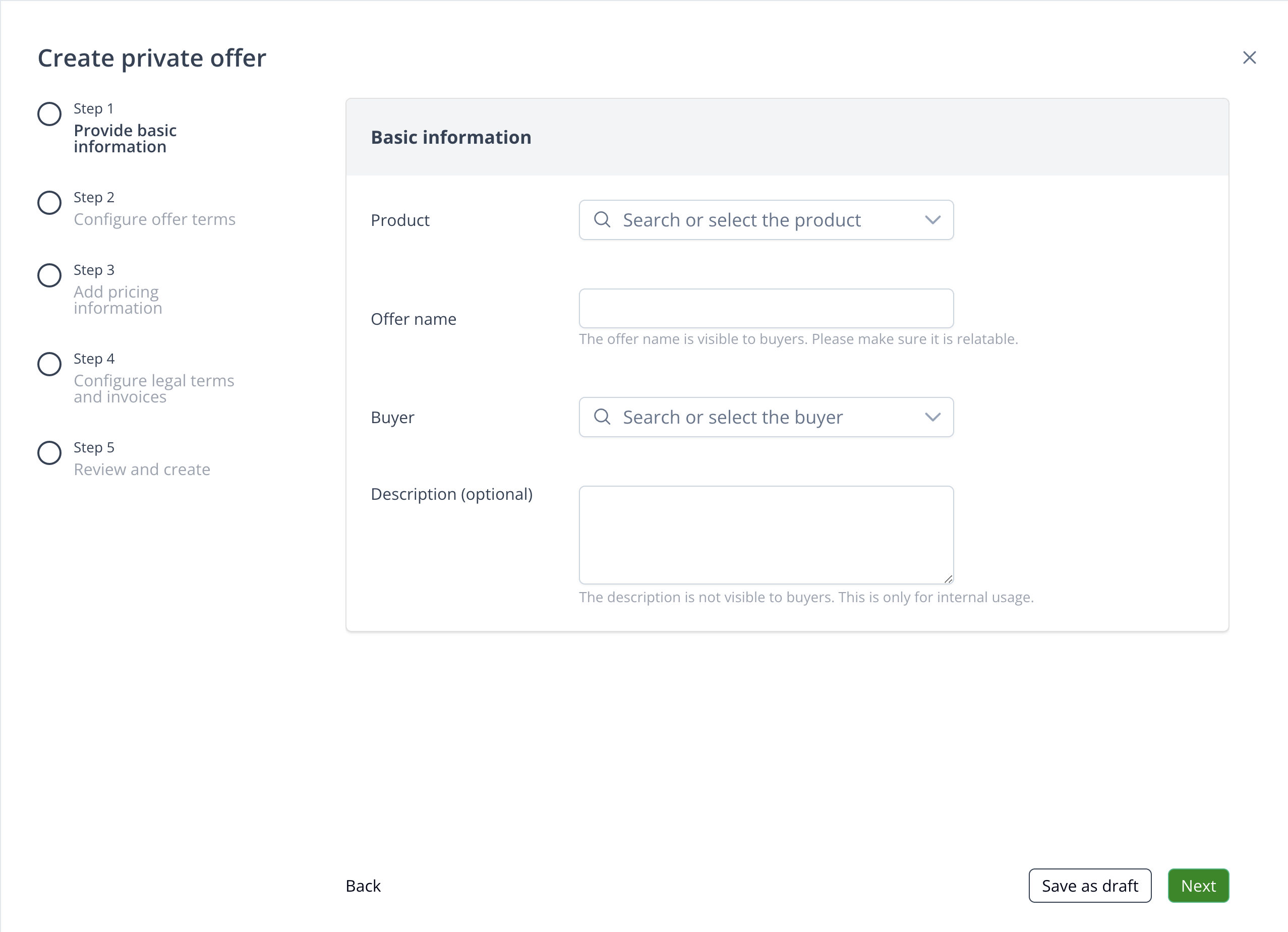
Configure offer basic information
- Select the product and buyer, enter the offer name.
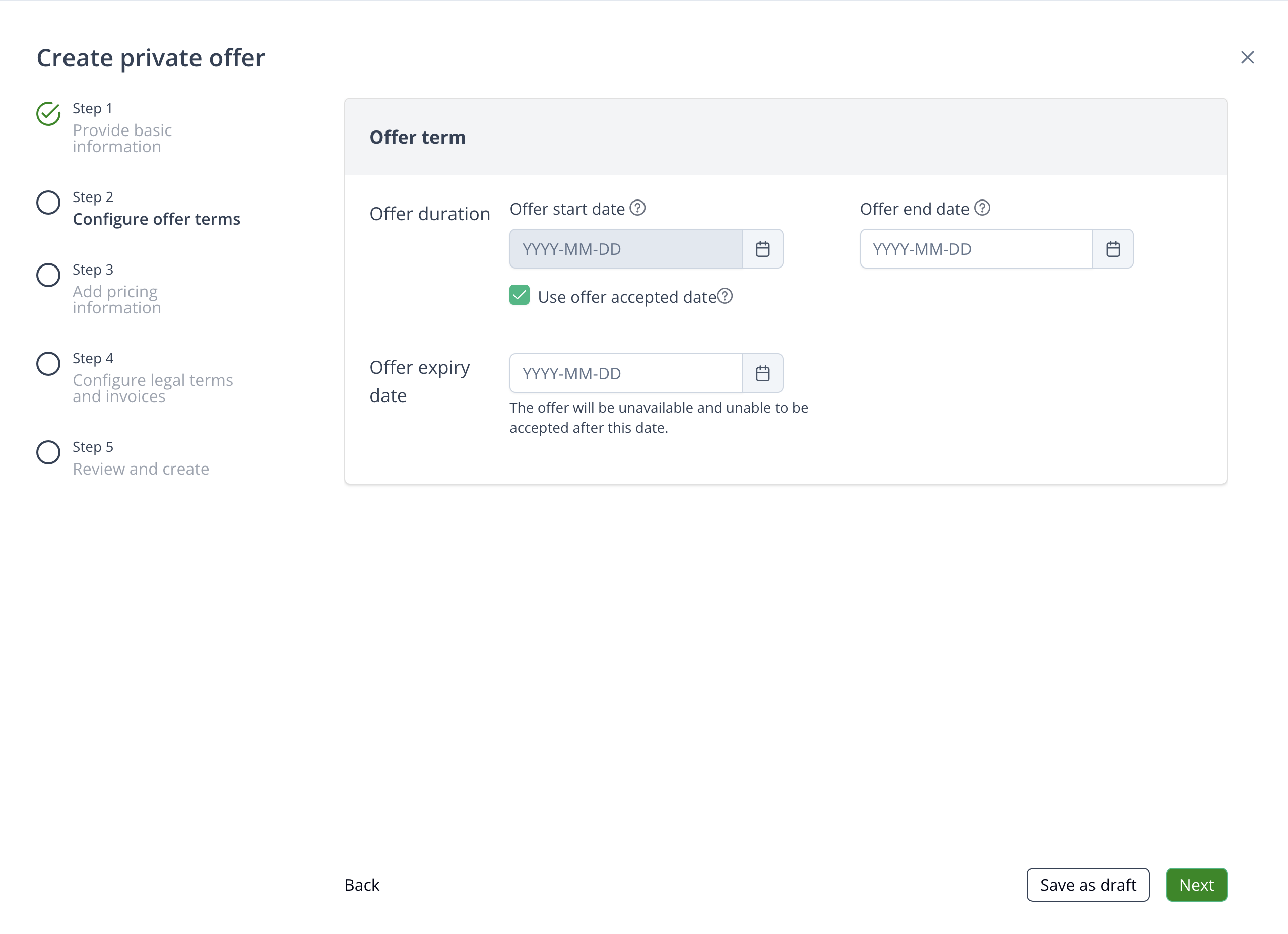
- Specify the contract start date, end date, and offer expiry date.
- If you don’t specify the start date, the contract will start at the day of offer acceptance.
Configure offer flat fee
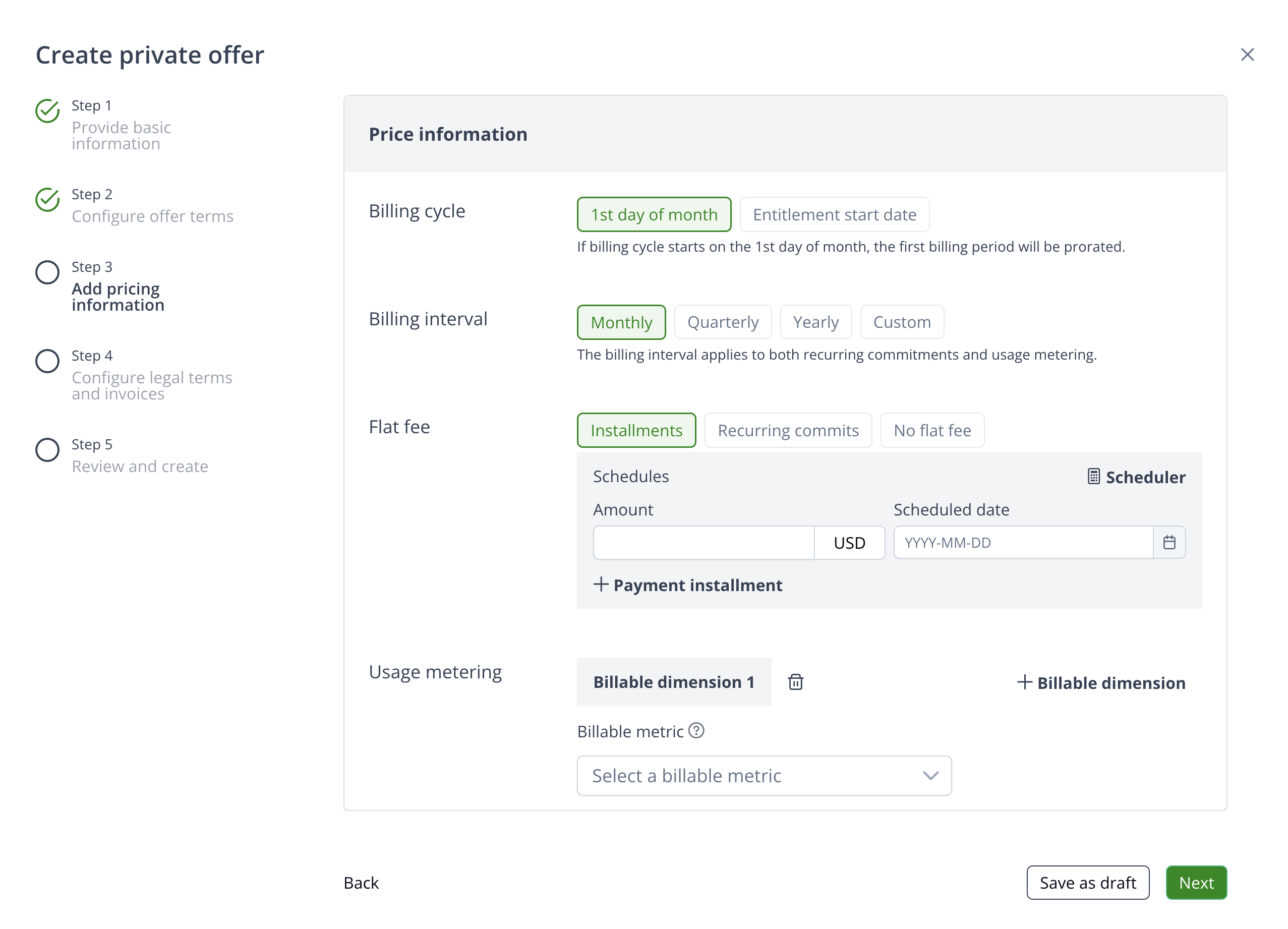
- Billing cycle: Select billing cycle, either
1st day of the monthorEntitlement start day. - Billing interval: You can set the billing interval for the recurring commits and usage metering, which will generate an invoice for each interval.
- Payment installments: Configure multiple payment installments, specifying the charge date and amount for each.
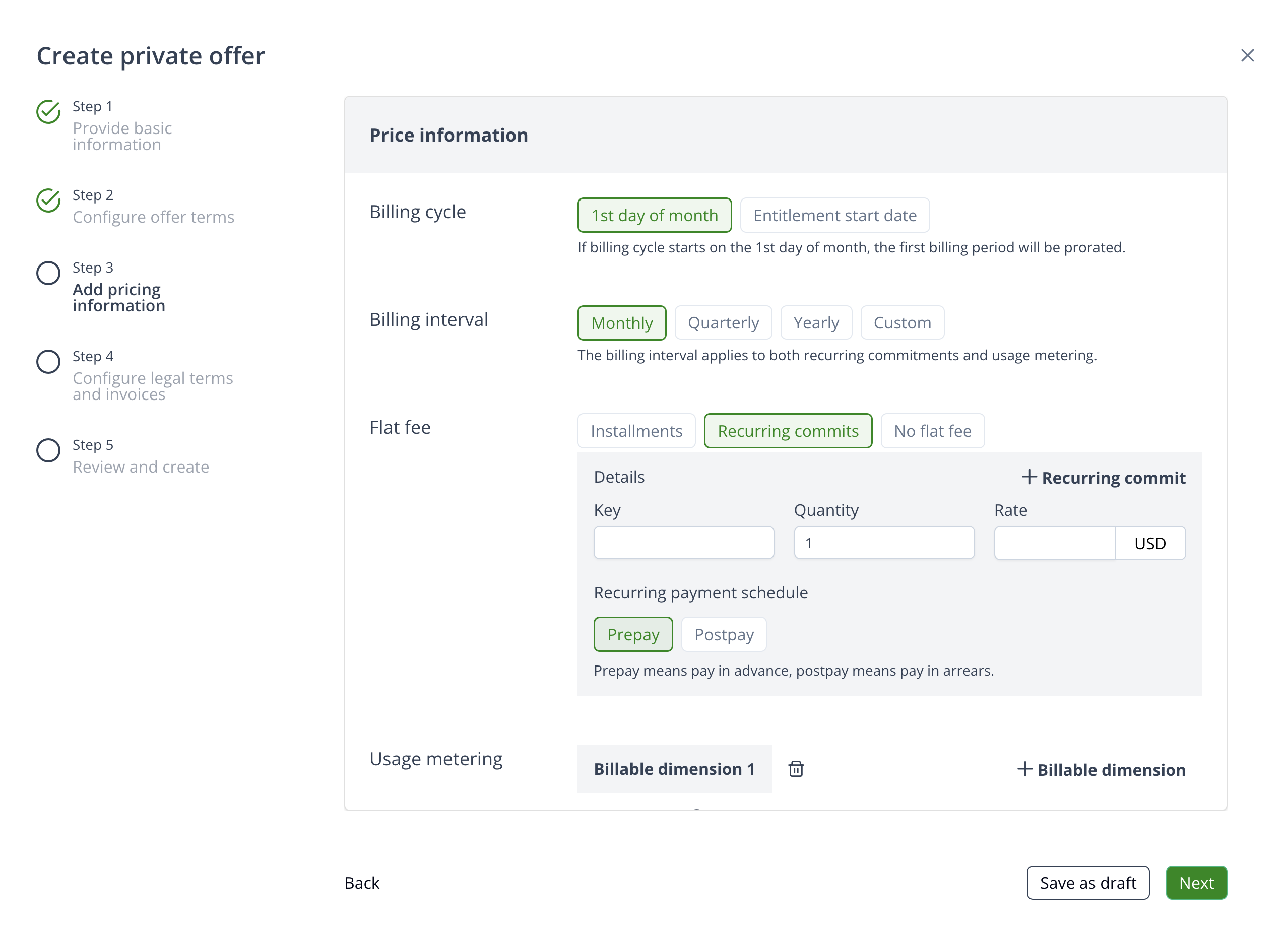
- Recurring commits: You can configure multiple recurring commits, each with a key, quantity, and rate. The commit amount is calculated as
quantity x ratefor each commit. Each commit will be listed as an item on the invoice. - Recurring payment schedule: You can choose to pay in advance or pay in arrears, meaning invoices will be generated at the start or end of an interval.
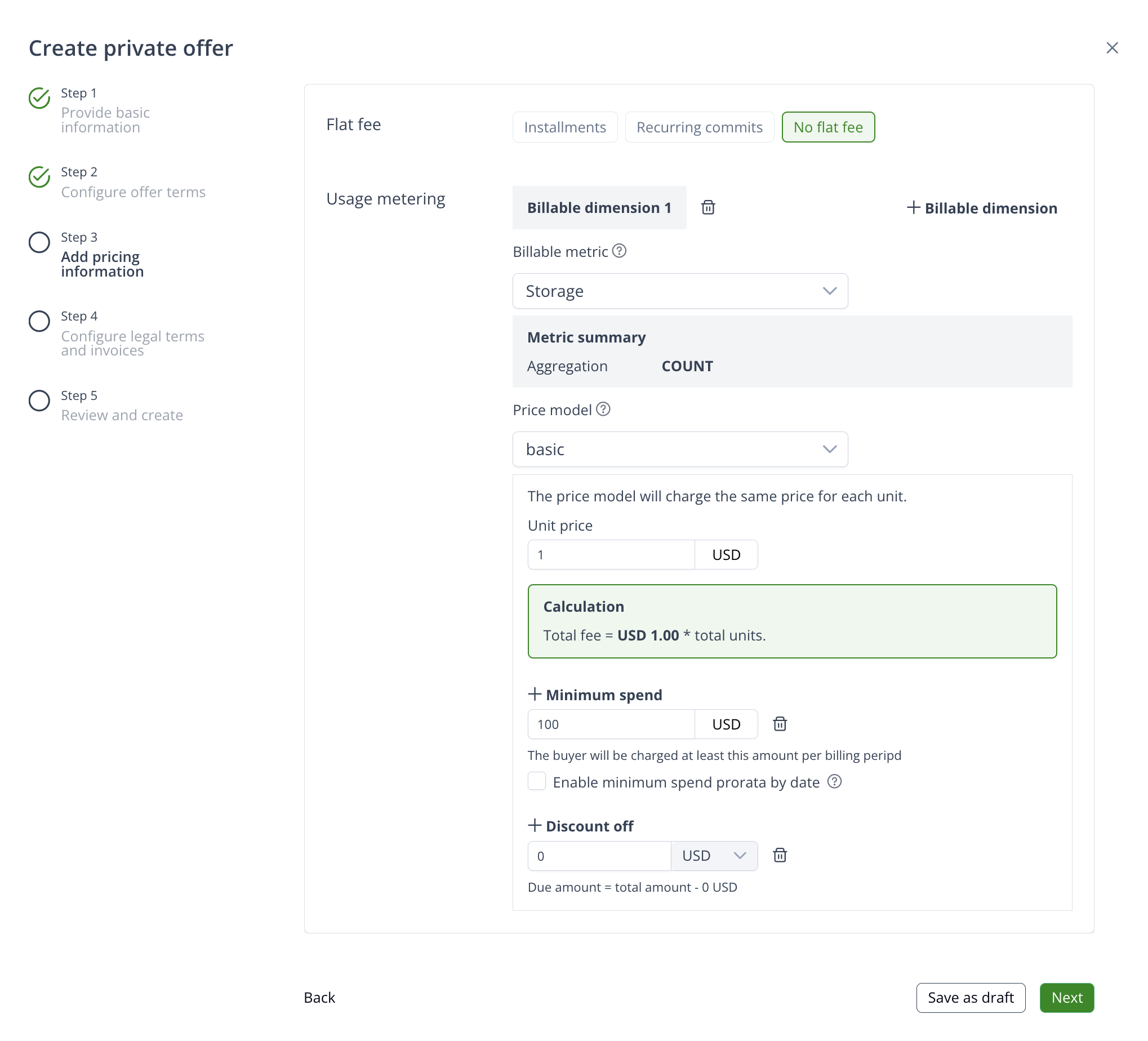
Configure offer usage metering
Define the usage-based fee for the offer by setting up billable dimensions. Each billable dimension consists of a billable metric and a usage metering price model. For further information about how price model works.
- Billable metric: Select the metric you want to use for billing.
- Price model: The usage metering pricing model determines how the cost of a billable metric is calculated.
- Minimum spend: You can set a minimum spend for the given billable metric.
- Discount off: You can set up a discount for the given billable metric, either as a percentage or a fixed amount.
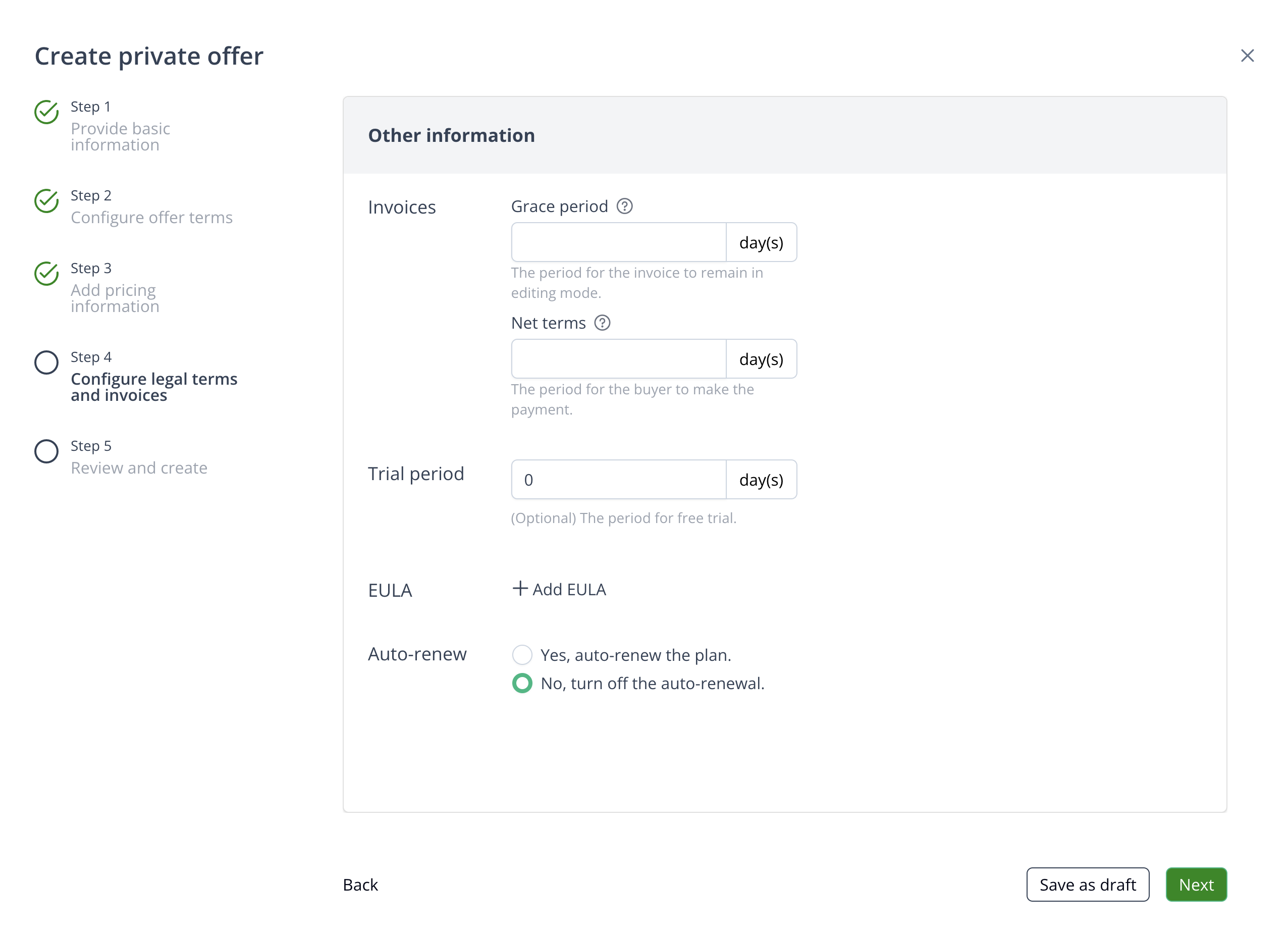
Configure leagal term and invoice settings
- Net terms: The number of days within which the customer must make a payment.
- Grace period: The period during which invoices remain in draft status for review or editing. After this period, the invoice is finalized and cannot be modified.
- Trial period: You can set a trial period in days. The customer will not be charged during this period.
- EULA: Optionally, you can add a custom End User License Agreement (EULA) for the private offer.
- Auto renew: Automatically renew the entitlement term once the current entitlement ends.
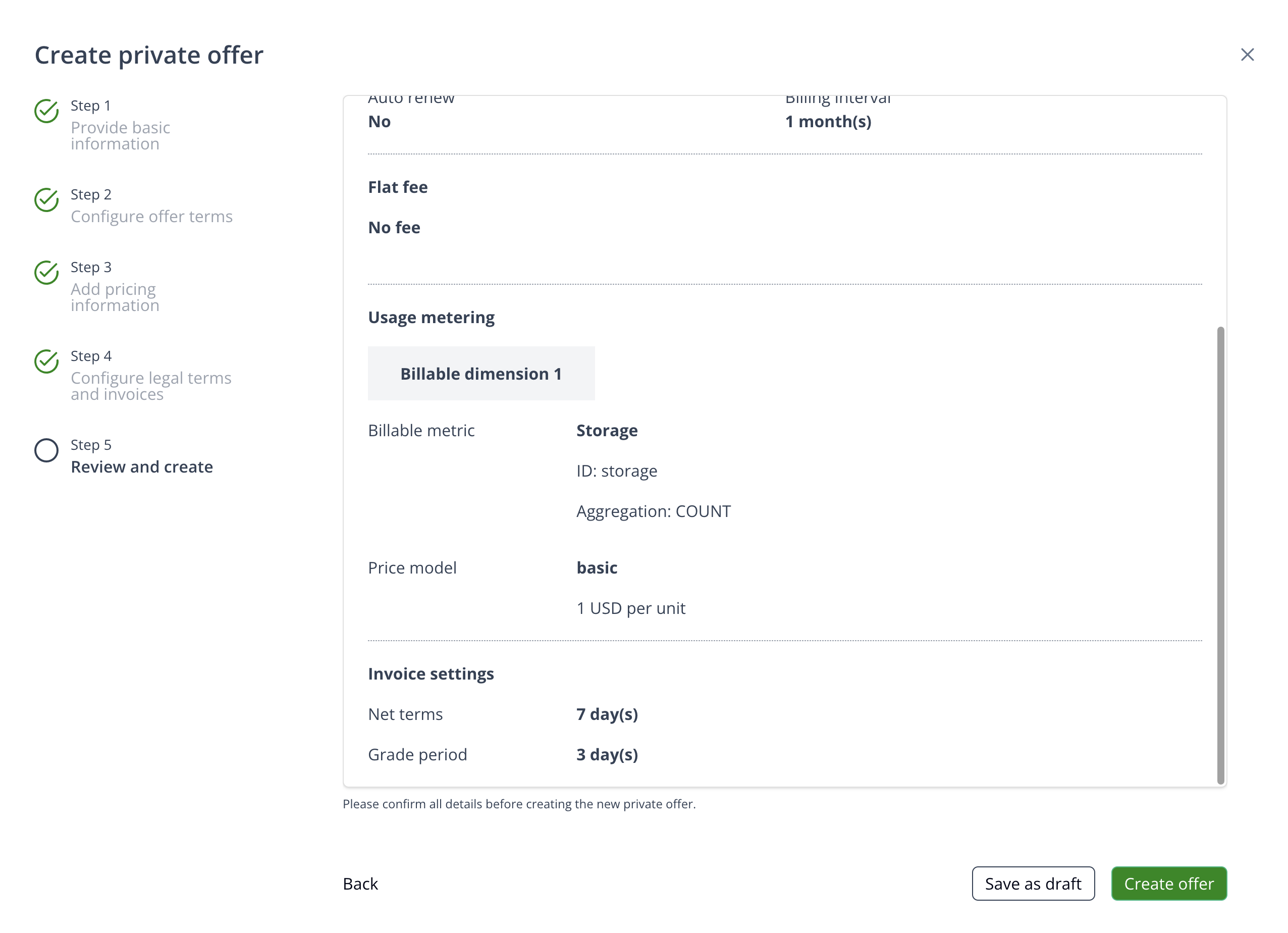
Preview offer
Preview the offer details before creating it. Additionally, you can choose to save the offer as a draft and edit it later.
Accept offer
Send offer to buyer
Once an offer is created, you can send the offer link to the buyer.
The offer link contains a token to identify the offer. The offer link will expire after the offer expiry date.
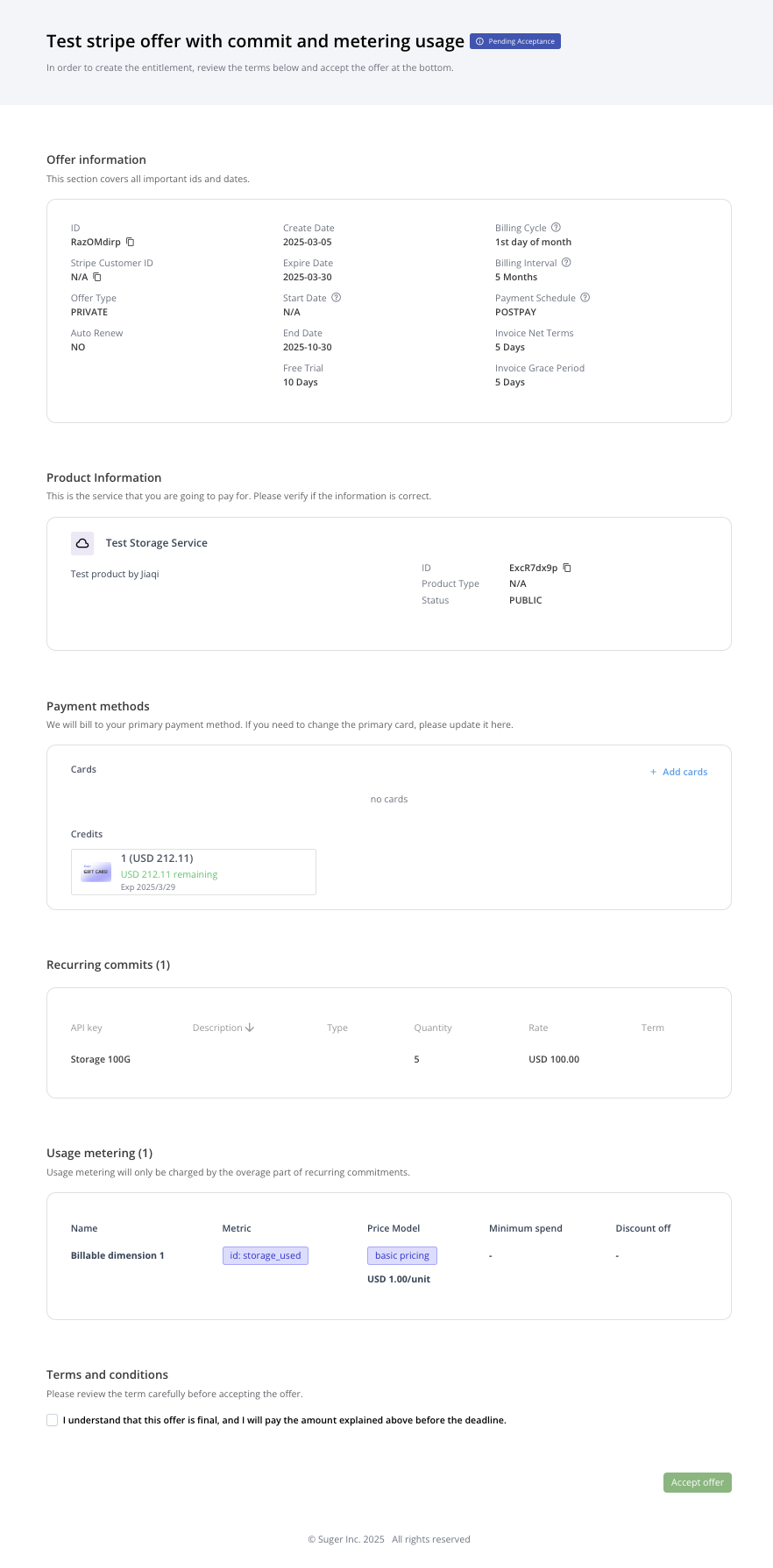
Accept offer
When the buyer receives the offer link, they can check the offer details and accept it.
- The buyer can add payment methods in this page.
- Once the offer is accepted, an entitlement will be generated based on the offer.
- If the offer has recurring commits and the recurring payment schedule is
Prepay, the invoice will be generated and the buyer will be charged immediately after accepting the offer.
Check if a private offer has been viewed
You can track whether a customer has received and viewed a private offer, and notify them again if needed.
- Open the Offers tab from the main dashboard.
- Locate and select the specific private offer you want to check.
- In the first card at the top, click the Contacts button.
- The Contacts section shows the contacts you’ve already sent notifications to, along with notification events indicating which contacts have opened the email.
- To notify a customer again, click the Notify button next to their contact information. This sends another notification to that contact.
- You can also add existing contacts or create new contacts to notify about this private offer, expanding the reach of your offer.
Offer actions
You can perform some actions on the offer details page.
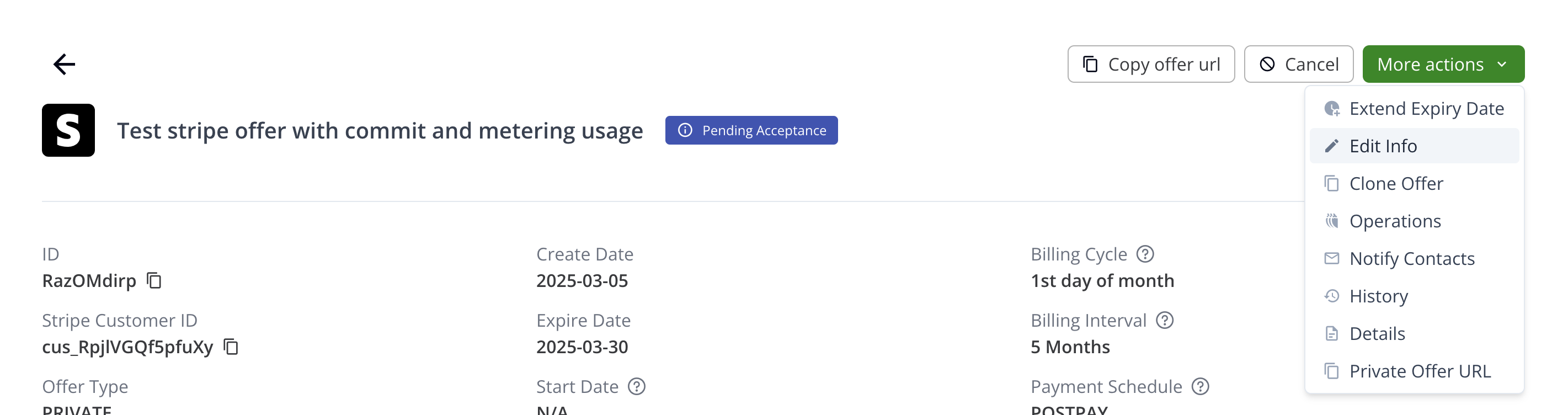
Cancel offer
You can cancel the offer anytime before the buyer accepts it.
Extend offer expiry date
If the offer is about to expire, you can manually extend its expiry date.
Spotted something wrong or out of date on this page? Tell us and we'll correct it.