
AWS Refunds and Cancellations
Handle AWS Marketplace refund and cancellation requests directly from the Suger Console.
Overview
As a seller, you can cancel active AWS Marketplace entitlements and issue refunds without leaving the Suger Console. Requests are tracked on the entitlement record, so you can follow their status end to end.
For AWS Marketplace refund and cancellation policies, see Refunds and cancellations in AWS Marketplace.
Cancel an active entitlement
As a seller, you may need to initiate a cancellation for:
- Contractual errors: Correcting a private offer that was accepted with the wrong terms or pricing.
- Agreement replacements: Facilitating a mid-term downgrade or a change in invoicing terms.
- Buyer requests: Processing cancellations for private offers or public contracts after the 48-hour self-service window.
- Accidental subscriptions: Resolving cases where a buyer auto-renewed unintentionally or chose the wrong offer.
- Product sunset: Ending support for a product that is being removed from AWS Marketplace.
Seller-initiated cancellation
-
Go to the Entitlement page in the Suger Console.
-
Open the specific entitlement you want to cancel.
-
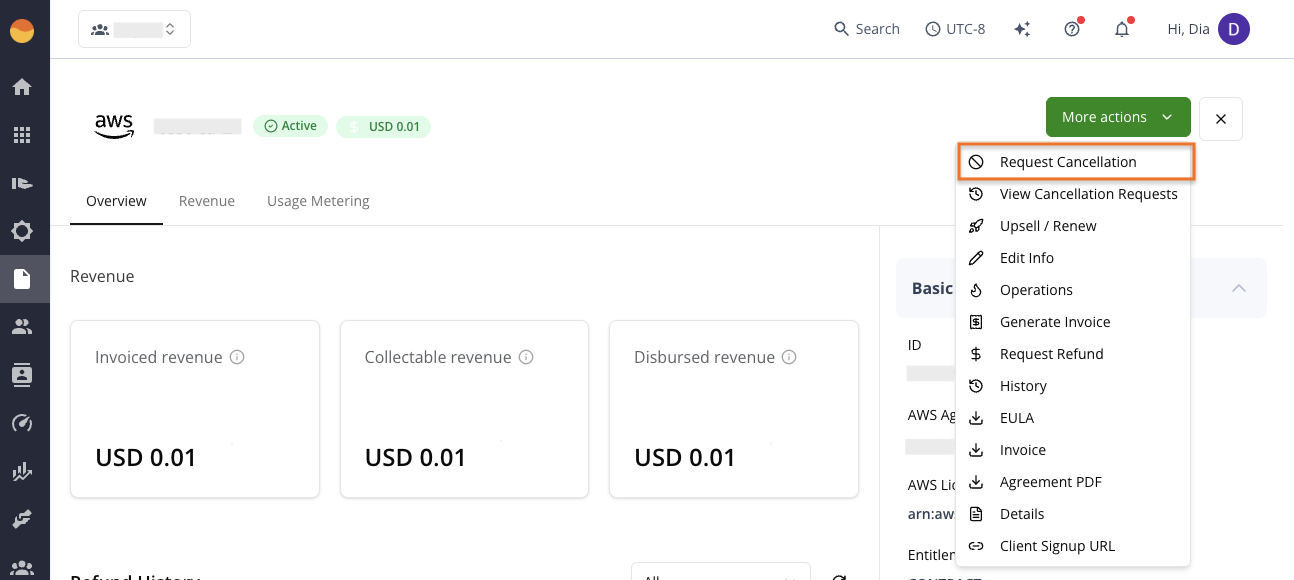
Click More actions in the upper-right corner, then select Request cancellation.
-
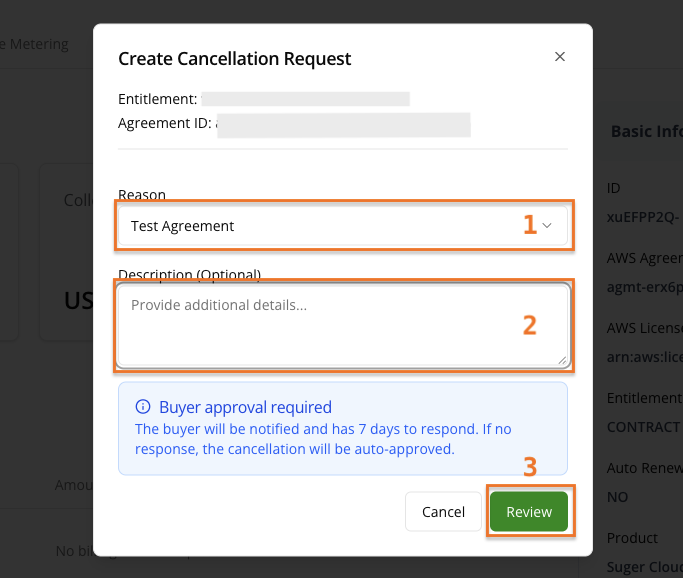
Select the Reason for cancellation, then add an optional Description to provide context for the buyer.
-
Click Review, then double-check the cancellation request details.
-
Click Confirm & Submit.
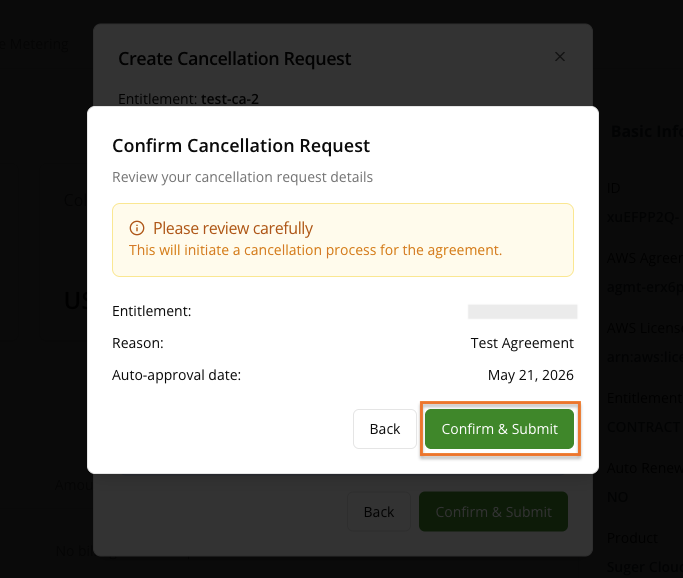
The buyer is notified and can approve or deny the request. If they don’t respond within 7 days, AWS automatically approves it.
Buyer-initiated cancellation
Buyers can cancel their subscriptions directly from the AWS Marketplace console, and no action is required from you to initiate it. When they do:
- You receive a
PENDING_CANCELevent. - If you use metered billing, report your final usage as soon as possible.
- After the entitlement is canceled, no further billing adjustments can be made.
Issue a refund
Refunds are always initiated by the seller. If a buyer requests one directly from AWS, AWS Customer Service redirects them to you. After you and the buyer agree on the refund, you can use it to correct billing issues such as overcharges, usage errors, or charges the buyer should not have received.
-
Go to the Entitlement page in the Suger Console.
-
Open the specific entitlement you want to refund.
-
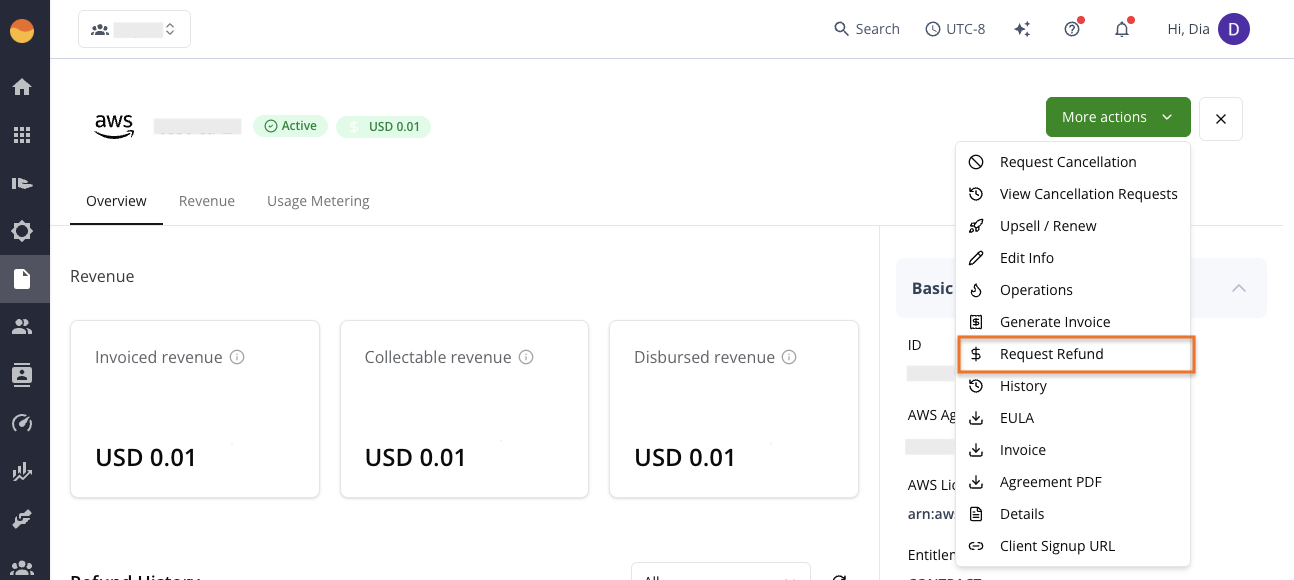
Click More actions in the upper-right corner, then select Request Refund.
-
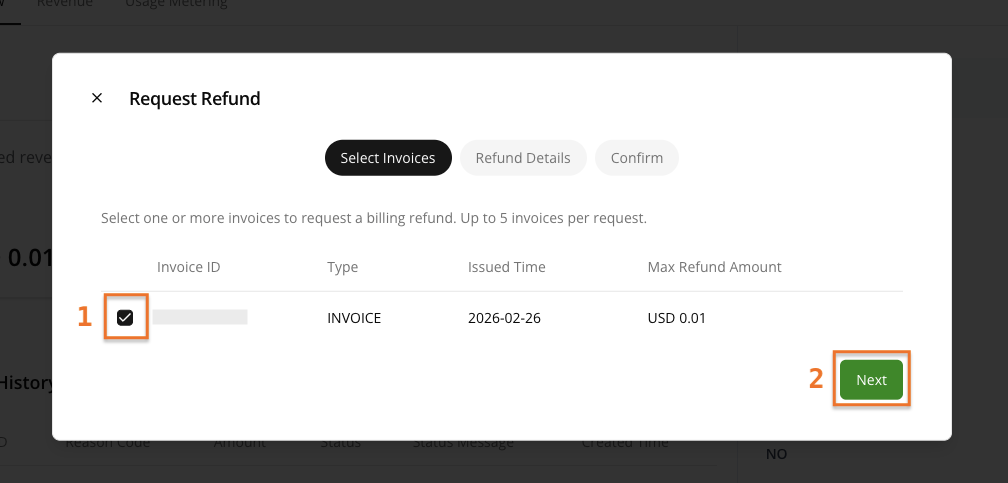
Review and check the affected invoice(s), then select Next.
-
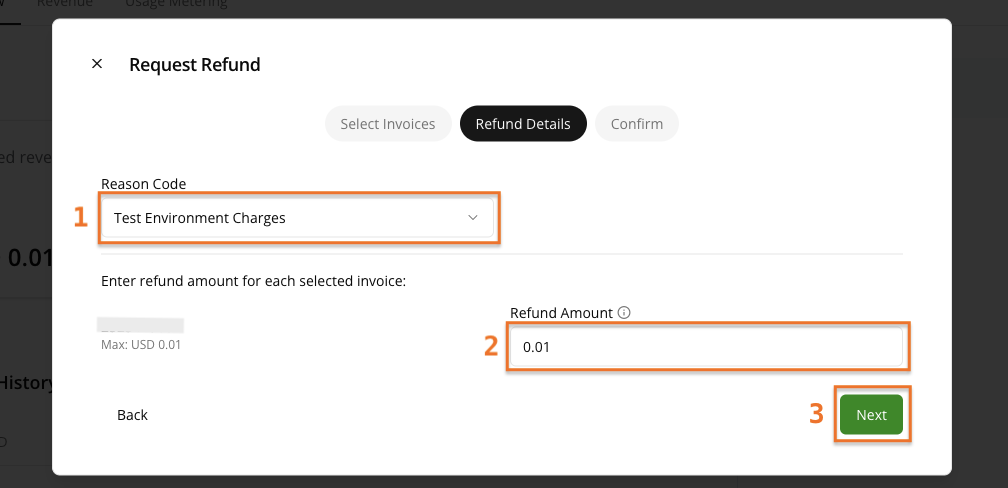
Select the Reason Code, then enter the Refund Amount.
-
Select Next, then review the refund details.
-
Select Submit when done.
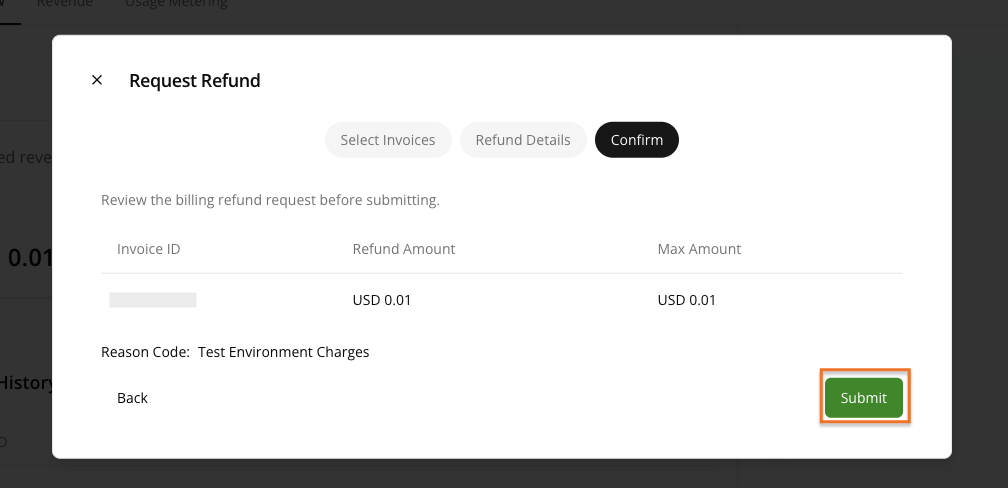
Billing adjustments are processed automatically once submitted and validated by AWS. The update typically appears on the customer’s AWS billing account within 24–48 hours.
What happens after a refund?
You don’t need to take any action after submitting, but here’s what to expect:
- If you’ve already been paid: AWS deducts the refunded amount from your next payout cycle.
- If the invoice is unpaid: the charges are adjusted before payment is collected.
AWS Marketplace fees are also recalculated based on the adjusted amount, not the original invoice total.
Track your requests
Cancellation requests
-
Go to the Entitlement page in the Suger Console.
-
Open the entitlement you want to check.
-
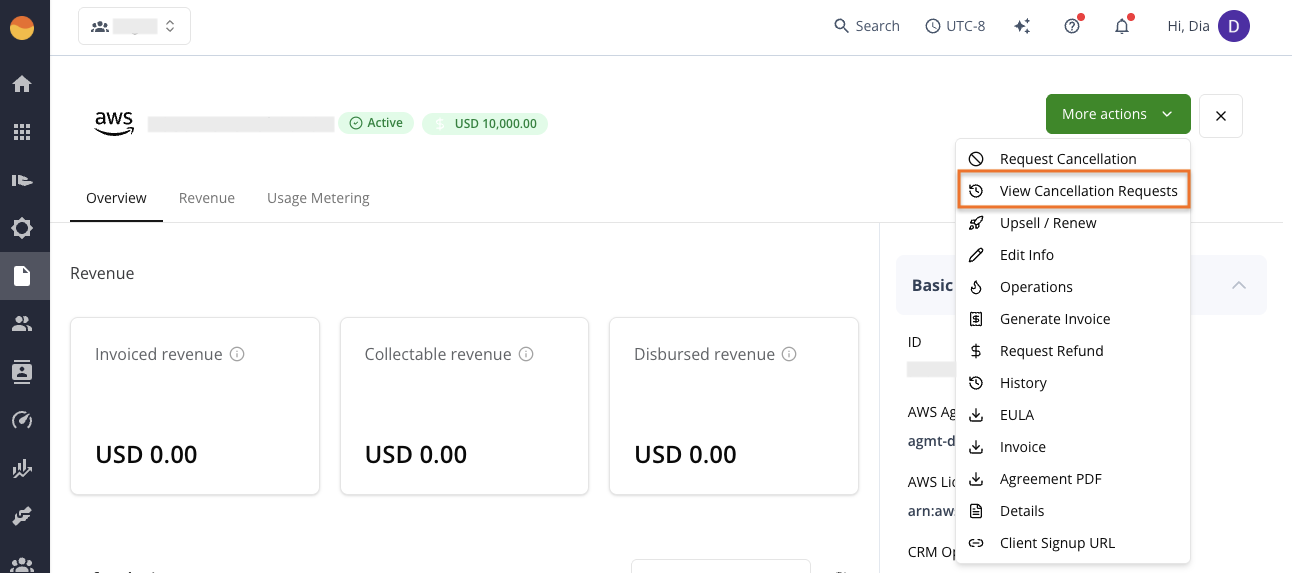
Click More actions in the upper-right corner, then select View Cancellation Requests.
Refund requests
Refund requests are processed by AWS after submission. While the billing adjustment may appear on the customer’s AWS billing account within 24–48 hours, refund details can take 1–2 months to appear in Suger because they are only reflected after AWS processes the updated customer billing data.
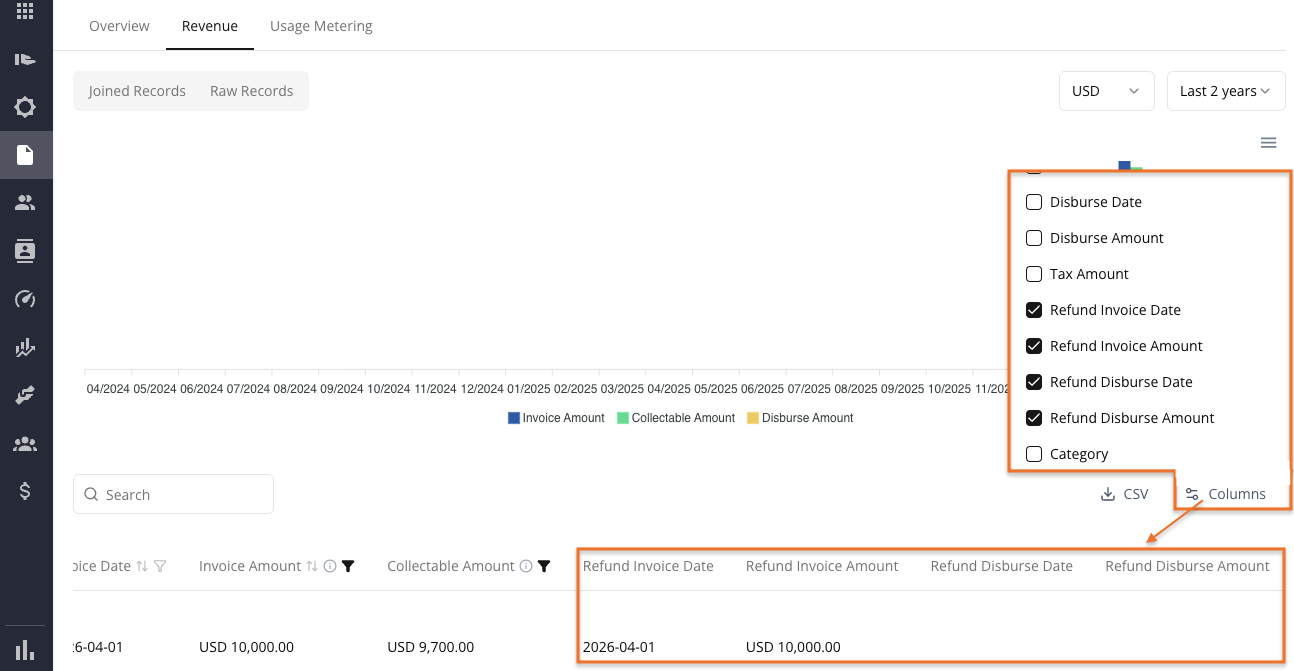
You can track processed refunds from the entitlement’s Revenue tab:
- Go to the Entitlement page in the Suger Console.
- Open the entitlement you want to check.
- Go to the Revenue tab and scroll down to the Refund History section.
- Review the dedicated refund columns: Refund Invoice Date, Refund Invoice Amount, Refund Disburse Date, and Refund Disburse Amount.
Frequently asked questions
Do I need to do anything to enable self-service cancellation and refunds?
No setup is required. The feature is automatically available to all Suger customers. If you don’t see the More actions button, make sure you’re viewing a specific entitlement record (not the main dashboard) and that your user role isn’t read-only.
Do I need to refund before canceling?
Yes. You must request the refund before cancellation. If you cancel first, you won’t be able to issue a refund afterward.
Can I still use AWS support tickets for cancellations?
Yes. However, the self-service workflow in Suger is typically faster and provides built-in request tracking from the entitlement record.
Does the SCABA process work for Channel Partner Private Offers (CPPOs)?
No, there is no SCABA process for CPPO agreements at this time. This AWS functionality is exclusively for direct transactions.
We need to refund an entitlement that was invoiced but not yet disbursed. Do we issue a $0 refund or wait?
You can still issue a refund as long as the invoice exists. AWS adjusts the invoice and prevents the payout from being disbursed.
Spotted something wrong or out of date on this page? Tell us and we'll correct it.