User Microsoft Outlook
Allow Suger to access your Microsoft Outlook account to send, receive, and manage emails on your behalf.
Overview
By integrating Suger with Microsoft Outlook, users can leverage automation workflows to enhance email productivity. Tasks such as sending emails can be automated, improving efficiency and enabling customized email workflows tailored to specific business needs.
Create User Integration
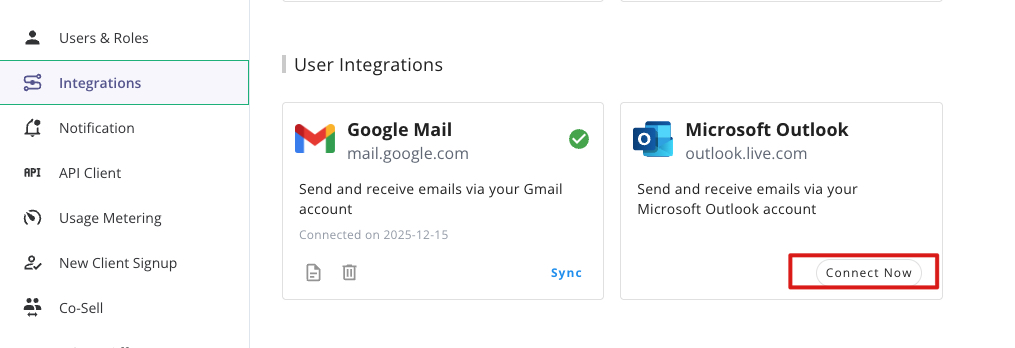
- Click the
Connect Nowbutton in the User Integrations section, you will be redirected to the Microsoft OAuth2.0 authentication page.
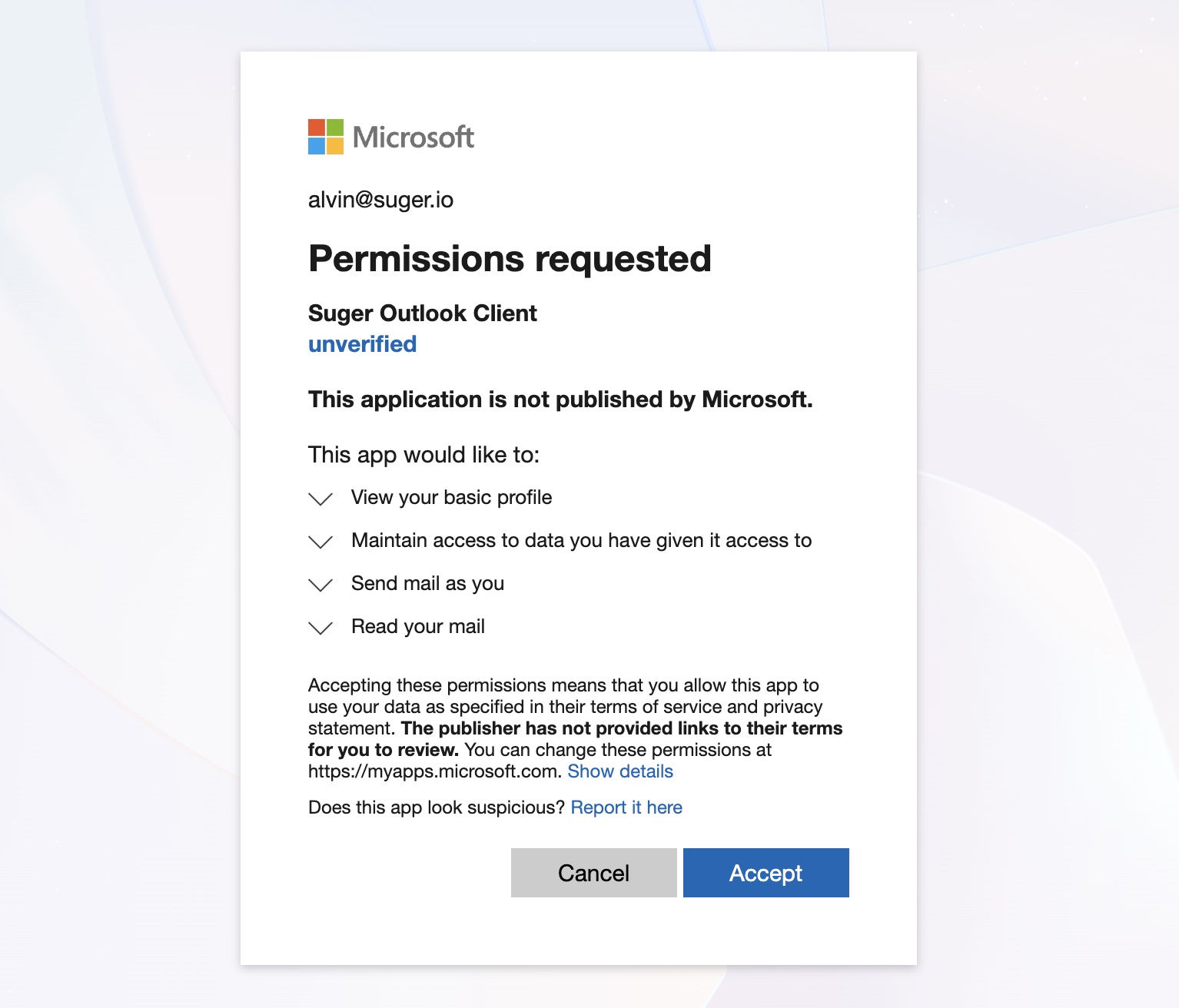
- Click the
Acceptbutton to grant Suger permission to access your Outlook account. This authorization enables Suger to read, send emails on your behalf.
-
After the authorization is granted, you will be redirected to the Suger console. You can see the integration is connected successfully.
-
Verify the integration by clicking the
Verifybutton. If the integration is successful, you will see theVerifiedstatus.
Edit User Integration
For security purposes, editing an existing Microsoft Outlook integration is not allowed. The practical way is to delete it and then re-create it from the beginning.
Delete User Integration
The Microsoft Outlook integration can be deleted in the same manner as other user integrations. Once deletion is initiated, all integration data—including credentials and access tokens—will be immediately and permanently removed from Suger. This action is irreversible, and there is no recovery window.
Deleting the integration in Suger does not automatically revoke permissions granted in Microsoft. To fully disable access, the user must also revoke the application’s permissions.
Steps to revoke Microsoft Outlook permissions:
- Go to Microsoft Account → Privacy
- Select Apps and services
- Locate the Suger application that was granted Outlook access
- Click Remove these permissions