
AWS Partner Central API
Overview
This guide walks you through setting up the AWS Partner Central integration using the Partner Central API.
With this integration, you can seamlessly sync opportunities, share referrals, and manage co-sell engagements with AWS.
Prerequisites
- Identity and Access Management (IAM) administrator
- handles permissions and technical setup in AWS (e.g. IAM roles, policies, or SSO).
- AWS Partner Central Alliance Lead or Cloud Administrator
- the primary account owner in AWS Partner Central, with authority to accept AWS Partner Network terms.
- CRM access
- AWS ACE currently supports Salesforce and HubSpot only.
1. Link AWS Seller Account to APN
Step 1. Identify an AWS account to link
Before linking, your Alliance Lead (or Cloud Admin) and IAM Administrator should select the AWS account that will be connected to Partner Central.
- General recommendation
- AWS recommends linking an account dedicated to APN engagements.
- If your company has multiple AWS accounts, consider selecting the one that:
- You use to sign in to AWS Partner Central
- Represents your global business
- Serves as the primary account for administrative tasks
- If you are an AWS Marketplace seller:
- You may choose to link a Marketplace seller account.
- If you own multiple Marketplace accounts, select your primary account such as the one with the most transactions.
Step 2. Grant Access to Your Team
Before linking your AWS account, ensure that the right permissions are in place. This step is handled by your IAM Administrator.
- The IAM Administrator must configure IAM policies so that Partner Central users (Alliance Lead or Cloud Admin) have the necessary access to complete the account linking process.
- Follow the AWS official guide: Account Linking Prerequisites → Granting IAM Permissions for the latest instructions on which IAM policies are required.
Step 3. Start the Linking Process
- Sign in to AWS Partner Central with an Alliance Lead or Cloud Admin role.
- On the homepage, click Link Account.
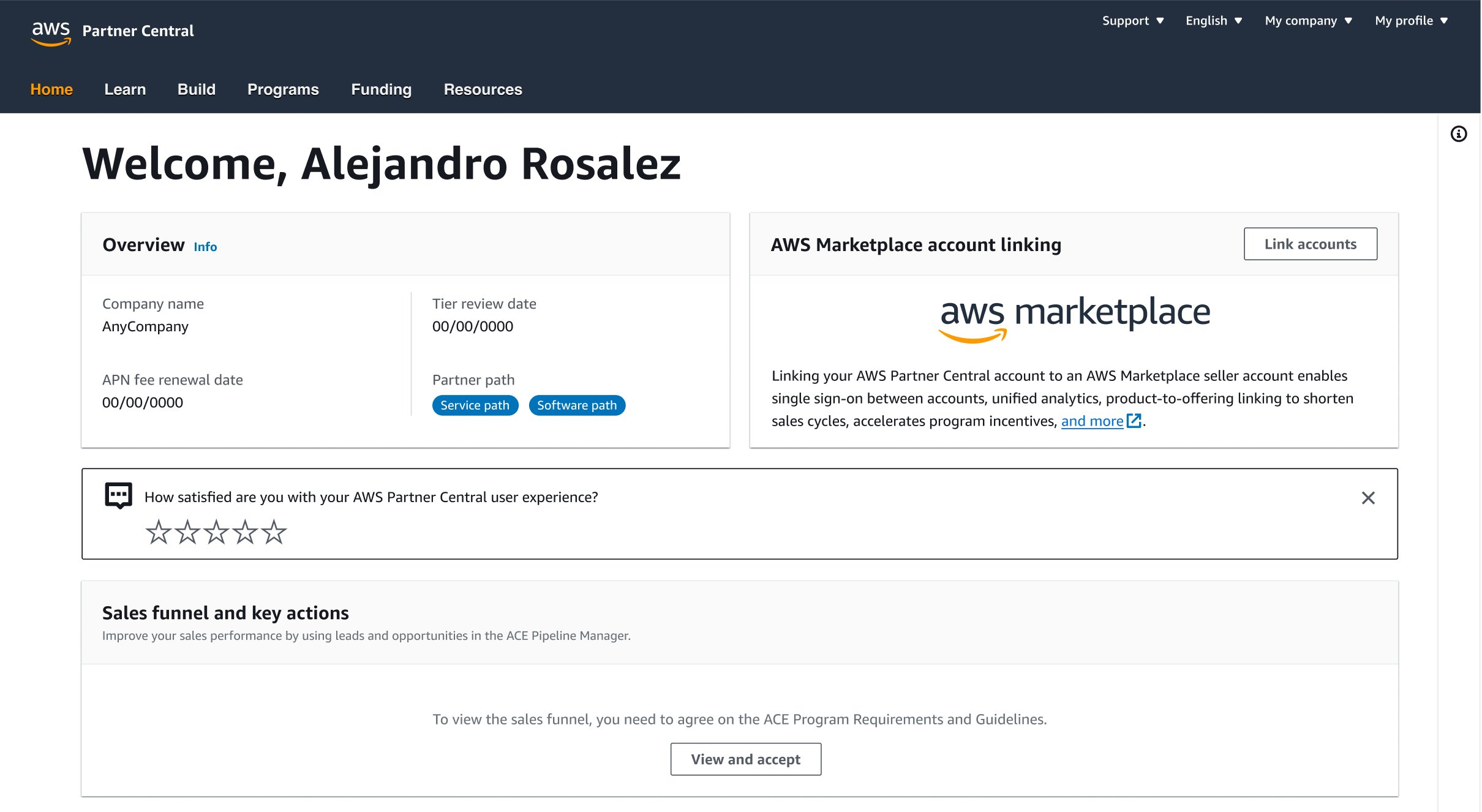
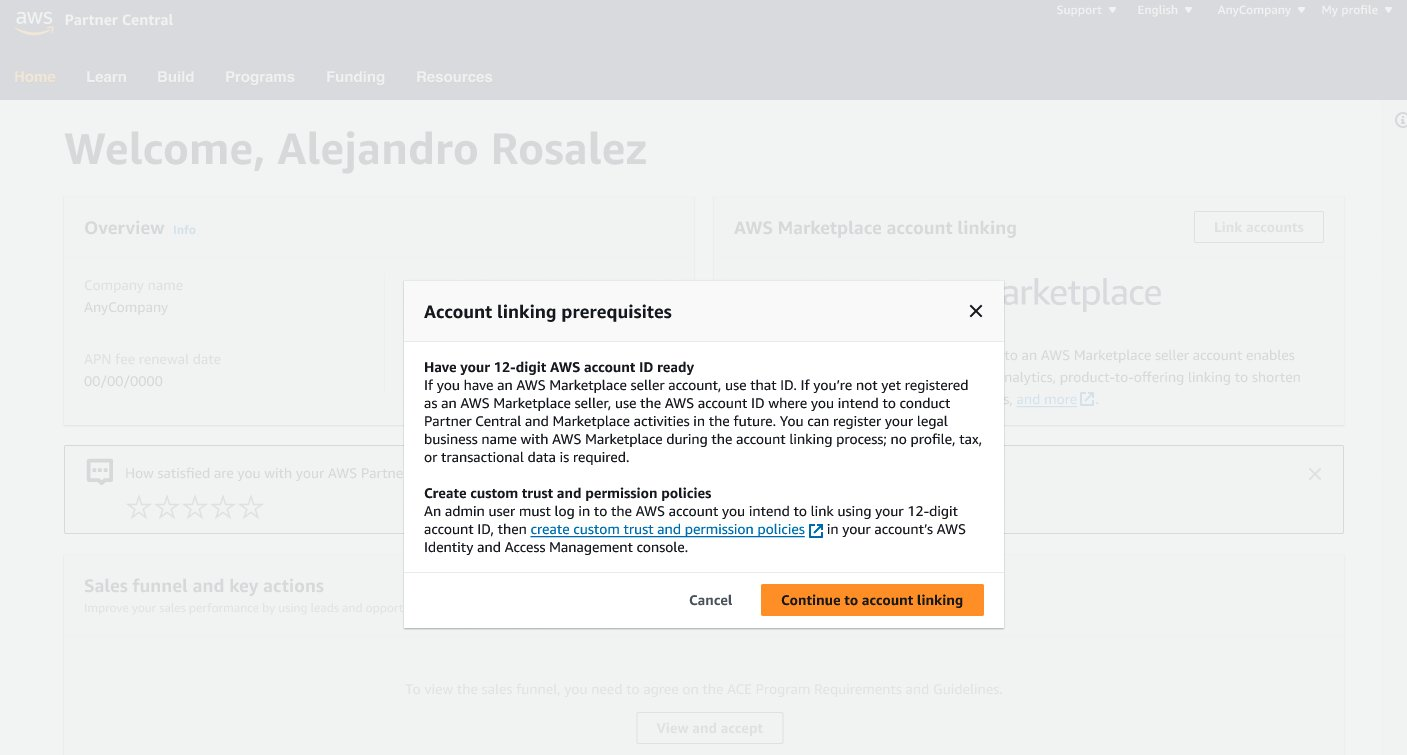
- Click Continue to Account Linking once Step 2 has been completed.
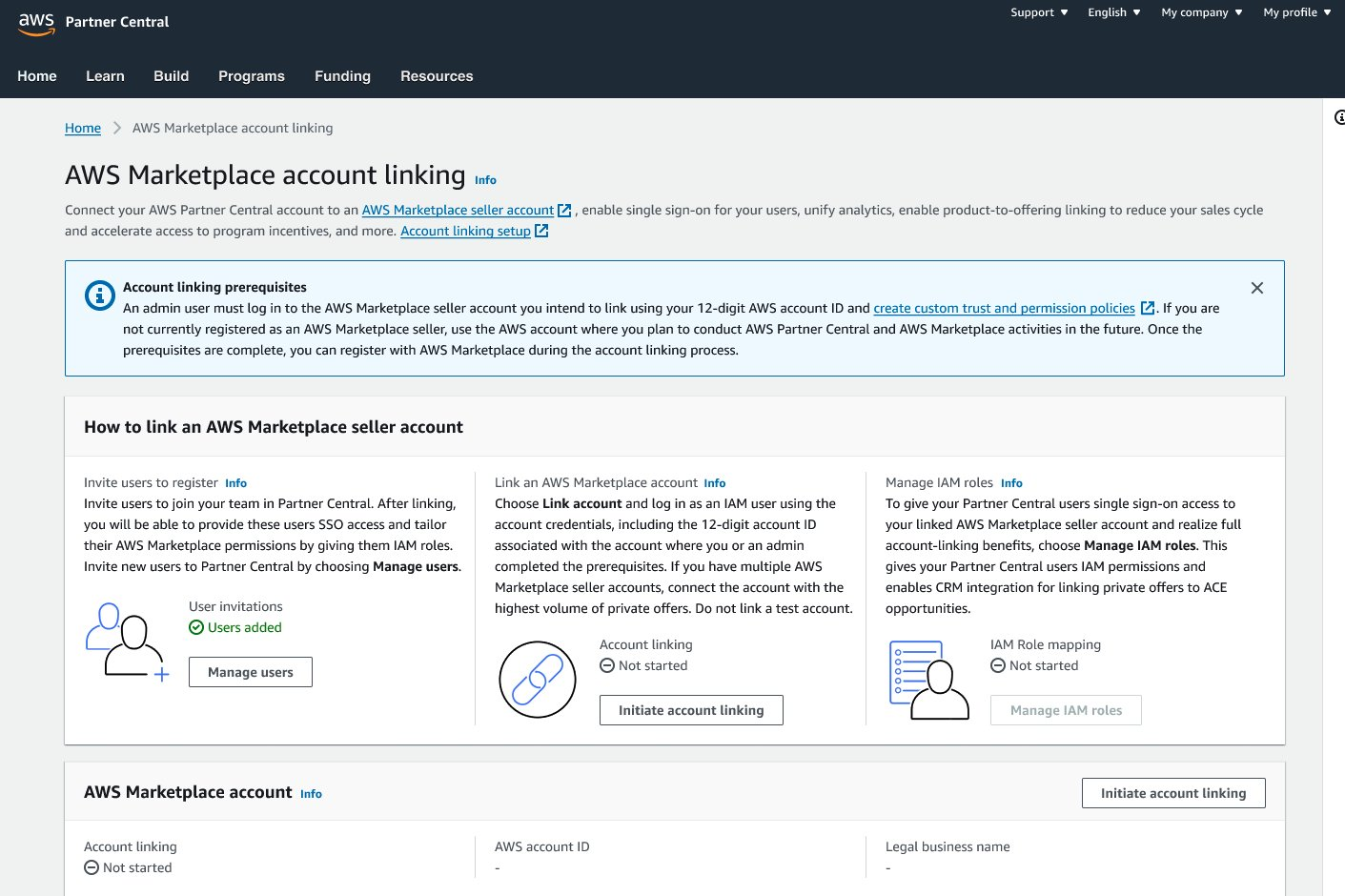
- Click Initiate Account Linking
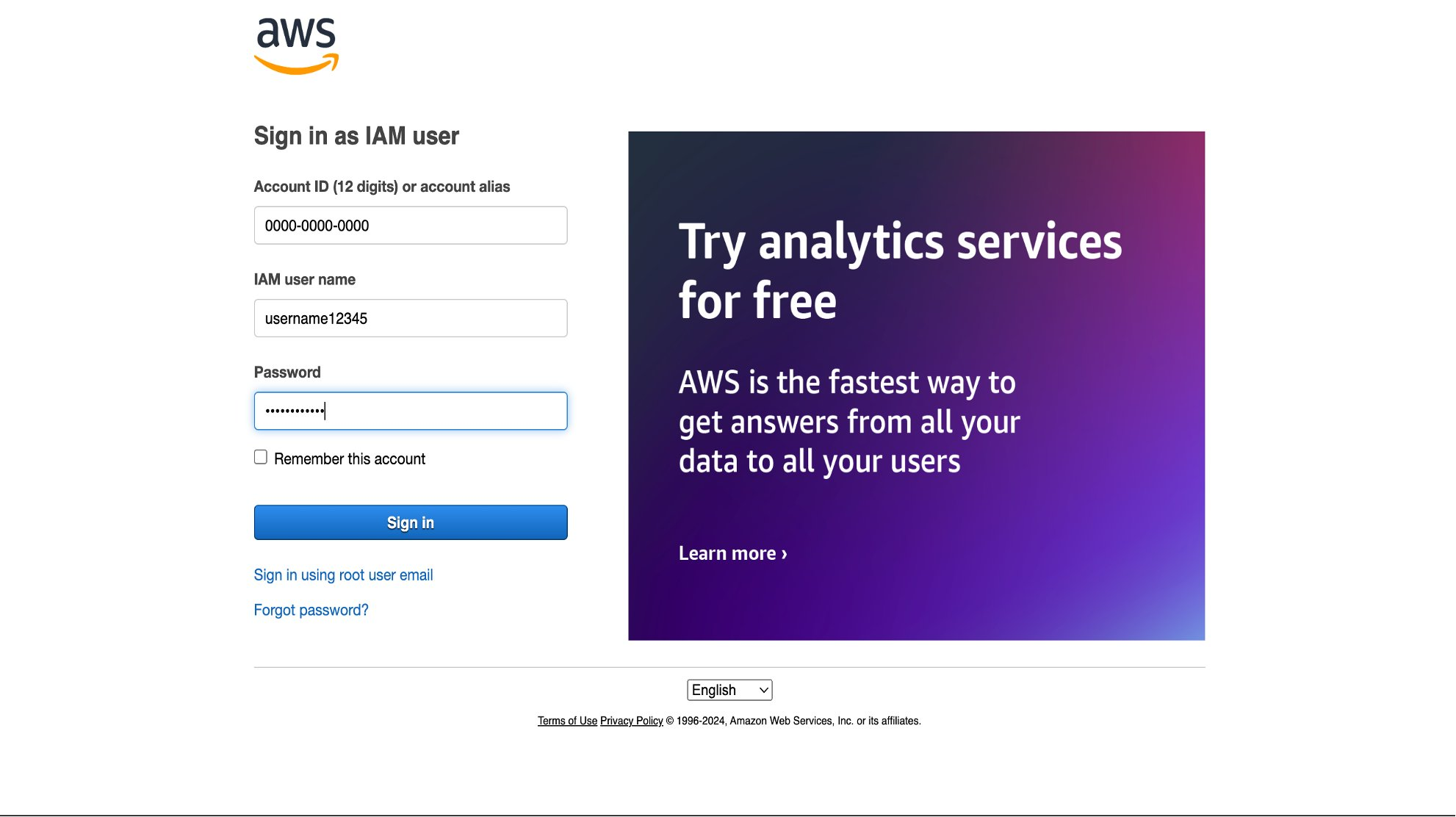
Step 4. Sign in to Your AWS Account
- Sign in with AWS account ID along with its IAM user name, and Password.
- If your organization uses single sign-on (SSO), use those credentials to sign in to your AWS account first, then sign in to AWS Partner Central.
Step 5. Provide Legal Business Information
- Enter your Legal Business Name and click Next.
- Doing this will register your account as a seller in the background, but:
- Your account will not become public-facing.
- You will not be able to list products until you complete the full Marketplace seller registration process separately.
- Regional note: If your company is under AWS India (Amazon Web Services India Private Limited), you can skip this step and proceed directly by clicking Next.
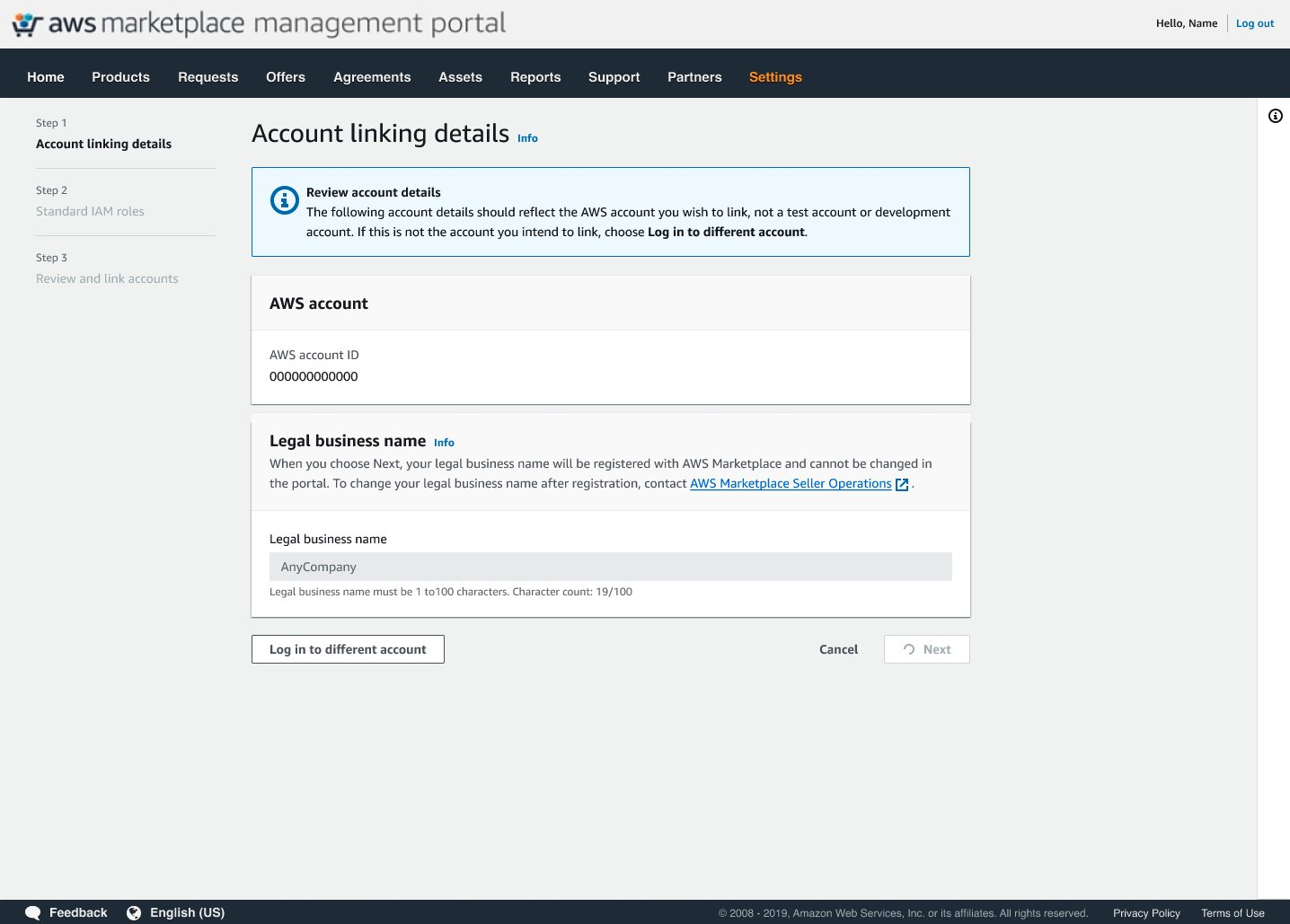
Step 6. Assign IAM Roles
- (Recommended) Check all the boxes to assign IAM roles (eg. Cloud Admin, Alliance Team, and ACE team) to existing Cloud Admins, Alliance Team, and ACE users in AWS Partner Central.
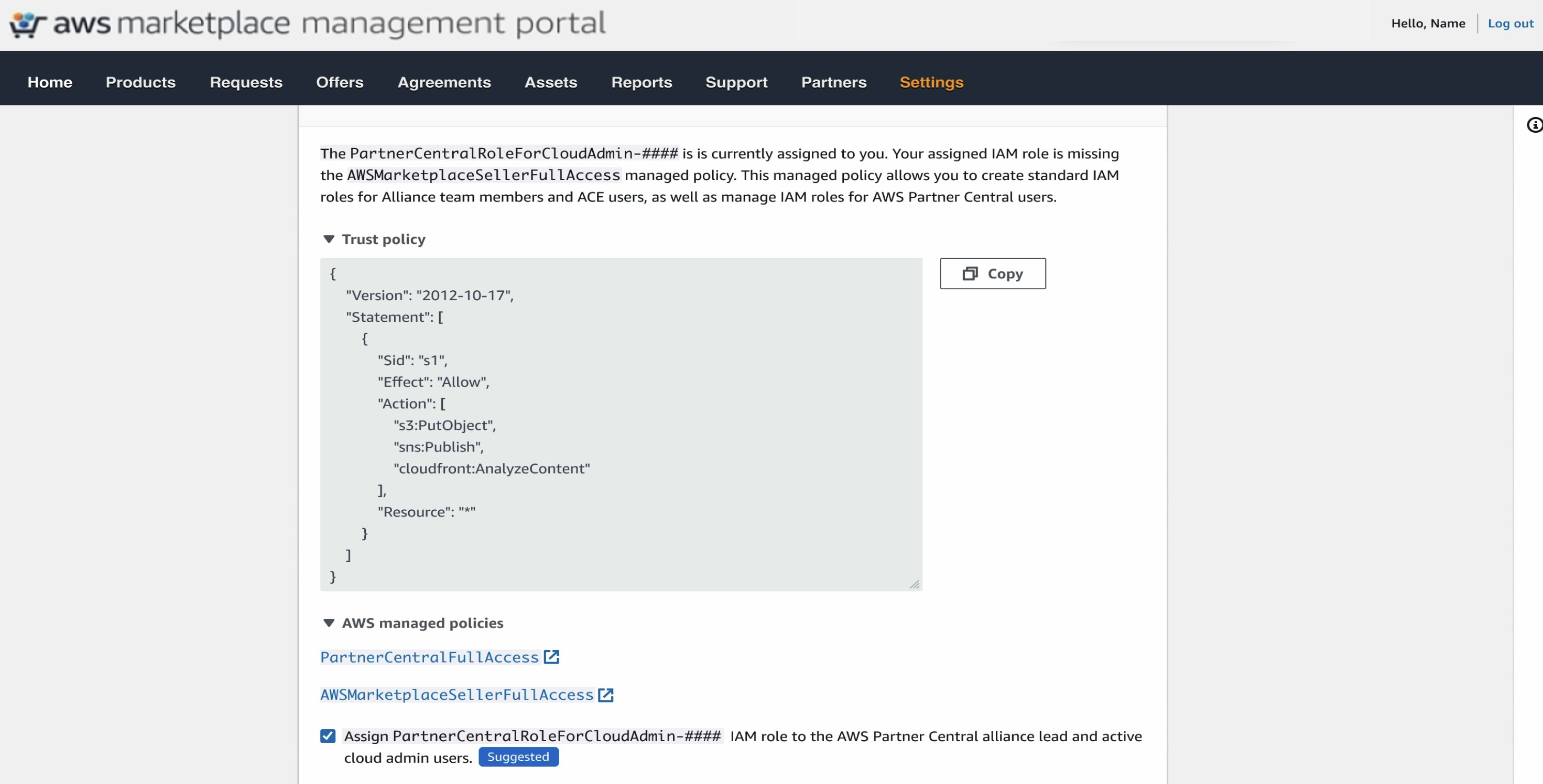
- Click Next button.
Step 7. Verify Linking Status
- Verify account linking status is green and states Completed under both sections.
- Click on Refresh status button to see updates on IAM roles mapping progress.
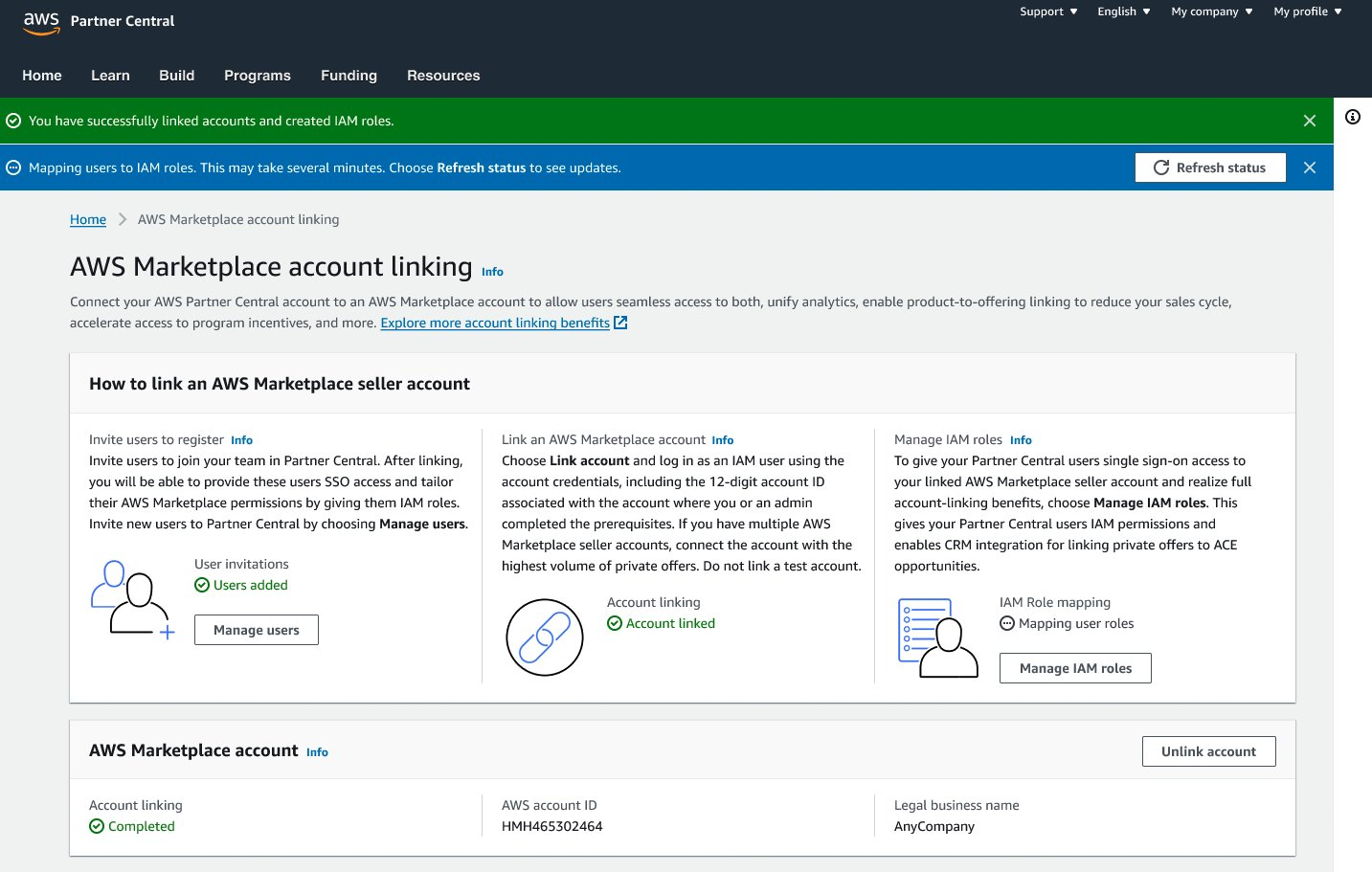
2. Configure Integration in Suger
Step 1. Access the Suger Integrations page
- In the Suger Console, go to Integrations → AWS ACE.
- Click Connect Now on the AWS ACE card.
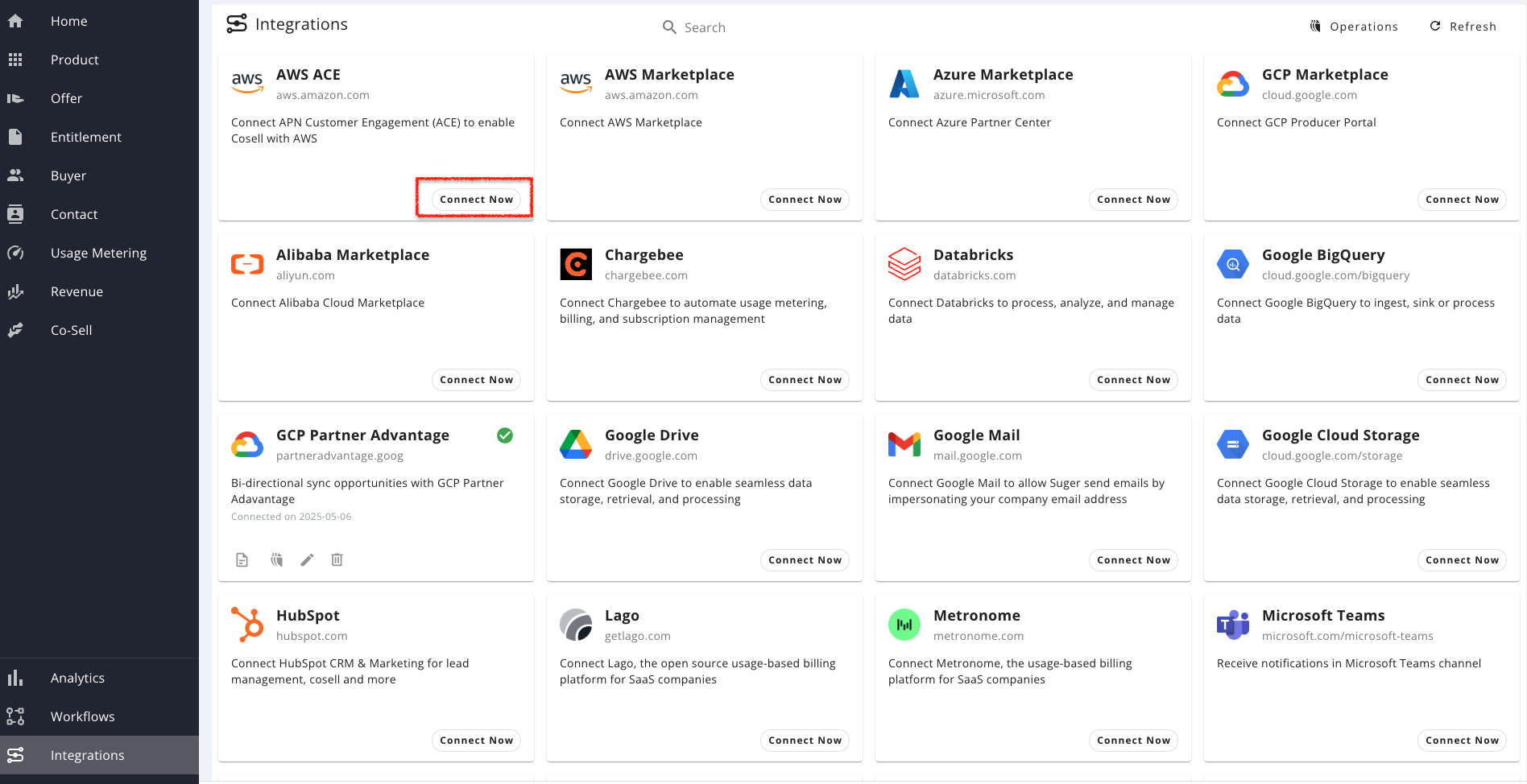
Step 2. Create IAM role via CloudFormation
- Click Create IAM role via CloudFormation. You will be redirected to CloudFormation in the linked AWS seller account.
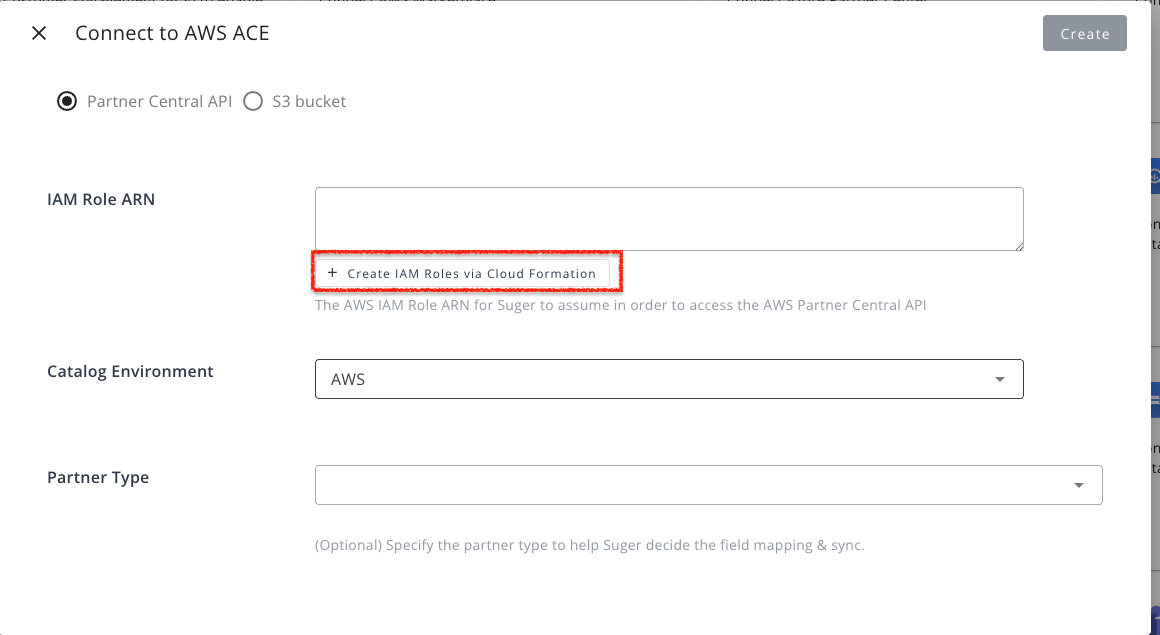
- Sign in with AWS account ID along with its IAM user name, and Password.
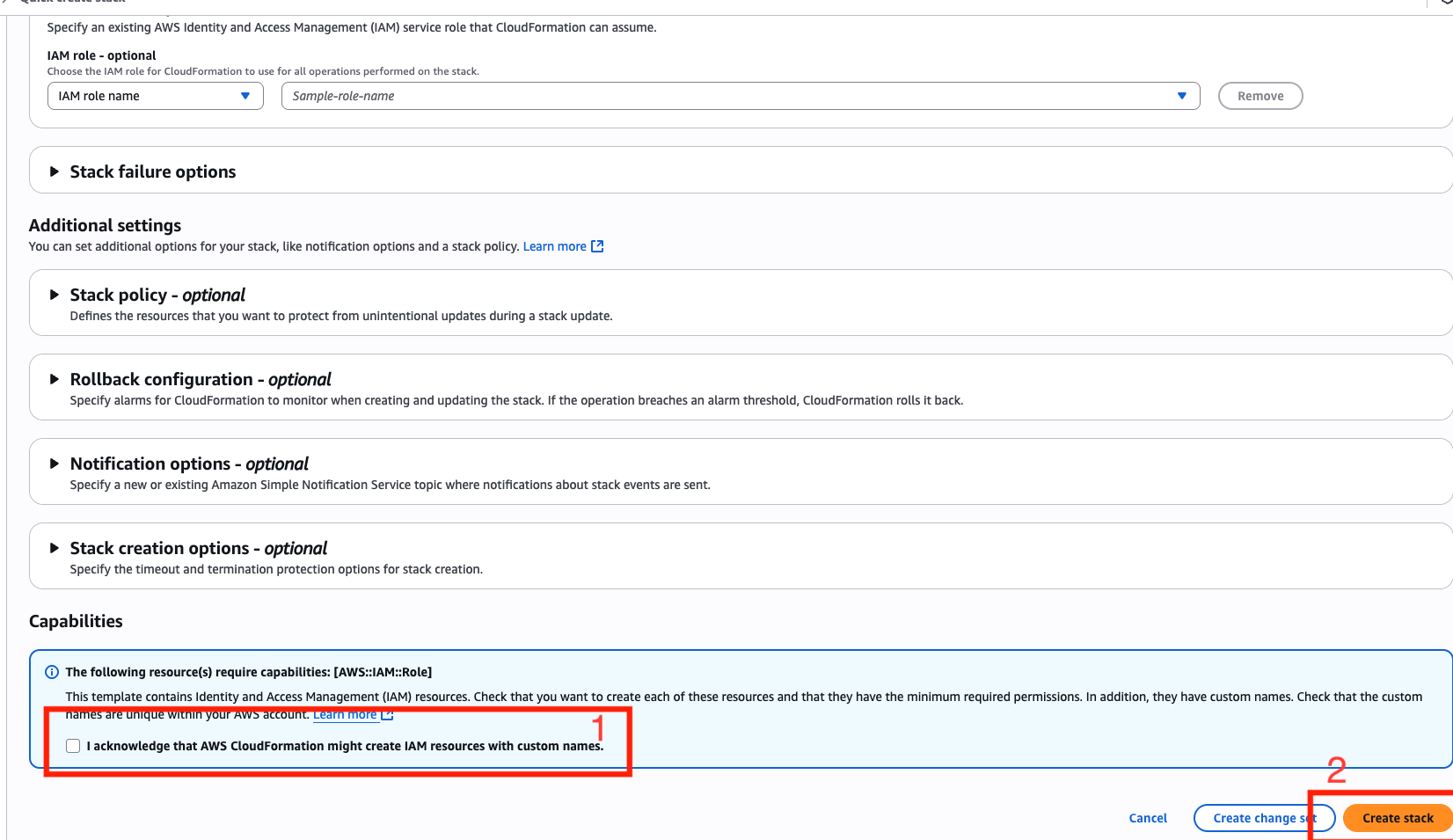
- Check the acknowledgment box and click Create Stack. All required fields are pre-populated.
Step 3. Verify the IAM Role Policies
- Find the created IAM role under the Resources tab or by navigating to IAM → Roles.
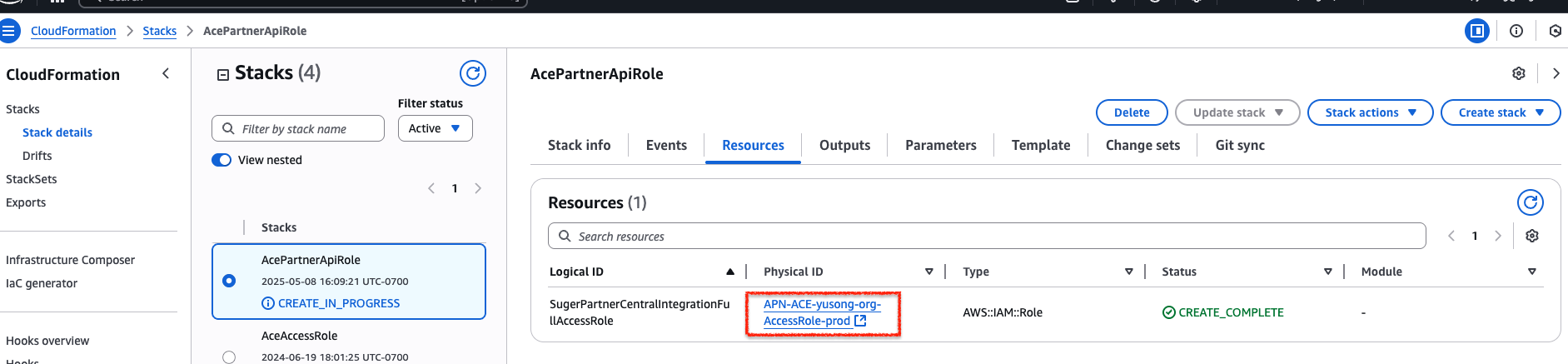
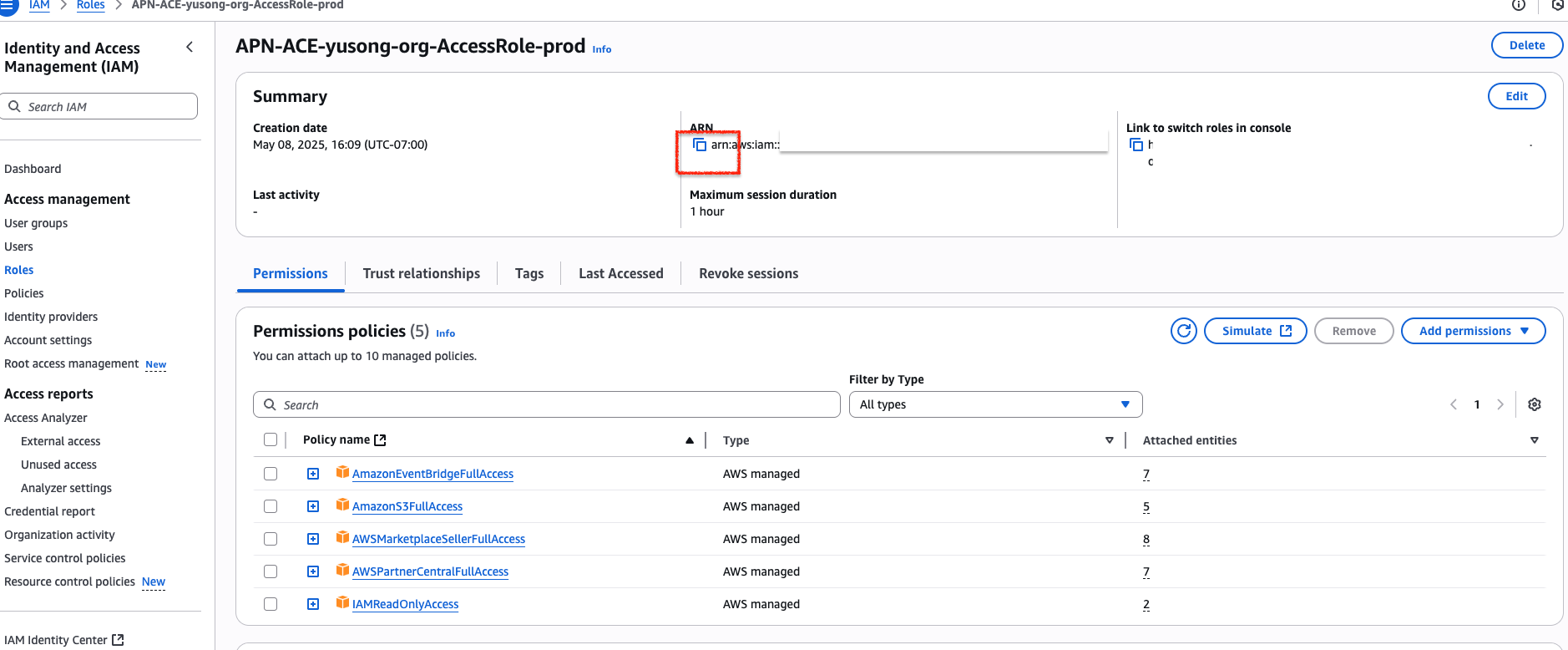
- The IAM role is automatically created with these AWS managed policies:
AmazonEventBridgeFullAccess&IAMReadOnlyAccess: allow EventBridge rules and webhooks for APN opportunity changes.AmazonS3FullAccess: optional, for S3-bucket-based integration.AWSMarketplaceSellerFullAccess&AWSPartnerCentralFullAccess: enable linking APN opportunities with Marketplace private offers and Marketplace product listings.
Step 4. Connect IAM role to Suger
- Copy the ARN of the generated role.
- Paste it into the Integration IAM Role ARN field in Suger.
- Click Create.
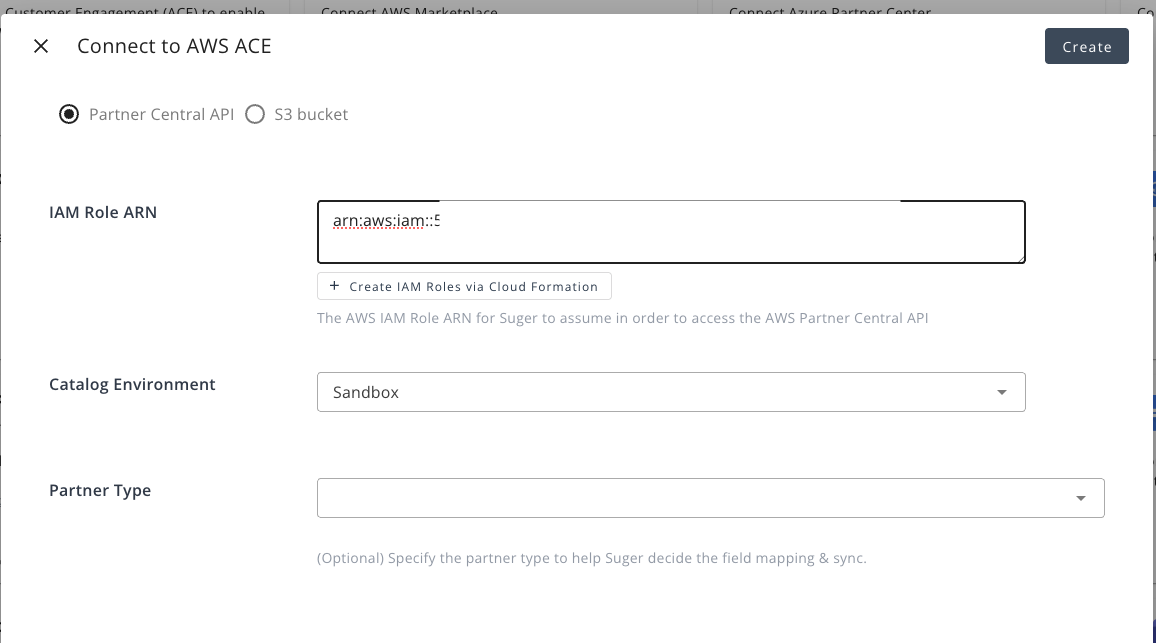
Step 5. Verify integration
- Click Verify in Suger.
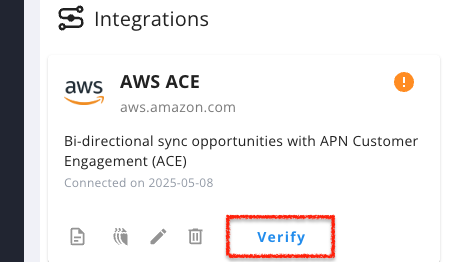
- When verification succeeds, the status will show Connected.
Step 6. Perform Data Synchronization
-
In the Suger Console → Co-Sell → AWS ACE, click the Inbound Sync button to pull opportunity data from APN into Suger.
-
Go to Settings → Integrations → AWS ACE → Operations and wait until the inbound sync status changes to Completed.
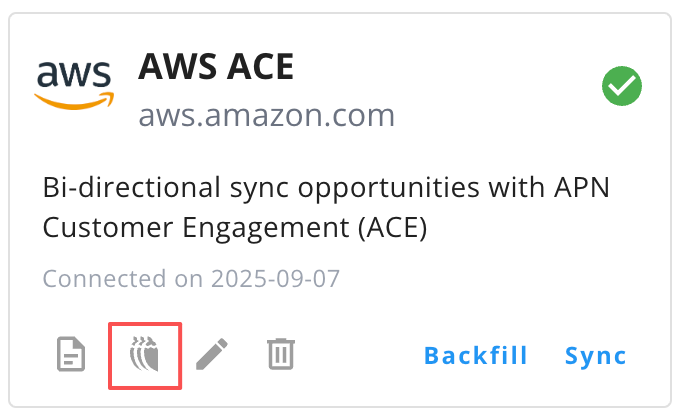

-
Now you are all set!
Troubleshooting
| Issue | Cause | Resolution |
|---|---|---|
Error: Record not editable | You tried to update an opportunity that is currently under ACE review. | These opportunities cannot be edited until they are validated by AWS. |
Errors: Missing IAM Role Mapping, Missing Permission, or Access denied | An AWS Partner Central user wasn’t mapped to an IAM role. | Ask your Alliance Lead or Cloud Admin to map the appropriate role to the user. |
| Integration progress is not updating in the AWS Partner Central portal | The integration process is unverified or unfinished. | Verify the account linking status is green and shows Completed under both sections, then click Refresh status to see the latest updates on your IAM role mapping progress. |
Frequently Asked Questions
How long does data synchronization take?
This typically takes a few minutes, though the actual duration depends on the number of APN opportunities being fetched.
Should I use the legacy S3 integration?
No. The S3-based integration is deprecated — AWS no longer provisions it for new users (unavailable since 2024), so new S3 connections cannot be created. Start with the AWS Partner Central API integration described on this page. Existing S3 connections remain supported for now; see the S3-to-API migration guide.
Delete Integration
To delete the integration, simply click the 🗑️ button in the Integrations list. Once the deletion is triggered, all integration information, including the access token, will be immediately and permanently deleted from Suger.
Spotted something wrong or out of date on this page? Tell us and we'll correct it.