AWS Funding Integration Guide
Overview
This guide covers everything you need to activate and use AWS Funding inside the Suger platform. Suger connects directly to the AWS Partner Central API, allowing you to submit, track, and manage funding requests without leaving your workflow.
Before funding can be activated, two prerequisites must be in place. Once those are confirmed, you can edit your ACE integration in Suger and enable funding in a few steps.
Prerequisites
Both of the following conditions must be met before funding can be activated:
1. AWS ACE connected to Suger
- Your AWS ACE integration must already be set up and active in the Suger Console.
- This connects Suger to your AWS Partner Central account via the Partner Central API.
- If you have not yet set up this integration, complete it first before proceeding.
See AWS Partner Network API Integration.
2. ACE portal migrated to Partner Central 3.0 (PC3.0)
- Your ACE portal must be fully migrated to Partner Central 3.0.
- This migration is a mandatory AWS requirement before funding benefits can be enabled.
- The Funding Benefits API is only available on the PC3.0 platform.
- Contact your AWS Partner Manager if you are unsure of your migration status.
Step 2 (Enable Funding Application) can only be completed after your Partner Central 3.0 migration is confirmed. Attempting to enable funding before migration is complete will result in an error.
Activating AWS Funding in Suger
Once both prerequisites are satisfied, follow the steps below to activate funding.
Step 1: Edit your ACE integration in Suger
Navigate to your integration settings and open the AWS ACE configuration:
- Log in to the Suger Console.
- Go to Integrations and select AWS ACE.
- Click Edit Integration to open the configuration panel for AWS - ACE (Partner Central API).
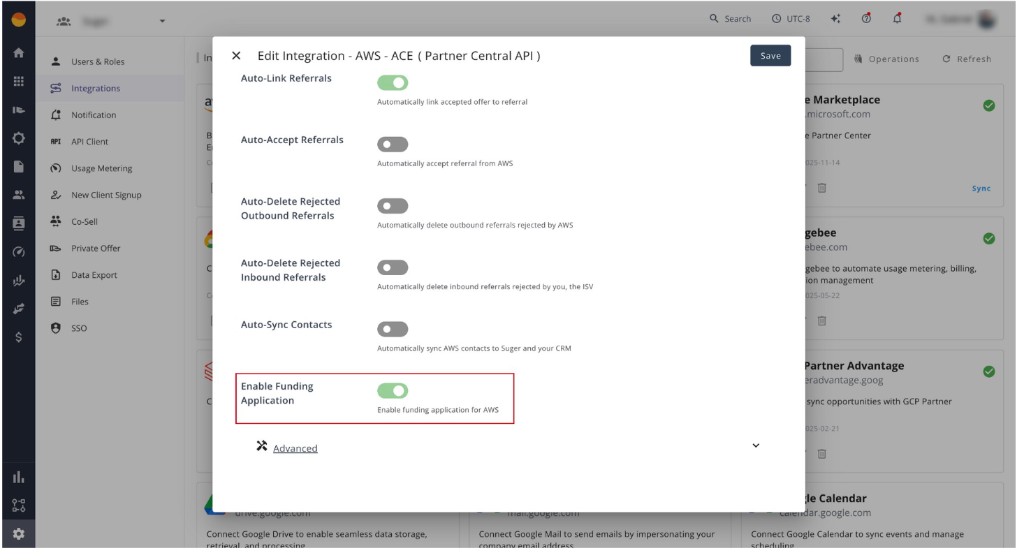
Step 2: Enable funding
In the Edit Integration panel, turn on Enable Funding Application (“Enable funding application for AWS”), then click Save.
This step uses the Partner Central Funding Benefits API and is only available after AWS has confirmed your Partner Central 3.0 migration. If migration is not complete, enabling funding will fail with an error.
Accessing Funding in the Suger Console
Once funding is activated, it is accessible directly from the Suger Console. No additional setup is required to start submitting requests.
Funding tab
Navigate to the Funding tab in the Suger Console to view all your funding activity:
- Submit and manage funding requests.
- View the full history of past funding submissions.
- Access Funding Wallets for budget and balance visibility.
The Funding tab is available to all users with access to the Suger Console. Visibility and permissions are controlled at the integration level, not per-user.
For assistance with any step in this guide, contact your Suger Customer Success Manager.