
Marketplace
Marketplace is where you discover and install reusable Insulin capabilities — agents and skills — for yourself or, as an org admin, for your whole organization.
What Is the Marketplace?
Marketplace is a curated catalog of pre-built agents and skills for common workflows. Instead of building everything from scratch, you browse the catalog, review an item, and install it into your workspace.
Installed items become part of your workspace: you can use installed agents in conversations, assign them to jobs, add them to channels, and enable or edit installed skills for your team’s needs.
Stores: Personal and Organization
Open Marketplace from the desktop dock. It opens as a window with a left sidebar. Depending on your role, the sidebar shows one or two stores, and each store has an Agents and a Skills entry:
| Store | Who sees it | What installing does |
|---|---|---|
| Personal | Everyone | Creates a private copy in your own workspace. |
| Organization | Org admins only | Creates an org-shared copy that is visible to your whole organization. |
The Organization store is shown only to org administrators. Installs, imports, edits, and deletes at the Organization store affect everyone in your organization and require admin access.
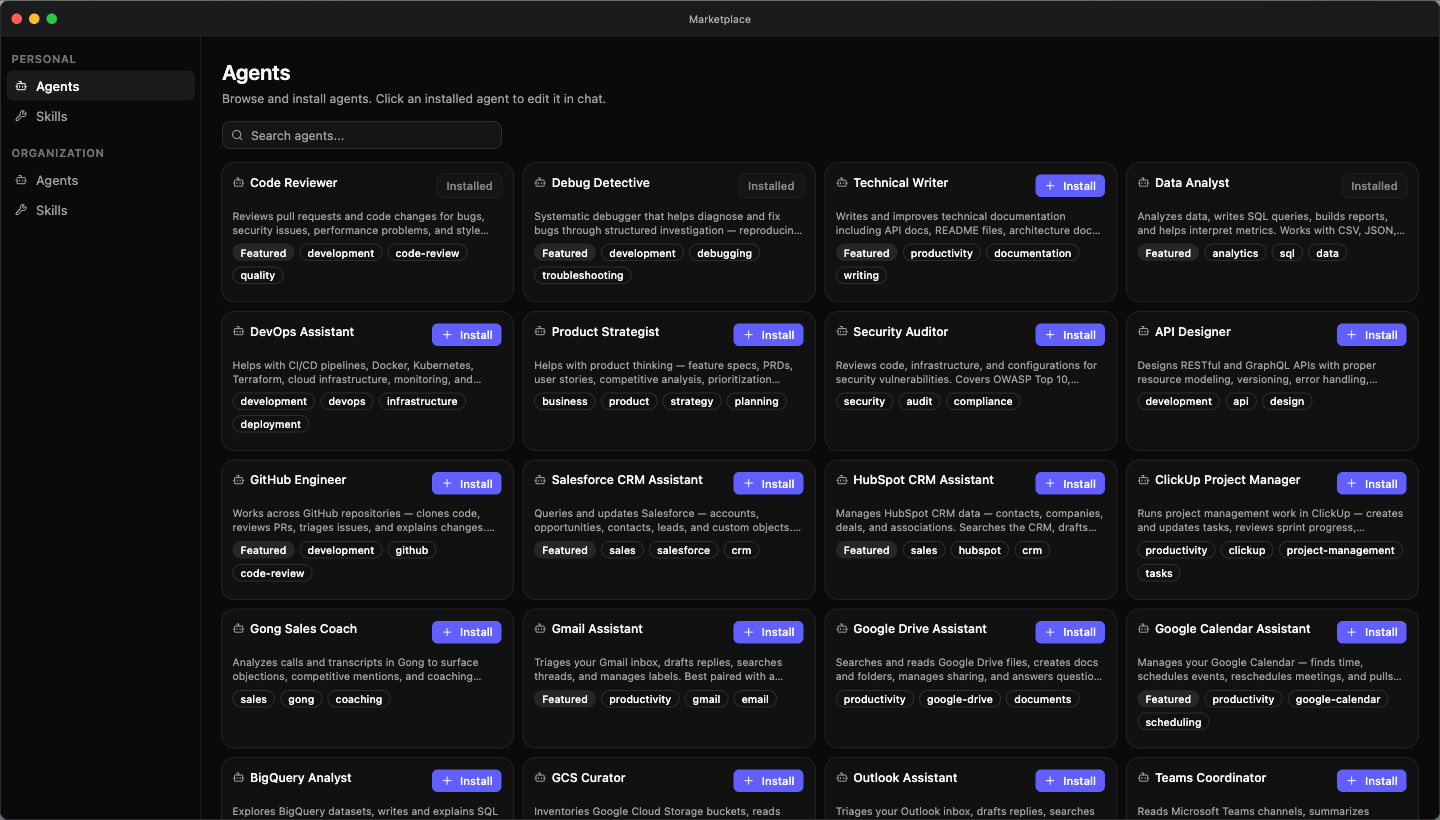
Installing an Item
- Open Marketplace
- Pick the Personal or (as an admin) Organization store
- Open Agents or Skills
- For skills, stay on the Skill Store tab (where templates live)
- Search or browse, then open a card to review its details
- Click Install
Installing is idempotent: re-installing the same item does not create a duplicate — it returns your existing copy, and installed cards show an Installed badge.
Skills
What Are Skills?
A skill is a markdown-based instruction package containing procedures or domain knowledge. When an agent needs information a skill covers, it loads the skill’s content into its context and follows the instructions within.
Skills let you codify team knowledge — standard operating procedures, style guides, troubleshooting runbooks, product specs — and make it available to any agent during a conversation.
How Agents Use Skills
During a conversation, an agent loads relevant skills on demand. The agent reads the skill’s content and incorporates it into its response. This means:
- The agent follows procedures documented in the skill
- The agent applies domain-specific rules and constraints from the skill
- The agent references terminology and definitions from the skill
You do not need to manually tell an agent to use a skill. Agents discover and load enabled skills automatically based on relevance to the current conversation — a skill’s Trigger (described below) helps them decide when it applies.
The Skills Page
Each Skills page (Personal or Organization) has two inner tabs:
| Tab | Contents |
|---|---|
| Skill Store | Suger-curated skill templates. Install lives here. Templates are authored by Suger admins under Settings → Template, so the store may be empty for some organizations. |
| My Skills (Personal) / Org Skills (Organization) | The skills you own at this store. Each card has an Enable/Disable toggle, plus Delete and a click-through detail view. |
Use the search box to filter either tab by name, description, category, and tags (the My/Org Skills tab also matches a skill’s trigger). Featured templates carry a badge in the Skill Store — there is no separate Featured filter.
Adding a Skill
The Add dropdown (top-right of the Skills page) is where every skill comes in. How many methods it offers depends on which store you are in — four in the Personal store, three in the Organization store:
| Method | Personal | Organization | What it does |
|---|---|---|---|
| Build with Agents | Yes | — | Opens Chat seeded with a prompt so you can author a skill collaboratively via the /skill-creator command. |
| Upload a skill | Yes | Yes | Drop a .md/.markdown file or a .zip package from your computer (see below). |
| Import from GitHub | Yes | Yes | Paste a GitHub URL — a repo, folder, blob, or a raw SKILL.md URL. |
| Install from SkillsMP | Yes | Yes | Search skillsmp.com and import a public skill from its underlying GitHub package. |
Build with Agents is the only difference between the two stores. A skill you author in chat is always personal, so the Organization store does not show that option at all — its Add dropdown lists the other three.
Uploading a skill
- On the Skills page, click Add → Upload a skill
- Drag and drop a file, or click to browse:
- A single markdown file (
.mdor.markdown, up to 50 KB) - A
.zippackage (up to 10 MB) — the zip must include aSKILL.md; referenced files (references, scripts, assets) are preserved for runtime loading
- A single markdown file (
- For a markdown file, click Generate — Insulin normalizes it into a draft. Review and edit the prefilled fields (name, description, prompt, trigger, category, tags), then click Save. Name, description, and prompt are required.
- For a
.zippackage, click Import — it imports directly, no review step
The skill is now available to agents in your workspace.
The Trigger Field
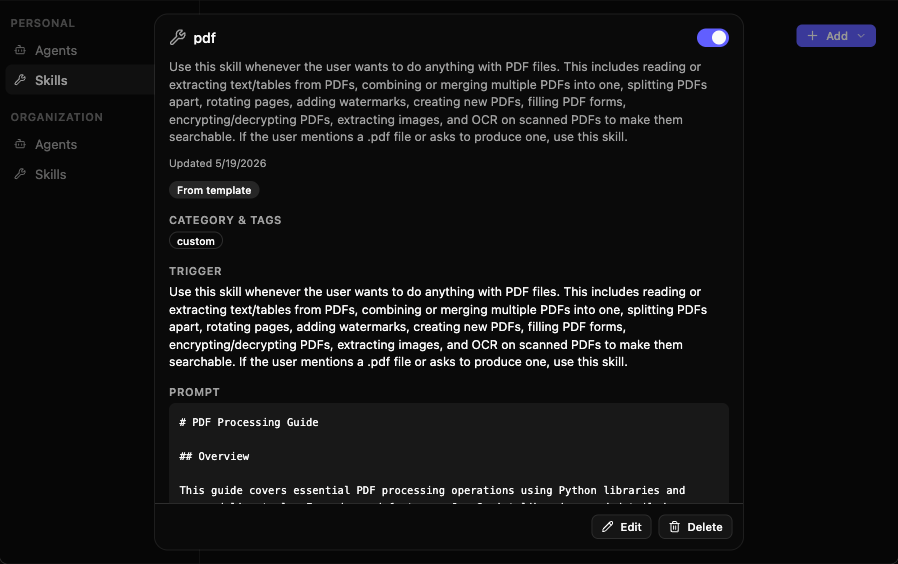
Every skill has a Trigger — a short description of when the skill applies. Agents use it to decide whether a skill is relevant to the current conversation. When you upload or import a markdown skill, the trigger defaults to the skill’s description; you can edit it in the review form or later from the skill’s detail view.
Skill Format
Skills are markdown-based packages. A simple skill can be a single markdown file; a packaged skill can include supporting files such as references, scripts, or assets. A well-structured skill includes:
- A clear title describing the skill’s purpose
- Step-by-step instructions or reference material
- Examples where helpful
- Constraints or rules the agent should follow
# Creating AWS Private Offers

## Steps

1. Verify the buyer's AWS account ID
2. Confirm pricing terms with the sales team
3. Set the offer expiration date (default: 14 days)
4. Include a custom EULA if required by the buyer

## Rules

- Never create offers with more than 30% discount without VP approval
- Always include the standard support terms
- Expiration date must be at least 7 days from creationManaging Skills
Open a skill from the My Skills / Org Skills tab to reach its detail view. Skill cards show a provenance badge (From template, Uploaded, From GitHub, From SkillsMP, Built with Agents, or Custom) so you can tell where each skill came from. The detail view shows the same badges, except a SkillsMP-imported skill appears there as Custom. From here you can:
- Enable / Disable — Toggle whether the skill is available to agents. A disabled skill stays in your library but is excluded from agent use — no need to delete it.
- Edit — Update the skill’s name, description, prompt, trigger, category, or tags
- Delete — Remove the skill from your workspace (cannot be undone)
What Gets Installed
Installing a catalog item copies its payload into your workspace. Agents and skills carry different payloads:
| Item | What is copied |
|---|---|
| Agent | System prompt, default model, welcome message, conversation starters, and icon. |
| Skill | Prompt body, trigger, category, tags, and any auxiliary files (from a packaged skill). |
Installed agents appear in your agent list; installed skills appear in your My Skills / Org Skills tab. You can customize them after installation — they are fully yours to edit.
Managing Installed Items
After installation, agents and skills from the marketplace behave identically to ones you create yourself. You can:
- Edit an agent’s system prompt or configuration, or a skill’s fields
- Assign agents to jobs or channels
- Enable, disable, or delete items you no longer need
Discovering New Capabilities
The marketplace catalog is updated as new agents and skills are added. Check back periodically, and use the search box to find items by name, category, or tags. Featured items are badged in the catalog.
Spotted something wrong or out of date on this page? Tell us and we'll correct it.