
Jobs
Jobs are automated agent runs — started on demand, on a recurring schedule, or when an event arrives.
What Are Jobs?
A job is one thing: a definition (which agent, and what to ask it) plus a trigger that decides when it runs. There is no second kind of object to learn — a job you start by hand and a job that fires on a schedule are the same record with a different trigger.
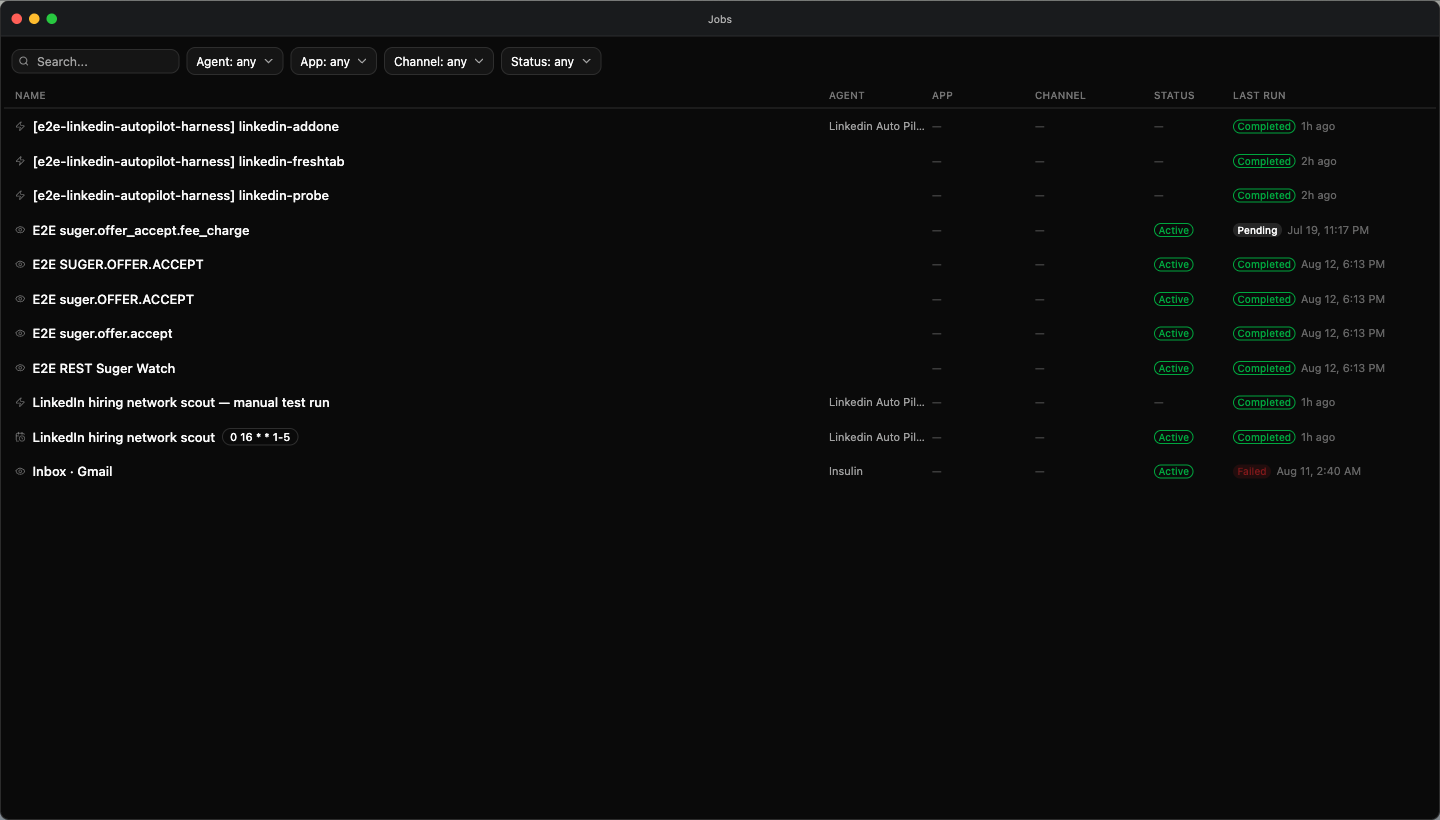
The Jobs app opens as a searchable table of every job you can see. Each row carries an icon for its trigger kind; hover the icon for a tooltip naming it.
| Trigger | Icon | Tooltip | How it works |
|---|---|---|---|
| Manual | Lightning bolt | Manual | Runs the agent once, when you start it. |
| Cron | Calendar clock | Cron | Runs the agent on a recurring schedule defined by a cron expression. |
| Push | Eye | Push | Listens for events. When one arrives, the job evaluates its filter and runs the agent if the event passes. |
Open a job and the same information appears as a badge on its detail page reading Manual, Cron, or Push.
Every trigger creates a run record you can inspect, so you always have visibility into what ran, when, and whether it succeeded.
Reading a row
Beside each job’s name sit small tags saying what kind of job it is and whether it is switched on. The Status column carries the latest run’s status as a chip of its own, so the column you scan for status is the one that has it.
| Tag | Appears on | Means |
|---|---|---|
| manual / cron / push | Every row | The job’s trigger kind |
| goal | Goal jobs | The job runs a goal loop rather than a single turn (see below) |
| active | Cron and push rows | The job is switched on and will fire |
| off | Cron and push rows | The job is switched off and will not fire on its own |
A manual job carries no active/off tag, because it has no switch to be in either state.
Single-turn and goal jobs
Beyond its trigger, a job runs in one of two modes:
| Mode | What a run does | Leading icon |
|---|---|---|
| Single | One agent turn — ask, answer, done. The default. | The trigger kind’s own icon |
| Goal | A goal loop pursued across rounds until the objective is met or you stop it | A target |
A goal job is the long-running work surface with a job record behind it, and its detail page links back to the conversation the rounds are written into.
Finding a job
The list header holds a Search… box plus four filters:
| Filter | What it narrows to |
|---|---|
| Agent | Jobs that run under one agent. |
| App | Jobs created from one Insulin app. Jobs created before app provenance was recorded, or created by an agent with no app context, group under Unassigned. |
| Channel | Jobs whose agent belongs to one channel. |
| Status | Jobs whose latest run is in one state. |
Each filter opens with an “any” option (for example Status: any) that clears it. Filters apply server-side, so they hold as you scroll past the first page of results. Columns — Agent, App, Channel, Status, and Last run — can be dragged wider or narrower; Name absorbs the change.
A filter for something the window already pins is not offered. Open the list from an agent and there is no Agent filter; open it from a channel and there is no Channel filter — the control would only let you contradict the context you opened.
The Jobs tab in a chat or a channel
Jobs also appear inside Chat. A solo agent chat and a channel both show Messages, Files, and Jobs tabs.
A channel does not own jobs of its own. Its Jobs tab lists the jobs belonging to the agents that are members of that channel, resolved for you server-side — and only the ones you are allowed to see. This embedded view is a narrow panel, so it drops the search box and the four filters and shows just Status and Last run next to each name; the surrounding window already tells you which agent or channel you are looking at.
Clicking a row here opens the job in the details drawer on the right — the same drawer a goal or job card in the conversation opens — rather than replacing the page, so the tab you were on stays where it was.
How Jobs Are Created
There is no “Create Job” form in the Jobs app — the list only lets you search, open, and manage existing jobs. You create a job in one of two ways:
- Ask the assistant in chat. Tell the built-in Insulin agent what you want to automate (for example, “every weekday at 9am, summarize new AWS entitlements”). The agent creates the job for you, picking the trigger kind that matches what you asked for. See Chat.
- Use the REST API.
POST /jobscreates a job programmatically.
If you don’t specify an agent when creating a job, it runs under the built-in Insulin agent. Otherwise it runs under the agent you name, with that agent’s access to resources and integrations.
Triggers
Every job has exactly one of the three trigger kinds above. Manual jobs need nothing else. Cron jobs need a schedule; push jobs need an event source and, optionally, a filter.
Push sources
A push job subscribes to an event source:
- Suger events are the marketplace events Insulin already knows about. When created over REST, the source must match
suger.<entity>.<action>— for examplesuger.OFFER.ACCEPT. Sources that don’t match this pattern are rejected. - Third-party events — GitHub (
github.<event>), Google Calendar (calendar.<event>), and Gmail (gmail.<event>) — require a live OAuth connection to that provider and can only be created by asking the assistant, which registers the subscription for you.
A push job’s detail page shows its Source and, if one is set, its Filter.
Cron Scheduling
Cron expressions define when a scheduled job runs. Standard cron syntax is supported:
| Expression | Schedule |
|---|---|
0 9 * * 1-5 | Every weekday at 9:00 AM |
0 */6 * * * | Every 6 hours |
0 0 1 * * | First day of every month at midnight |
*/30 * * * * | Every 30 minutes |
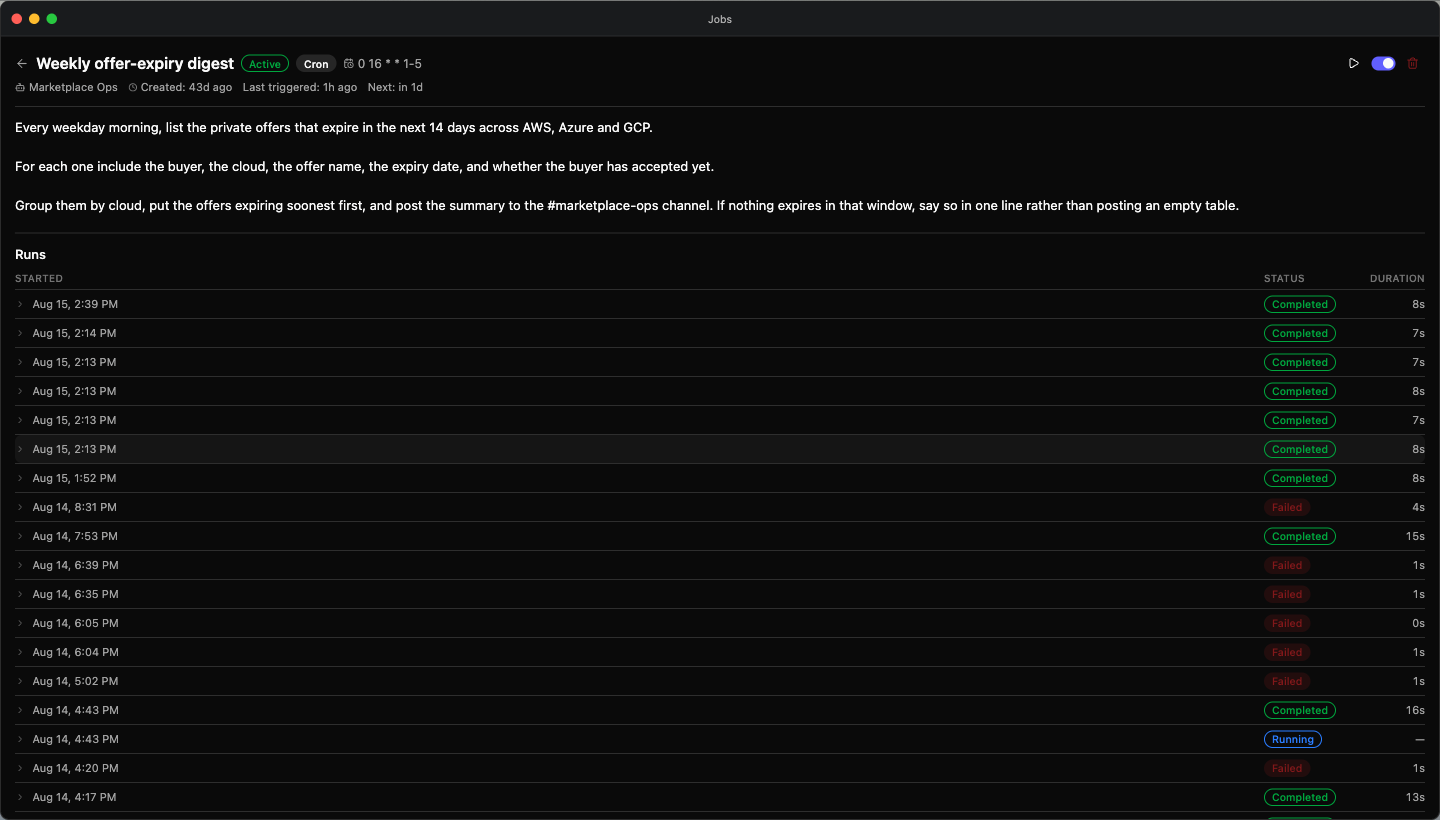
A cron job’s detail page shows the raw expression in its header; hover it for a plain-English reading of the schedule. Alongside it are Last triggered and Next timestamps. Next appears only when there is a genuine upcoming run — a disabled or just-re-enabled job has a frozen schedule, so no misleading “next run” is shown.
The expression is the whole schedule. There is no timezone field, no plain-interval field (“every 6 hours” is written as a cron expression, not chosen from a list), and no start or end date — a cron job has one cron expression and nothing else. Because no timezone is attached to it, 0 9 * * 1-5 means 09:00 on the service’s clock rather than 09:00 wherever you happen to be reading the page; check the Next timestamp to see when a schedule actually lands for you. To stop a job on a given date, disable or delete it.
Filter Expressions
Filters let you control which events actually trigger an agent run. When an event arrives on a push job — or when a cron tick fires with a payload — the filter expression is evaluated against the event payload. If the filter returns false, the run is skipped and recorded with the Filtered status.
Filters use filtrex syntax — a safe, sandboxed expression language. The event payload is available under the event namespace.
Examples:
event.source == "aws-marketplace"event.amount > 1000event.action == "entitlement_created" and event.partner == "AWS"lower(event.status) == "active"Available functions: lower(), upper(), includes() (checks if an array contains a value).
Dot notation is supported for nested fields: event.buyer.name, event.offer.info.commits.
Runs
Every job has one detail page, whatever its trigger kind, and every trigger creates a run record on it.
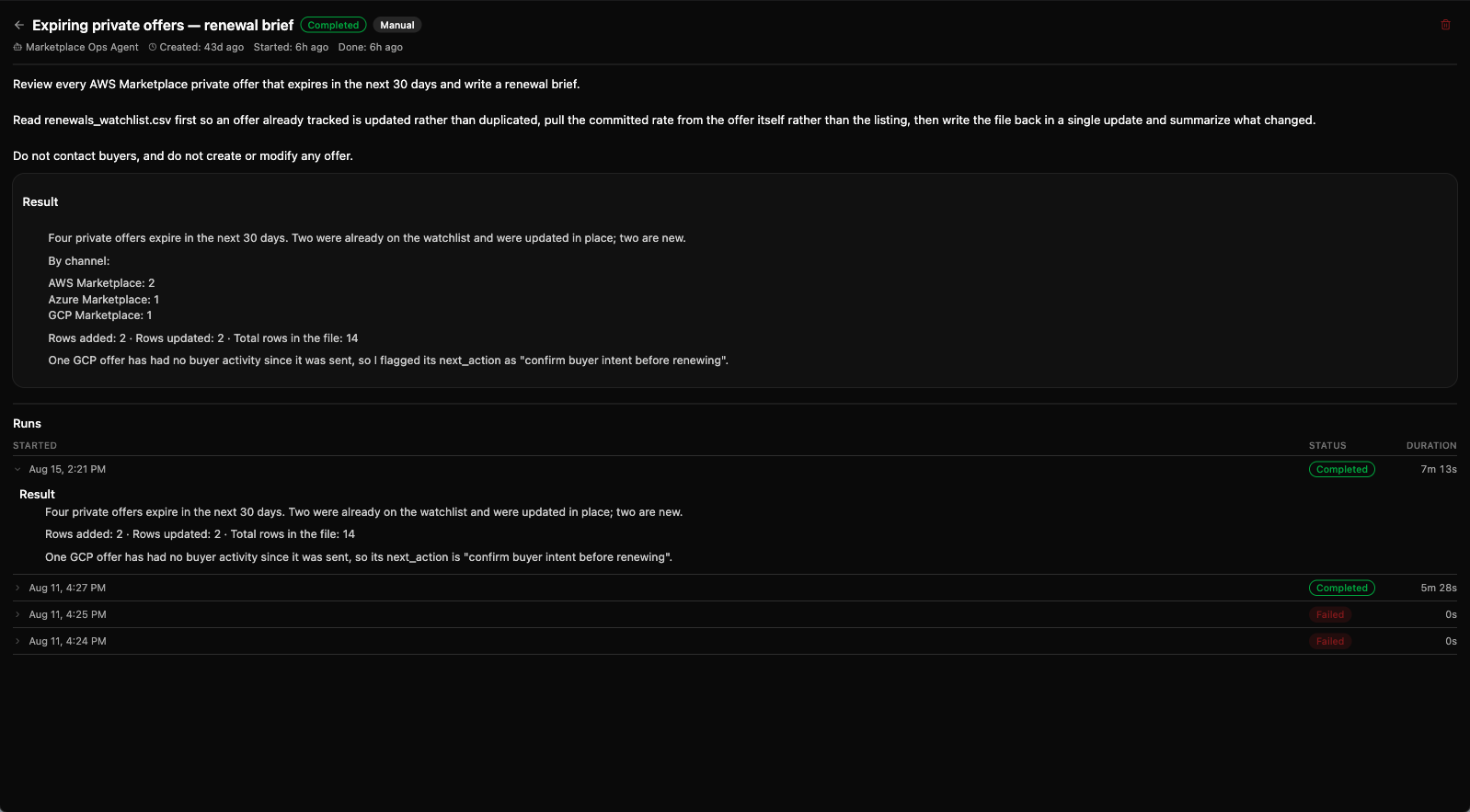
The header carries the job’s title, its trigger badge, and its state — a run-status badge on a manual job, or an Active / Off badge on a cron or push job. Below it sit the agent’s name and the relevant timestamps.
A model badge sits between the agent’s name and the timestamps, but only on a manual job, and only when that job pins a model. A manual job that inherits its agent’s default model shows no badge, and a cron or push job never shows one — so the absence of a badge is not the absence of a model.
The page also shows the job’s instructions — the text the agent is actually given. Every trigger kind now reads the job’s prompt first and falls back to its description only when there is no prompt, so a cron or push job created over REST shows what it will run rather than repeating its own title.
Under the header, a manual job shows the outcome of its latest run as a card:
| Card | When it appears | What it holds |
|---|---|---|
| Result | The latest run completed, or was cancelled and produced something | The agent’s answer, rendered as Markdown. |
| Error | The latest run failed | The error message the run ended with. |
A cancelled run keeps its Result card because stopping a goal partway through is a normal way to end one, and the rounds it did complete are still worth reading.
Every job then has a Runs table with three columns:
| Column | What it shows |
|---|---|
| Started | When the run began. |
| Status | The run’s outcome. |
| Duration | How long the run took. |
Select a run to open its detail panel, which has three tabs — and picks the right one for you: a failed run opens on Steps, where the reason usually is.
| Tab | What it holds |
|---|---|
| Output | What the run produced. |
| Steps | The tool-call transcript — which tools ran, in what order, each call’s Args and its Result or Error, and how long each took against wall clock. |
| Input | What the run received: for a push run, the event payload. |
Steps is persisted, not reconstructed. A run that threw still keeps the transcript of everything it did before it failed, which is what makes a partial run diagnosable. The tab distinguishes its two empty cases rather than showing one blank panel: This run recorded no steps. means the run genuinely did no tool work, while No transcript recorded means the run predates transcripts or ended before it began work.
The table pages in more runs as you scroll, and reads None yet. until the job has fired for the first time.
Each run ends in one of these statuses:
| Status | Meaning |
|---|---|
| Pending | The run is queued and waiting to start. |
| Running | The agent is currently running. |
| Completed | The agent finished successfully. |
| Failed | The agent encountered an error. |
| Cancelled | An in-flight run was stopped. |
| Filtered | The event did not pass the filter expression and was skipped. |
| Rate limited | The run was skipped because the job or organization hit its rate limit. On the Inbox mailbox watch for Gmail (Inbox · Gmail) it can also mean the run finished but Gmail rate-limited part of its work; those messages are tried again on a later delivery. |
Filtered and rate-limited events still create a run row, so nothing that fired is invisible.
Rate limits
To keep automations from overwhelming your workspace, runs that Insulin starts for you — a cron tick, or an arriving push event — are rate limited:
| Limit | Value |
|---|---|
| Per job | 60 runs per hour |
| Per organization | 300 runs per hour |
Limits apply over a rolling one-hour window and are fixed — there is no setting for them. A run that exceeds one is recorded with the Rate limited status rather than executing.
Only one manual path skips the limit. Running a manual job — the Run button, or the REST run endpoint — goes straight to execution. Run now on a cron or push job does not: it replays the job through the same path a real tick or event takes, so it is filtered and rate limited exactly like an automatic run, and can be recorded as Rate limited. What Run now does bypass is the enabled check, which is why it works on a switched-off job. Either way the job’s in-flight rule still applies: one run at a time. The REST run endpoint accepts manual jobs only — call it on a cron or push job and it answers 400, naming the trigger endpoint to use instead.
Managing Jobs
Open a job from the list to reach its detail page. The action buttons in the header are icons; hover one for its label. Which buttons appear depends on the trigger kind.
A manual job:
- Run — Start the job. Offered only while the job is pending; a job allows at most one in-flight run at a time, so if a run is already active a second Run is rejected with “Job already has an in-flight run.”
- Terminate — Stop a run that is currently going. While a run is in flight the header also shows a spinning Running indicator.
- Delete — Permanently remove the job and its run history. You are asked to confirm by name.
A cron or push job:
- Run now — Fire the job immediately; a run is created as if its schedule or event had arrived. This works even while the job is switched off, so you can test a paused automation. (The REST trigger endpoint and the assistant also accept an optional payload to exercise the filter against sample data; the in-app Run now button fires with an empty payload.)
- Enable / Disable — A switch that pauses the job without deleting it. A disabled job never fires on its schedule and shows an Off badge instead of Active.
- Delete — Permanently remove the job and its run history. You are asked to confirm by name.
Use Cases
- Marketplace monitoring — A cron job that checks for new entitlements or expiring offers daily and summarizes changes.
- Automated alerts — A push job on Suger marketplace events that runs an agent to evaluate severity and notify your team.
- Recurring reports — A cron job that runs a data analyst agent weekly to generate revenue or usage reports.
- Co-sell pipeline tracking — A cron job that reviews partner referrals on a schedule and flags stale opportunities.
Spotted something wrong or out of date on this page? Tell us and we'll correct it.