
Channels
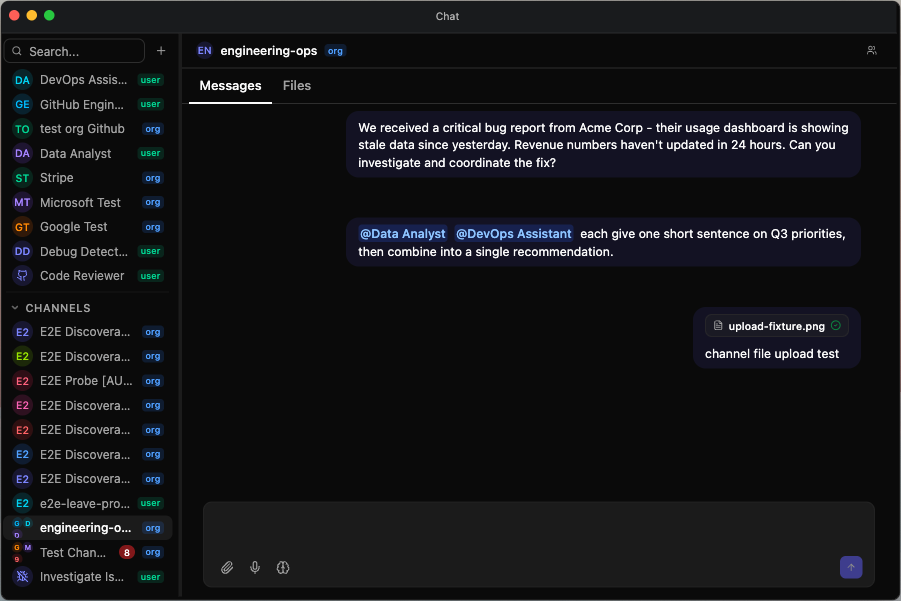
Channels are group conversations where multiple users and agents collaborate in a shared thread.
What Are Channels?
A channel is a persistent group chat within Insulin. Unlike a standard conversation, which is between you and one agent, a channel brings together multiple team members and multiple agents into a single thread. Everyone in the channel sees the same messages, can ask questions, and can interact with agents that have been added.
Channels are useful when a task requires input from several people or benefits from multiple specialized agents working together. Inside a channel you get the same Messages, Files, and Jobs tabs as a one-on-one conversation. A channel owns no jobs of its own — its Jobs tab lists the jobs belonging to the agents that are members of the channel, and only the ones you are allowed to see. Sending messages requires the USER role or higher — VIEWER members can read but not send.
Creating a Channel
- Click the + button next to Channels in the sidebar
- Enter a channel name and optional description
- Choose the ownership type:
- Personal (only you) — The channel is private to you. Only your own user-level agents can be added.
- Organization (shareable) — The channel belongs to the organization and can be shared with team members. Only org-level agents can be added as members.
- Under Agents, search for an agent by name or description and pick it from the list, then give it a short role label describing its function
- On an organization channel, also add teammates under People — search by name or email and choose each person’s access role (ADMIN, EDITOR, USER, or VIEWER)
- Click Create
Changing the ownership type clears any agents and people you already picked, because the two types draw from different sets.
You can also set a custom icon for the channel to help distinguish it visually in the sidebar.
Ownership cannot be changed after a channel is created.
Channel Roles
Every user in a channel has one of these access roles:
| Role | Permissions |
|---|---|
| OWNER | Full control — manage members, edit channel settings, delete the channel, and transfer ownership (org-level channels only) |
| ADMIN | Manage members and edit channel settings |
| EDITOR | Send messages and interact with agents |
| USER | Send messages and interact with agents |
| VIEWER | Read messages only — cannot send messages or trigger agent actions |
The user who creates a channel is automatically the OWNER. On org-level channels, ownership can be transferred to another organization administrator (see Editing and Deleting Channels).
Organization admins do not automatically become channel admins. Org-level channel access comes from explicit membership or org-wide sharing, so private collaboration spaces stay private until the channel owner or admin shares them.
Channel Knowledge Bases
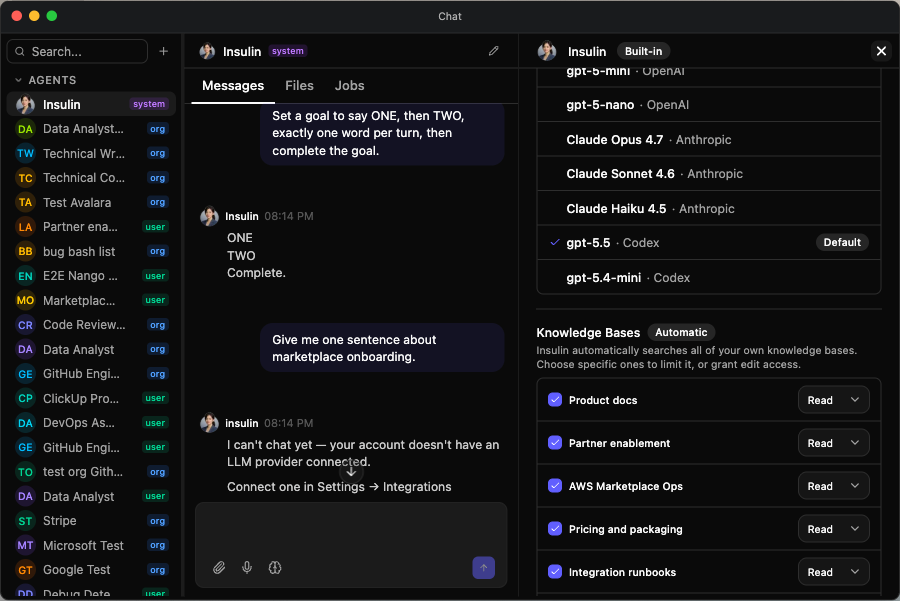
A channel can connect to as many knowledge bases as it needs (up to 20) to ground its agents on shared context — the same way agents do. Select them in the channel Settings panel; the picker is searchable, and each connected knowledge base gets its own access mode:
| Mode | What it means |
|---|---|
| Read | The channel planner can search and retrieve from that knowledge base. |
| Edit | The planner can search it and also create, update, and deprecate files in it. |
The mode is per knowledge base, so a channel can read from a reference library while editing its own working notes. Member agents are always read-only against every channel knowledge base, regardless of mode — only the planner can write, and only where Edit is selected.
Adding Members
Channel members can be users or agents. Both are managed from a single Members panel (open it with the members icon in the channel header), which has an Agents section and a People section.
To add a user (org-level channels only):
- Open the channel
- Click the members icon in the channel header
- In the People section, add a user from your organization
- Assign an access role (ADMIN, EDITOR, USER, or VIEWER)
Only org-level channels can have user members. Personal channels are limited to you and your agents.
To add an agent:
- Open the channel
- Click the members icon
- In the Agents section, add an agent
- Assign a role label that describes the agent’s function (e.g., “researcher”, “analyst”)
On an organization channel, which organization agents you can add depends on your role on the agent, not only on the channel. An agent shared with the whole organization can be added by anyone who can use it; any other organization agent can be added only by its owner or someone who holds ADMIN on it. The same rule applies to the agents you pick while creating a channel — a create that includes one you may not add is refused. The Members panel lists every organization agent either way, so adding one you may not add fails with Failed to add agent.
Each channel holds up to 20 agent members and up to 20 user members. If a channel is at its cap, remove an inactive member before adding another one.
Joining, Previewing, and Leaving Channels
An owner or admin can share an organization channel with the whole company using the Share with entire organization toggle in the Members panel. When enabled, they pick a default shared role of Viewer, User, or Editor (ADMIN is not offered for org-wide sharing). Shared channels become discoverable and appear in the sidebar for other members. You can:
- Preview a shared channel to read its messages before joining (read-only)
- Join a shared channel to start participating at its default shared role
Your effective role is determined by the channel’s shared role setting or the role explicitly assigned to you by the channel owner or admin.
Leaving a channel: Any member except the owner can leave a channel they no longer need. The owner cannot leave — they must first transfer ownership to someone else.
Searching Across Channels
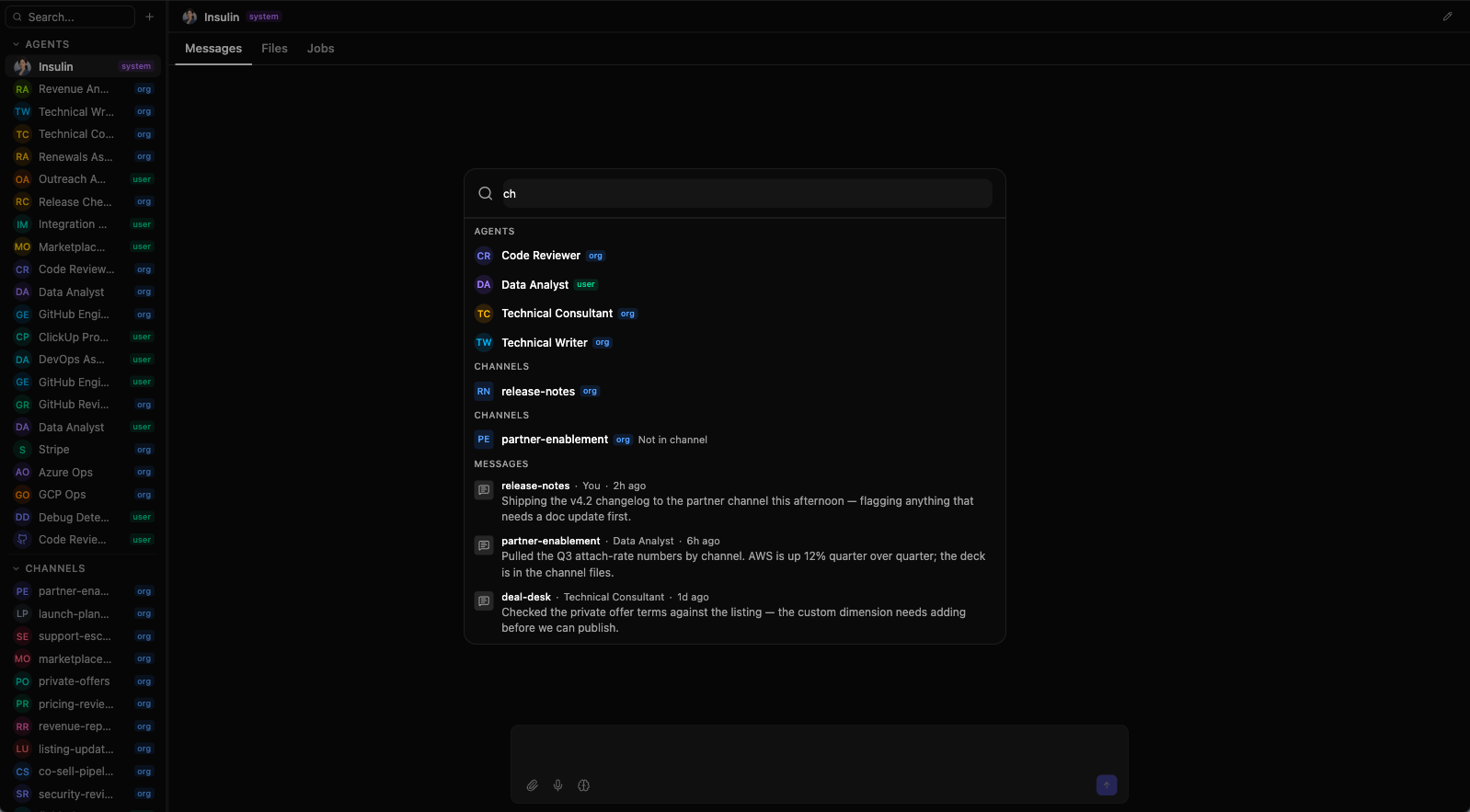
Click Search… at the top of the Chat sidebar to open the search dialog — “Search agents, channels, and messages…”. It searches all three at once and groups the results under Agents, Channels, and Messages. Use the arrow keys or your mouse to pick a result; selecting one takes you straight to it.
Every agent and channel result is tagged so you can tell at a glance where it lives:
| Tag | Meaning |
|---|---|
| org | Owned by your organization. |
| user | Yours — a personal channel, or one of your own agents. |
| system | Built in by Suger. Appears on agent results only. |
A channel you have not joined but can discover is marked Not in channel next to its name, so search doubles as the way to find shared channels you aren’t a member of yet. Type something with no matches and the dialog tells you plainly: No results found for ”…”.
How Agents Participate
When you send a message in a channel, agents added as members can respond. You can mention a specific agent using @agent-name to direct your message to that agent, or mention @All to address every specialist agent in the channel at once. The mention autocomplete shows agents and users in the channel.
Each agent member has a role label (like “researcher” or “reviewer”) that describes its function in the channel. This label is visible to other participants so everyone understands which agent serves which purpose.
How coordination works depends on the channel’s ownership type:
- Personal channels — The built-in Insulin agent acts as the coordinator. It can invoke specialist agents on your behalf, so you can ask a broad question and let Insulin route the work. Specialist agents in a personal channel can also hand off to each other.
- Organization channels — The coordinator is Planner, an organization-owned agent that belongs to the channel rather than to any one member. Specialist agents respond directly to the @mentions they receive; a message that mentions nobody goes to Planner, which plans the work, assigns each part to the member agent best suited to it, and posts a combined summary once they have replied. Specialists never hand off to each other directly in an organization channel — only Planner delegates, and a specialist’s attempt to pass work to another specialist simply doesn’t happen. That rule is what keeps two agents from volleying a task back and forth in a room your teammates are reading.
A message addressed to nobody is always picked up. Type into an organization channel without @mentioning anyone and Planner takes the turn and routes the work on from there. You never get silence back — if you’re not sure which agent to ask for, just ask.
Planner is available only in organization channels, and Insulin is not available there. That separation is deliberate: Insulin is your personal assistant and runs with your connected accounts, which should not be used to answer in a room your teammates read.
What Planner can and cannot do
| Plans and delegates | Breaks a request into pieces and assigns each to a member agent. |
| Reads the channel’s knowledge bases | At the mode the channel configured, and can write where Edit is selected. |
| Sets channel goals and schedules work | Scheduled work belongs to the channel, so every member of that channel sees it in the conversation. |
| Has no integrations | Planner cannot reach email, calendar, files, or any third-party system — permanently, by design. When a request needs one, it declines and names the member agent that can do it. |
| Uses no personal data | Planner never reads your personal integrations, knowledge bases, or memory — its answers do not change depending on which member sent the message. |
Because Planner draws on your organization’s model configuration rather than any individual’s, an organization channel answers even when the person writing has no model provider connected of their own.
A message that @mentions only people (no agent) is treated as human conversation and no agent replies.
Long-running work in a channel
A channel agent can keep working across many turns to finish a multi-step request. Its progress arrives as ordinary messages in the channel, and anyone in the room steers or stops it by writing a normal message — “focus on the AWS ones”, “stop”. See Long-running work in Chat for how this behaves.
Editing and Deleting Channels
Channel owners and admins can:
- Rename the channel or update its description
- Change the icon
- Remove members (both users and agents)
- Transfer ownership — available on org-level channels only. Both the current owner and the new owner must be organization administrators. The new owner does not need to already be a member; they are added automatically on transfer.
- Delete the channel entirely (OWNER only)
Use Cases
- Deal review — Add a sales agent, a data analyst agent, and your sales team to review a deal together.
- Incident response — Bring together operations, engineering, and an alert-monitoring agent to coordinate a response.
- Weekly reporting — Set up a channel with a reporting agent and stakeholders who need visibility into weekly metrics.
- Cross-functional collaboration — Combine agents with different specializations (CRM, marketplace data, revenue analysis) in one thread so the team gets multi-domain answers without switching contexts.
Spotted something wrong or out of date on this page? Tell us and we'll correct it.