
Getting Started
Suger Insulin is a general-purpose AI platform for business work, built by Suger — chat, agents, knowledge bases, jobs, and custom apps that teams across finance, sales, operations, support, and data use to run their daily work. It is built into the Suger console.
Insulin gives you conversational AI, reusable agents, Custom Apps, knowledge bases, connected third-party tools, and automated jobs. Whether you need help drafting offers, analyzing revenue data, managing co-sell opportunities, coordinating across Gmail, Salesforce, HubSpot, Slack, or Teams, or building a lightweight internal app, Insulin brings AI assistance directly into your marketplace workflow.
Key Capabilities
- Chat — Have multi-turn conversations with AI, complete with streaming responses, extended thinking, automatic model failover, and tool execution. See Chat.
- Agents — Install catalog agents or create your own. Each agent can have its own instructions, model, integration allowlist, skills, and knowledge bases. See Agents.
- Channels — Create group chats with team members for collaborative AI-assisted conversations. See Channels.
- Jobs — Set up manual, scheduled, or event-triggered automations that run agents with optional filter expressions. See Jobs.
- Marketplace — Browse and install pre-built agents and skills from the catalog. See Marketplace.
- Custom Apps — Build interactive apps with AI, connect them to approved integrations, preview them, and share them with your team. See Custom Apps.
- Knowledge Bases — Add files, websites, connectors, and pasted content so agents can retrieve trusted context. See Knowledge Bases.
- Inbox — Triage email with AI: classify and tag incoming messages, draft replies in your voice, and review them in an approvals queue before anything sends. See Inbox.
- AWS Support — Open, track, and reply to your organization’s AWS Support cases without leaving the workspace. See AWS Support.
- Workspace Tools — Use Files, Preview, Browser, and Git apps when an agent or app needs a working environment. Preview renders files opened from Files or an agent — PDFs, images, video, Markdown, HTML, CSV, spreadsheets, Word documents, Google Docs, and code. Most of these offer a download control; the code viewer and the Google Doc viewer do not (a Google-native document has no file to download — Preview embeds Google’s own viewer instead).
Who It’s For
Insulin is for teams across finance, sales, operations, support, and data who want AI to take on part of their daily work. Because it is built into the Suger console, teams that sell through cloud marketplaces can also ask it about their offers, entitlements, co-sell deals, and revenue.
Adoption Path
Most teams adopt Insulin in this order:
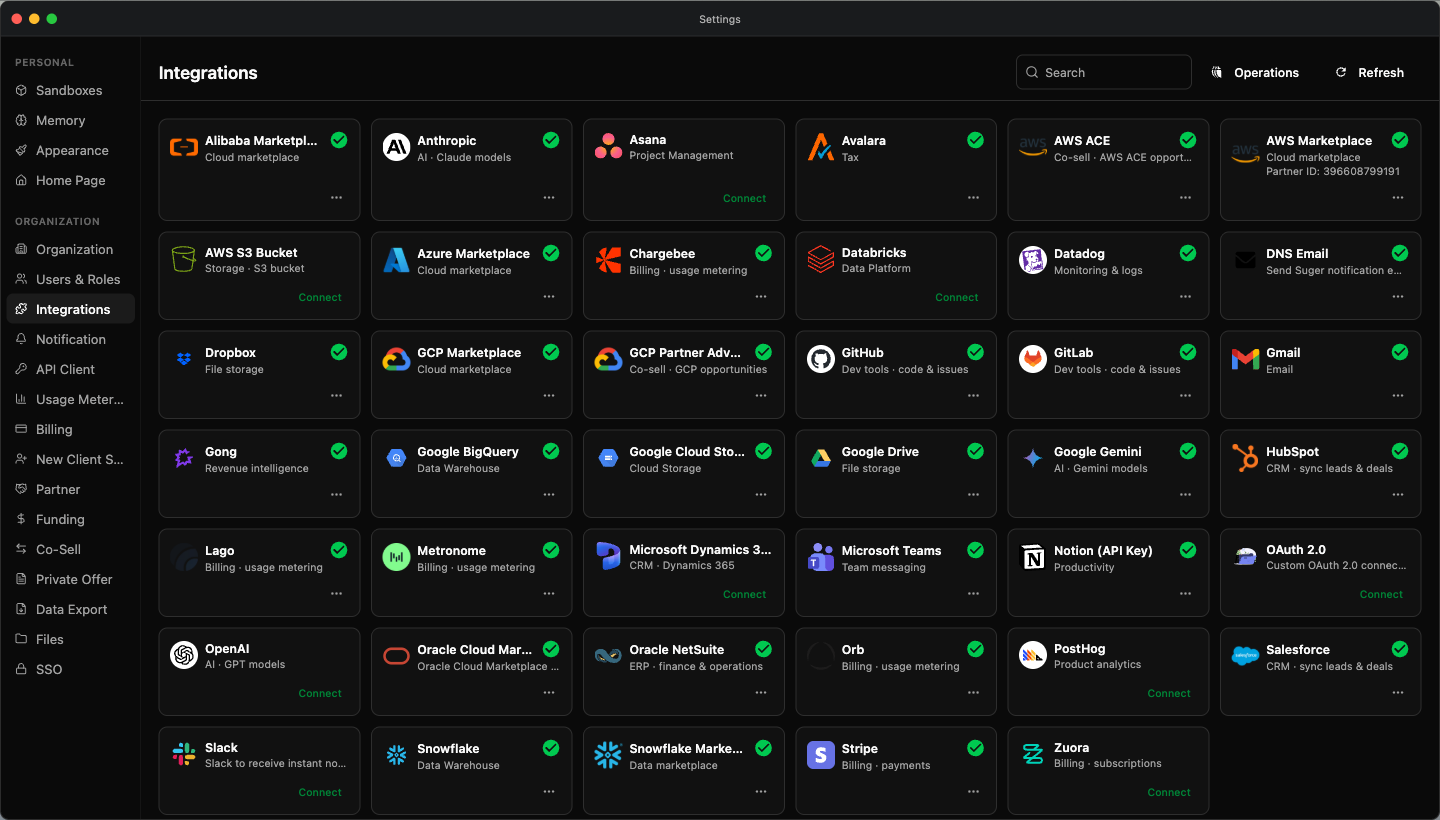
- Connect systems — Open the Settings app and connect the tools agents and apps should use. Organization integrations live under Settings → Integrations (Organization group): any member can view the list, but only an org ADMIN can connect or disconnect them, and they power organization-level resources. Personal connections (such as Gmail, Google Calendar, Google Drive, and Gong) are per-user and are available only to your own user-level agents and apps.
- Start with chat — Open a conversation with the built-in Insulin assistant or a catalog agent. Ask it to explain what it can access before asking it to act.
- Install or create agents — Use Marketplace to install a specialized agent, or create a custom agent with a focused system prompt, allowed integrations, and optional knowledge bases.
- Build Custom Apps — Use Custom Apps when a workflow needs a reusable interface, dashboard, or form instead of a one-off chat answer.
- Collaborate and automate — Use Channels for shared conversations and Jobs for repeatable or event-triggered work.
Accessing Insulin
- Sign in to the Suger console
- Click Insulin in the left sidebar
- You are taken to the standalone Insulin workspace
No additional setup, API keys, or integrations are required.
Switching between the classic console and Insulin
The Suger console has two shells: the classic console and the Insulin desktop. A switch in the top bar toggles between them — it reads New (tooltip “Switch to new insulin desktop”) while you are in the classic console, and Classic (tooltip “Switch to classic console”) while you are in Insulin.
Your choice is remembered. After you switch to Insulin, signing in again takes you straight back to the Insulin desktop; switching back to Classic returns you to the classic console next time. New workspaces start on the classic console by default.
The Interface
Insulin is a desktop-OS workspace, not a single chat page. Every feature is its own app that opens in a resizable, movable window on a full-screen desktop.
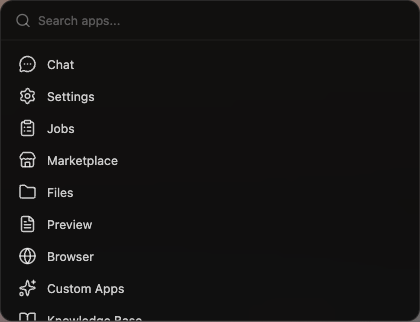
- System Bar (top) — Runs across the top of the workspace. It includes the app launcher (a “Search apps…” field): click it, or press Cmd/Ctrl + Space, to search and open any app.
- Desktop (center) — A full-screen wallpaper with desktop icons. Double-click an icon to open that app.
- Dock (bottom) — A row of pinned apps you can open with one click.
- Windows — Each app opens in its own window that you can move, resize, minimize, or maximize. Multiple windows can be open at once.
The Dock comes pinned with these apps:
Chat, Settings, Marketplace, Files, Preview, Browser, Custom Apps, Knowledge Base, Git, and Inbox.
Two more built-in apps are not pinned to the Dock by default — Jobs and AWS Support. Open either from the app launcher, or drag it onto the desktop as an icon.
The desktop right-click menu
Right-click empty space on the desktop for a menu of things you can make and change:
| Item | What it does |
|---|---|
| New Chat | Opens the Chat app. |
| New Folder | Drops a new folder icon on the desktop, named New Folder until you rename it. |
| New Link… | Adds an icon that opens a URL you supply. |
| Wallpaper → Choose File… | Sets the desktop background from an image on your computer. |
| Wallpaper → From URL… | Sets the desktop background from an image address. |
| Wallpaper → Reset to Default | Appears once you’ve set a custom wallpaper; puts the original back. |
| Theme | Switches the desktop theme. The active one is marked. |
| Settings | Opens the Settings app. |
| Developer Mode | Toggles developer mode, the same as Cmd/Ctrl + . — it overlays the icon grid so you can line icons up. Marked when it’s on. |
Right-click an icon instead and you get Rename and Delete for that item.
Folders work the way you’d expect: drag an icon onto a folder to file it away, and drag two loose icons together to make a folder from them. Rest the pointer on a folder for a moment and a preview of its contents opens; drag an icon out of the preview onto the desktop to take it out again. Click a folder to open it in its own window, which shows how many items it holds, a search box for finding an item in that folder, and a grid/list switch that remembers your choice — click an item there to open it. Folders don’t nest — a folder can’t go inside another folder.
Keyboard Shortcuts
| Shortcut | Action |
|---|---|
| Cmd/Ctrl + Space | Open or close the app launcher |
| Cmd/Ctrl + K | Open or close the app launcher — the same launcher, not a second one |
| Cmd/Ctrl + W | Close the focused window |
| Alt + Tab | Cycle focus to the next window |
| Alt + Shift + Tab | Cycle focus to the previous window |
| F11 | Toggle fullscreen |
| Cmd/Ctrl + . | Toggle developer mode |

Settings
Open the Settings app from the Dock. Tabs are split into two groups:
- Personal — Sandboxes, Memory (what agents remember about you and your work), and Preference (theme, accent color, font size, and desktop background). These apply only to you, and the same Personal tabs are also available from the classic console’s Settings. (Older links to the Appearance or Home Page tabs open Preference automatically.)
- Organization — Integrations, AI Model Policy, Sandboxes, Users & Roles, Notification, API Client, and more. Most Organization tabs are visible to every member but only an org ADMIN can change them; a few, such as Sandboxes, are hidden from non-admins entirely.
AI Model Policy
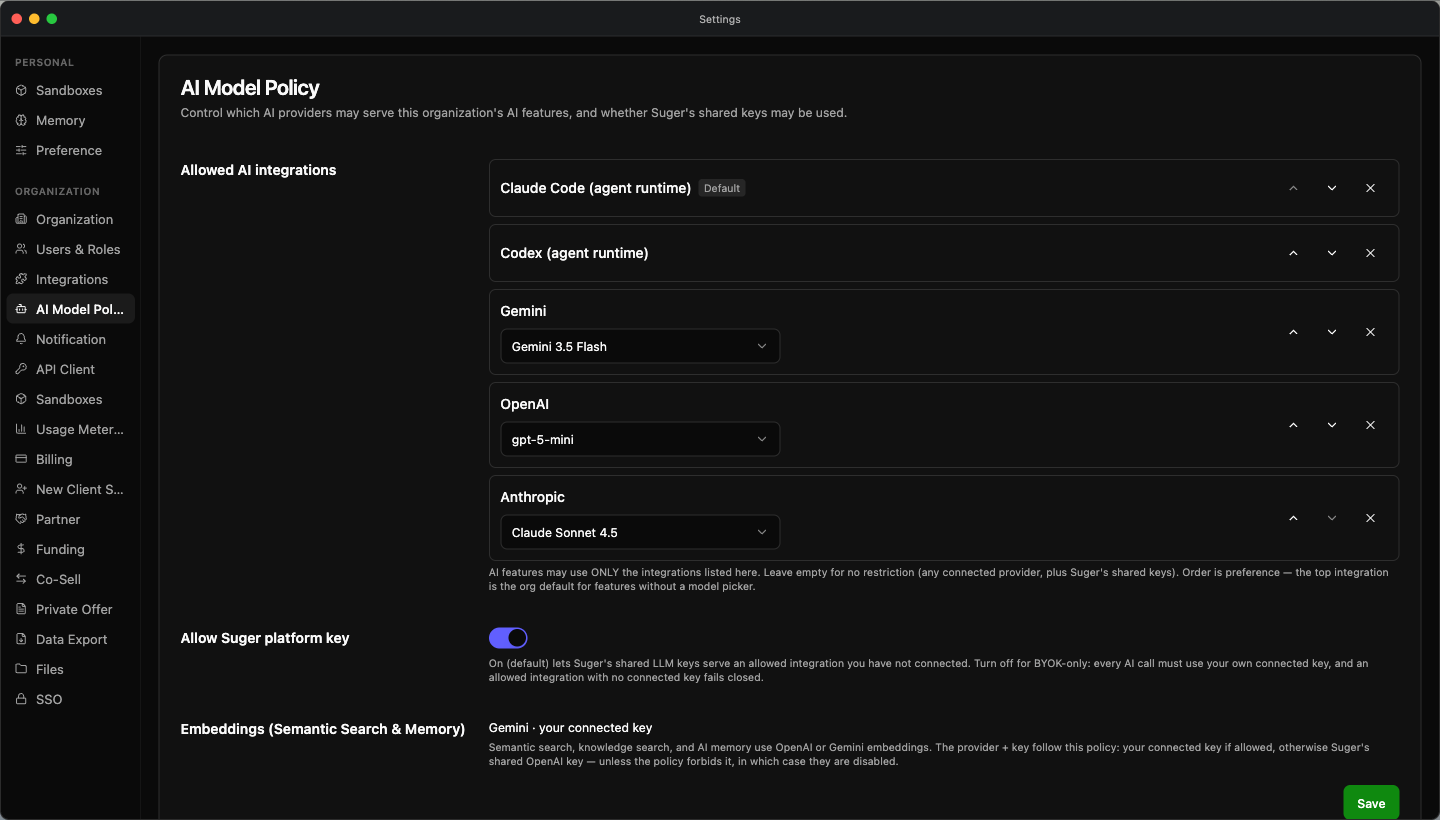
Settings → Organization → AI Model Policy decides which AI providers are allowed to serve your organization, and in what order. It answers two questions your organization probably has an opinion about: which vendors may see our prompts, and may Suger’s own keys be used at all.
Allowed AI integrations is an ordered allow-list. AI features may use only the integrations listed here — and because the list is ordered by preference, the entry at the top is the organization default for any feature that has no model picker of its own.
- Pick a provider from the Add integration dropdown to put it on the list
- Use Move up and Move down on a row to change the order — the top row is the default
- Use Remove to take a provider off the list entirely
- Click Save
The first row carries a Default badge so the top of the list is never ambiguous. A row for a provider your organization has not connected and verified is marked not connected. Leave the list empty for no restriction at all — the tab says so directly: “No restriction — every connected provider is allowed.”
Allow Suger platform key is a switch, and it is on by default. Left on, Suger’s shared keys can serve an allowed provider that your organization has not connected its own key for. Turn it off to make the organization bring-your-own-key only: every AI call must then use one of your own connected keys, and an allowed provider with no connected key fails closed rather than quietly falling back to Suger. That is the point of the switch — it is a guarantee, not a preference, so plan for the allow-list and your connected keys to line up before you turn it off.
The switch also decides what a knowledge base can embed with: the Suger-hosted embedding models are offered only while it is on. See Choosing an embedding model.
Sandboxes (Organization)
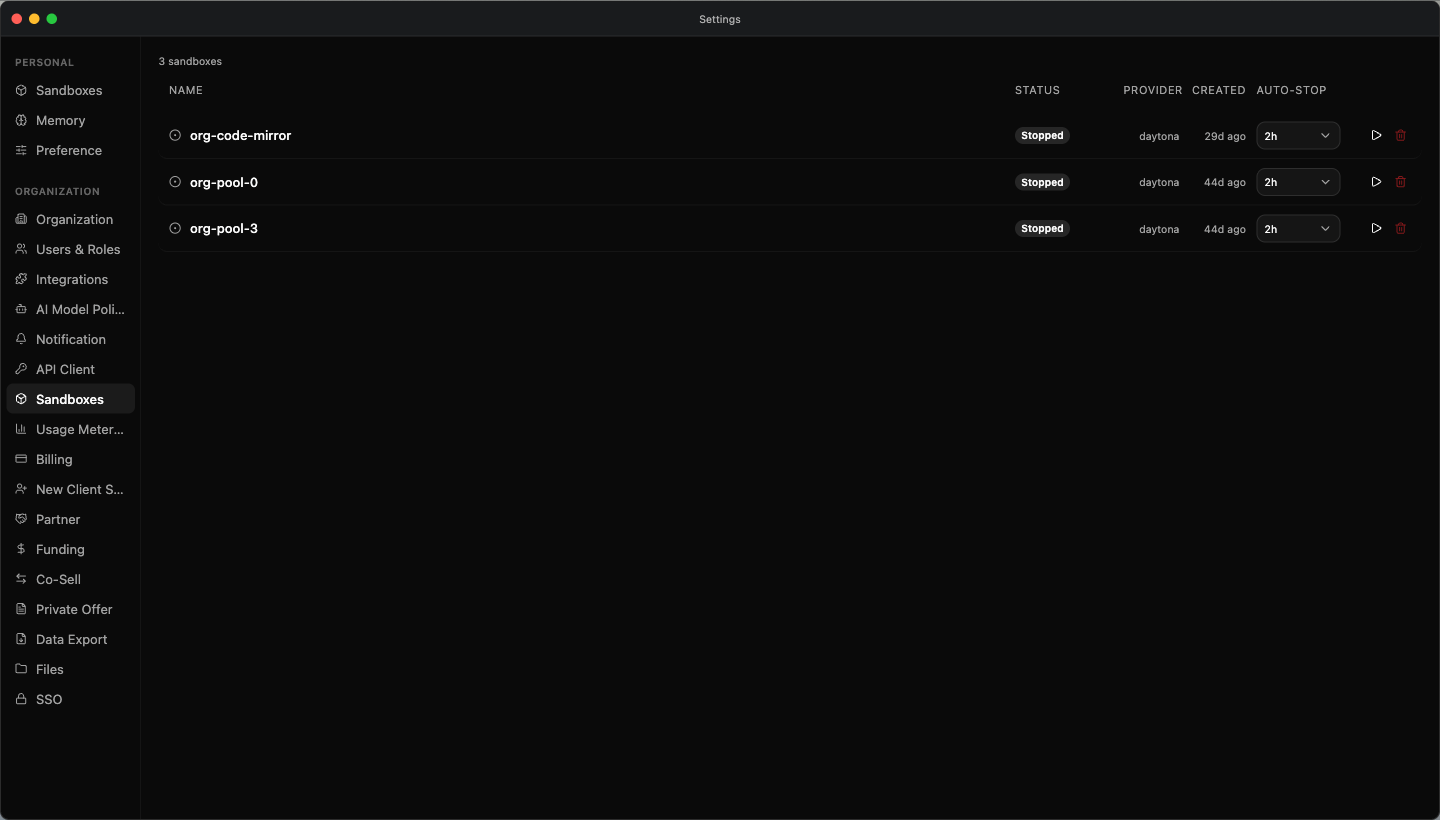
Settings → Organization → Sandboxes manages the shared sandbox pool your organization’s own agents run jobs in. This tab is org-admin only — it does not appear for other members, and a non-admin who reaches it is told so and pointed at Personal → Sandboxes for their own boxes instead.
Organization sandboxes are provisioned automatically the first time an organization-owned agent runs a job, so there is nothing to create here. Each row shows:
| Column | What it shows |
|---|---|
| Name | The sandbox’s name in the pool. |
| Status | Running, Stopped, Failed, or Not provisioned for a slot that hasn’t been built yet. |
| Provider | The sandbox provider backing it. |
| Created | When the sandbox was created. |
| Auto-stop | When an idle sandbox shuts itself down. |
Three actions sit on each row, as icon buttons — hover one for its label:
- Start — Bring a stopped sandbox up. On a slot that is not provisioned, Start builds it for the first time.
- Stop — Shut a running sandbox down.
- Destroy — Remove the sandbox. Offered only while it is stopped; a sandbox that is currently serving a run refuses to be destroyed.
When a connection expires
A green check on an integration card means a connection exists — but a sign-in can lapse long before you notice. For your personal Claude Code and Codex connections, Suger therefore verifies the stored credential itself rather than trusting the card.
If the credential no longer works — the sign-in expired, or you revoked it at the provider — the card shows an orange alert in place of the green check, reading Connection expired — reconnect to keep using it, and a Reconnect button appears on the card. Reconnect runs the same connect flow you used originally; you do not need to disconnect first, and the alert clears once the new connection is in place.
Your First Conversation
When you open Insulin for the first time, you start with the default Insulin agent — a general-purpose assistant that acts as your chief of staff for marketplace operations.
- Type a message in the input bar, such as: “What can you help me with?”
- Press Enter or click the send button
- The agent responds with streaming text
You can also attach files, images, or code references as context, or use the microphone control to dictate your message by voice.
That’s it. You’re now having a conversation with Insulin.
Selecting a Model
Insulin selects the model for you — there’s no model picker in the input bar. Your agents run on the models available to them and fail over automatically across your connected providers, so one provider’s outage or usage limit doesn’t interrupt a conversation.
The built-in Insulin assistant works out of the box on Suger-hosted models — no setup required. Connect your own provider under Settings → Integrations and its models join the pool too, taking priority over the hosted ones. See Chat for how an agent’s ownership decides which models it can draw on, and Agents for choosing a custom agent’s default model.
Extended Thinking
Toggle Extended Thinking in the input bar to enable the agent’s step-by-step reasoning before it responds. When enabled, you can see the agent’s thought process displayed above its final answer. This is useful for complex questions where you want to understand how the agent arrived at its response.
Switching Agents
To use a different agent in your conversation:
- Click the agent name at the top of the chat area, or start a new conversation
- Select an agent from the list — you can browse installed catalog agents, custom agents, or agents shared with you
- The conversation continues with the selected agent’s personality and capabilities
See Agents for the agent catalog model and how to create your own.
Roles and Permissions
Insulin uses role-based access control (RBAC) for agents, channels, Custom Apps, knowledge bases, jobs, sandboxes, skills, and marketplace actions. Understanding these roles helps you collaborate effectively with your team. This section is the canonical reference for Insulin roles — other pages link back here and note only their own differences.
Ownership Levels
Every agent and channel has an ownership level that determines its visibility:
| Level | Description |
|---|---|
| User | Private to the creator. Only visible to others when explicitly shared. |
| Org | Owned by your organization. Private by default, but can be shared to other members of the organization explicitly. |
| System | Built-in by Suger. Available to all users. Cannot be deleted or modified. |
Organization Roles
Every user in your Suger organization has an org-level role that determines what they can do across Insulin:
| Org Role | Permissions |
|---|---|
| ADMIN | Full access. Can create organization-level resources, manage settings, and manage organization-level integrations. Only an ADMIN can act at the organization ownership level. |
| EDITOR | Can create and manage their own agents, channels, jobs, skills, and Custom Apps. Can read and upload to sandboxes they created. Read-only access to settings. Cannot create organization-level resources. |
| VIEWER | Read-only on shared resources — can view agents, channels, and Custom Apps but not create, edit, or delete them, and cannot start a chat. Can still fully manage the self-owned resources they created. |
Your own things are not role-gated
Five kinds of thing are self-owned, and they sit outside the role tiers above:
desktop · memory · jobs · skills · sandboxes
Any member of the organization may create and manage the rows they own on these — including a VIEWER, and including someone on a custom organization role your admins defined. The test is ownership, not org role. Your desktop layout, what agents remember about you, the jobs you set up, the skills you wrote, and your own sandboxes are yours to manage whatever tier you sit in.
What still applies:
- You can only manage rows you created. Someone else’s desktop icons, memories, jobs, skills, or sandboxes are not yours to touch. An org ADMIN can reach the others on your behalf — but not jobs: a job is visible and runnable only to the person who created it, admin or not.
- Organization-level versions are a different matter. Creating or editing a skill in the Organization store, or managing the organization’s shared sandbox pool, still requires org admin.
- Everything else stays on the tiers above. Agents, channels, and Custom Apps are governed by the org roles and the resource roles below — a VIEWER reads them and nothing more.
Resource Roles and Exceptions
When an agent or channel is shared, each participant is assigned a resource-level role. Roles are hierarchical — higher roles inherit all permissions of lower roles.
| Role | View | Chat | Edit | Share | Delete |
|---|---|---|---|---|---|
| OWNER | Yes | Yes | Yes | Yes | Yes |
| ADMIN | Yes | Yes | Yes | Yes | No |
| EDITOR | Yes | Yes | Yes | No | No |
| USER | Yes | Yes | No | No | No |
| VIEWER | Yes | No | No | No | No |
- OWNER — The creator of the agent or channel. Only the owner can delete the resource — not even a shared ADMIN can. Ownership of an organization agent, channel, or Custom App can be transferred — only by its owner, and only to someone who is currently an organization ADMIN.
- ADMIN — Can manage sharing (invite/revoke members and assign roles) and edit configuration, but cannot delete the resource.
- EDITOR — Can modify the agent’s system prompt, model, knowledge bases, and integration allowlist, or a channel’s settings.
- USER — Can chat with the agent or participate in the channel, but cannot change any configuration.
- VIEWER — Read-only access. Can view resources but cannot send messages or trigger actions.
Working with a Shared Resource
When you open a resource that’s shared with you — an agent, channel, knowledge base, or Custom App — its settings view shows an owner-and-role banner at the top: the owner’s name (and email) on the left, and a badge on the right that reads Owner when the resource is yours or Shared · Role otherwise. The USER role appears in this badge as Member.
If your role is below Editor — that is, Member (USER) or Viewer — the settings render read-only: you see the full configuration, but every control is disabled so you can’t change it. Editor, Admin, and Owner see the same view with editable controls. Deleting an agent or a channel stays Owner-only no matter what else you can edit; a knowledge base, or an organization Custom App, can also be deleted by anyone who holds Admin on it (see Custom Apps).
Sharing Constraints
Not every role can be assigned in every situation:
| What you’re sharing | Roles you can assign to individuals | Roles you can assign org-wide |
|---|---|---|
| Agents | ADMIN, EDITOR, USER (no VIEWER) | EDITOR, USER |
| Channels and Custom Apps | ADMIN, EDITOR, USER, VIEWER | EDITOR, USER, VIEWER |
- Agents cannot be shared as VIEWER — the lowest agent role is USER.
- Org-wide shares can never grant ADMIN to the whole organization, for any resource type.
- When you share an agent or a Custom App with a person, ADMIN is offered only if you are an organization ADMIN yourself. For a Custom App, the server also refuses the grant from anyone else.
Important exceptions:
- User-level agents, channels, and Custom Apps are private to their creator unless shared flows explicitly allow otherwise.
- Organization admins do not automatically get elevated access to every organization channel; channel access is controlled by channel membership and org-wide sharing.
- Organization-level agent and Custom App integration changes require organization administrator privileges.
- Organization-level agents can only use organization-level integrations. User-level agents use user-level integrations.
Next Steps
- Learn about Chat features like tool calls, plan approvals, and attachments
- Explore the Agents available to you
- Connect integrations and build a reusable workflow with Custom Apps
Spotted something wrong or out of date on this page? Tell us and we'll correct it.