
Agents
Agents are AI assistants specialized for specific tasks and domains.
What Are Agents?
An agent is an AI assistant with defined instructions, model configuration, optional integration access, optional skills, and optional knowledge bases. Each agent is tuned for a particular domain — from writing code to managing CRM data to analyzing revenue.
The default Insulin agent acts as your chief of staff: a general-purpose assistant for the everyday business work your teams bring to it, marketplace operations included. It is built in and cannot be edited or deleted, unlike the catalog and custom agents you install or create.
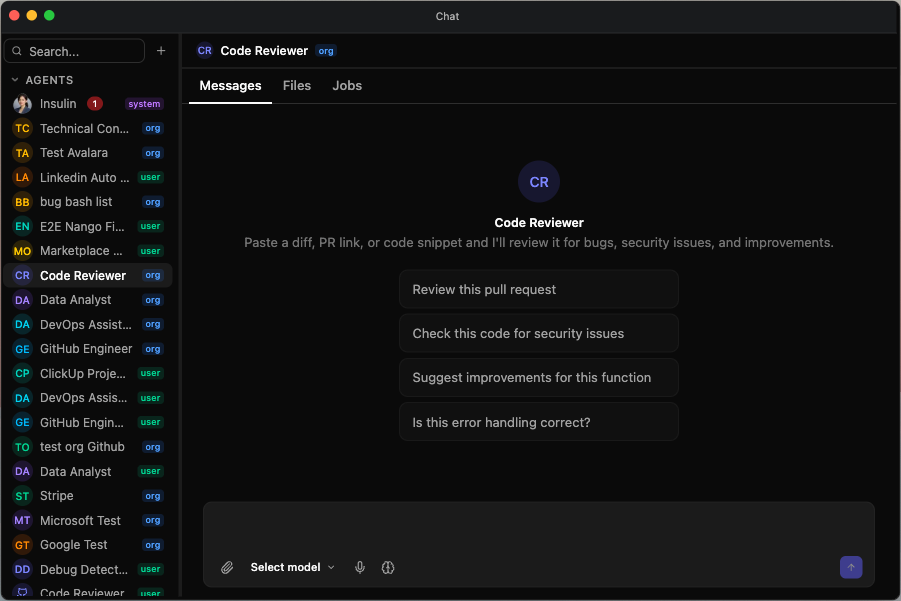
Agent Catalog
Insulin includes a catalog of pre-built agents organized by category. Install a catalog agent from Marketplace to add it to your workspace.
Development
| Agent | Description |
|---|---|
| API Designer | Design and review API schemas and contracts |
| Code Reviewer | Review code for quality, security, and best practices |
| Debug Detective | Diagnose and troubleshoot bugs and errors |
| DevOps Assistant | Help with CI/CD pipelines, infrastructure, and deployments |
| GitHub Engineer | Work with GitHub repositories, pull requests, issues, and code reviews |
Productivity
| Agent | Description |
|---|---|
| ClickUp Project Manager | Manage ClickUp tasks, projects, and workflows |
| Gmail Assistant | Read, draft, and manage Gmail messages |
| Google Calendar Assistant | Manage Google Calendar events and scheduling |
| Google Drive Assistant | Search, organize, and manage Google Drive files |
| Outlook Assistant | Read, draft, and manage Outlook email and calendar |
| Teams Coordinator | Coordinate across Microsoft Teams channels and conversations |
| Technical Writer | Draft and improve technical documentation |
Data
| Agent | Description |
|---|---|
| BigQuery Analyst | Query and analyze data in Google BigQuery |
| GCS Curator | Manage files and data in Google Cloud Storage |
Analytics
| Agent | Description |
|---|---|
| Data Analyst | Analyze datasets, generate insights, and create visualizations |
Sales
| Agent | Description |
|---|---|
| Gong Sales Coach | Review sales calls and get coaching recommendations |
| HubSpot CRM Assistant | Manage contacts, deals, and pipelines in HubSpot |
| Salesforce CRM Assistant | Manage leads, opportunities, and accounts in Salesforce |
Business
| Agent | Description |
|---|---|
| Product Strategist | Help with product planning, prioritization, and roadmap decisions |
Security
| Agent | Description |
|---|---|
| Security Auditor | Identify security vulnerabilities and recommend fixes |
Selecting an Agent
To start a conversation with a specific agent:
- Click New Conversation or click the agent name at the top of the current chat
- Browse or search your installed and shared agent list
- Select the agent to start the conversation
You can switch agents mid-conversation if needed.
Creating a Custom Agent
Build your own agent tailored to your team’s needs:
- Navigate to the Agents section in the sidebar
- Click Create Agent
- Configure the following:
| Field | Description |
|---|---|
| Icon | An avatar image that identifies the agent in lists and chat |
| Name | A descriptive name for the agent |
| Ownership | Choose Personal (only you) or Organization (shareable). The Organization option is disabled for members who are not org admins |
| Default model | The model the agent uses by default, chosen from the models your connected LLM providers make available (see below) |
| Knowledge bases | Optional knowledge bases the agent can search, each attached in Read or Edit mode (see Integrations and Knowledge Bases) |
| Integrations | Optional allowlist of connected systems the agent can use |
| System prompt | Instructions that define the agent’s behavior, personality, and constraints |
The Default model dropdown is populated from the LLM providers your workspace has connected — bring-your-own-key (BYOK) providers such as Anthropic, OpenAI, DeepSeek, Kimi, MiniMax, Qwen, and Antigravity. You can also connect open-source model aggregators — OpenRouter, Baseten, DeepInfra, Fireworks AI, and Together AI — each of which serves a large catalog of models. Because an aggregator can expose hundreds of models, the Default model picker is searchable and grouped by provider, with verified models listed first. Suger’s hosted models are offered to Personal and Organization agents alike — the same models either way — so a new agent normally has something to run on before you connect anything. Whether they are offered at all is an organization decision: see How a turn resolves to a model. The Ownership you choose controls only whose BYOK providers join that list: an Organization agent draws on the organization’s connected providers, a Personal (only you) agent on your own. If a saved default later becomes unavailable — its provider was disconnected or the model was retired — the picker marks it ”
When a Default model is refused on save
Saving an agent whose Default model the agent could not actually run is refused rather than accepted and quietly failed over at the first turn. The reason you get back is the same one the runtime would give:
| Why the save was refused | What it means | What to do |
|---|---|---|
| AI policy | Your organization’s AI model policy does not permit that model | Pick another model, or change the policy under Settings → Organization → AI Model Policy |
| Model unavailable | The model itself cannot be reached for this agent’s scope | Pick another model, or connect the provider that serves it |
| Nothing to resolve with | No provider could be resolved for the scope at all | Connect a provider — this is not a statement about the model you picked |
Two things this deliberately does not do. It does not hold a Personal agent to a stricter standard than an Organization one — either scope may pin a Suger-hosted model, because either scope can run one. And it re-checks the model only when you change it: renaming an agent whose long-standing pin a later policy change excluded still saves, rather than trapping you on a screen that refuses every edit over a field you did not touch.
User-Level vs Org-Level Agents
When creating an agent, you choose the ownership level:
- User-level — Private to you. Any user can create user-level agents.
- Org-level — Belongs to the organization. Only org admins can create org-level agents.
Integrations and Knowledge Bases
Agents do not automatically receive every connection your organization has configured. Their runtime access depends on the agent’s ownership level:
| Agent type | Integration access |
|---|---|
| User-level | Uses user-level integrations selected for that agent. |
| Org-level | Uses organization-level integrations selected for that agent. |
| System | Uses allowed user-scope integrations for the current user. |
Custom agents can also attach knowledge bases. A custom agent searches the knowledge bases configured on it, while the built-in Insulin assistant searches the ones you own by default and lets you narrow that to an explicit set — including organization knowledge bases shared with you — from its own panel. See Knowledge Bases to create one and fill it with files, websites, or synced connectors, and Choosing which knowledge bases Insulin uses for the Insulin selection.
Each attached knowledge base has an access mode:
| Mode | What the agent can do |
|---|---|
| Read | Retrieve and search the knowledge base for grounded context only |
| Edit | Retrieve, plus create, update, and deprecate files in the knowledge base (never delete) |
Asking an agent about its own integrations
An agent can inspect the connections it has been given, so you can ask about them in plain language instead of opening Settings and guessing. There is no control to switch on — every agent has these abilities automatically:
- List its integrations — which connected systems it can reach, whether each one is user- or organization-level, and when it was connected.
- Get the details of one integration — the same record for a single connection, read from what the agent already has loaded rather than by calling the provider.
- Check whether an integration is working — a live probe that refreshes an expired OAuth sign-in if it can, then reports the connection healthy or unhealthy along with the reason it failed.
- List the actions an integration supports — the provider actions it exposes, each with a description and whether it is read-only, plus non-secret connection details such as an account id or base URL. Credentials are never returned.
Because “is it attached?” and “does it still work?” are answered separately, an agent now tells not connected apart from connected but failing. Ask “why can’t you update Salesforce?” and it can distinguish an integration that was never added to its allowlist from one that is on the allowlist but whose credential has stopped working — instead of reporting a live-but-erroring connection as disconnected and sending you to reconnect something that is already connected.
A connection can also be connected but unusable — for example, a Salesforce connection whose stored sign-in is missing the address of your Salesforce instance. The agent reports that one as unhealthy: it is connected, but none of its tools are available in this run, and you should reconnect it in Settings → Integrations.
Sharing Agents
Only Organization agents can be shared. Personal (user-level) agents are private to you, and their Share button is disabled.
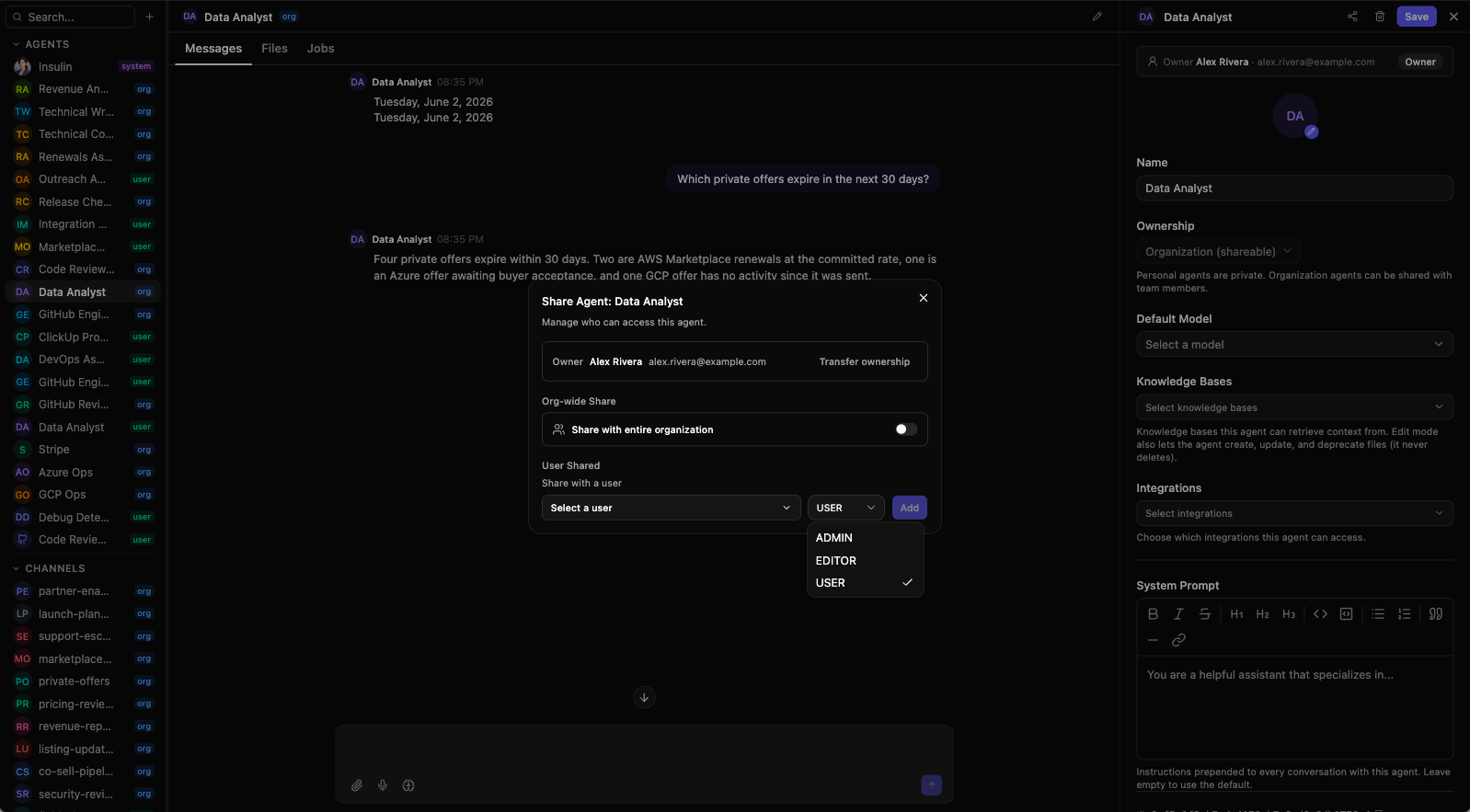
Share an Organization agent with specific teammates using role-based access control. Each shared user is assigned one of the following roles (see Roles and Permissions for the full model):
| Role | Permissions |
|---|---|
| ADMIN | Edit agent configuration and manage sharing (invite/revoke members, assign roles). The role picker offers ADMIN only to organization ADMINs |
| EDITOR | Edit the agent’s configuration (system prompt, default model, knowledge bases, and — for org admins — the integration allowlist) |
| USER | Use the agent in conversations |
To share an agent:
- Open the agent’s settings
- Click Share
- Add team members and assign roles
When a teammate opens an agent shared with them, its settings show an owner-and-role banner, and anyone below Editor (a USER/Member) sees the configuration read-only. See Working with a Shared Resource.
Org-Wide Sharing
Instead of inviting people one at a time, you can share an Organization agent with your entire organization. Org-wide sharing grants either EDITOR or USER (never ADMIN); everyone in the organization then gets that role automatically without an individual invite.
Transferring Ownership
Only an Organization agent can change hands, and only its owner can hand it over — the Share dialog shows Transfer ownership beside the Owner row to the owner and to no one else.
- Open the agent’s settings and click Share
- Click Transfer ownership next to the Owner row
- Choose the new owner from Select new owner… — only organization ADMINs are listed
- Click Transfer
The new owner receives full ownership and control of the agent. You drop to USER: you can still use the agent, but the new owner has to grant you EDITOR or higher if you should keep editing it. If you are no longer an organization ADMIN yourself, the transfer is refused, and the message says why.
Agents in Channels and Jobs
Agents can be reused across Insulin:
- Add agents to Channels when multiple people and agents need to collaborate in a shared thread.
- Assign agents to Jobs when work should run manually, on a schedule, or from an event.
- Use agents with Custom Apps when a workflow needs both an AI builder and an interactive UI.
Spotted something wrong or out of date on this page? Tell us and we'll correct it.