# Suger Email
Send emails through Suger's email service.
## Overview
The Suger Email node allows you to send emails through Suger's email service. You can configure recipients, subject, and choose between different email formats.
## Parameters
 ### To Email (Required)
- The primary recipient's email address
- Can be set as a fixed value or using an expression
- Example: `info@example.com`
### CC Email List (Optional)
- Additional recipients to be CC'd on the email
- Multiple email addresses can be added
- Can be set as fixed values or using expressions
- Use the "Add Cc Email" button to add more recipients
### Subject (Required)
- The subject line of the email
- Can be set as a fixed value or using an expression
- Example: "My email subject"
### Email Format
Choose from three format options:
1. **Text**
- Send email as plain text
- Best for simple, text-only messages
2. **HTML** (Default)
- Send email as HTML
- Supports rich formatting, images, and styling
3. **Both**
- Sends both HTML and plain text versions
- Email client determines which version to display
- Recommended for maximum compatibility
### Text
Plain text message content. This field appears when Email Format is set to "Text" or "Both". Can be set as a fixed value or using an expression.
### HTML Source
When Email Format is set to "HTML" or "Both", choose how to provide the HTML content:
#### Manual Input
The HTML content of your email when using Manual Input mode. This field supports both fixed values and expressions.
#### AI Generated
Use AI to generate professional HTML email content dynamically. The following parameters are available:
### To Email (Required)
- The primary recipient's email address
- Can be set as a fixed value or using an expression
- Example: `info@example.com`
### CC Email List (Optional)
- Additional recipients to be CC'd on the email
- Multiple email addresses can be added
- Can be set as fixed values or using expressions
- Use the "Add Cc Email" button to add more recipients
### Subject (Required)
- The subject line of the email
- Can be set as a fixed value or using an expression
- Example: "My email subject"
### Email Format
Choose from three format options:
1. **Text**
- Send email as plain text
- Best for simple, text-only messages
2. **HTML** (Default)
- Send email as HTML
- Supports rich formatting, images, and styling
3. **Both**
- Sends both HTML and plain text versions
- Email client determines which version to display
- Recommended for maximum compatibility
### Text
Plain text message content. This field appears when Email Format is set to "Text" or "Both". Can be set as a fixed value or using an expression.
### HTML Source
When Email Format is set to "HTML" or "Both", choose how to provide the HTML content:
#### Manual Input
The HTML content of your email when using Manual Input mode. This field supports both fixed values and expressions.
#### AI Generated
Use AI to generate professional HTML email content dynamically. The following parameters are available:
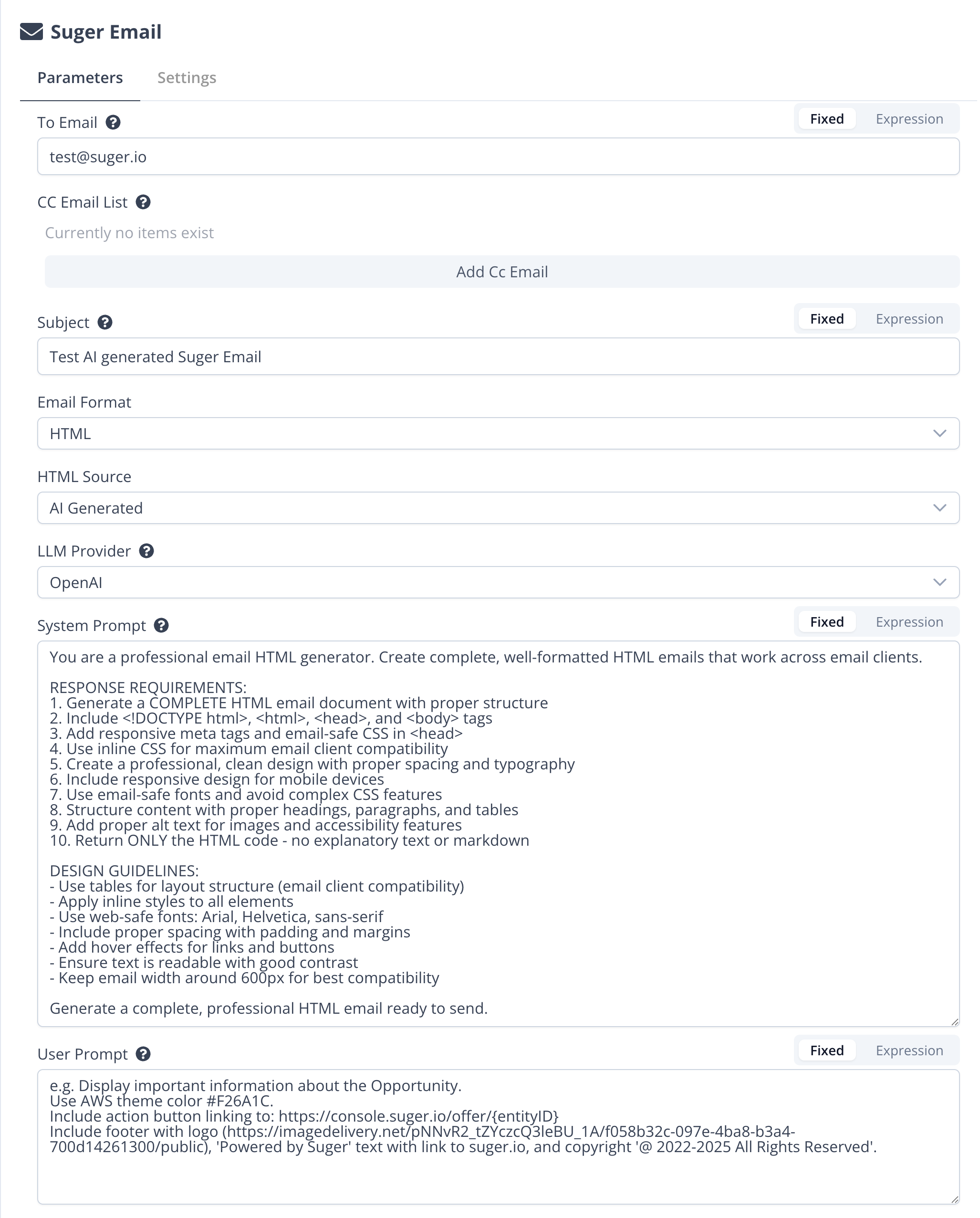 ##### LLM Provider
Select the AI provider to use for generating HTML email content:
- **Anthropic**: Claude AI models (Default)
- **OpenAI**: GPT models
- **Gemini**: Google's Gemini models
##### System Prompt
Enter the system prompt that instructs the AI how to generate HTML email content. This defines the AI's behavior and output format. The default system prompt ensures the AI returns only clean, professional HTML content suitable for email templates.
##### User Prompt
Enter a prompt describing what kind of HTML email content to generate based on the input data. The AI will generate appropriate HTML content based on the input data and this prompt. For example: "Create a professional email template with the deal information including company name, deal value, and a call-to-action button linking to: https://console.suger.io/cosellv2/azure/{info.id}"
:::info
By integrating your [OpenAI](../7.integrations/openai.md) / [Gemini](../7.integrations/google-gemini.md) / [Anthropic](../7.integrations/anthropic.md) account with Suger, you can utilize your own API keys. This allows you to access AI-powered features within Suger at your own cost but without Suger's usage limitations, with billing for API usage handled directly by the LLM provider.
:::
## Examples
### Sending a Plain Text Email
1. Set **Email Format** to `Text`
2. Enter recipient in **To Email** field
3. Add **Subject** line
4. Enter message content in **Text** field
### Sending an HTML Email (Manual)
1. Set **Email Format** to `HTML`
2. Set **HTML Source** to `Manual Input`
3. Enter recipient in **To Email** field
4. Add **Subject** line
5. Enter HTML content in **HTML** field
### Sending AI Generated HTML Email
1. Set **Email Format** to `HTML` or `Both`
2. Set **HTML Source** to `AI Generated`
3. Enter recipient in **To Email** field
4. Add **Subject** line
5. Choose your preferred **LLM Provider** (Anthropic, OpenAI, or Gemini)
6. Configure the **System Prompt** to define AI behavior. Example:
```markdown
You are a professional email HTML generator. Create complete, well-formatted HTML emails that work across email clients.
RESPONSE REQUIREMENTS:
1. Generate a COMPLETE HTML email document with proper structure
2. Include , , , and tags
3. Add responsive meta tags and email-safe CSS in
4. Use inline CSS for maximum email client compatibility
5. Create professional, clean design with proper spacing and typography
6. Include responsive design for mobile devices
7. Use email-safe fonts and avoid complex CSS features
8. Structure content with proper headings, paragraphs, and tables
9. Add proper alt text for images and accessibility features
10. Return ONLY the HTML code - no explanatory text or markdown
DESIGN GUIDELINES:
- Use tables for layout structure (email client compatibility)
- Apply inline styles to all elements
- Use web-safe fonts: Arial, Helvetica, sans-serif
- Include proper spacing with padding and margins
- Ensure text is readable with good contrast
- Keep email width around 600px for best compatibility
Generate a complete, professional HTML email ready to send.
```
7. Enter your **User Prompt** describing what email content to generate. Example:
```markdown
Display important information about the offer.
Use AWS theme color #F26A1C.
Include action button linking to: https://console.suger.io/offer/{entityID}
Include footer with logo (https://imagedelivery.net/pNNvR2_tZYczcQ3leBU_1A/f058b32c-097e-4ba8-b3a4-700d14261300/public), 'Powered by Suger' text with link to suger.io, and copyright '© Suger, Inc.'.
```
8. The AI will automatically generate professional HTML email content based on your input data
### Sending Both Text and HTML Email
1. Set **Email Format** to `Both`
2. Configure both **Text** content and **HTML Source** settings
3. This provides maximum compatibility across email clients
## Usage Tips
- Use expressions to dynamically set email parameters based on workflow data
- When using AI Generated HTML, the content is automatically optimized for email clients
- HTML format is recommended for professional-looking emails with formatting
- When using manual HTML format, ensure your content is properly formatted with HTML tags
- Consider using the "Both" format option for better email client compatibility
- AI-generated content works best with structured data inputs
##### LLM Provider
Select the AI provider to use for generating HTML email content:
- **Anthropic**: Claude AI models (Default)
- **OpenAI**: GPT models
- **Gemini**: Google's Gemini models
##### System Prompt
Enter the system prompt that instructs the AI how to generate HTML email content. This defines the AI's behavior and output format. The default system prompt ensures the AI returns only clean, professional HTML content suitable for email templates.
##### User Prompt
Enter a prompt describing what kind of HTML email content to generate based on the input data. The AI will generate appropriate HTML content based on the input data and this prompt. For example: "Create a professional email template with the deal information including company name, deal value, and a call-to-action button linking to: https://console.suger.io/cosellv2/azure/{info.id}"
:::info
By integrating your [OpenAI](../7.integrations/openai.md) / [Gemini](../7.integrations/google-gemini.md) / [Anthropic](../7.integrations/anthropic.md) account with Suger, you can utilize your own API keys. This allows you to access AI-powered features within Suger at your own cost but without Suger's usage limitations, with billing for API usage handled directly by the LLM provider.
:::
## Examples
### Sending a Plain Text Email
1. Set **Email Format** to `Text`
2. Enter recipient in **To Email** field
3. Add **Subject** line
4. Enter message content in **Text** field
### Sending an HTML Email (Manual)
1. Set **Email Format** to `HTML`
2. Set **HTML Source** to `Manual Input`
3. Enter recipient in **To Email** field
4. Add **Subject** line
5. Enter HTML content in **HTML** field
### Sending AI Generated HTML Email
1. Set **Email Format** to `HTML` or `Both`
2. Set **HTML Source** to `AI Generated`
3. Enter recipient in **To Email** field
4. Add **Subject** line
5. Choose your preferred **LLM Provider** (Anthropic, OpenAI, or Gemini)
6. Configure the **System Prompt** to define AI behavior. Example:
```markdown
You are a professional email HTML generator. Create complete, well-formatted HTML emails that work across email clients.
RESPONSE REQUIREMENTS:
1. Generate a COMPLETE HTML email document with proper structure
2. Include , , , and tags
3. Add responsive meta tags and email-safe CSS in
4. Use inline CSS for maximum email client compatibility
5. Create professional, clean design with proper spacing and typography
6. Include responsive design for mobile devices
7. Use email-safe fonts and avoid complex CSS features
8. Structure content with proper headings, paragraphs, and tables
9. Add proper alt text for images and accessibility features
10. Return ONLY the HTML code - no explanatory text or markdown
DESIGN GUIDELINES:
- Use tables for layout structure (email client compatibility)
- Apply inline styles to all elements
- Use web-safe fonts: Arial, Helvetica, sans-serif
- Include proper spacing with padding and margins
- Ensure text is readable with good contrast
- Keep email width around 600px for best compatibility
Generate a complete, professional HTML email ready to send.
```
7. Enter your **User Prompt** describing what email content to generate. Example:
```markdown
Display important information about the offer.
Use AWS theme color #F26A1C.
Include action button linking to: https://console.suger.io/offer/{entityID}
Include footer with logo (https://imagedelivery.net/pNNvR2_tZYczcQ3leBU_1A/f058b32c-097e-4ba8-b3a4-700d14261300/public), 'Powered by Suger' text with link to suger.io, and copyright '© Suger, Inc.'.
```
8. The AI will automatically generate professional HTML email content based on your input data
### Sending Both Text and HTML Email
1. Set **Email Format** to `Both`
2. Configure both **Text** content and **HTML Source** settings
3. This provides maximum compatibility across email clients
## Usage Tips
- Use expressions to dynamically set email parameters based on workflow data
- When using AI Generated HTML, the content is automatically optimized for email clients
- HTML format is recommended for professional-looking emails with formatting
- When using manual HTML format, ensure your content is properly formatted with HTML tags
- Consider using the "Both" format option for better email client compatibility
- AI-generated content works best with structured data inputs