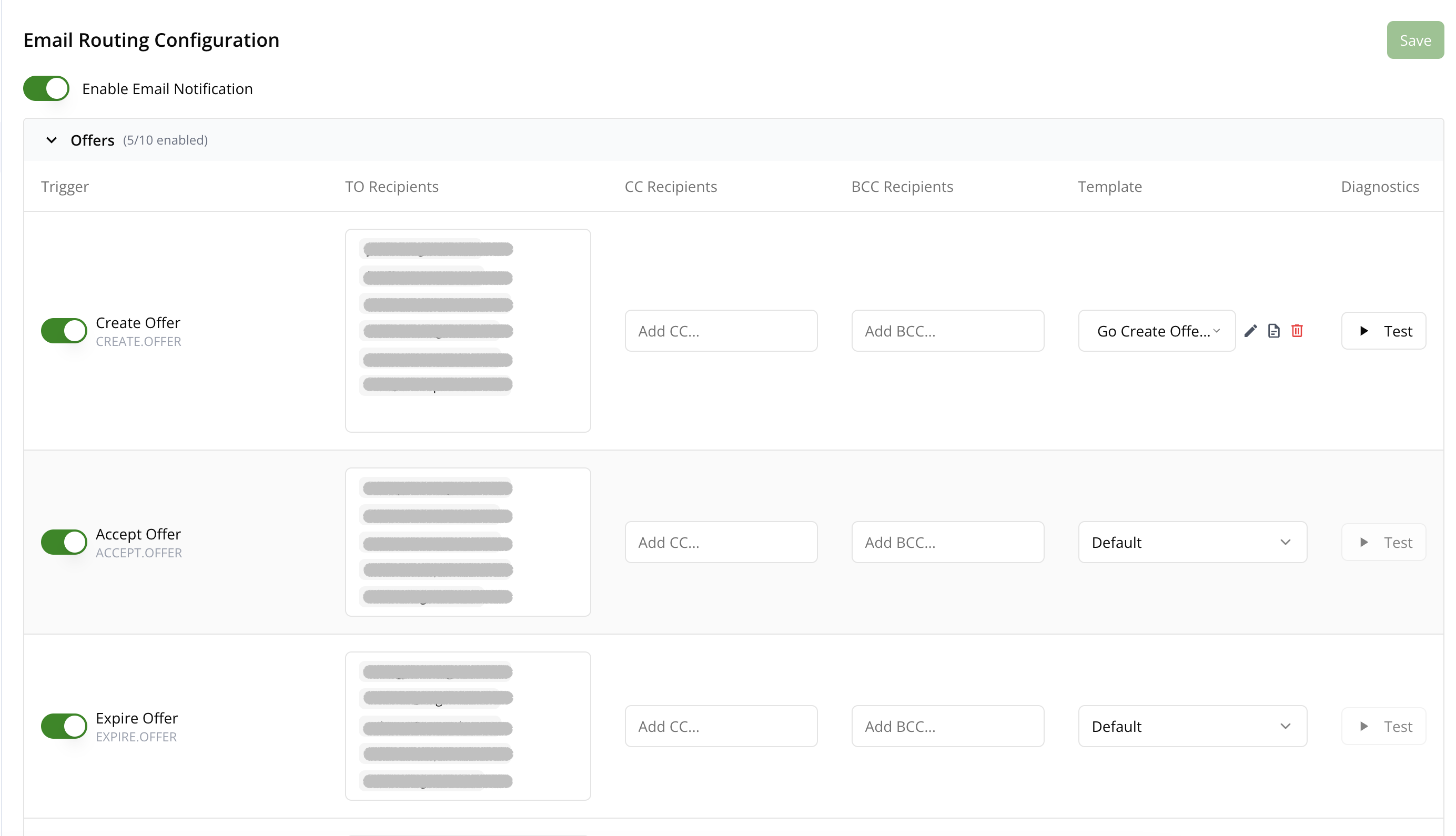
 :::info[When an email is sent]
An email goes out only when **Enable Email Notification** is on **and** the email's row is switched on in your **saved** configuration.
- The console can show a row switched on before your organization has saved a setting for it. Such a row sends nothing until it is saved.
- Turning on **Enable Email Notification** and clicking **Save** stores every row as it is shown. A row added to the catalog after your last save takes effect with your next saved change.
- Every row can be switched off. See [Notification Scope Reference](#notification-scope-reference) for what each row sends.
- If you manage this configuration through the API ([`UpdateNotificationConfigInfo`](/api/update-notification-config-info/)), a scope missing from `emailNotificationScopeEventConfigs` sends nothing.
:::
### Email an offer's contacts
Suger reaches the contacts on an offer only through the **Offer Notification Contacts** rule on a row. Add the rule to each offer email your buyer's contacts should receive: **Pending Acceptance**, **Accept Offer**, **Resale authorization active**, **Notify offer contacts**, or **Accepted but unpurchased offers digest**.
1. Go to the [settings page](https://console.suger.io/settings?tab=notification) and open the **Notification** tab.
2. Find the row in the catalog.
3. In the row's **TO Recipients** column, click **Add roles**, then under **Suger** select **Offer Notification Contacts**.
4. Switch the row on.
5. Click **Save**.
Everyone on a row receives the same email. The offer's contacts and any other TO or CC recipients you add to that row appear together on one message.
### Additional Settings
Below the catalog, one additional setting is available:
- **Enable Expire Soon Offer Workflow Notification** — Enables workflow notifications for offers that are about to expire. When enabled, you can configure the number of days before expiration to trigger the notification (default: 7 days).
The former **Disable Email Notification on Offer Ready** setting has been removed. To stop the ready-to-accept or resale-authorization emails, switch off the **Pending Acceptance** (`PENDING_ACCEPTANCE.OFFER`) or **Resale authorization active** (`ACTIVE.OFFER`) row in the catalog.
### Update History
The **Update History** table at the bottom of the Notification tab shows an audit log of configuration changes. You can search across all fields and click a row's detail icon to inspect the full JSON payload of the change.
## Custom Templates
Custom email templates allow you to personalize your notification emails with dynamic content and professional layouts. You can create templates that automatically incorporate data from your notification events, making your emails more informative and engaging.
Any scope can have a custom email template assigned to it, replacing the default content. Templates support dynamic variables (for example, buyer name, deal name, and product).
### Create New Template
In the routing catalog, find the **Template** column for any scope row and select **+ New Template** from the dropdown. The template creation dialog opens, and once saved the new template is automatically assigned to that scope.
>
:::info[When an email is sent]
An email goes out only when **Enable Email Notification** is on **and** the email's row is switched on in your **saved** configuration.
- The console can show a row switched on before your organization has saved a setting for it. Such a row sends nothing until it is saved.
- Turning on **Enable Email Notification** and clicking **Save** stores every row as it is shown. A row added to the catalog after your last save takes effect with your next saved change.
- Every row can be switched off. See [Notification Scope Reference](#notification-scope-reference) for what each row sends.
- If you manage this configuration through the API ([`UpdateNotificationConfigInfo`](/api/update-notification-config-info/)), a scope missing from `emailNotificationScopeEventConfigs` sends nothing.
:::
### Email an offer's contacts
Suger reaches the contacts on an offer only through the **Offer Notification Contacts** rule on a row. Add the rule to each offer email your buyer's contacts should receive: **Pending Acceptance**, **Accept Offer**, **Resale authorization active**, **Notify offer contacts**, or **Accepted but unpurchased offers digest**.
1. Go to the [settings page](https://console.suger.io/settings?tab=notification) and open the **Notification** tab.
2. Find the row in the catalog.
3. In the row's **TO Recipients** column, click **Add roles**, then under **Suger** select **Offer Notification Contacts**.
4. Switch the row on.
5. Click **Save**.
Everyone on a row receives the same email. The offer's contacts and any other TO or CC recipients you add to that row appear together on one message.
### Additional Settings
Below the catalog, one additional setting is available:
- **Enable Expire Soon Offer Workflow Notification** — Enables workflow notifications for offers that are about to expire. When enabled, you can configure the number of days before expiration to trigger the notification (default: 7 days).
The former **Disable Email Notification on Offer Ready** setting has been removed. To stop the ready-to-accept or resale-authorization emails, switch off the **Pending Acceptance** (`PENDING_ACCEPTANCE.OFFER`) or **Resale authorization active** (`ACTIVE.OFFER`) row in the catalog.
### Update History
The **Update History** table at the bottom of the Notification tab shows an audit log of configuration changes. You can search across all fields and click a row's detail icon to inspect the full JSON payload of the change.
## Custom Templates
Custom email templates allow you to personalize your notification emails with dynamic content and professional layouts. You can create templates that automatically incorporate data from your notification events, making your emails more informative and engaging.
Any scope can have a custom email template assigned to it, replacing the default content. Templates support dynamic variables (for example, buyer name, deal name, and product).
### Create New Template
In the routing catalog, find the **Template** column for any scope row and select **+ New Template** from the dropdown. The template creation dialog opens, and once saved the new template is automatically assigned to that scope.
> 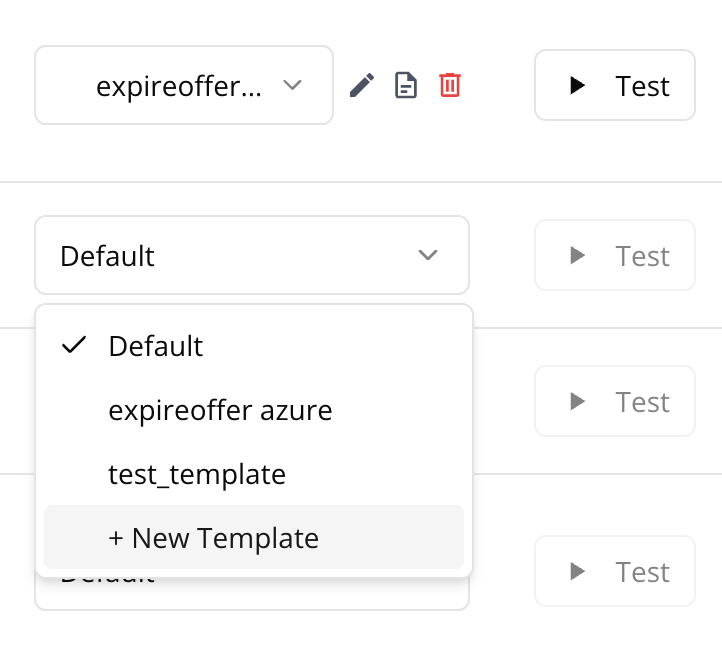 In the template creation dialog:
- Enter a descriptive name for your template
- Select the evaluator type (currently, only Golang Template is supported)
- Use the email builder to design your template
- Click **Create** to save your template
>
In the template creation dialog:
- Enter a descriptive name for your template
- Select the evaluator type (currently, only Golang Template is supported)
- Use the email builder to design your template
- Click **Create** to save your template
> 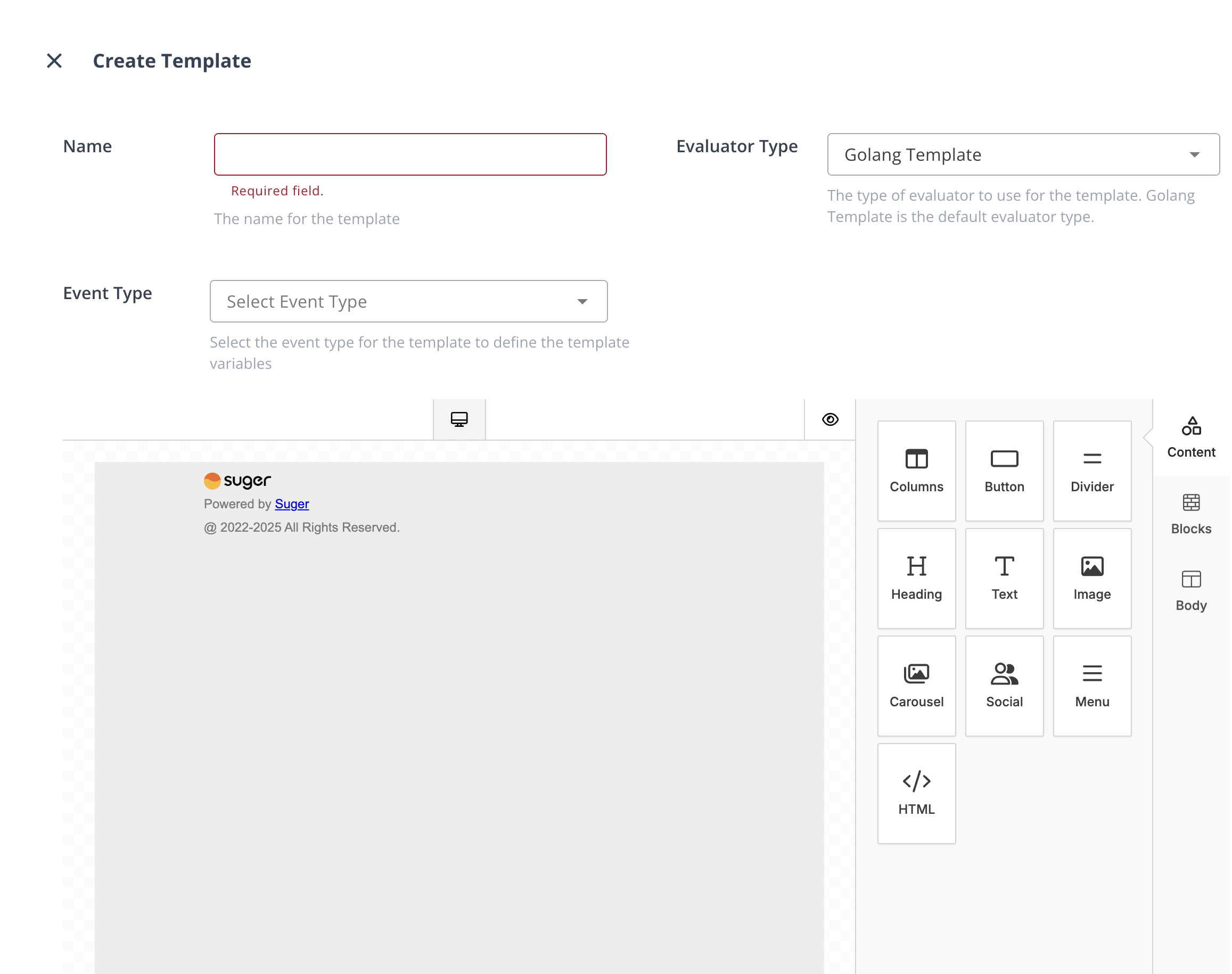 ### Use Email Builder
The email builder provides a comprehensive set of [tools](https://docs.unlayer.com/builder/email-builder#tools-for-email) to create professional-looking emails:
- **Columns**: It allows your users to add columns to your design in order to have a better design arrangement.
- **Button**: Add any type of button in your email. You can change colors and styles.
- **Divider**: It gives your users appropriate spacing at any point they want in their design.
- **Heading**: Add headings (from level 1-6) to the design.
- **Text**: Text is a built-in tool so users can add text to their designs.
- **Image**: To make your emails attractive, you can add images using this tool.
- **Social**: It is a built-in tool that lets users add their social media icons to your design.
- **Menu**: Menu is a built-in tool used to create navigation menus.
- **HTML**: This tool will give your users room to add custom HTML to the design.
#### Working with Dynamic Data
##### Using Single Variables
1. Select a notification event type to make its variables available in the builder. By default, use the `BaseNotificationEvent`.
2. In the text or heading tool, click the `Merge Tags` button and select the variable you want to insert
>
### Use Email Builder
The email builder provides a comprehensive set of [tools](https://docs.unlayer.com/builder/email-builder#tools-for-email) to create professional-looking emails:
- **Columns**: It allows your users to add columns to your design in order to have a better design arrangement.
- **Button**: Add any type of button in your email. You can change colors and styles.
- **Divider**: It gives your users appropriate spacing at any point they want in their design.
- **Heading**: Add headings (from level 1-6) to the design.
- **Text**: Text is a built-in tool so users can add text to their designs.
- **Image**: To make your emails attractive, you can add images using this tool.
- **Social**: It is a built-in tool that lets users add their social media icons to your design.
- **Menu**: Menu is a built-in tool used to create navigation menus.
- **HTML**: This tool will give your users room to add custom HTML to the design.
#### Working with Dynamic Data
##### Using Single Variables
1. Select a notification event type to make its variables available in the builder. By default, use the `BaseNotificationEvent`.
2. In the text or heading tool, click the `Merge Tags` button and select the variable you want to insert
> 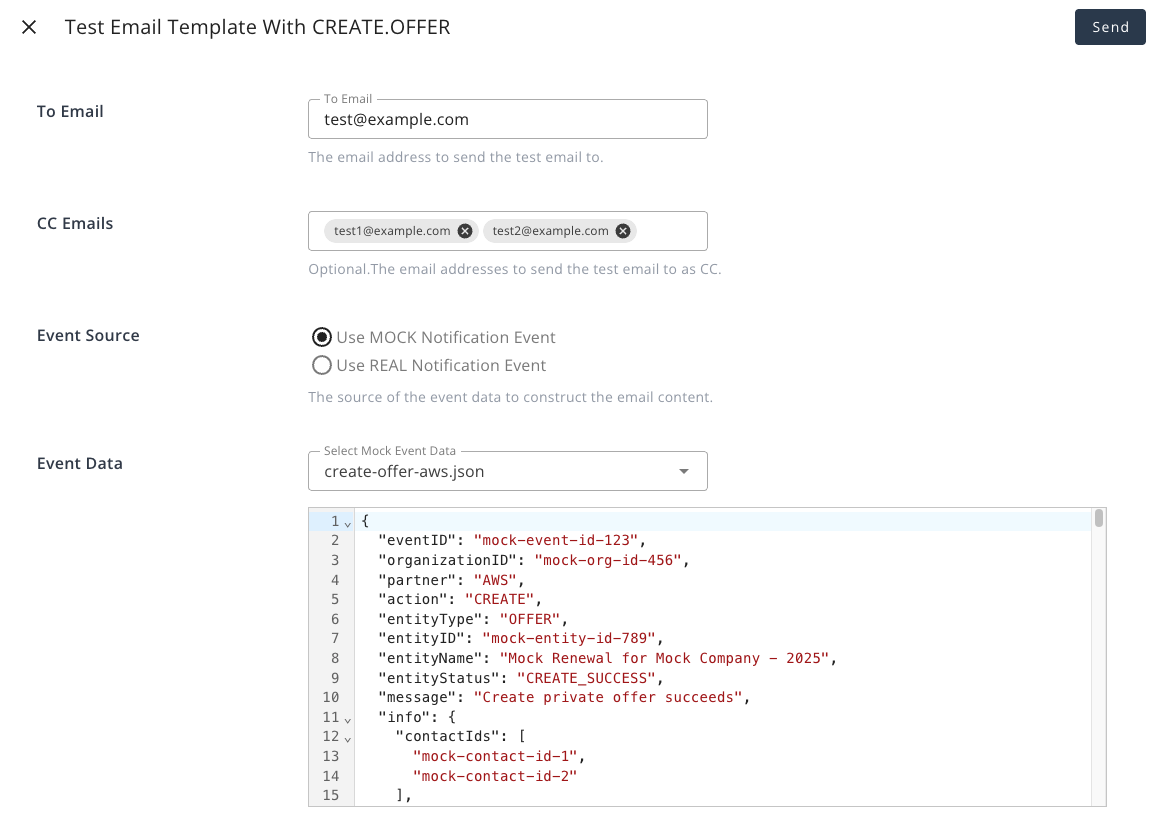 You can also edit the template directly from the test dialog by clicking the `Edit Template` button, which will open the [email builder](#use-email-builder).
### Test a scope's default template
You no longer need a custom template to use **Test**. If a scope has no template assigned, the test sends
that scope's **default** template — the same content Suger would send in production — so you can check the
wording and the event data a scope produces before deciding whether it needs customizing at all.
The partner-facing scopes (**Partnership**, **Co-Sell**, **Commission**, **Certificate** and **Journey**)
render the production partners template, so what you receive is what your partners receive.
One exception: **Product** scope notifications are plain-text emails with no default template behind them.
**Test** is disabled on that row, with the tooltip *"This scope's notifications are plain-text emails —
assign a custom template to test."* Assign a custom template to that scope and the button becomes available.
## Notification Scope Reference
Each notification scope has its own trigger, its own TO/CC/BCC recipient lists, and an optional custom template that replaces the default content. Use the tables below to understand when each scope fires and what its default email contains.
Keep in mind:
- **No row is always on** — **Co-sell shared**, **Co-sell closed won**, **Co-sell closed lost**, **Commission terms updated**, and the commission rows can all be switched off like any other row.
- **Notices without a row** — these have no row, so they can't be switched off one by one:
- The email to a partner that a co-sell was registered on its behalf
- The email to a partner removed from a deal registration
- Certificate expiry and renewal reminders sent to learners
**Enable Email Notification** still applies to them.
- **A row takes effect only once it is saved** — see [When an email is sent](#email-routing-catalog).
### Offers
| Scope | When it fires | Default email content |
|---|---|---|
| Create Offer
You can also edit the template directly from the test dialog by clicking the `Edit Template` button, which will open the [email builder](#use-email-builder).
### Test a scope's default template
You no longer need a custom template to use **Test**. If a scope has no template assigned, the test sends
that scope's **default** template — the same content Suger would send in production — so you can check the
wording and the event data a scope produces before deciding whether it needs customizing at all.
The partner-facing scopes (**Partnership**, **Co-Sell**, **Commission**, **Certificate** and **Journey**)
render the production partners template, so what you receive is what your partners receive.
One exception: **Product** scope notifications are plain-text emails with no default template behind them.
**Test** is disabled on that row, with the tooltip *"This scope's notifications are plain-text emails —
assign a custom template to test."* Assign a custom template to that scope and the button becomes available.
## Notification Scope Reference
Each notification scope has its own trigger, its own TO/CC/BCC recipient lists, and an optional custom template that replaces the default content. Use the tables below to understand when each scope fires and what its default email contains.
Keep in mind:
- **No row is always on** — **Co-sell shared**, **Co-sell closed won**, **Co-sell closed lost**, **Commission terms updated**, and the commission rows can all be switched off like any other row.
- **Notices without a row** — these have no row, so they can't be switched off one by one:
- The email to a partner that a co-sell was registered on its behalf
- The email to a partner removed from a deal registration
- Certificate expiry and renewal reminders sent to learners
**Enable Email Notification** still applies to them.
- **A row takes effect only once it is saved** — see [When an email is sent](#email-routing-catalog).
### Offers
| Scope | When it fires | Default email content |
|---|---|---|
| Create Offer`CREATE.OFFER` | A new private offer is created in your organization | Offer name, buyer, product, pricing, expiry date, link to the offer | | Offer Creation Failed
`CREATE_FAILED.OFFER` | A private offer fails to be created on the cloud marketplace | Failure reason (the offer's error details) and a link to the offer in the Suger console so your team can fix and resubmit | | Accept Offer
`ACCEPT.OFFER` | A buyer accepts a private offer. The offer's contacts receive this email only if the row is switched on and has the **Offer Notification Contacts** rule. See [Email an offer's contacts](#email-an-offers-contacts) | Offer name, buyer details, acceptance timestamp | | Expire Offer
`EXPIRE.OFFER` | A private offer has passed its expiration date without being accepted | Offer name, buyer, expiry date | | Update Offer
`UPDATE.OFFER` | An existing offer is modified (e.g. pricing, expiry, terms) | Offer name, summary of what changed | | Delete Offer
`DELETE.OFFER` | A private offer is deleted | Offer name, deletion timestamp | | Cancel Offer
`CANCEL.OFFER` | A private offer is cancelled | Offer name, cancellation details | | Submit Approval Request
`SUBMIT_APPROVAL_REQUEST.OFFER` | A team member submits an offer for internal approval review | Offer details, submitter name, link for the approver to act | | Review Approval Request
`REVIEW_APPROVAL_REQUEST.OFFER` | An offer approval request is ready for a reviewer to act on | Offer details, approve/reject CTA | | Pending Acceptance
`PENDING_ACCEPTANCE.OFFER` | An offer has been sent to the buyer and is awaiting their acceptance. The offer's contacts receive this email only if the row is switched on and has the **Offer Notification Contacts** rule | Marketplace-specific template (AWS/Azure/GCP/Snowflake) with offer details and a direct acceptance link | | Resale authorization active
`ACTIVE.OFFER` | An AWS resale authorization (CPPO) finishes creation and becomes active. Add the **Offer Notification Contacts** rule to email the offer's contacts | Subject: Your Resale Authorization is Active. Steps for the channel partner to view the resale authorization in AWS Marketplace, with the product, AWS offer, channel partner, and resale authorization details | | Notify offer contacts
`NOTIFY_CONTACTS.OFFER` | Someone clicks **Notify Contacts** on a private offer. The row's **Offer Notification Contacts** rule resolves to the contacts picked in the dialog; the console shows the rule filled in on a row you haven't saved yet. Switch the row off to turn off the action's email | Follows the offer's state: the ready-to-accept email for an offer pending acceptance, the resale-authorization email for an active AWS resale authorization, otherwise a general offer update | | Pending Partner Action
`PENDING_PARTNER_ACTION.OFFER` | An offer requires action from a channel partner (e.g. a CPPO step) | Offer name, required action, link | ### Entitlements | Scope | When it fires | Default email content | |---|---|---| | Create Entitlement
`CREATE.ENTITLEMENT` | A buyer subscribes and a new entitlement is created | Buyer, product, subscription start date, pricing | | Reinstate Entitlement
`REINSTATE.ENTITLEMENT` | A previously suspended or cancelled entitlement is reinstated | Entitlement name, buyer, reinstatement date | | Suspend Entitlement
`SUSPEND.ENTITLEMENT` | An entitlement is suspended (typically due to a payment failure) | Entitlement name, buyer, suspension reason, recommended next step | | Pending Cancel Entitlement
`PENDING_CANCEL.ENTITLEMENT` | An entitlement has been scheduled for cancellation | Entitlement name, buyer, scheduled cancellation date | | Cancel Entitlement
`CANCEL.ENTITLEMENT` | An entitlement is fully cancelled | Entitlement name, buyer, cancellation timestamp | | Update Entitlement
`UPDATE.ENTITLEMENT` | An entitlement's attributes are updated (e.g. seat count, pricing tier) | Entitlement name, buyer, summary of changes | | Meter Entitlement
`METER.ENTITLEMENT` | A usage metering record is submitted against an entitlement | Entitlement name, buyer, metered dimension, reported usage amount | | End Soon Entitlement
`END_SOON.ENTITLEMENT` | An entitlement is approaching its end date | Entitlement name, buyer, days until end date | | Terminate Entitlement
`TERMINATE.ENTITLEMENT` | An entitlement is terminated (hard stop, distinct from cancellation) | Entitlement name, buyer, termination date | | Renew Entitlement
`RENEW.ENTITLEMENT` | AWS Marketplace creates the next agreement in a pre-authorized auto-renewal chain | Entitlement name and confirmation that the agreement renewed | | Auto Renew Off
`AUTO_RENEW_OFF.ENTITLEMENT` | AWS Marketplace reports that auto-renewal was turned off for an agreement | Entitlement name and the renewal opt-out lifecycle update | | Renewal Upcoming
`RENEW_SOON.ENTITLEMENT` | AWS Marketplace reports an upcoming pre-authorized renewal | Entitlement name and the upcoming-renewal lifecycle update | | Renew_uplift_pending Entitlement
`RENEW_UPLIFT_PENDING.ENTITLEMENT` | An AWS pre-authorized renewal has a price increase set as a range that you haven't finalized, and the adjustment deadline is within 30 days. AWS sends no event for this: Suger's own daily check sends it, at most once per renewal cycle. See [Pre-Authorized Auto-Renewal](/aws-marketplace/pre-authorized-auto-renewal/) | Subject: Action needed: finalize your renewal price uplift: \[Entitlement Name\]. Asks you to adjust the uplift before the deadline | All four renewal scopes are disabled unless you enable the scope and configure recipients. For the three that AWS Marketplace reports (`RENEW.ENTITLEMENT`, `AUTO_RENEW_OFF.ENTITLEMENT`, and `RENEW_SOON.ENTITLEMENT`), repeated delivery of the same lifecycle event is deduplicated for one day. The **Auto Renew** value shown in the Console, Salesforce, and HubSpot is the buyer's live accepted-agreement setting; it is not the separate “Renewal Offer” marker used when an offer replaces an existing agreement. ### Co-Sell These scopes cover activity on co-sell referrals shared via cloud marketplace co-sell programs (AWS ACE, GCP, etc.). | Scope | When it fires | Default email content | |---|---|---| | Archive Referral
`ARCHIVE.REFERRAL` | A co-sell referral is archived | Referral name, cloud partner, archival timestamp | | Reject Referral
`REJECT.REFERRAL` | AWS or Google Cloud rejects a co-sell referral you shared | Referral name, cloud partner, rejection reason | | Accept Referral
`ACCEPT.REFERRAL` | AWS or Google Cloud accepts a co-sell referral you shared | Referral name, cloud partner, acceptance timestamp | | Create Referral
`CREATE.REFERRAL` | A new co-sell referral is created | Referral name, cloud partner, deal details | | Create_failed Referral
`CREATE_FAILED.REFERRAL` | A co-sell referral you submit fails to be created with the cloud partner | Subject: Co-Sell Opportunity Failed to Submit to \[Cloud\]. Shows the referral's latest failure reason and, when Salesforce (with the Suger app) or HubSpot is connected, an **Open in CRM** link to the referral there | | Approve Referral
`APPROVE.REFERRAL` | AWS approves a co-sell referral you shared. Sent alongside Accept Referral | Referral name, approver, timestamp | | Update Referral
`UPDATE.REFERRAL` | A co-sell referral is updated (e.g. deal value, stage, customer info) | Referral name and a **What Changed** table (field, previous value, new value) of the watched fields that changed, such as stage, status, close date, next steps, deal value, and team members. If an update changes none of the watched fields, the default email isn't sent; a custom template without the What Changed list keeps sending on every update | | Pending Acceptance Referral
`PENDING_ACCEPTANCE.REFERRAL` | A co-sell referral has been submitted and is awaiting cloud partner acceptance | Referral name, cloud partner, submission timestamp | | Inbound Referral
`INBOUND.REFERRAL` | A new inbound co-sell referral is received from the cloud partner | Referral name, cloud partner, customer details | Every row except **Inbound Referral** covers referrals you share with a cloud partner. For a referral a cloud partner shares with you, Inbound Referral is the only email: accepting it (yourself or with [Auto-Accept](/cosell/cosell-configuration/#auto-accept-referrals)), declining it, and later updates to it send none. ### Product | Scope | When it fires | Default email content | |---|---|---| | Create Product
`CREATE.PRODUCT` | A new product is created in your organization | Product name, marketplace, creator | | Update Product
`UPDATE.PRODUCT` | An existing product is updated | Product name, summary of changes | | Delete Product
`DELETE.PRODUCT` | A product is deleted | Product name, deletion timestamp | ### Partners These scopes cover activity in Suger's Partner Relationship Management (PRM) module, including partnership invitations, Suger co-sells, and commission lifecycle events. Co-sell and commission emails thread into a single conversation per deal. Suger sends each one from the first of these that applies: 1. The Gmail of the signed-in user whose action triggered it, if they have connected Gmail as a user integration 2. The organization sender chosen in the row's **Sender** column: your organization's Gmail or verified custom domain 3. Suger's default sender [Send co-sell emails from your Gmail](/integrations/google-mail/#send-co-sell-emails-from-your-gmail) has the full rules, the exceptions, and a diagram. The sender decides the subject: - **Thread subject.** `Co-sell: [Deal Name]` on the share email and `Re: Co-sell: [Deal Name]` on every email after it, with the event named in the email body. - Used when the email comes from Suger's default sender or from the Gmail of the person who triggered it. - A copy that carries a recipient's personal one-click link always comes from Suger's default sender, so it uses this subject. - **Event-specific subject.** Used when the email comes from your organization sender, which can't carry the threading headers. Both subjects are listed below. When you write inbox rules, use the one that matches how the email is sent. | Scope | When it fires | Default email subject | |---|---|---| | Accept Partnership
`ACCEPT.PARTNERSHIP` | A partner accepts your partnership invitation | \[Partner Company\] accepted your partnership invitation | | Decline Partnership
`DECLINE.PARTNERSHIP` | A partner declines your partnership invitation | \[Partner Company\] declined your partnership invitation | | Accept Sugercosell
`ACCEPT.SUGERCOSELL` | A partner accepts a seller-initiated Suger co-sell | `Re: Co-sell: [Deal Name]`; from your organization sender: \[Partner Company\] accepted your co-sell: \[Deal Name\] | | Decline Sugercosell
`DECLINE.SUGERCOSELL` | A partner declines a seller-initiated Suger co-sell | `Re: Co-sell: [Deal Name]`; from your organization sender: \[Partner Company\] declined your co-sell: \[Deal Name\] | | Co-sell shared
`CREATE.SUGERCOSELL` | A co-sell is shared. Your switch controls the share emails that land on your organization's side | `Co-sell: [Deal Name]` (starts the thread); from your organization sender: You shared a co-sell: \[Deal Name\] with \[Partner Company\] (sharing side) or Co-sell: \[Deal Name\] — shared by \[Sender\] from \[Sender Company\] (receiving side) | | Partners — Deal update emails
`DEAL_UPDATED.SUGERCOSELL` | The seller saves a change to a partner-visible co-sell deal field (target close date, deal value, customer info, contacts, partner needs, notes, next steps, deal-value visibility). Each email shows a previous → new diff of exactly what changed. Intermediate pipeline stage moves never fire this — only Closed Won/Lost email, via their own scopes. Commission-terms changes keep their own notification.
Off by default; enable it to start sending. The toggle governs what **you send** as the seller — recipients cannot switch these off, since the setting belongs to the org whose edits generate the emails | `Re: Co-sell: [Deal Name]` (these emails thread into the deal's co-sell conversation); from your organization sender: \[Seller Company\] updated co-sell: \[Deal Name\] | | Co-sell closed won
`CLOSE_WON_REMINDER.SUGERCOSELL` | A party marks its co-sell copy Closed Won. A seller close-won notifies every partner; a referrer close-won notifies only the seller.
Your switch controls the copies that land on your organization's side | `Re: Co-sell: [Deal Name]`; from your organization sender: Co-sell closed won: \[Deal Name\] | | Co-sell closed lost
`CLOSE_LOST.SUGERCOSELL` | A party marks its co-sell copy Closed Lost. Your switch controls the copies that land on your organization's side | `Re: Co-sell: [Deal Name]`; from your organization sender: Co-sell closed lost: \[Deal Name\] | | Commission terms updated
`COMMISSION_TERMS_UPDATED.SUGERCOSELL` | The seller edits partner-visible commission terms on a live co-sell, and the partner is notified. Your switch controls the copies that land on your organization's side | `Re: Co-sell: [Deal Name]`; from your organization sender: \[Seller Company\] updated the commission terms for \[Deal Name\] | | Pending Commission
`PENDING.COMMISSION` | A commission is created and awaiting seller approval | `Re: Co-sell: [Deal Name]`; from your organization sender: Commission pending approval: \[Deal Name\] | | Approve Commission
`APPROVE.COMMISSION` | A seller approves a commission payout | `Re: Co-sell: [Deal Name]`; from your organization sender: Your commission for \[Deal Name\] has been approved | | Payment Sent Commission
`PAYMENT_SENT.COMMISSION` | A seller marks a commission payment as sent to the partner | `Re: Co-sell: [Deal Name]`; from your organization sender: Payment sent for \[Deal Name\] | | Payment Confirmed Commission
`PAYMENT_CONFIRMED.COMMISSION` | A partner confirms receipt of a commission payment | `Re: Co-sell: [Deal Name]`; from your organization sender: \[Partner Company\] confirmed receipt of payment — \[Deal Name\] | | Auto Confirmed Commission
`AUTO_CONFIRMED.COMMISSION` | A commission is auto-confirmed after the confirmation window passes without action | `Re: Co-sell: [Deal Name]`; from your organization sender: Commission auto-confirmed for \[Deal Name\] | | Clawback Commission
`CLAWBACK.COMMISSION` | A commission is reversed | `Re: Co-sell: [Deal Name]`; from your organization sender: Commission reversed for \[Deal Name\] | ### Auto-Share Report | Scope | When it fires | Default email content | |---|---|---| | Complete Auto Share Task
`COMPLETE.AUTO_SHARE_TASK` | An automated data-sharing task completes successfully | Task name, completion time, report summary and link | | Fail Auto Share Task
`FAIL.AUTO_SHARE_TASK` | An automated data-sharing task fails | Task name, failure reason, recommended remediation steps | ### Headless Entitlements | Scope | When it fires | Default email content | |---|---|---| | Notify Headless Entitlements
`NOTIFY.HEADLESS_ENTITLEMENTS` | A headless entitlement (one without a buyer-facing signup flow) is created or requires attention | Entitlement name, marketplace, buyer info, link to the entitlement detail | ### Revenue | Scope | When it fires | Default email content | |---|---|---| | Disburse Revenue Record
`DISBURSE.REVENUE_RECORD` | A revenue record disbursement is processed by Suger | Disbursement amount, billing period, product, buyer | ### Suger Co-Sell There is no separate row for the people on a Suger co-sell. The share email they receive is governed by the **Co-sell shared** row (`CREATE.SUGERCOSELL`) in [Partners](#partners). ### Unpurchased Offers | Scope | When it fires | Default email content | |---|---|---| | Accepted but unpurchased offers digest
`NOTIFY.UNPURCHASED_OFFERS` | One email per Azure private offer that meets all three conditions: it is currently accepted, it was created during the default 14-day reporting window (which ends one hour before the check), and it has no entitlement yet. Sent only when **Enable Unpurchased Azure Offer Report** is on and **Treat Accepted Offers as Purchased** is off in your [Azure integration](/azure-marketplace/integration/) | Subject: Your Azure Private Offer is waiting for purchase. Its audience is the **Offer Notification Contacts** rule; add the rule to the row if it isn't there | ### Usage Metering Alerts | Scope | When it fires | Default email content | |---|---|---| | Abnormal Alert Usage Record Group
`ABNORMAL_ALERT.USAGE_RECORD_GROUP` | An abnormal usage pattern is detected in a usage record group | Subject: \[Suger Alert\] Abnormal Usage Record Groups Detected — includes the affected entitlement, metric name, anomalous values, and a link to your usage metering dashboard |