# Slack
Receive instant Suger notifications and alerts in your Slack workspace.
---
## Overview
By connecting with Suger app for Slack in your Slack workspace, you and your team can get instant notifications & alerts as soon as possible if any important sales operations are happening cross your cloud marketplaces.
### Org-Level vs User-Level
- **Org-Level**: One shared workspace installation for the whole organization. Suger posts as the **Suger bot**, and this is what drives the notification and alert configuration described below. Set up once by an administrator under **Settings → Integrations**.
- **User-Level**: You connect Slack as **yourself** under **User Integrations**. Suger mints a user token alongside the bot token, so when Suger AI sends a Slack message on your behalf it is posted **as you** — your name and avatar — rather than as the Suger bot. Directory lookups (finding channels and workspace members) still run on the bot token issued alongside it.
The user-level connection requests these Slack user scopes:
| Scope | What it allows |
|-------|----------------|
| `chat:write` | Post messages as you, in channels and conversations you can already post to. |
| `channels:read` | Look up public channels by name so a destination can be resolved from what you typed. |
| `groups:read` | Look up the private channels you are a member of. |
| `im:write` | Open a direct-message conversation so a message can be sent to a person. |
:::info
The two levels are independent. Connecting Slack as a user does not change or replace your organization's notification installation, and you do not need a user-level connection to receive Suger notifications.
:::
## Create Integration
In your [Suger Console Integration](https://console.suger.io/settings?tab=integrations), you will see the Slack integration connection status. Click the `Connect` button to install the Suger app for Slack. This will redirect you to Slack's website. If you are not yet logged in to your Slack workspace, you will be prompted to first login.
Once you are authenticated, you will be asked to allow the Suger app for slack to access your workspace. You must provide a Slack channel (e.g. #suger-alerts) created ahead of time to receive Suger notifications in. Click the `Allow` button:
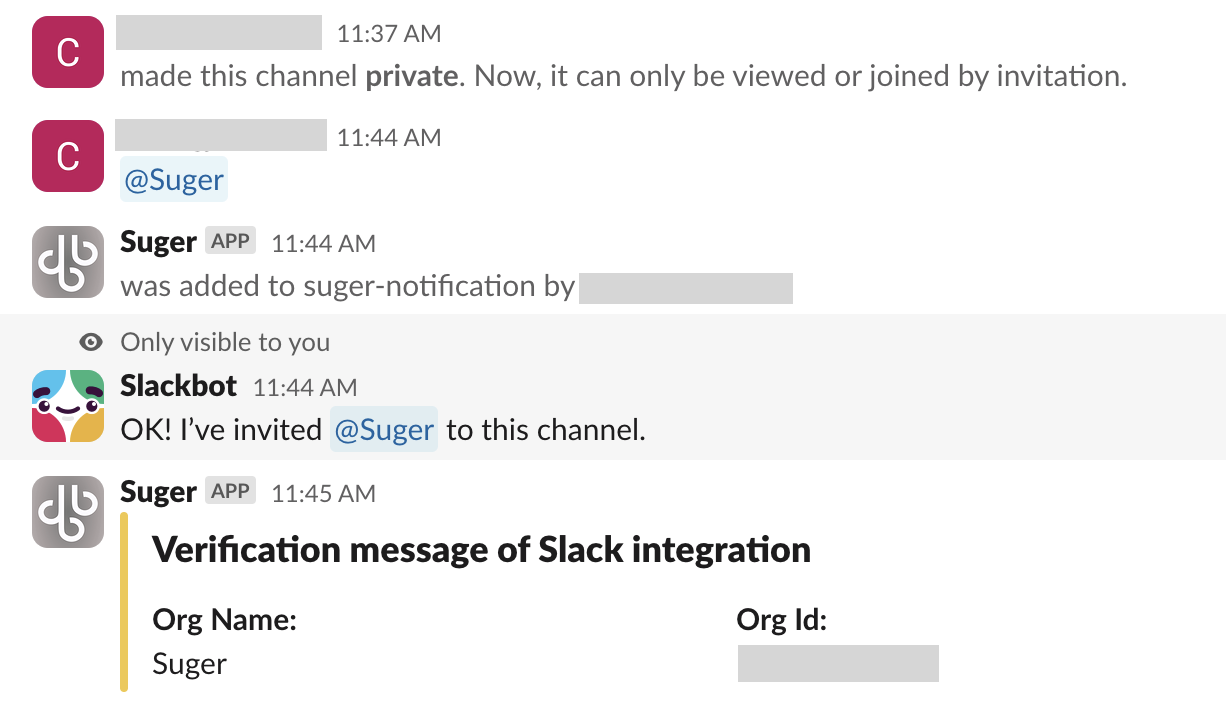
>  Once the installation is complete, you should receive a notification in your Slack workspace that the app was successfully installed. Your browser will be redirected to your Suger console, indicating the Slack integration status as `connected`. Click Verify, your slack channel will receive a verification message from Suger app, and the integration status is updated as `verified`.
:::warning
- If you choose a **private channel** for Suger notifications or set it to private after integrating, you must invite the `Suger app` to the channel; otherwise, the `Suger bot` won't be able to send messages — notifications will fail silently.
- To invite the app, open the private channel in Slack and type `/invite @Suger`. How to invite `Suger app` to the **private channel** is also shown below.
:::
>
Once the installation is complete, you should receive a notification in your Slack workspace that the app was successfully installed. Your browser will be redirected to your Suger console, indicating the Slack integration status as `connected`. Click Verify, your slack channel will receive a verification message from Suger app, and the integration status is updated as `verified`.
:::warning
- If you choose a **private channel** for Suger notifications or set it to private after integrating, you must invite the `Suger app` to the channel; otherwise, the `Suger bot` won't be able to send messages — notifications will fail silently.
- To invite the app, open the private channel in Slack and type `/invite @Suger`. How to invite `Suger app` to the **private channel** is also shown below.
:::
>  ## Configure Notification
Once you've connected the Suger app to your Slack workspace, you cannot directly modify the authentication scopes. The recommended approach is to delete the app and then re-install it in the same Slack workspace.
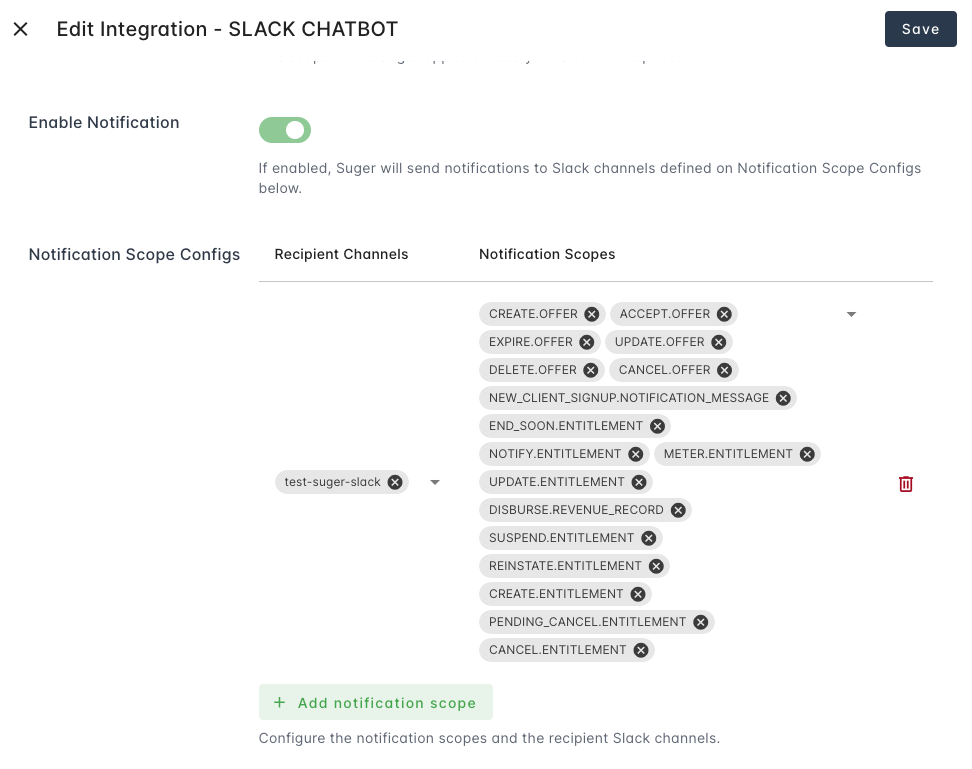
You are allowed to edit the notification configurations below:
- **Enable Notification**: Enable or disable the notification in the Slack channel by toggling the switch. Use this master toggle to pause or resume all Slack alerts instantly.
- **Notification Scope Configs**: You can configure the notification scopes and their corresponding destination slack channels, so specific alerts can go to different teams. For example, route `CREATE` actions to `#sales-wins` and `CANCEL` actions to `#customer-success`. To add a new scope, click `Add notification scope`.
>
## Configure Notification
Once you've connected the Suger app to your Slack workspace, you cannot directly modify the authentication scopes. The recommended approach is to delete the app and then re-install it in the same Slack workspace.
You are allowed to edit the notification configurations below:
- **Enable Notification**: Enable or disable the notification in the Slack channel by toggling the switch. Use this master toggle to pause or resume all Slack alerts instantly.
- **Notification Scope Configs**: You can configure the notification scopes and their corresponding destination slack channels, so specific alerts can go to different teams. For example, route `CREATE` actions to `#sales-wins` and `CANCEL` actions to `#customer-success`. To add a new scope, click `Add notification scope`.
> ## Suger AI Tools
Beyond the notification channel described above, a connected Slack workspace also gives Suger AI a small set of Slack capabilities. Suger AI can:
| Capability | What it does |
|------------|--------------|
| **Send a message** | Post a message to a channel, a private channel, or as a direct message to a person. You can give a channel name (`#sales-wins`), a channel id, or a person — Suger resolves it to the real destination before sending. |
| **Find channels** | Search the workspace for channels whose name contains what you typed, so you can say "post this in the deals channel" without knowing its id. |
| **Look up one channel** | Given a channel id, return which channel it actually is — its name, whether it is private or archived, its topic and purpose, and whether the connected Slack account is a member. Suger uses this to tell you the channel **name** before it posts to an opaque id, and to warn you when a send would fail because the account has not joined that channel. |
| **Find a person** | Look up workspace members by email address, or by part of their handle, real name, or display name, so a message can be addressed to a person rather than to a channel. Every match is returned rather than a single guess — if more than one person matches, Suger asks you which one it should use. |
Which Slack account these run against depends on how Slack is connected. With only the org-level installation, messages are posted by the Suger bot. If you have also connected Slack at the user level, messages are posted **as you**, while channel and member lookups continue to use the bot token.
:::warning[Sending is gated on your approval]
Suger AI **cannot send a Slack message silently.** Every send is held for a human **approve / reject** decision first — you see the destination and the message text and must approve it before anything is posted. Rejecting it stops the send. The read-only capabilities above (finding channels, looking up a channel, finding a person) are not gated this way.
Because an id like `C0123ABCD` tells a person nothing, Suger resolves an opaque channel id to its name before asking you, so the approval prompt shows the channel you would actually be posting to.
:::
If a send is approved but the destination is a private channel the connected account has not joined, Slack rejects it (`not_in_channel`) and Suger reports the failure — it never reports a silent success. Invite the account to the channel and try again.
## Delete Integration
The Slack integration can be deleted like all other integrations. Once the deletion is triggered, all integration info including the access token will be deleted immediately & permanently from Suger. No time window or methods to recover.
:::warning
- To completely delete the integration, please uninstall the Suger app from [your slack workspace](https://app.slack.com/apps-manage/).
:::
## Type of Notifications
Each type of Notifications consists of the **Entity** and **Action**. There are 2 entity types and 7 action types. They are listed below:
| | |
| ---------------- | :-------- |
| `Entity` | The type of the `entity` who can do `action` is one of: |
| `Action` | The action performed. Can be one of:
## Suger AI Tools
Beyond the notification channel described above, a connected Slack workspace also gives Suger AI a small set of Slack capabilities. Suger AI can:
| Capability | What it does |
|------------|--------------|
| **Send a message** | Post a message to a channel, a private channel, or as a direct message to a person. You can give a channel name (`#sales-wins`), a channel id, or a person — Suger resolves it to the real destination before sending. |
| **Find channels** | Search the workspace for channels whose name contains what you typed, so you can say "post this in the deals channel" without knowing its id. |
| **Look up one channel** | Given a channel id, return which channel it actually is — its name, whether it is private or archived, its topic and purpose, and whether the connected Slack account is a member. Suger uses this to tell you the channel **name** before it posts to an opaque id, and to warn you when a send would fail because the account has not joined that channel. |
| **Find a person** | Look up workspace members by email address, or by part of their handle, real name, or display name, so a message can be addressed to a person rather than to a channel. Every match is returned rather than a single guess — if more than one person matches, Suger asks you which one it should use. |
Which Slack account these run against depends on how Slack is connected. With only the org-level installation, messages are posted by the Suger bot. If you have also connected Slack at the user level, messages are posted **as you**, while channel and member lookups continue to use the bot token.
:::warning[Sending is gated on your approval]
Suger AI **cannot send a Slack message silently.** Every send is held for a human **approve / reject** decision first — you see the destination and the message text and must approve it before anything is posted. Rejecting it stops the send. The read-only capabilities above (finding channels, looking up a channel, finding a person) are not gated this way.
Because an id like `C0123ABCD` tells a person nothing, Suger resolves an opaque channel id to its name before asking you, so the approval prompt shows the channel you would actually be posting to.
:::
If a send is approved but the destination is a private channel the connected account has not joined, Slack rejects it (`not_in_channel`) and Suger reports the failure — it never reports a silent success. Invite the account to the channel and try again.
## Delete Integration
The Slack integration can be deleted like all other integrations. Once the deletion is triggered, all integration info including the access token will be deleted immediately & permanently from Suger. No time window or methods to recover.
:::warning
- To completely delete the integration, please uninstall the Suger app from [your slack workspace](https://app.slack.com/apps-manage/).
:::
## Type of Notifications
Each type of Notifications consists of the **Entity** and **Action**. There are 2 entity types and 7 action types. They are listed below:
| | |
| ---------------- | :-------- |
| `Entity` | The type of the `entity` who can do `action` is one of: |
| `Action` | The action performed. Can be one of:- `CREATE`: the entity is created.
- `PENDING_START`: the entity `ENTITLEMENT` is pending to start.
- `CANCEL`: the entity is cancelled.
- `PENDING_CANCEL`: the entity `ENTITLEMENT` is pending to be cancelled.
- `SUSPEND`: the entity is suspended, it may be reinstated or cancelled in the future.
- `REINSTATE`: the entity is reinstated from suspended state.
- `UPDATE`: the entity is updated.
- `EXPIRE`: the entity `OFFER` is expired
- `TEST`: for testing purpose only.
|
The table below summarizes what the most common actions mean for your business:

| Action | Marketplace Event Description |
| --- | --- |
| CREATE | A new offer is generated or a buyer officially starts a subscription. |
| CANCEL / SUSPEND | A contract has been terminated or paused by the buyer or provider. |
| EXPIRE | A private offer has reached its end date without being accepted. |
| PENDING_START | An entitlement is scheduled to begin at a future date. |
| UPDATE | Metadata or resource changes have been made to an existing contract. |
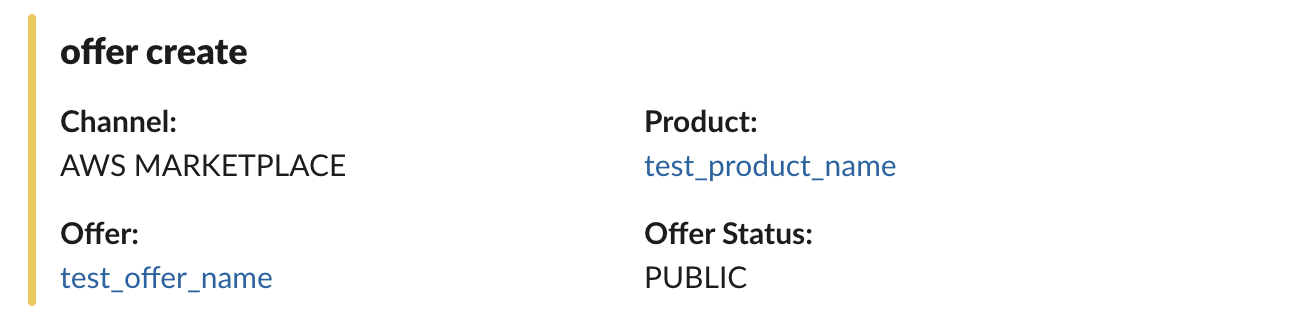
Here is an example of notification you will receive in your Slack channel when a new offer is created: