# ServiceNow
Connect ServiceNow so Suger AI can work with your incidents, change requests, and service catalog.
---
## Overview
[ServiceNow](https://www.servicenow.com) is an IT service management platform covering incidents, problems, change management, and a service catalog. Connecting it lets the Suger AI agent read and act on your ITSM records from a Suger workflow or chat.
### Org-Level vs User-Level
> **Org-Level**: Supported, using the OAuth 2.0 client-credentials grant against your own ServiceNow instance.
>
> **User-Level**: Not currently available. ServiceNow's OAuth client must be registered inside your own instance rather than centrally, so there is no single Suger app your users could sign in to. Supporting per-user connections would mean each user's sign-in borrowing your instance's client — a dependency Suger does not yet model.
### How the connection works
The OAuth client is registered in **your** ServiceNow instance, and Suger acts as the OAuth Application User you attach to it. Suger exchanges the client ID and secret for an access token against your instance and re-mints it as needed — there is no Suger-owned ServiceNow app, because the authorize endpoint is per-instance.
```d2
shape: sequence_diagram
admin: "Your ServiceNow admin"
snow: "Your ServiceNow instance"
suger: "Suger"
agent: "Suger AI agent"
admin -> snow: "Enable the client-credentials grant property"
admin -> snow: "Create an OAuth Application User, then an inbound OAuth client"
admin -> suger: "Client ID + Secret, instance host"
agent -> suger: "Run a ServiceNow tool"
suger -> snow: "client_credentials grant against your instance"
snow -> suger: "Access token (~30 min, no refresh token) — Suger re-mints it" { style.stroke-dash: 4 }
suger -> snow: "Table / Catalog / Attachment call, acting as the Application User"
snow -> agent: "Incidents, problems, changes, approvals, catalog" { style.stroke-dash: 4 }
```
## Create Integration (Org-Level)
### Prerequisites
- **Washington DC release or later.** Earlier releases do not support the client-credentials grant at all.
- The system property `glide.oauth.inbound.client.credential.grant_type.enabled` set to `true`.
- An **OAuth Application User** on the OAuth record. Suger acts as this user, so its roles set the ceiling on everything the integration can do. Grant it the **`itil`** role at minimum; a few operations additionally need **`admin`** (see [Suger AI Tools](#suger-ai-tools)).
- Permission to create an application registry entry (typically the `admin` role).
- The Suger **Admin** role — connecting, disconnecting, and running an integration's actions are all admin-only in Suger.
- A decision on **auth scope enforcement** — see [Auth scope](#auth-scope) below. Suger requests no ServiceNow auth scope, so leaving enforcement on with no scope selected produces a connection that authenticates but cannot call anything.
### Step 1 — Enable the client-credentials grant
ServiceNow does not ship this property; you create it.
1. Go to **All → System Properties → All Properties**.
2. Make sure your application scope is **Global** — the property has no effect in a scoped app.
3. Click **New** and enter:
| Field | Value |
| --- | --- |
| Name | `glide.oauth.inbound.client.credential.grant_type.enabled` |
| Type | `true | false` |
| Value | `true` |
| Application | Global |
To confirm, filter the list on **Name** *is* that value — you should get exactly one row reading `true`. Filtering with `>=` returns the next property alphabetically instead, which looks like a match but isn't.
### Step 2 — Create the integration user
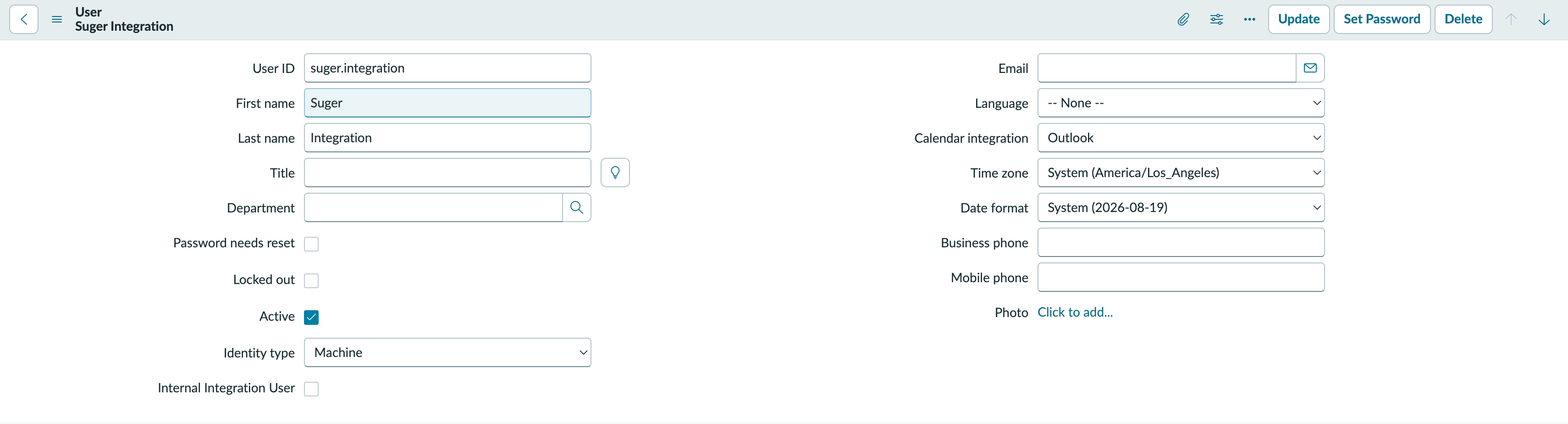
The client-credentials token acts as this user, so its roles are the ceiling on everything Suger can do. Use a dedicated account, never a real person's.
1. Go to **All → User Administration → Users** and click **New**.
2. Set **User ID** to something identifiable, for example `suger.integration`.
3. Set **Identity type** to **Machine**. Leave **Internal Integration User** unchecked — that flag exists to bypass WS-Security on SOAP interfaces and is not what you want here.
4. **Submit**. No password is needed; this account never signs in interactively.
5. Reopen the record. In the **Roles** related list click **Edit**, add **`itil`**, and save. Several inherited roles appear beneath it — that is normal.
>  :::info
To stop the account being usable for UI sign-in, add **Web service access only** through **Configure → Form Layout** and check it. Optional — the integration works either way — but set it only on the integration user. Checking it on your own admin account locks you out of the instance.
:::
### Step 3 — Register the inbound integration
1. Go to **All → System OAuth → Application Registry** and click **New**.
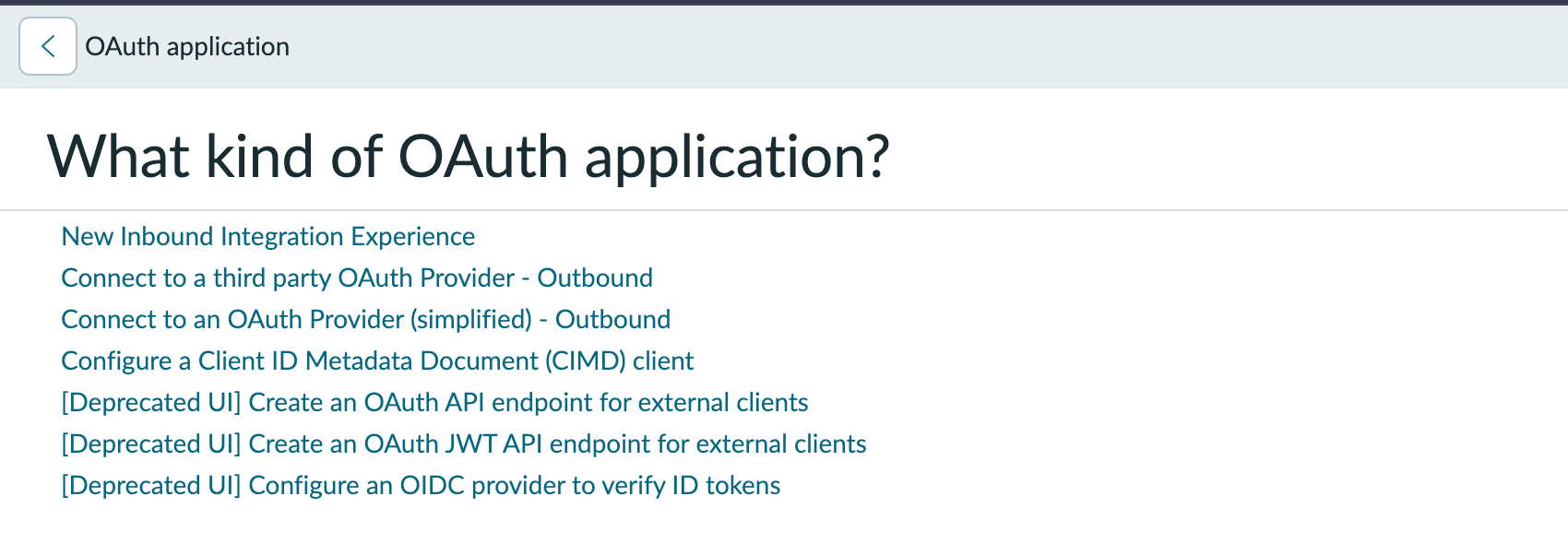
2. Choose **New Inbound Integration Experience**. The `[Deprecated UI]` entries below it still work, but they hide the OAuth application user field behind **Configure → Form Layout**.
>
:::info
To stop the account being usable for UI sign-in, add **Web service access only** through **Configure → Form Layout** and check it. Optional — the integration works either way — but set it only on the integration user. Checking it on your own admin account locks you out of the instance.
:::
### Step 3 — Register the inbound integration
1. Go to **All → System OAuth → Application Registry** and click **New**.
2. Choose **New Inbound Integration Experience**. The `[Deprecated UI]` entries below it still work, but they hide the OAuth application user field behind **Configure → Form Layout**.
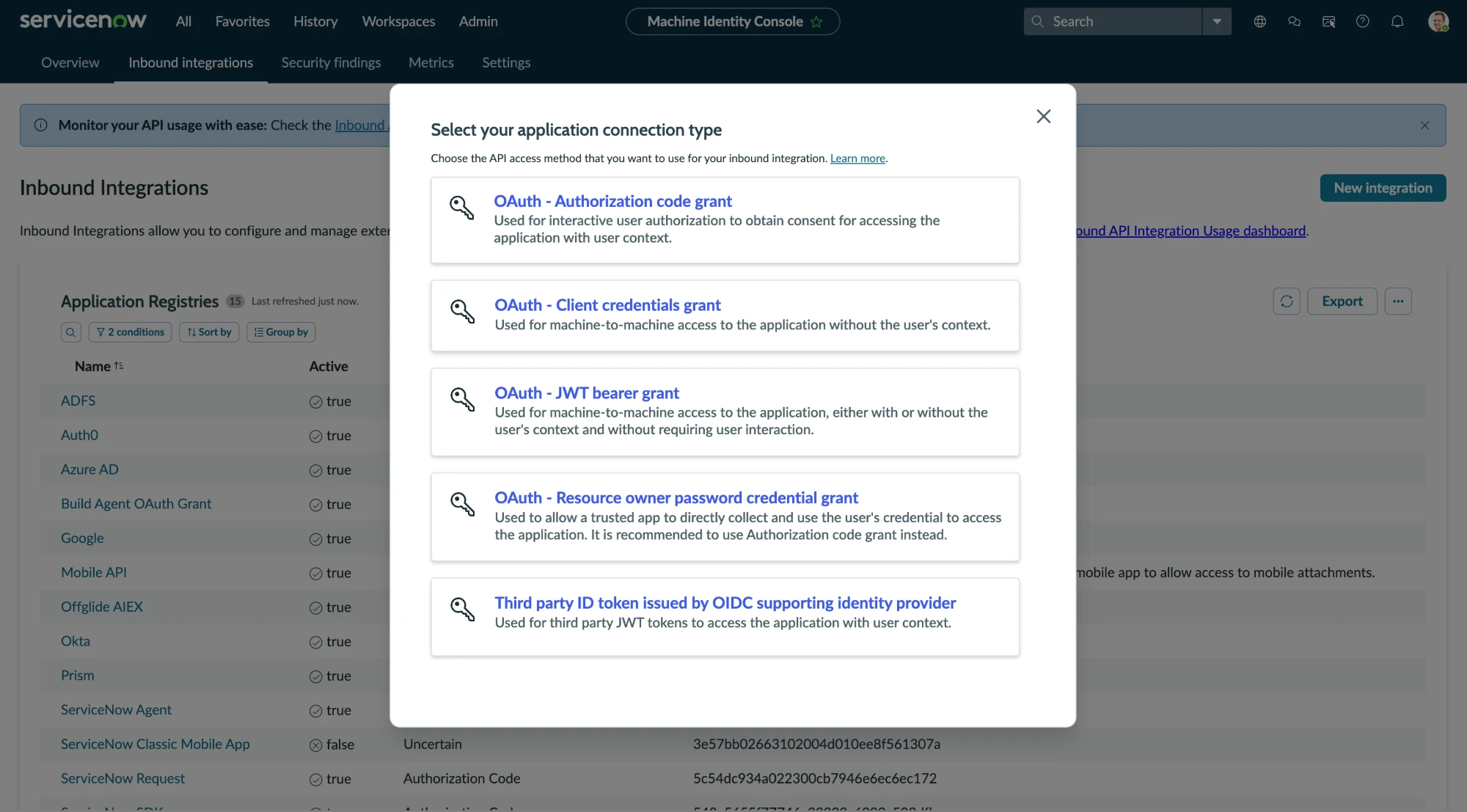
>  3. In the Machine Identity Console, click **New integration**, then pick **OAuth - Client credentials grant** — "machine-to-machine access to the application without the user's context".
>
3. In the Machine Identity Console, click **New integration**, then pick **OAuth - Client credentials grant** — "machine-to-machine access to the application without the user's context".
>  :::warning
Do not pick **Authorization code grant** — that is a different Suger connector with a browser redirect, and it is not what this integration uses. **JWT bearer** and **Resource owner password** are also wrong here.
:::
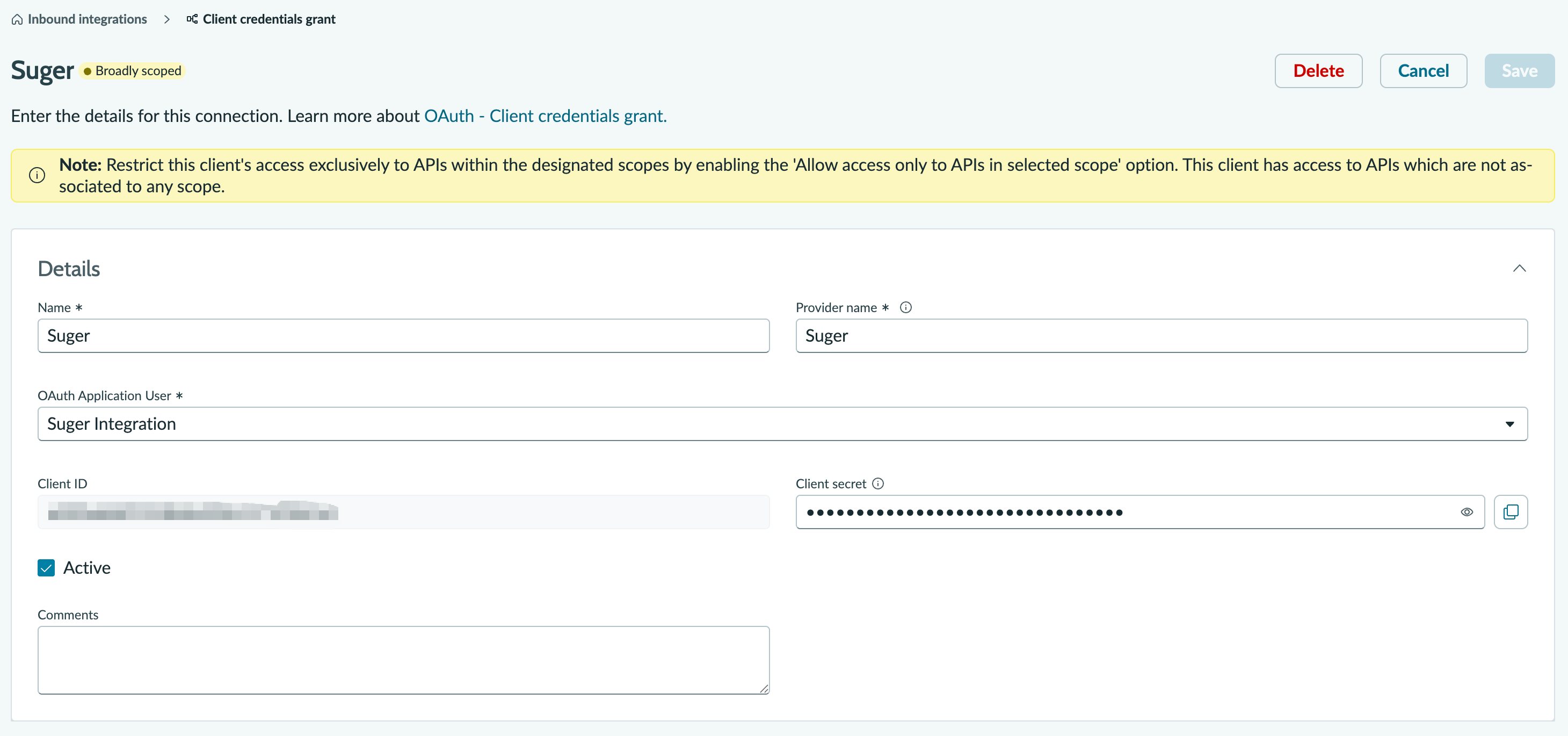
4. Fill in the **Details** section:
| Field | Value |
| --- | --- |
| Name | `Suger` |
| Provider name | `Suger` — free text naming the service you are integrating with; it is inventory metadata only and is not read during the token exchange |
| OAuth application user | the user from step 2 |
| Client ID / Client Secret | generated by ServiceNow — copy both now |
| Active | checked |
>
:::warning
Do not pick **Authorization code grant** — that is a different Suger connector with a browser redirect, and it is not what this integration uses. **JWT bearer** and **Resource owner password** are also wrong here.
:::
4. Fill in the **Details** section:
| Field | Value |
| --- | --- |
| Name | `Suger` |
| Provider name | `Suger` — free text naming the service you are integrating with; it is inventory metadata only and is not read during the token exchange |
| OAuth application user | the user from step 2 |
| Client ID / Client Secret | generated by ServiceNow — copy both now |
| Active | checked |
>  :::info
If the **OAuth application user** picker cannot find your user, give the record a **First name** and **Last name**. The picker searches the derived display name, not the User ID, so an account with both name fields blank is effectively invisible to it.
:::
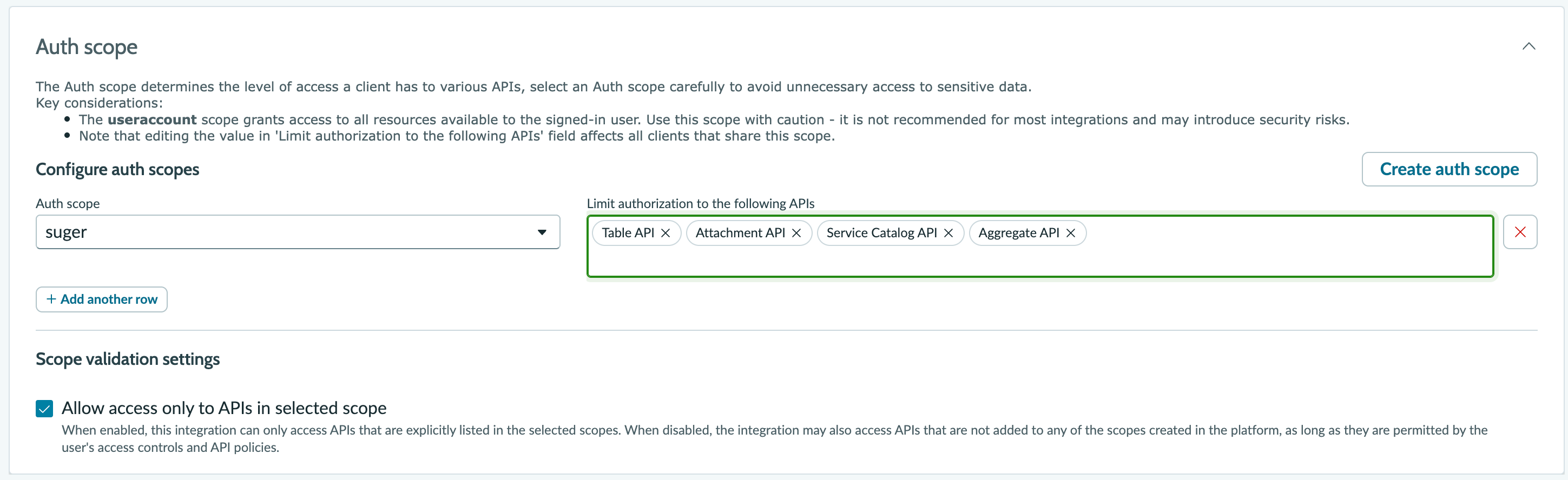
5. Set the **Auth scope** section as described below, then save.
>
:::info
If the **OAuth application user** picker cannot find your user, give the record a **First name** and **Last name**. The picker searches the derived display name, not the User ID, so an account with both name fields blank is effectively invisible to it.
:::
5. Set the **Auth scope** section as described below, then save.
>  ### Step 4 — Connect in Suger
In the Suger console, open [Settings → Integrations](https://console.suger.io/settings?tab=integrations), click **Connect** on **ServiceNow**, and enter:
| Field | Value |
| --- | --- |
| ServiceNow Domain | your instance host, for example `acme.service-now.com` — host only, no `https://` and no trailing slash |
| Client ID | from step 3 |
| Client Secret | from step 3 |
Suger exchanges the pair for an access token and re-mints it as needed. Client-credentials tokens last about 30 minutes and carry no refresh token, which is expected.
:::info
The OAuth client belongs to *your* instance. Suger registers nothing on your behalf and holds no ServiceNow client of its own, so deleting or rotating that registry entry immediately breaks the connection.
:::
## Auth scope
On releases with the Machine Identity Console, the inbound-integration form has an **Auth scope** section, and its **Allow access only to APIs in selected scope** checkbox is **enabled by default with no scope selected**. Saved in that state, the integration authenticates successfully and then returns 403 on every call, because a token with no scope matches no scope-listed API.
Two supported configurations. Prefer the first — it is verified to work and avoids ServiceNow labelling the client **Broadly scoped**.
### Scope the client to the APIs Suger uses
Click **Create auth scope**, name it `suger`, then in **Limit authorization to the following APIs** — a multi-select of registered API definitions, not URL paths — add:
| API definition | Why Suger needs it |
| --- | --- |
| **Table API** | incidents, problems, change requests and tasks, groups, users, approvals, knowledge, and catalog *records* — everything under `/api/now/table/` |
| **Service Catalog API** | `get-catalog-item` and `order-catalog-item`, which use `/api/sn_sc/servicecatalog/` rather than the Table API |
| **Attachment API** | `list-attachments` |
| **Aggregate API** | not used by any tool today. Include it so counting and grouping tools do not require a scope revision later |
Leave **Allow access only to APIs in selected scope** checked, and save.
Create a dedicated scope rather than extending an existing one. ServiceNow warns that editing a scope's API list affects every client sharing it — a scope used only by Suger keeps later revisions safe.
:::info
Suger mints its token without a `scope` parameter, and ServiceNow supplies the client's configured scope by default — so this works without Suger requesting `suger` by name. Confirm it on your instance after saving by minting a token (see [Troubleshooting](#troubleshooting)): the response's `scope` should echo your scope name, and a test read should return records. If `scope` comes back empty or reads return 403, use the fallback below and tell Suger support.
:::
### Fallback: turn enforcement off
Uncheck **Allow access only to APIs in selected scope**. Access then falls back to the acting user's access controls and API policies, which is the model this connector was built around — the `itil` role on the OAuth Application User is the ceiling.
ServiceNow labels the client **Broadly scoped** in this state and flags it in the Machine Identity Console's security findings. That is accurate: the role is the only boundary. It remains the configuration Suger is known to work with, so choose it deliberately rather than as an oversight, and keep the acting user's roles as narrow as your tools require.
:::warning
Do not satisfy the checkbox with the **`useraccount`** scope instead. It grants everything the signed-in identity can reach — no narrower than turning enforcement off, but it *looks* restricted, which is worse than being honestly unscoped. ServiceNow's own form flags it as not recommended.
:::
## Troubleshooting
| Symptom | Cause |
| --- | --- |
| `unsupported_grant_type` when minting a token | The `glide.oauth.inbound.client.credential.grant_type.enabled` property is missing or not in **Global** scope |
| Token mints, but every tool returns 403 | Auth scope enforcement is on with no matching scope — see [Auth scope](#auth-scope) |
| Some tools work, user/group writes 403 | The OAuth Application User has `itil` but not `admin` |
| `invalid_client` | Client ID and secret do not match the registry entry |
To check the ServiceNow half on its own, before involving Suger:
```bash
curl -s -X POST 'https://YOUR_INSTANCE.service-now.com/oauth_token.do' \
-d 'grant_type=client_credentials' \
-d 'client_id=YOUR_CLIENT_ID' \
-d 'client_secret=YOUR_CLIENT_SECRET'
```
## Suger AI Tools
When ServiceNow is connected, the Suger AI agent can work your ITSM records through Suger's built-in tools (40 actions).
> **Org-level**: Every tool runs as the instance's **OAuth Application User**. If a tool returns a permission error, that user is missing a role — start with `itil`.
| Capability | What the agent can do |
|------------|-----------------------|
| **Incidents** | Create, read, update, delete, and list incidents (e.g. `create-incident`, `update-incident`, `list-incidents`) |
| **Problems** | Create, read, update, delete, and list problem records (e.g. `create-problem`, `list-problems`) |
| **Change management** | Full create/read/update/delete on change requests and change tasks (e.g. `create-change-request`, `update-change-task`) |
| **Approvals** | List approvals and record an approval decision (`list-approvals`, `update-approval`) |
| **Service catalog** | Browse catalog items, read a request and its items, and place an order (e.g. `list-catalog-items`, `order-catalog-item`) |
| **Knowledge base** | Read and list knowledge articles (`get-knowledge-article`, `list-knowledge-articles`) |
| **Users & groups** | Create, read, update, delete, and list users and groups (e.g. `create-user`, `update-group`) |
| **Any table** | Read or list records from an arbitrary table for cases the typed tools don't cover (`get-table-record`, `list-table-records`) |
| **Attachments** | List attachments on a record (`list-attachments`) |
:::warning
Creating and deleting users and groups requires the `admin` role on the OAuth Application User, not just `itil`. Grant `admin` only if you intend the agent to perform those operations.
:::
:::tip
Open the integration from **Settings → Integrations** to see the exact tool list for your connection on its **Actions** tab, and to try a call on the **Playground** tab. The Playground pre-fills only the inputs an action *requires* — add optional ones yourself when you need them.
:::
## Edit Integration
Editing is not supported. To rotate the client secret or point Suger at a different instance, delete the integration and create it again.
## Delete Integration
Click the 🗑️ button next to **ServiceNow** in the **Integrations** list. The stored client pair is destroyed with the integration record. Delete the application registry entry in ServiceNow too if you want to revoke access from that side.
### Step 4 — Connect in Suger
In the Suger console, open [Settings → Integrations](https://console.suger.io/settings?tab=integrations), click **Connect** on **ServiceNow**, and enter:
| Field | Value |
| --- | --- |
| ServiceNow Domain | your instance host, for example `acme.service-now.com` — host only, no `https://` and no trailing slash |
| Client ID | from step 3 |
| Client Secret | from step 3 |
Suger exchanges the pair for an access token and re-mints it as needed. Client-credentials tokens last about 30 minutes and carry no refresh token, which is expected.
:::info
The OAuth client belongs to *your* instance. Suger registers nothing on your behalf and holds no ServiceNow client of its own, so deleting or rotating that registry entry immediately breaks the connection.
:::
## Auth scope
On releases with the Machine Identity Console, the inbound-integration form has an **Auth scope** section, and its **Allow access only to APIs in selected scope** checkbox is **enabled by default with no scope selected**. Saved in that state, the integration authenticates successfully and then returns 403 on every call, because a token with no scope matches no scope-listed API.
Two supported configurations. Prefer the first — it is verified to work and avoids ServiceNow labelling the client **Broadly scoped**.
### Scope the client to the APIs Suger uses
Click **Create auth scope**, name it `suger`, then in **Limit authorization to the following APIs** — a multi-select of registered API definitions, not URL paths — add:
| API definition | Why Suger needs it |
| --- | --- |
| **Table API** | incidents, problems, change requests and tasks, groups, users, approvals, knowledge, and catalog *records* — everything under `/api/now/table/` |
| **Service Catalog API** | `get-catalog-item` and `order-catalog-item`, which use `/api/sn_sc/servicecatalog/` rather than the Table API |
| **Attachment API** | `list-attachments` |
| **Aggregate API** | not used by any tool today. Include it so counting and grouping tools do not require a scope revision later |
Leave **Allow access only to APIs in selected scope** checked, and save.
Create a dedicated scope rather than extending an existing one. ServiceNow warns that editing a scope's API list affects every client sharing it — a scope used only by Suger keeps later revisions safe.
:::info
Suger mints its token without a `scope` parameter, and ServiceNow supplies the client's configured scope by default — so this works without Suger requesting `suger` by name. Confirm it on your instance after saving by minting a token (see [Troubleshooting](#troubleshooting)): the response's `scope` should echo your scope name, and a test read should return records. If `scope` comes back empty or reads return 403, use the fallback below and tell Suger support.
:::
### Fallback: turn enforcement off
Uncheck **Allow access only to APIs in selected scope**. Access then falls back to the acting user's access controls and API policies, which is the model this connector was built around — the `itil` role on the OAuth Application User is the ceiling.
ServiceNow labels the client **Broadly scoped** in this state and flags it in the Machine Identity Console's security findings. That is accurate: the role is the only boundary. It remains the configuration Suger is known to work with, so choose it deliberately rather than as an oversight, and keep the acting user's roles as narrow as your tools require.
:::warning
Do not satisfy the checkbox with the **`useraccount`** scope instead. It grants everything the signed-in identity can reach — no narrower than turning enforcement off, but it *looks* restricted, which is worse than being honestly unscoped. ServiceNow's own form flags it as not recommended.
:::
## Troubleshooting
| Symptom | Cause |
| --- | --- |
| `unsupported_grant_type` when minting a token | The `glide.oauth.inbound.client.credential.grant_type.enabled` property is missing or not in **Global** scope |
| Token mints, but every tool returns 403 | Auth scope enforcement is on with no matching scope — see [Auth scope](#auth-scope) |
| Some tools work, user/group writes 403 | The OAuth Application User has `itil` but not `admin` |
| `invalid_client` | Client ID and secret do not match the registry entry |
To check the ServiceNow half on its own, before involving Suger:
```bash
curl -s -X POST 'https://YOUR_INSTANCE.service-now.com/oauth_token.do' \
-d 'grant_type=client_credentials' \
-d 'client_id=YOUR_CLIENT_ID' \
-d 'client_secret=YOUR_CLIENT_SECRET'
```
## Suger AI Tools
When ServiceNow is connected, the Suger AI agent can work your ITSM records through Suger's built-in tools (40 actions).
> **Org-level**: Every tool runs as the instance's **OAuth Application User**. If a tool returns a permission error, that user is missing a role — start with `itil`.
| Capability | What the agent can do |
|------------|-----------------------|
| **Incidents** | Create, read, update, delete, and list incidents (e.g. `create-incident`, `update-incident`, `list-incidents`) |
| **Problems** | Create, read, update, delete, and list problem records (e.g. `create-problem`, `list-problems`) |
| **Change management** | Full create/read/update/delete on change requests and change tasks (e.g. `create-change-request`, `update-change-task`) |
| **Approvals** | List approvals and record an approval decision (`list-approvals`, `update-approval`) |
| **Service catalog** | Browse catalog items, read a request and its items, and place an order (e.g. `list-catalog-items`, `order-catalog-item`) |
| **Knowledge base** | Read and list knowledge articles (`get-knowledge-article`, `list-knowledge-articles`) |
| **Users & groups** | Create, read, update, delete, and list users and groups (e.g. `create-user`, `update-group`) |
| **Any table** | Read or list records from an arbitrary table for cases the typed tools don't cover (`get-table-record`, `list-table-records`) |
| **Attachments** | List attachments on a record (`list-attachments`) |
:::warning
Creating and deleting users and groups requires the `admin` role on the OAuth Application User, not just `itil`. Grant `admin` only if you intend the agent to perform those operations.
:::
:::tip
Open the integration from **Settings → Integrations** to see the exact tool list for your connection on its **Actions** tab, and to try a call on the **Playground** tab. The Playground pre-fills only the inputs an action *requires* — add optional ones yourself when you need them.
:::
## Edit Integration
Editing is not supported. To rotate the client secret or point Suger at a different instance, delete the integration and create it again.
## Delete Integration
Click the 🗑️ button next to **ServiceNow** in the **Integrations** list. The stored client pair is destroyed with the integration record. Delete the application registry entry in ServiceNow too if you want to revoke access from that side.