# Microsoft Teams
Receive instant Suger notifications and alerts in your Microsoft teams channels.
---
## Overview
By connecting with the Suger app in your Microsoft Teams, you and your team can receive instant notifications and alerts about important sales & revenue events occurring across all your cloud marketplaces.
### Org-Level vs User-Level
- **Org-Level**: Uses the Teams app + webhook for organization-wide notifications. Administrators set up the integration for the entire organization.
- **User-Level**: Each user connects their personal Microsoft Teams to receive notifications individually.
## Create Integration
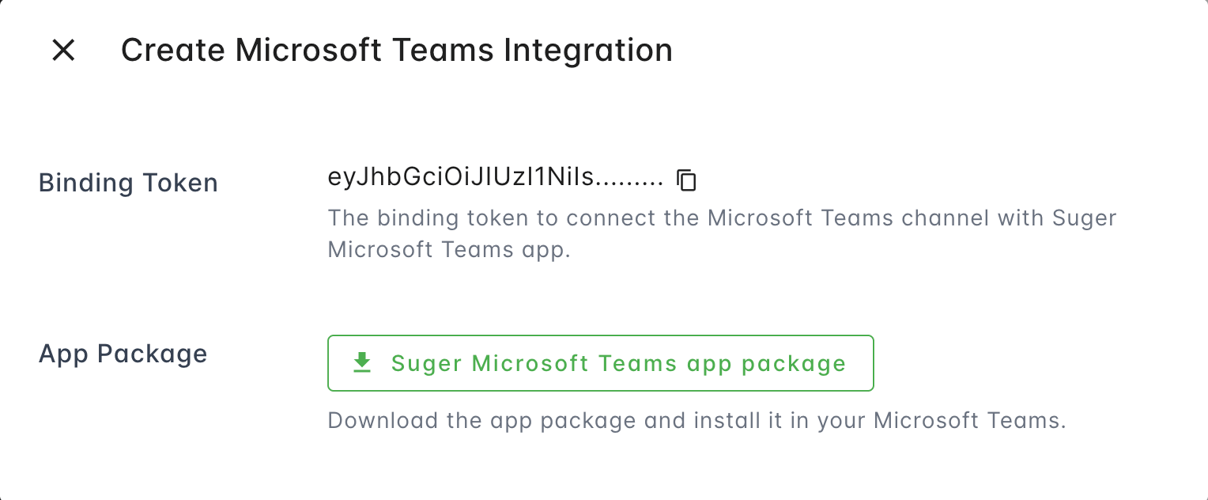
In your [Suger Console Integration](https://console.suger.io/settings?tab=integrations), you will see the Microsoft Teams integration connection status. Click the `Connect` button to download the `Suger Microsoft Teams app package` and copy the `Binding Token` for future use.
>  ### Install Suger Microsoft Teams app
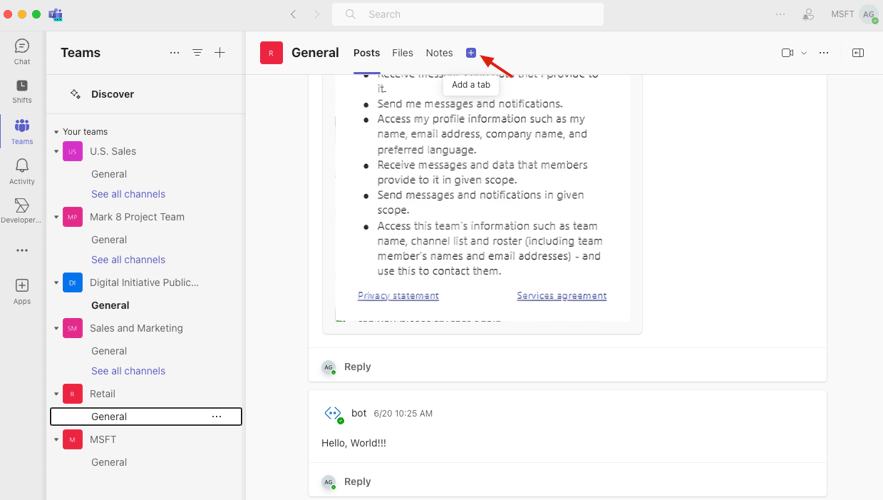
1. Choose the channel you want to send notifications to, then click the `Add a tab` button as shown below.
>
### Install Suger Microsoft Teams app
1. Choose the channel you want to send notifications to, then click the `Add a tab` button as shown below.
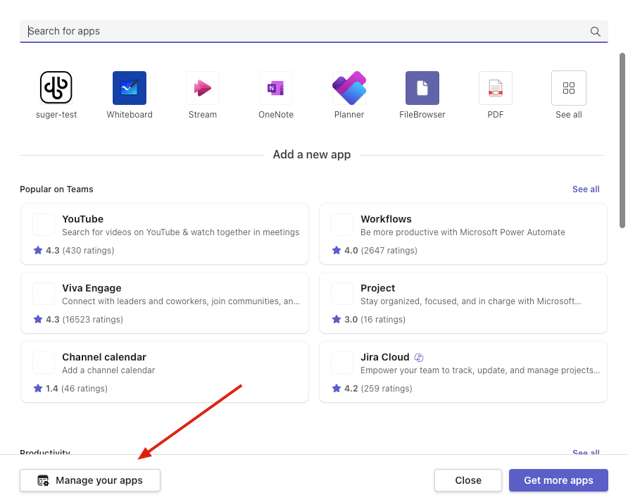
>  2. Click **Manage your apps**.
>
2. Click **Manage your apps**.
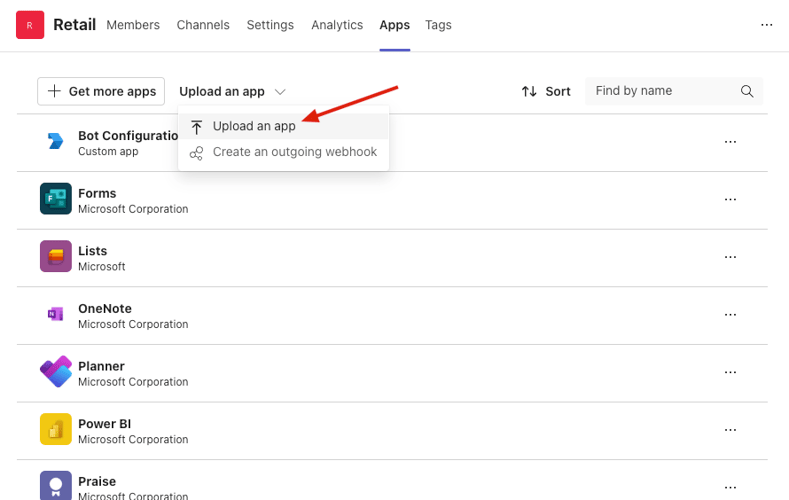
>  3. Click button **Upload an app**, then choose the `Suger Microsoft Teams app package` you downloaded.
>
3. Click button **Upload an app**, then choose the `Suger Microsoft Teams app package` you downloaded.
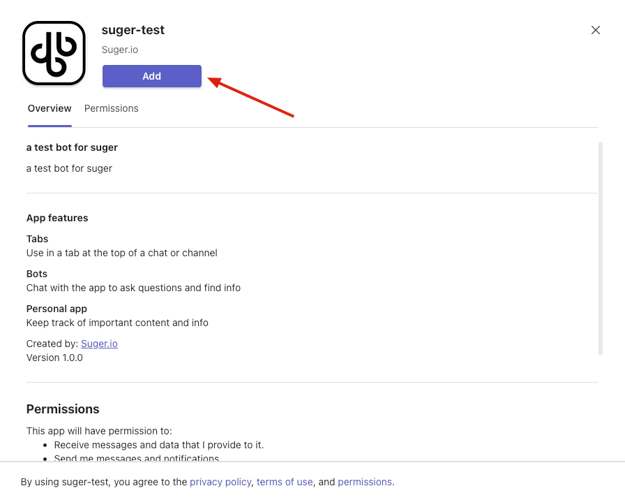
>  4. Click button **Add**.
>
4. Click button **Add**.
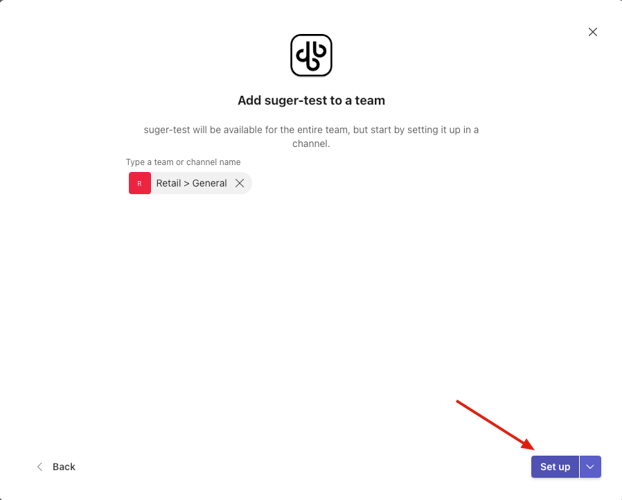
>  5. Click button **Set up**.
>
5. Click button **Set up**.
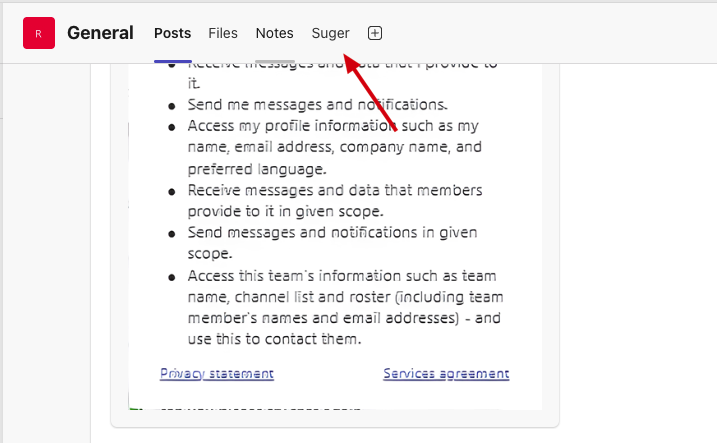
>  6. After the app setup is completed, a new tab named **Suger** will appear in the channel. Click **Suger** tab.
>
6. After the app setup is completed, a new tab named **Suger** will appear in the channel. Click **Suger** tab.
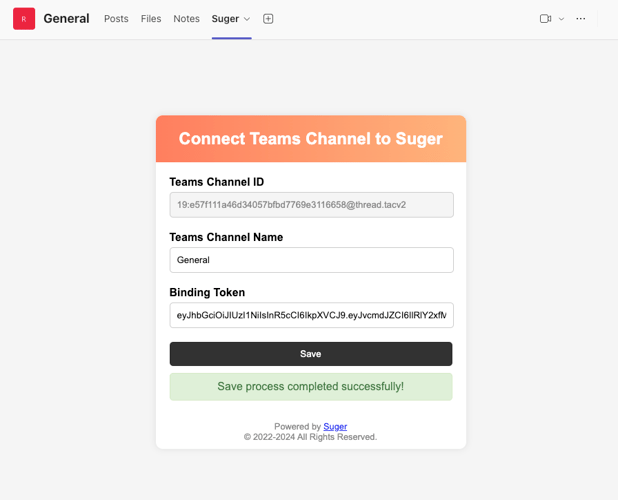
>  7. In the **Suger** tab, you can change channel name as you like, and paste the **Binding Token** you get from Suger console. click `Save`. Now your channel is bound to Suger console.
>
7. In the **Suger** tab, you can change channel name as you like, and paste the **Binding Token** you get from Suger console. click `Save`. Now your channel is bound to Suger console.
>  ### Verify Microsoft Teams Integration
After you successfully bind the channel to the Suger console, you will see an integration created on the Suger console.
>
### Verify Microsoft Teams Integration
After you successfully bind the channel to the Suger console, you will see an integration created on the Suger console.
> 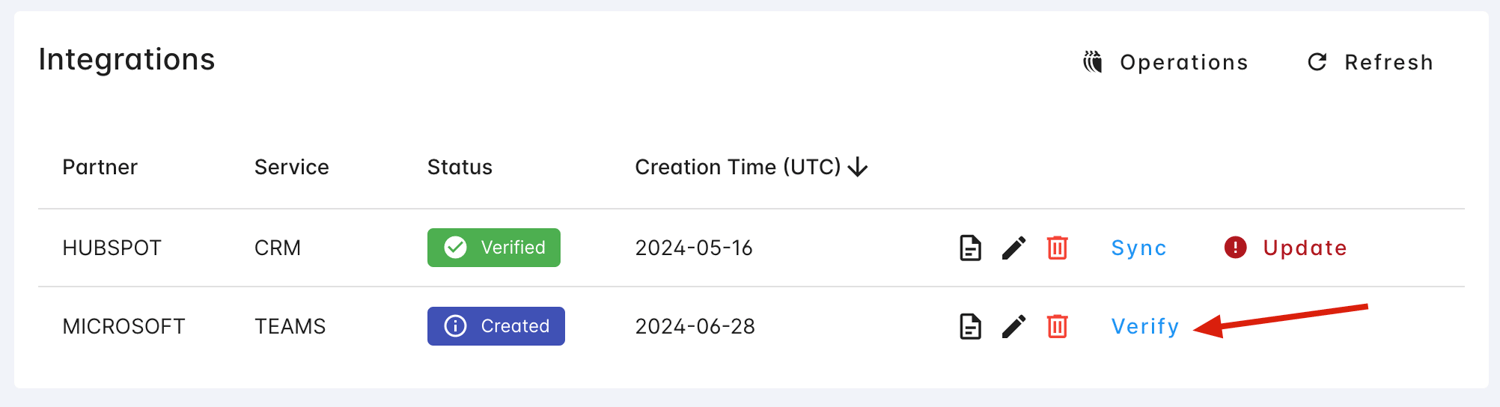 You need to click the **Verify** button to ensure the bound channel is working. After you click the Verify button, a verification message will be sent to the bound channel.
## Suger AI Tools
Suger AI uses a **middleware** strategy — wrapping the Microsoft Graph Teams API directly.
> **Org-level and user-level**: Both integration levels are supported. User-level takes precedence when both are connected.
| Tool | Description |
|------|-------------|
| `msteams_list_teams` | List Teams teams (IDs and display names) |
| `msteams_list_channels` | List all channels in a team |
| `msteams_list_messages` | List recent messages in a channel |
| `msteams_get_message` | Get the full content of a channel message |
| `msteams_send_message` | Post a new message to a channel (plain text or HTML) |
| `msteams_reply_to_message` | Reply to an existing channel message thread |
## Edit Integration
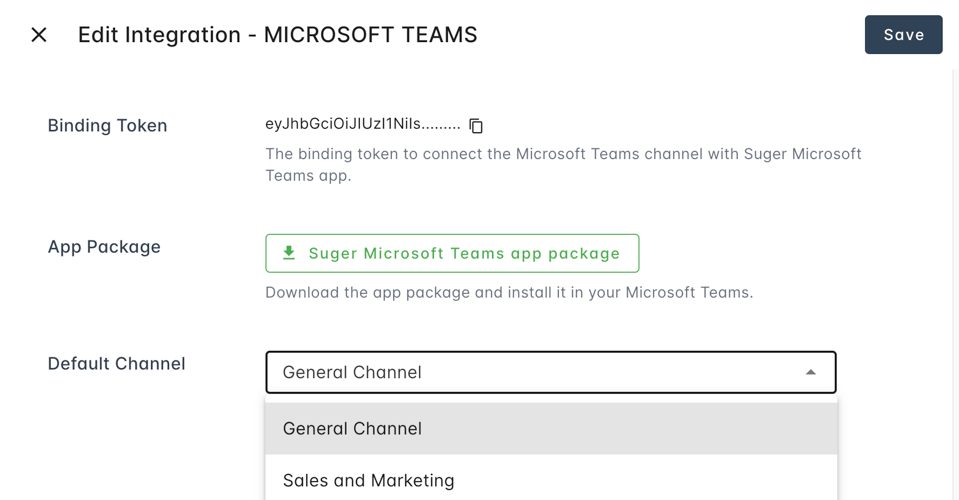
If you have successfully bound multiple channels within Suger, you can specify the channel to which the notification will be sent by default via setting the default channel.
>
You need to click the **Verify** button to ensure the bound channel is working. After you click the Verify button, a verification message will be sent to the bound channel.
## Suger AI Tools
Suger AI uses a **middleware** strategy — wrapping the Microsoft Graph Teams API directly.
> **Org-level and user-level**: Both integration levels are supported. User-level takes precedence when both are connected.
| Tool | Description |
|------|-------------|
| `msteams_list_teams` | List Teams teams (IDs and display names) |
| `msteams_list_channels` | List all channels in a team |
| `msteams_list_messages` | List recent messages in a channel |
| `msteams_get_message` | Get the full content of a channel message |
| `msteams_send_message` | Post a new message to a channel (plain text or HTML) |
| `msteams_reply_to_message` | Reply to an existing channel message thread |
## Edit Integration
If you have successfully bound multiple channels within Suger, you can specify the channel to which the notification will be sent by default via setting the default channel.
>  ## Delete Integration
The Microsoft Teams integration can be deleted like all other integrations. Once the deletion is triggered, all integration info including the access token will be deleted immediately & permanently from Suger. No time window or methods to recover.
:::warning
- To completely delete the integration, please uninstall the **Suger** app from your Microsoft Teams.
:::
## Create User Integration
Use user-level integration to receive notifications in your personal Microsoft Teams.
1. Click `Connect Now` button in the User Integrations section
2. You will be redirected to Microsoft to authorize
3. Select the channel where you want to receive notifications
4. Return to Suger to confirm connection
:::warning
Deleting the integration will stop all notifications to your Teams channel.
:::
## Type of Notifications
Each type of Notifications consists of the **Entity** and **Action**. There are 2 entity types and 7 action types. They are listed below:
| | |
| ---------------- | :-------- |
| `Entity` | The type of the `entity` who can do `action` is one of: |
| `Action` | The action performed. Can be one of:
## Delete Integration
The Microsoft Teams integration can be deleted like all other integrations. Once the deletion is triggered, all integration info including the access token will be deleted immediately & permanently from Suger. No time window or methods to recover.
:::warning
- To completely delete the integration, please uninstall the **Suger** app from your Microsoft Teams.
:::
## Create User Integration
Use user-level integration to receive notifications in your personal Microsoft Teams.
1. Click `Connect Now` button in the User Integrations section
2. You will be redirected to Microsoft to authorize
3. Select the channel where you want to receive notifications
4. Return to Suger to confirm connection
:::warning
Deleting the integration will stop all notifications to your Teams channel.
:::
## Type of Notifications
Each type of Notifications consists of the **Entity** and **Action**. There are 2 entity types and 7 action types. They are listed below:
| | |
| ---------------- | :-------- |
| `Entity` | The type of the `entity` who can do `action` is one of: |
| `Action` | The action performed. Can be one of:- `CREATE`: the entity is created.
- `PENDING_START`: the entity `ENTITLEMENT` is pending to start.
- `CANCEL`: the entity is cancelled.
- `PENDING_CANCEL`: the entity `ENTITLEMENT` is pending to be cancelled.
- `SUSPEND`: the entity is suspended, it may be reinstated or cancelled in the future.
- `REINSTATE`: the entity is reinstated from suspended state.
- `UPDATE`: the entity is updated.
- `EXPIRE`: the entity `OFFER` is expired
- `TEST`: for testing purpose only.
|
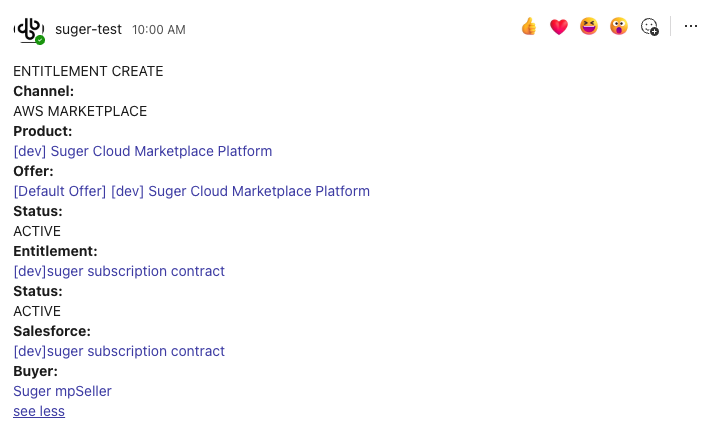
Here is an example of notification you will receive in your Microsoft Teams channel when a new entitlement is created:
>