# Legacy Partner Central S3 Integration
:::warning
⚠️ This guide describes the **legacy S3-based integration**, which is **deprecated**. AWS no longer provisions S3-based CRM integrations, and it has been unavailable to new users since 2024, so **new S3 connections cannot be created**. See the [AWS Partner Central CRM guide](https://docs.aws.amazon.com/partner-central/latest/crm/s3-config.html) for AWS's current status.
- **New integrations:** use the [AWS Partner Central API](https://doc.suger.io/integrations/aws-partner-network-api) integration instead.
- **Existing S3 connections:** remain supported for now. Migrate at your earliest convenience with the [S3-to-API migration guide](./aws-ace-migration-from-s3-to-api.md).
:::
Sync leads & opportunities with AWS Partner Central for co-sell.
---
## Overview
By integrating with programs such as [APN Customer Engagement](https://aws.amazon.com/partners/programs/ace/) (ACE) and ISV Accelerate, ISV/Sellers can scale their co-sell programs more effectively. The integration streamlines the process of managing information about leads and opportunities, reducing manual efforts and eliminating the need to maintain data in two separate systems, such as the Salesforce CRM and AWS Partner Central.
Through the integration, ISV/Sellers can easily manage new opportunities and leads. They can accept new opportunities and leads, receive updates on them from AWS, and send new opportunities and updates on their leads and opportunities to AWS. All of these actions are supported by an AWS-managed S3 bucket, which acts as an intermediary in the bi-directional exchange of files.
## Request CRM Integration on AWS Partner Central
Before integrating your ACE pipeline with Suger, you first need to initiate an onboarding request on [CRM Integration self-service portal](https://partnercentral.awspartner.com/partnercentral2/s/acecrmintegration).
:::info
- This can only be done by **Alliance Lead**
- This process involves creating **AWS IAM Roles** so you may need to involve your **Cloud Ops** if you do not have the permissions on your AWS Console.
:::
1. **[AWS Console] Create AWS IAM Role**
Create two empty IAM roles, one for sandbox/test environment, and the other for production environment.
The name can be arbitrary. A common name is `APN-ACE-{company}-AccessRole-beta` and `APN-ACE-{company}-AccessRole-prod`.
You can click [this link](https://console.aws.amazon.com/cloudformation/home?region=us-west-2#/stacks/quickcreate?templateURL=https://suger-public-access-bucket.s3.us-west-2.amazonaws.com/suger-aws-ace-iam-stack-template.json&stackName=AceAccessRole) to create the roles via our CloudFormation stack.
The only purpose of these roles is to access the S3 buckets which are created and owned by APN. They won't need any access to your company's resources.
2. Navigate to [CRM Integration self-service portal](https://partnercentral.awspartner.com/partnercentral2/s/acecrmintegration) and click `Initiate Onboarding Request` button on the bottom.
2. **Step 1 - Enter basic information**
- Partner CRM system - Choose Salesforce or HubSpot.
- What solution would you be using to integrate your CRM with APN? - Choose "Third Party Solution".
- Name of the third party solution provider - Suger
- Estimated integration start date - choose the next Monday or the date you prefer.
3. **Step 2 - Enter partner contacts**
Third party contact:
- Email: `support@suger.io`
- Partner Role: Third Party Staff
4. **Step 3 - Enter the ARN for the role you created**
5. **Step 4 - Set up Sandbox**
APN will set up a sandbox bucket, and generate a policy JSON doc to access it.
Copy the JSON content and attach it to the sandbox role you created in AWS console.
Then you can mark it as completed.
6. **Step 5 - Set up Production**
After you mark implementation completed and UAT passed, proceed to the next step
and APN will provision the production bucket, with another JSON policy doc.
Similar to the sandbox, copy & attach it to the production role in AWS console.
7. **Step 6 - Launch**
Click the "Submit" button. APN will show that the CRM integration has been "Launched".
After all the steps, you will now have:
1. A production S3 bucket provisioned and owned by APN.
2. An IAM role that have access to the bucket.
> 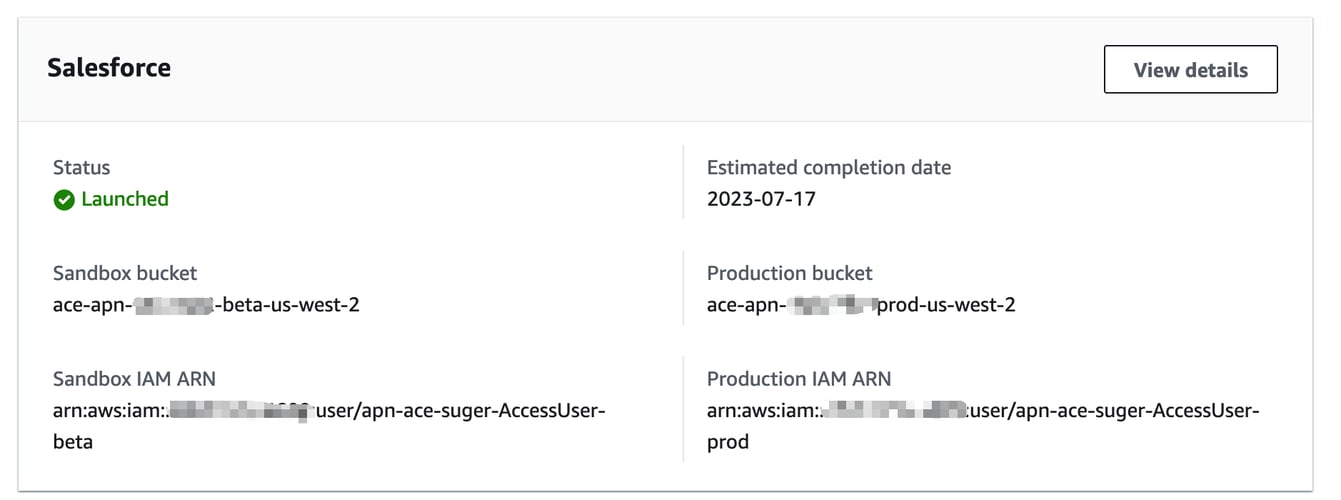 The sandbox role is created only because APN requested for it. It will not be used by Suger.
:::info
- The bucket name contains your "Partner ID" and region as well. The format is `ace-apn-{PartnerID}-prod-{Region}`.
E.g., if your bucket name is `ace-apn-12345678-prod-us-west-2`, then:
- Your "Partner ID" is `12345678`
- Your Bucket region is `us-west-2`
:::
Now you need to create the ACE integration on Suger Console to delegate the user/role to Suger, so our automated pipelines can manage it for you.
## Create Integration on Suger
1. Visit the [integration page of Suger console](https://console.suger.io/settings?tab=integrations), click the button 'Connect' in the `AWS ACE` integration card. There are four fields to input.
- **AWS IAM Role ARN**: It is `APN-ACE-{partnerName}-AccessRole-prod` created in the previous step.
- **AWS S3 Bucket Name**: The Name of the S3 bucket provisioned by AWS ACE team.
- **AWS Partner ID**: The number in your bucket name.
- **AWS S3 Bucket Region**: The AWS region of the S3 bucket provisioned by AWS ACE team - also in the bucket name.
2. After the connection is created, click the button `Verify` to finish the verification of the AWS ACE integration. Then all set.
## Provide More Details
After the integration is created and verified, we need to collect a little more information:
- ACE Program
- Solution Offering
You need to click the `🖊️Edit` button on ACE integration and input the information there:
1. >
The sandbox role is created only because APN requested for it. It will not be used by Suger.
:::info
- The bucket name contains your "Partner ID" and region as well. The format is `ace-apn-{PartnerID}-prod-{Region}`.
E.g., if your bucket name is `ace-apn-12345678-prod-us-west-2`, then:
- Your "Partner ID" is `12345678`
- Your Bucket region is `us-west-2`
:::
Now you need to create the ACE integration on Suger Console to delegate the user/role to Suger, so our automated pipelines can manage it for you.
## Create Integration on Suger
1. Visit the [integration page of Suger console](https://console.suger.io/settings?tab=integrations), click the button 'Connect' in the `AWS ACE` integration card. There are four fields to input.
- **AWS IAM Role ARN**: It is `APN-ACE-{partnerName}-AccessRole-prod` created in the previous step.
- **AWS S3 Bucket Name**: The Name of the S3 bucket provisioned by AWS ACE team.
- **AWS Partner ID**: The number in your bucket name.
- **AWS S3 Bucket Region**: The AWS region of the S3 bucket provisioned by AWS ACE team - also in the bucket name.
2. After the connection is created, click the button `Verify` to finish the verification of the AWS ACE integration. Then all set.
## Provide More Details
After the integration is created and verified, we need to collect a little more information:
- ACE Program
- Solution Offering
You need to click the `🖊️Edit` button on ACE integration and input the information there:
1. > 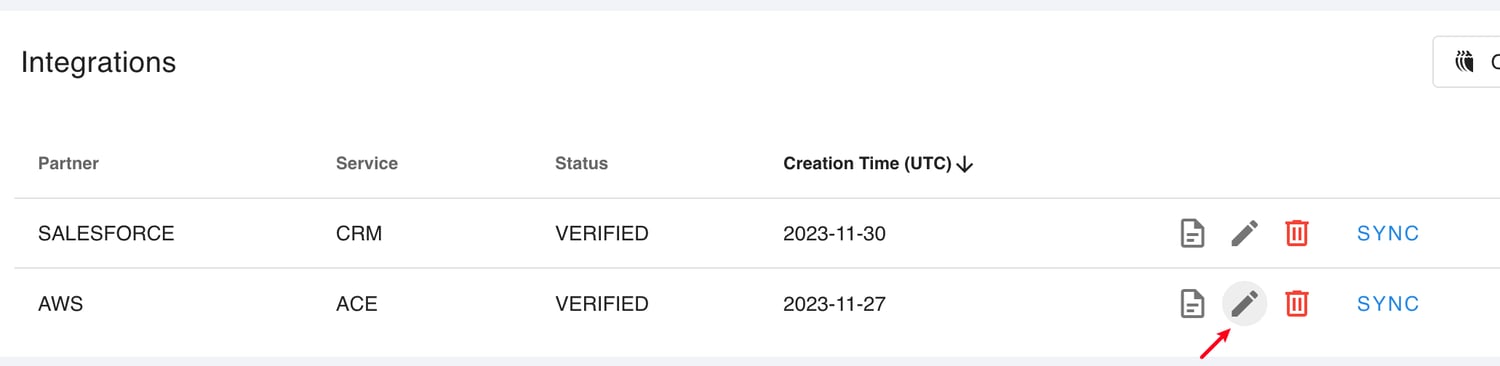 2. >
2. > 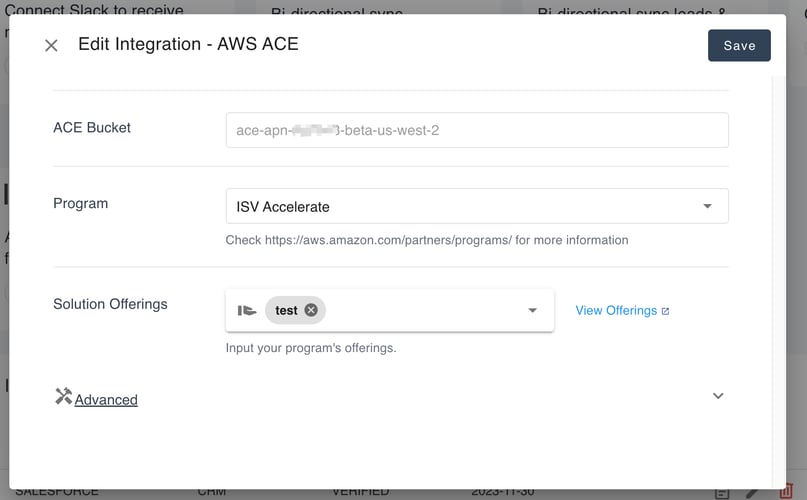 ### Solution Offering
Since November 2023, ACE requires all partners to specify "Solution Offerings" when sharing opportunities with AWS.
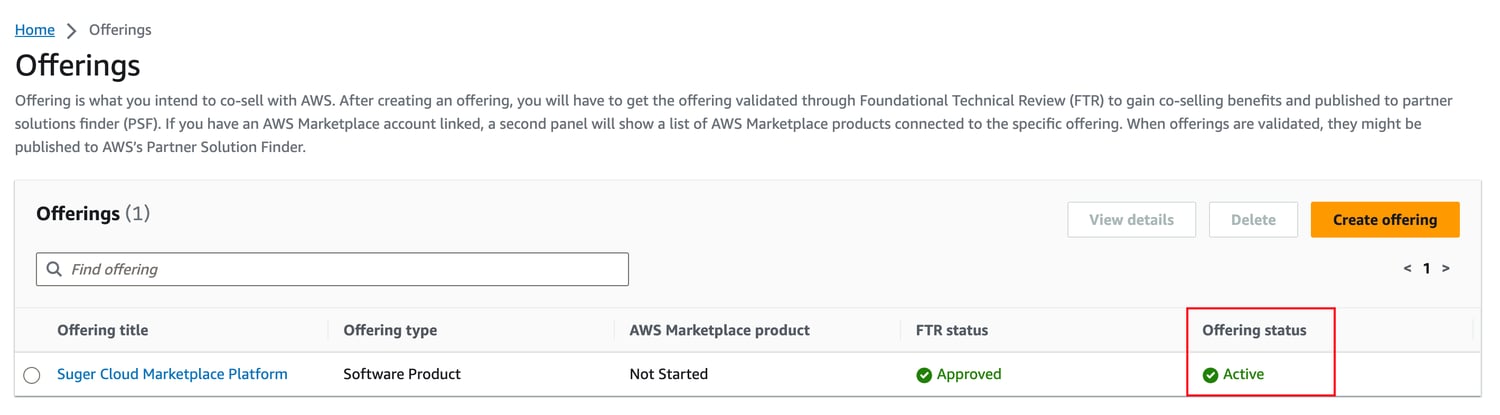
You can register or check your offerings at [Partner Central](https://partnercentral.awspartner.com/partnercentral2/s/offeringlistview).
Make sure the "Offering status" is shown as ✅Active.
>
### Solution Offering
Since November 2023, ACE requires all partners to specify "Solution Offerings" when sharing opportunities with AWS.
You can register or check your offerings at [Partner Central](https://partnercentral.awspartner.com/partnercentral2/s/offeringlistview).
Make sure the "Offering status" is shown as ✅Active.
>  Open the offering, **copy** the "Offering ID" located at the top left:
>
Open the offering, **copy** the "Offering ID" located at the top left:
> 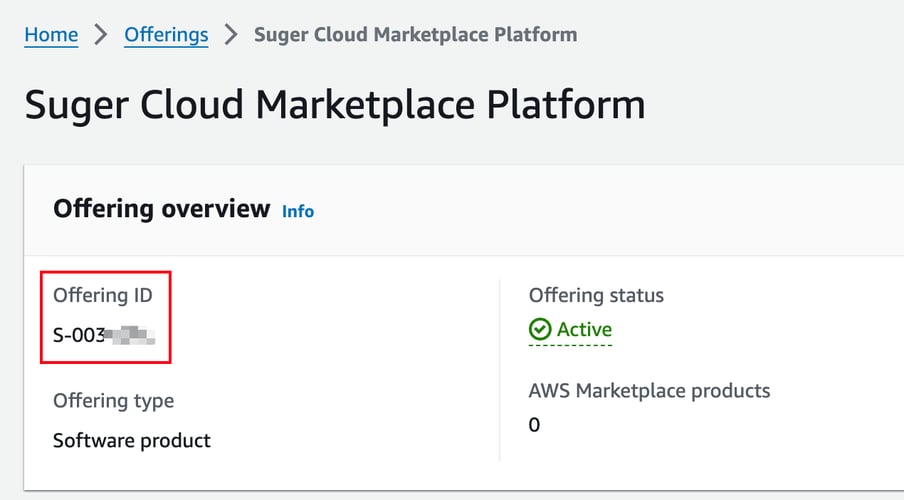 Then, input the offering ID and hit `Enter`, and click `Save`.
## Delete Integration
If you need to delete the [AWS Partner Central](https://aws.amazon.com/partners/) integration, you can do so like any other integration. Once the deletion is triggered, all integration information, including the access token, will be immediately and permanently deleted from Suger.
:::warning
Please note that there is no time window or any means of recovering the deleted data.
:::
## Next steps
:::info
- [AWS Partner Central API Integration Guide](./aws-partner-network-api.md)
:::
Then, input the offering ID and hit `Enter`, and click `Save`.
## Delete Integration
If you need to delete the [AWS Partner Central](https://aws.amazon.com/partners/) integration, you can do so like any other integration. Once the deletion is triggered, all integration information, including the access token, will be immediately and permanently deleted from Suger.
:::warning
Please note that there is no time window or any means of recovering the deleted data.
:::
## Next steps
:::info
- [AWS Partner Central API Integration Guide](./aws-partner-network-api.md)
:::