# Create Co-Sell
Submit a co-sell referral to AWS, Azure, or GCP directly from a HubSpot deal using the Suger App.
---
## Overview
A co-sell referral is how you formally ask AWS, Azure, or GCP to work with you on a deal. When you submit a referral, the cloud provider's sales team can see the opportunity and engage to help you close it — for example, by introducing you to the right contacts, validating the opportunity, or contributing resources.
In plain terms, you're sharing a deal with your cloud partner so they can help you win it. After adding the Suger App to your HubSpot Console, you can create these referrals straight from a deal.
:::info
Submitting a co-sell referral does not send anything to your customer. It only shares the deal details with the cloud provider's partner team — your customer will not know a referral was submitted.
:::
For more details, see [Co-Sell](/cosell/).
## Prerequisites
The Suger App must be set up in HubSpot and the Suger app card must be visible on your deal pages. If you haven't done that yet, see [Set up the Suger App in HubSpot](/hubspot-app/hubspot-app-configuration/).
## Create a Co-Sell
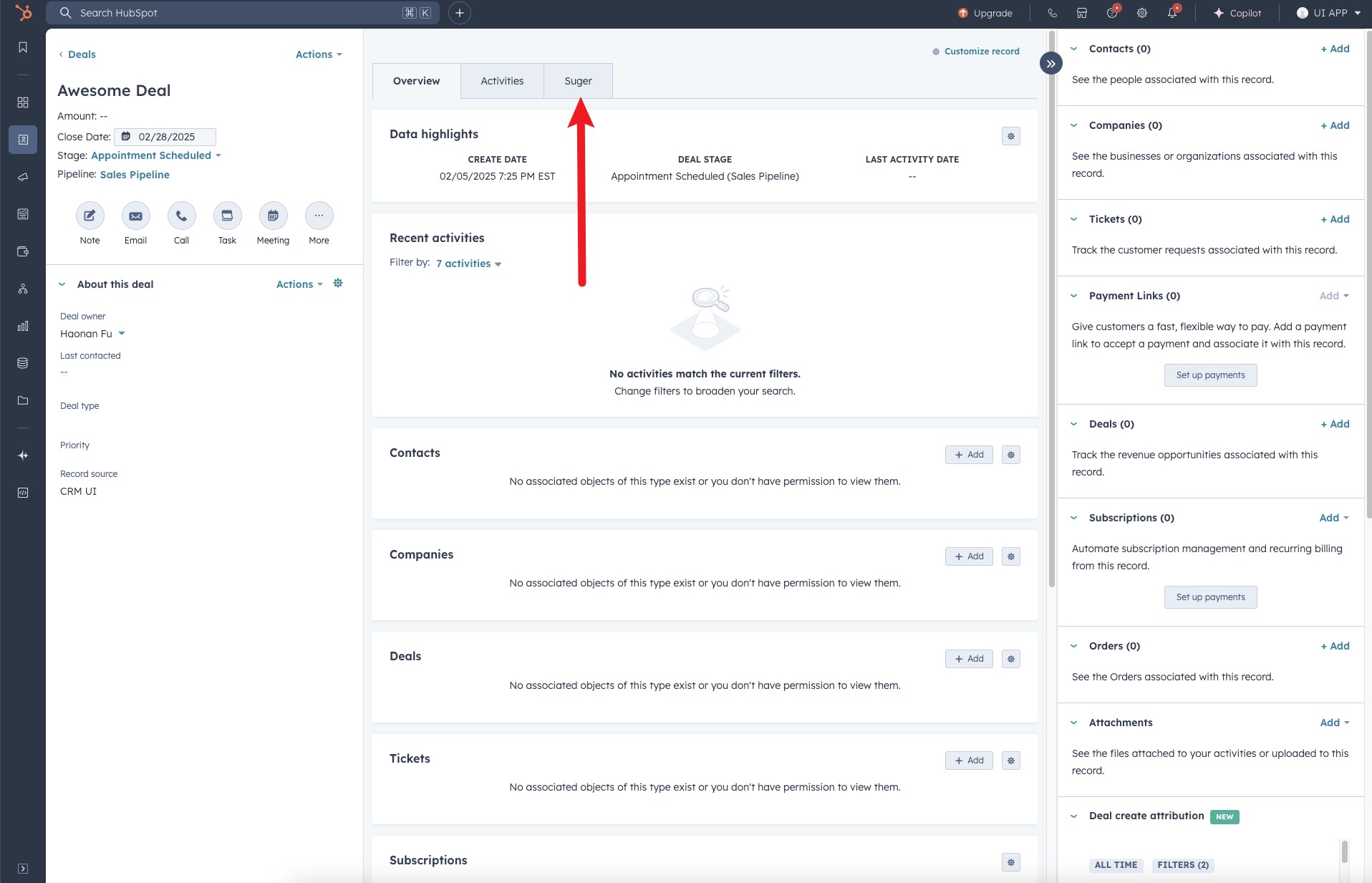
1. Navigate to the deal's detail page and click the **"Suger"** tab at the top of the page.
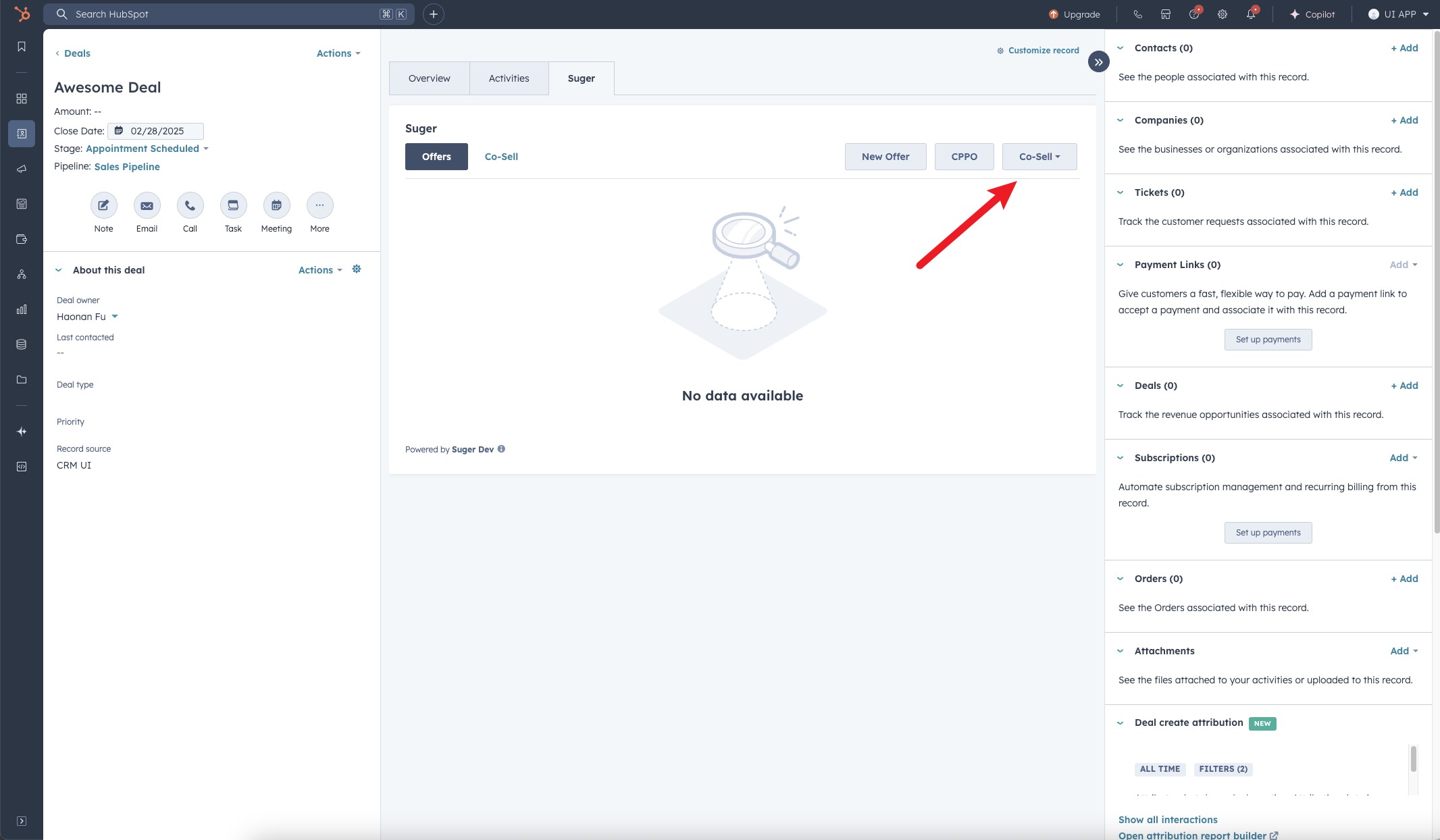
>  2. Locate and click the **"Co-Sell"** button.
>
2. Locate and click the **"Co-Sell"** button.
>  3. Choose the cloud partner you want to submit the referral to — AWS, Azure, or GCP.
>
3. Choose the cloud partner you want to submit the referral to — AWS, Azure, or GCP.
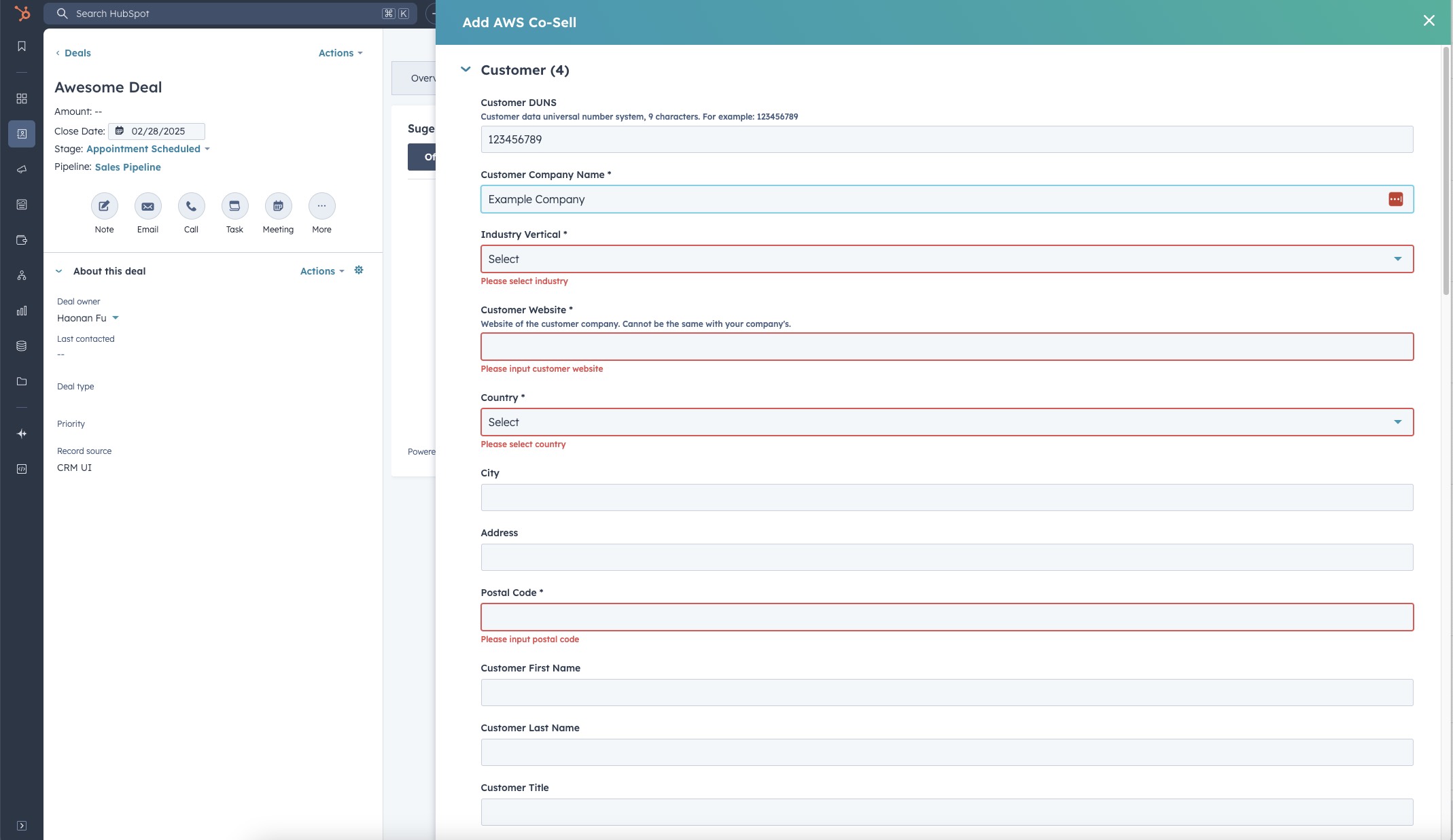
>  4. Complete the required fields in the form. Note that the required fields may vary depending on which cloud partner you selected.
>
4. Complete the required fields in the form. Note that the required fields may vary depending on which cloud partner you selected.
>  :::tip
If field mapping has been configured, the form will be prefilled with corresponding fields from the HubSpot deal, making the process faster and easier. Review the pre-filled values for accuracy before submitting.
:::
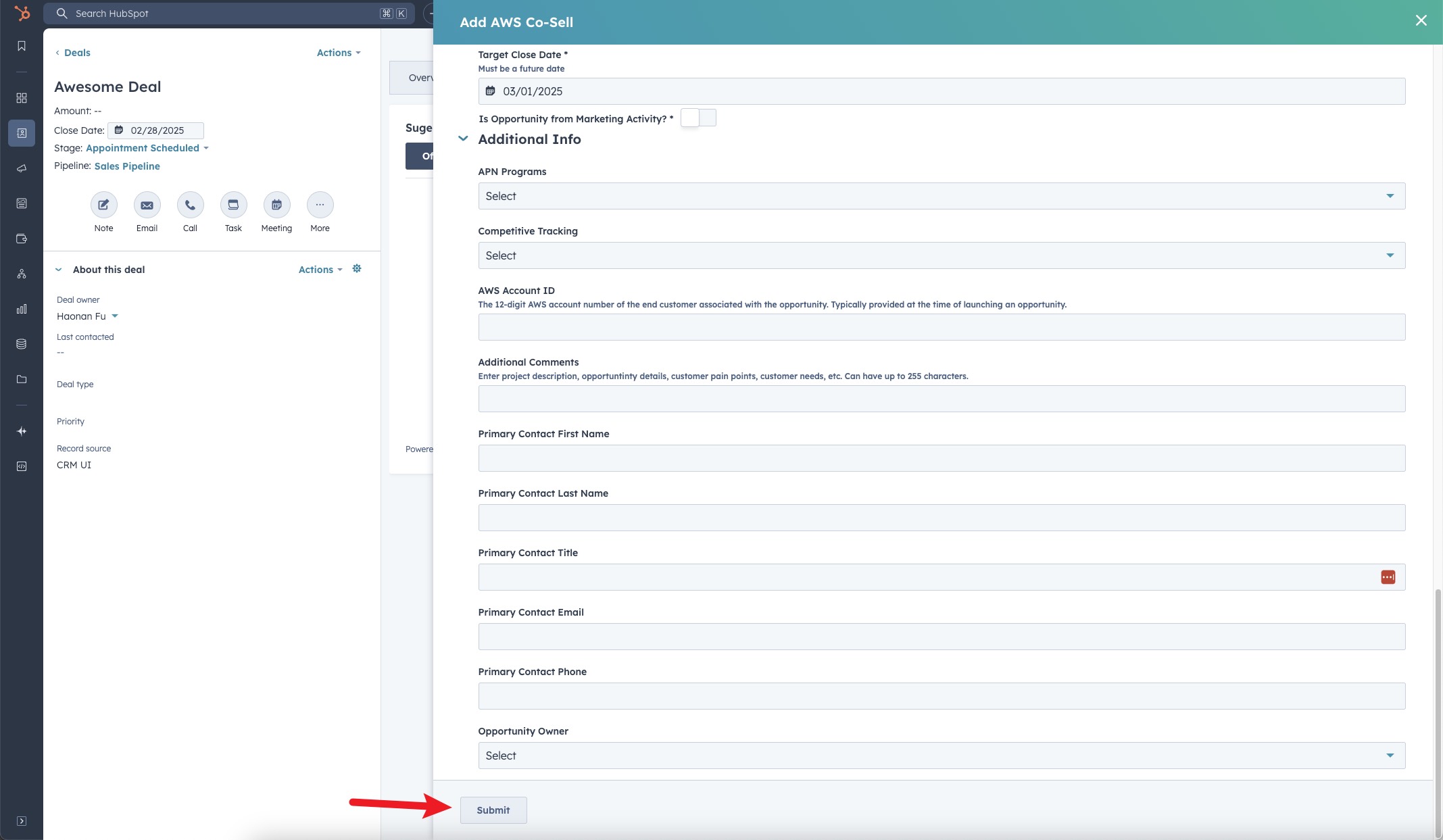
5. Once all necessary information is filled in, submit the form to create the Co-Sell.
>
:::tip
If field mapping has been configured, the form will be prefilled with corresponding fields from the HubSpot deal, making the process faster and easier. Review the pre-filled values for accuracy before submitting.
:::
5. Once all necessary information is filled in, submit the form to create the Co-Sell.
>  6. You are all set!
## What happens next
After you submit the referral:
- Suger creates the referral and links it to the HubSpot deal.
- The referral is sent to the cloud partner's system — for example, AWS Partner Central (ACE), Azure Partner Center, or GCP Partner Advantage.
- The cloud partner reviews the referral and may accept, reject, or request more information.
- Any future updates Suger syncs from your HubSpot deal are automatically reflected on the referral — you do not need to manually push updates to the cloud partner.
- The referral is also visible in the Suger Console under your referrals list.
## Troubleshooting common issues
| Issue | Possible cause | Resolution |
| --- | --- | --- |
| No Suger tab visible on the deal page | The Suger app card has not been added to the deal layout | Set up the Suger App in HubSpot to add the app card |
| No Co-Sell button visible inside the Suger panel | The HubSpot integration connection has been disrupted | Go to Suger Console → Settings → Integrations → HubSpot and click Verify to re-verify the connection |
| Only one or two cloud partners appear in the partner selector | Your Suger account may not have co-sell configured for all clouds | Contact your Suger admin to confirm which cloud partners are enabled for co-sell |
| Form fields are blank — not pre-filled from the deal | Field mapping has not been configured | Field mapping is an optional admin setup. Contact your admin to configure it |
| Referral was submitted but is not visible on the deal | Sync between Suger and HubSpot is delayed | Refresh the page after a few minutes. If it still doesn't appear, confirm the referral was created in the Suger Console |
## Frequently Asked Questions (FAQs)
- **Q: What's the difference between a co-sell referral and a private offer?**
**A:** A co-sell referral shares your deal with the cloud provider's partner team so they can help you close it. A private offer is a custom-priced contract you send directly to a buyer. They serve different purposes — co-sell is about getting the cloud partner involved in the deal; a private offer is the actual transaction.
- **Q: Can I submit a referral to more than one cloud partner for the same deal?**
**A:** Yes. You can submit separate co-sell referrals to AWS, Azure, and GCP from the same HubSpot deal — just click **Co-Sell** again and select a different partner.
- **Q: Do I need to manually update the referral every time the deal changes in HubSpot?**
**A:** No. Suger automatically syncs changes from your HubSpot deal to the referral. If you update mapped fields on the deal, those changes flow through to the cloud partner automatically.
- **Q: Will the co-sell referral show up in the Suger Console too?**
**A:** Yes. Any referral created from HubSpot is also visible in the Suger Console under your referrals list.
6. You are all set!
## What happens next
After you submit the referral:
- Suger creates the referral and links it to the HubSpot deal.
- The referral is sent to the cloud partner's system — for example, AWS Partner Central (ACE), Azure Partner Center, or GCP Partner Advantage.
- The cloud partner reviews the referral and may accept, reject, or request more information.
- Any future updates Suger syncs from your HubSpot deal are automatically reflected on the referral — you do not need to manually push updates to the cloud partner.
- The referral is also visible in the Suger Console under your referrals list.
## Troubleshooting common issues
| Issue | Possible cause | Resolution |
| --- | --- | --- |
| No Suger tab visible on the deal page | The Suger app card has not been added to the deal layout | Set up the Suger App in HubSpot to add the app card |
| No Co-Sell button visible inside the Suger panel | The HubSpot integration connection has been disrupted | Go to Suger Console → Settings → Integrations → HubSpot and click Verify to re-verify the connection |
| Only one or two cloud partners appear in the partner selector | Your Suger account may not have co-sell configured for all clouds | Contact your Suger admin to confirm which cloud partners are enabled for co-sell |
| Form fields are blank — not pre-filled from the deal | Field mapping has not been configured | Field mapping is an optional admin setup. Contact your admin to configure it |
| Referral was submitted but is not visible on the deal | Sync between Suger and HubSpot is delayed | Refresh the page after a few minutes. If it still doesn't appear, confirm the referral was created in the Suger Console |
## Frequently Asked Questions (FAQs)
- **Q: What's the difference between a co-sell referral and a private offer?**
**A:** A co-sell referral shares your deal with the cloud provider's partner team so they can help you close it. A private offer is a custom-priced contract you send directly to a buyer. They serve different purposes — co-sell is about getting the cloud partner involved in the deal; a private offer is the actual transaction.
- **Q: Can I submit a referral to more than one cloud partner for the same deal?**
**A:** Yes. You can submit separate co-sell referrals to AWS, Azure, and GCP from the same HubSpot deal — just click **Co-Sell** again and select a different partner.
- **Q: Do I need to manually update the referral every time the deal changes in HubSpot?**
**A:** No. Suger automatically syncs changes from your HubSpot deal to the referral. If you update mapped fields on the deal, those changes flow through to the cloud partner automatically.
- **Q: Will the co-sell referral show up in the Suger Console too?**
**A:** Yes. Any referral created from HubSpot is also visible in the Suger Console under your referrals list.