# Configuration
Add the Suger App to your HubSpot Console.
---
## Overview
After completing the integration with HubSpot, you need to add the Suger App card to your HubSpot console before you can start creating offers. The Suger app card is a panel that appears on your HubSpot deal records, letting your team create offers, resale authorizations, co-sell referrals, and AWS funding applications directly from a deal — without switching to the Suger Console or a cloud marketplace portal. The app also ships a second card, **Co-sell Insights**, which goes on company records instead of deals.
:::danger
- Make sure you have completed the integration with HubSpot first. Visit [Integration with HubSpot](/integrations/hubspot) for detailed instructions.
:::
## Prerequisites
- You must complete the HubSpot integration in Suger Console before adding the app card. If you haven't done that yet, see [Integration with HubSpot](/integrations/hubspot).
- You need **HubSpot Admin access** to customize deal record layouts.
## Add Suger App to your HubSpot console
:::tip
You can add the Suger app card to more than one view. Repeat these steps for any additional views your team uses — for example, if some reps use a custom view instead of the default one.
:::
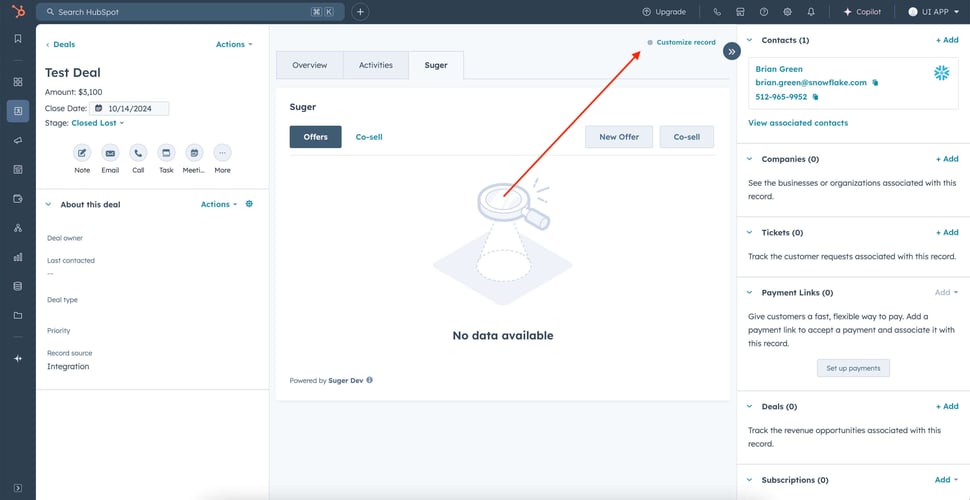
1. Open a deal's detail page, click on "Customize record" link on top of this page
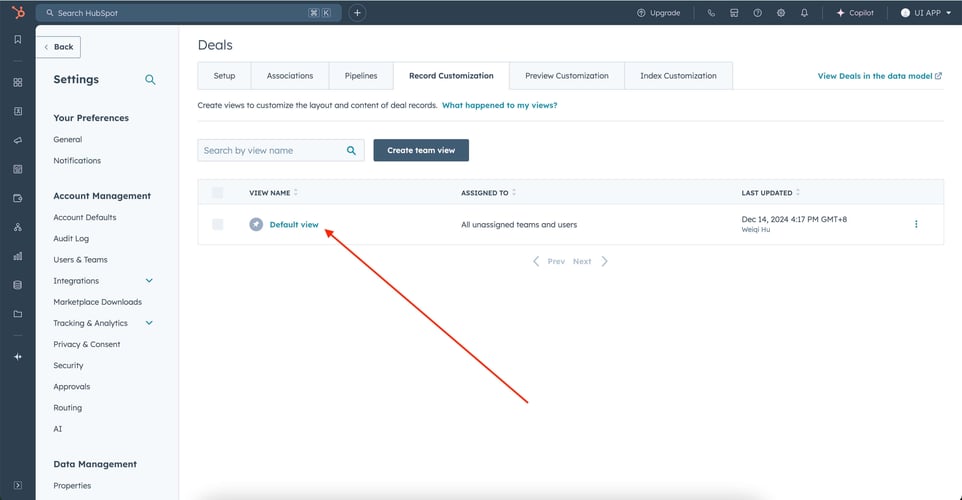
>  2. Go to "Record Customization" tab and click on "Default view"
>
2. Go to "Record Customization" tab and click on "Default view"
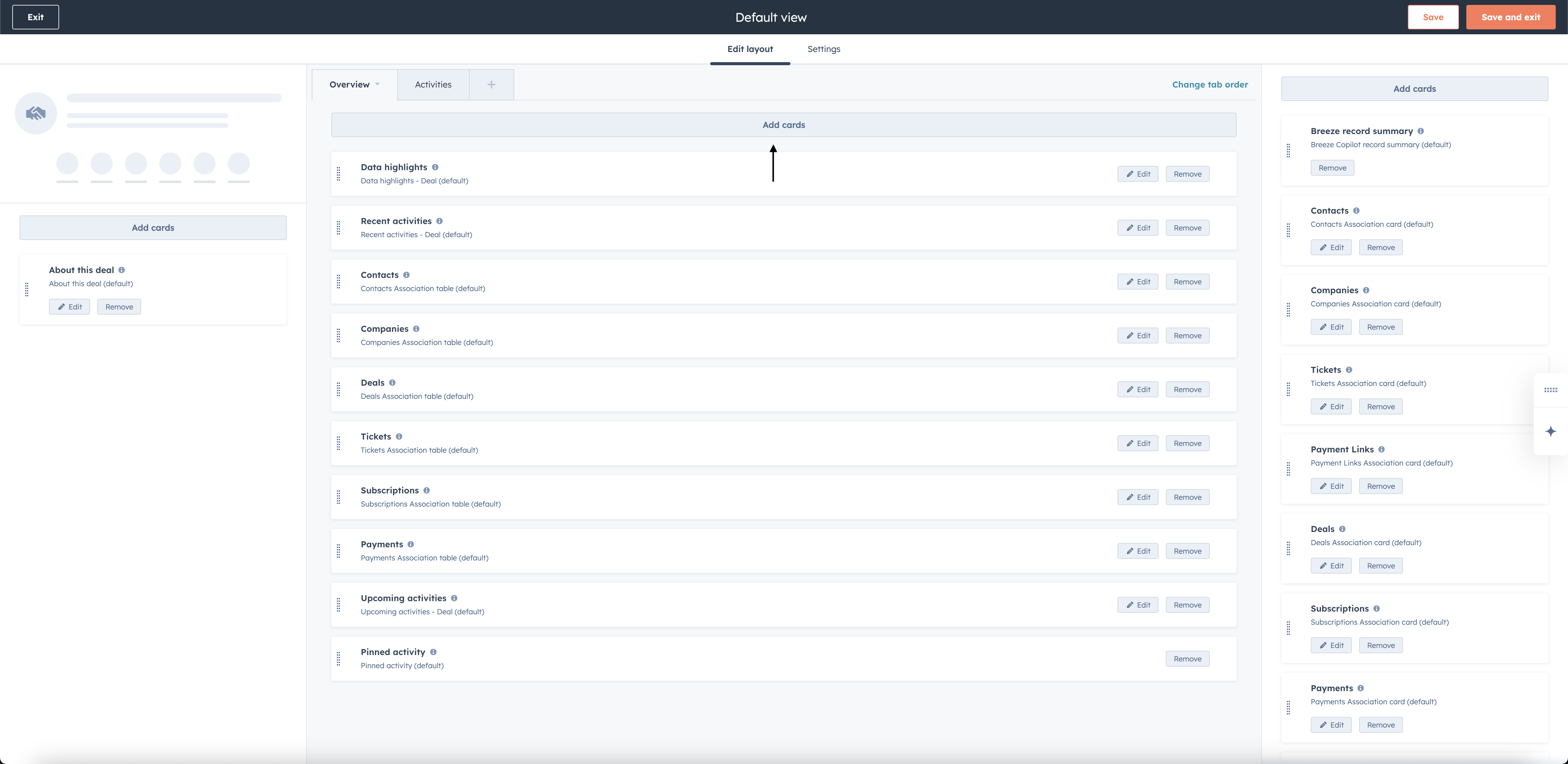
>  3. Click on "Add cards" button on the view you want to add Suger to (taking Overview as an example)
>
3. Click on "Add cards" button on the view you want to add Suger to (taking Overview as an example)
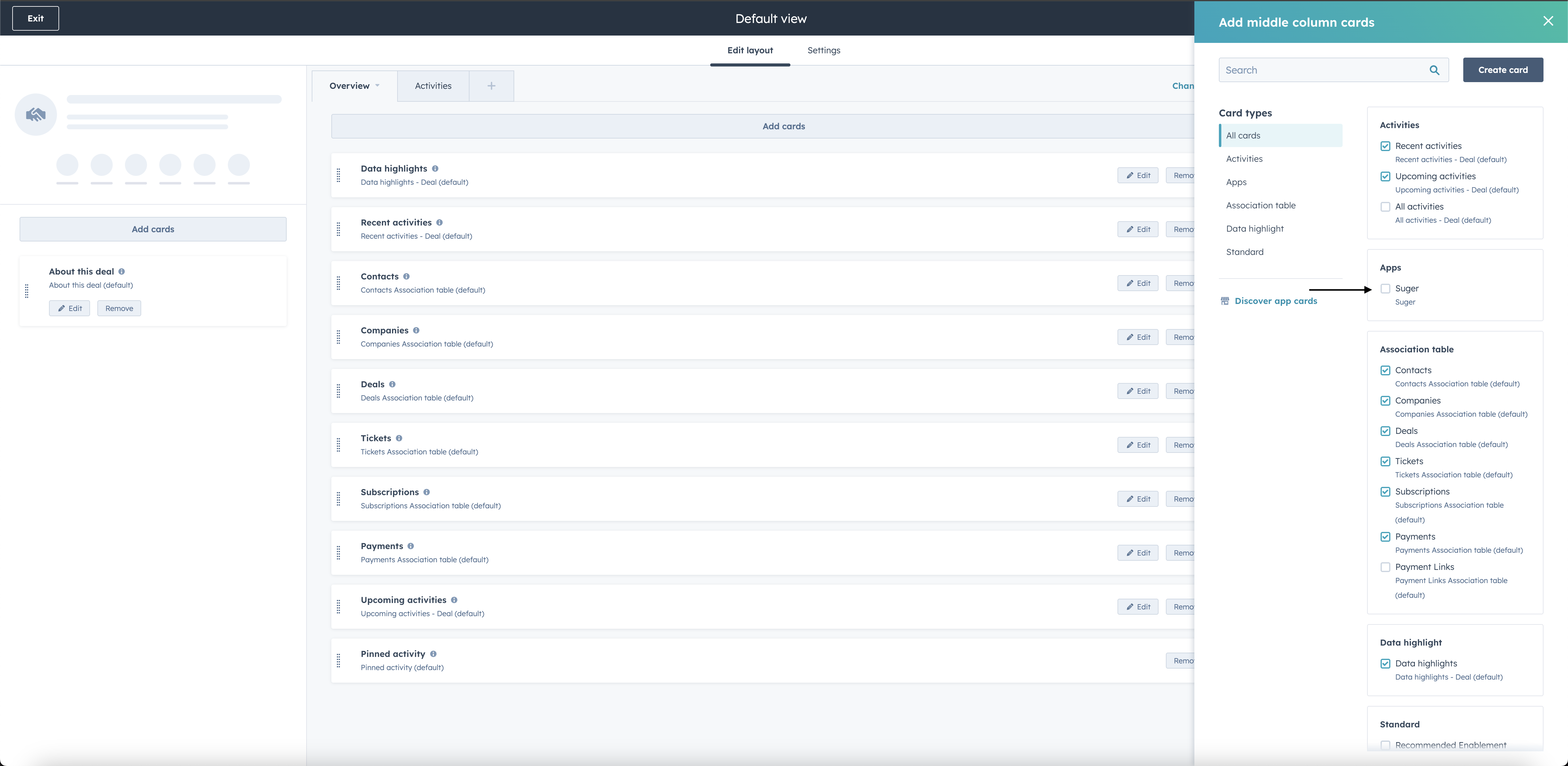
>  4. In the panel that opens, click **Apps** to filter the available cards, then find the Suger App and select it.
>
4. In the panel that opens, click **Apps** to filter the available cards, then find the Suger App and select it.
>  5. You can drag the Suger App to the top for better visibility — your team will use it frequently.
>
5. You can drag the Suger App to the top for better visibility — your team will use it frequently.
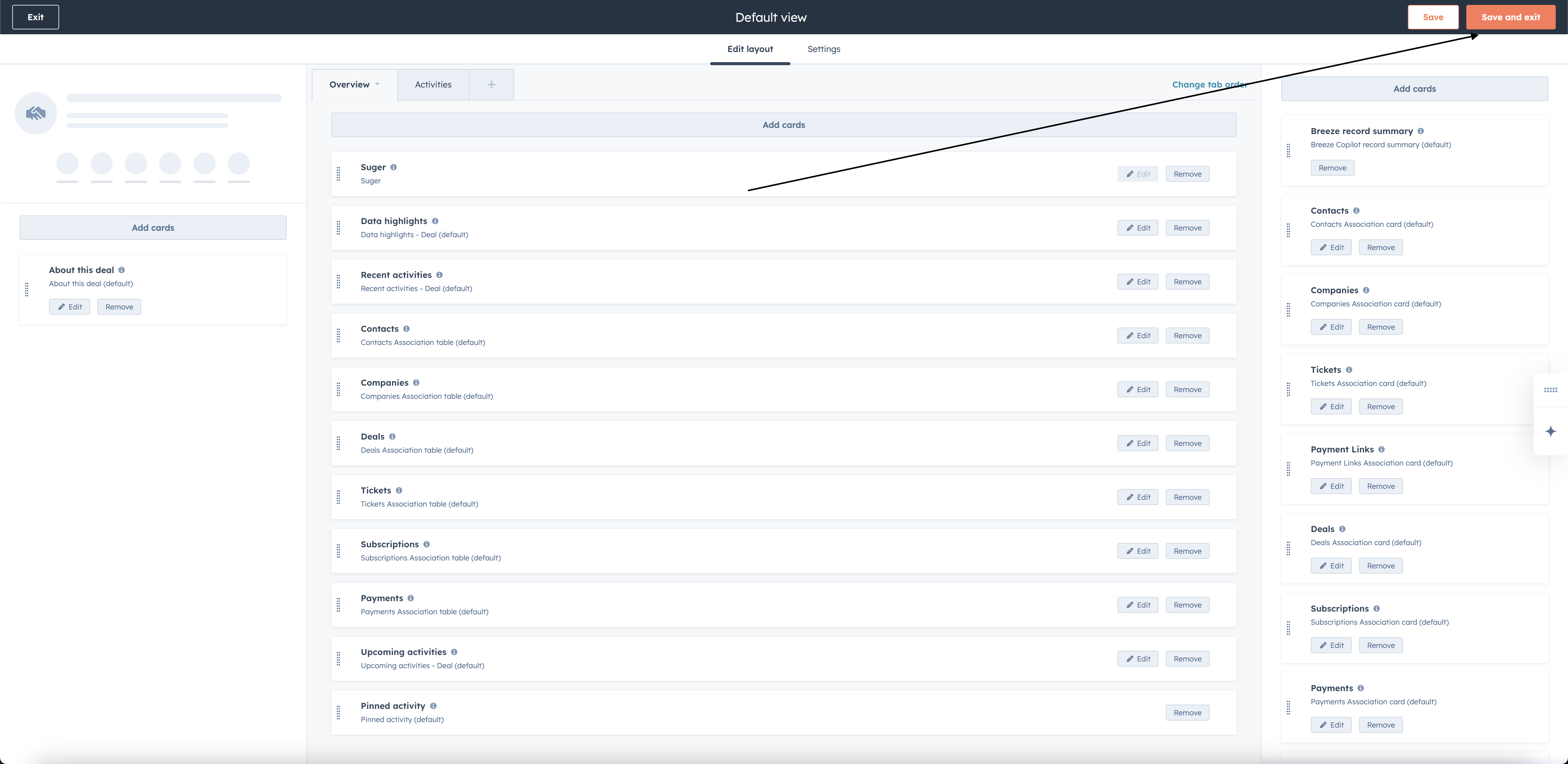
>  6. Click on "Save and exit" button, and you can start using the Suger App. The card will now appear on all deal records that use this view.
>
6. Click on "Save and exit" button, and you can start using the Suger App. The card will now appear on all deal records that use this view.
>  >
> 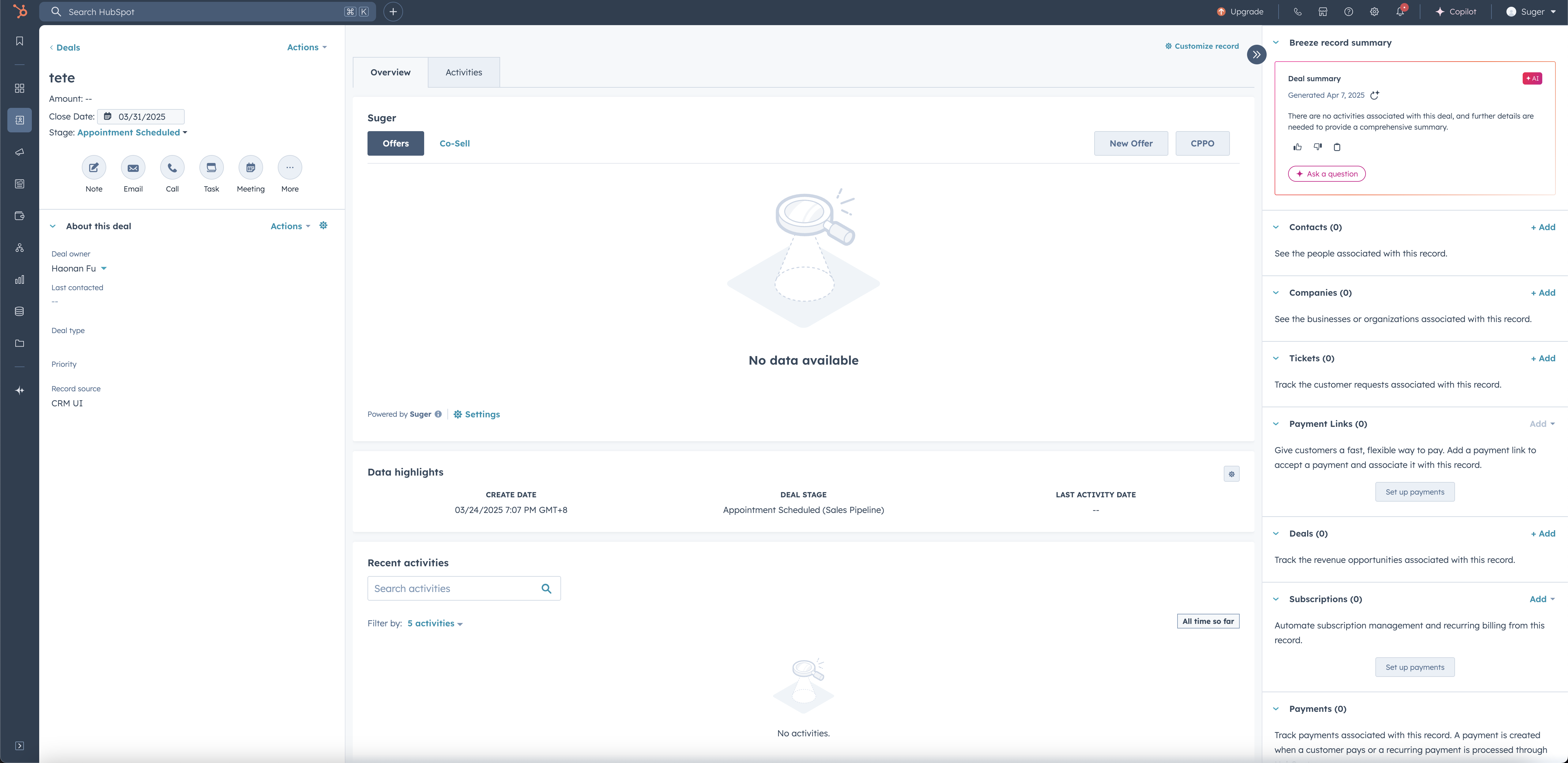 7. You are all set!
## Add the Co-sell Insights card to your company records
The Suger app ships a second card, **Co-sell Insights**, and it is registered on the **companies** object rather than on deals. Adding the Suger deal card does not add it — you have to add it to a company record layout separately.
1. Open a company record, click **Customize record**, and pick the view you want to change.
2. Click **Add cards** on that view, click **Apps** to filter, and select **Co-sell Insights**.
3. Click **Save and exit**.
:::tip
The two cards are independent. If your team only works deals, the deal card on its own is enough; add **Co-sell Insights** when you also want co-sell context on the company record.
:::
## Verify the app card is working
Open any HubSpot deal record and confirm the Suger app card appears on the page. The Suger panel shows five tabs — **Offers**, **Entitlements**, **Co-Sell**, **Funding**, and **Insights** — and up to four action buttons across the top: **New Offer**, **New Resale**, **New Funding**, and **Co-Sell**.
Not every button appears for every organization. **New Funding** is AWS-only and requires an AWS ACE (Partner Central) integration, and the **Co-Sell** button only lists the destinations your organization has connected — so a card with fewer buttons is not necessarily broken.
If the card is not visible after saving:
- Confirm the HubSpot integration is verified in Suger Console → **Settings** → **Integrations** → **HubSpot**. The status should show **Verified**, not **Created**.
- Check that you saved and exited the record customization — the card will not appear until you click **Save and exit**.
- Try a hard refresh — **Cmd+R** on Mac or **Ctrl+Shift+R** on Windows.
## Troubleshooting
| Issue | Possible cause | Resolution |
| --- | --- | --- |
| Suger does not appear in the Apps list | The HubSpot integration has not been completed or verified | Complete the HubSpot integration first. The status in Suger Console must be **Verified** before the app appears |
| App card was added but is not visible on deal records | The page was not saved after customization | Go back to **Customize record** and confirm the Suger card is in the layout, then click **Save and exit** |
| App card appears but shows an error or blank state | The integration connection has been disrupted | Go to Suger Console → **Settings** → **Integrations** → **HubSpot** and click **Verify** to re-verify the connection |
| App card is only visible to some users | The customization was applied to a view not all users see | Check which view each user's profile defaults to and apply the customization to that view as well |
## Frequently Asked Questions
- #### Do I need to add the Suger app card to every deal individually?
No. Adding the card to a view applies it to all deal records that use that view — you only need to do it once per view.
- #### Can I add the Suger app card to views other than the default Overview?
Yes. Repeat the steps above for any other views your team uses. Each view is customized independently.
- #### What's the difference between the HubSpot integration and the Suger app card?
The integration connects Suger to your HubSpot account at the system level — it gives Suger permission to read and write deal data. The app card is the UI element that lets your team interact with Suger from inside a deal record. Both are required. The integration comes first; the app card comes second.
7. You are all set!
## Add the Co-sell Insights card to your company records
The Suger app ships a second card, **Co-sell Insights**, and it is registered on the **companies** object rather than on deals. Adding the Suger deal card does not add it — you have to add it to a company record layout separately.
1. Open a company record, click **Customize record**, and pick the view you want to change.
2. Click **Add cards** on that view, click **Apps** to filter, and select **Co-sell Insights**.
3. Click **Save and exit**.
:::tip
The two cards are independent. If your team only works deals, the deal card on its own is enough; add **Co-sell Insights** when you also want co-sell context on the company record.
:::
## Verify the app card is working
Open any HubSpot deal record and confirm the Suger app card appears on the page. The Suger panel shows five tabs — **Offers**, **Entitlements**, **Co-Sell**, **Funding**, and **Insights** — and up to four action buttons across the top: **New Offer**, **New Resale**, **New Funding**, and **Co-Sell**.
Not every button appears for every organization. **New Funding** is AWS-only and requires an AWS ACE (Partner Central) integration, and the **Co-Sell** button only lists the destinations your organization has connected — so a card with fewer buttons is not necessarily broken.
If the card is not visible after saving:
- Confirm the HubSpot integration is verified in Suger Console → **Settings** → **Integrations** → **HubSpot**. The status should show **Verified**, not **Created**.
- Check that you saved and exited the record customization — the card will not appear until you click **Save and exit**.
- Try a hard refresh — **Cmd+R** on Mac or **Ctrl+Shift+R** on Windows.
## Troubleshooting
| Issue | Possible cause | Resolution |
| --- | --- | --- |
| Suger does not appear in the Apps list | The HubSpot integration has not been completed or verified | Complete the HubSpot integration first. The status in Suger Console must be **Verified** before the app appears |
| App card was added but is not visible on deal records | The page was not saved after customization | Go back to **Customize record** and confirm the Suger card is in the layout, then click **Save and exit** |
| App card appears but shows an error or blank state | The integration connection has been disrupted | Go to Suger Console → **Settings** → **Integrations** → **HubSpot** and click **Verify** to re-verify the connection |
| App card is only visible to some users | The customization was applied to a view not all users see | Check which view each user's profile defaults to and apply the customization to that view as well |
## Frequently Asked Questions
- #### Do I need to add the Suger app card to every deal individually?
No. Adding the card to a view applies it to all deal records that use that view — you only need to do it once per view.
- #### Can I add the Suger app card to views other than the default Overview?
Yes. Repeat the steps above for any other views your team uses. Each view is customized independently.
- #### What's the difference between the HubSpot integration and the Suger app card?
The integration connects Suger to your HubSpot account at the system level — it gives Suger permission to read and write deal data. The app card is the UI element that lets your team interact with Suger from inside a deal record. Both are required. The integration comes first; the app card comes second.