# Outbound Referral
Share opportunities from your CRM with partners
---
## Overview
With your co-sell configurations, sharing with partners can be as easy as a few mouse clicks.
## Outbox
Outbox is the place to show your CRM opportunities that are ready to be sent to partners.
Without any configuration, this tab lists all your CRM opportunities.
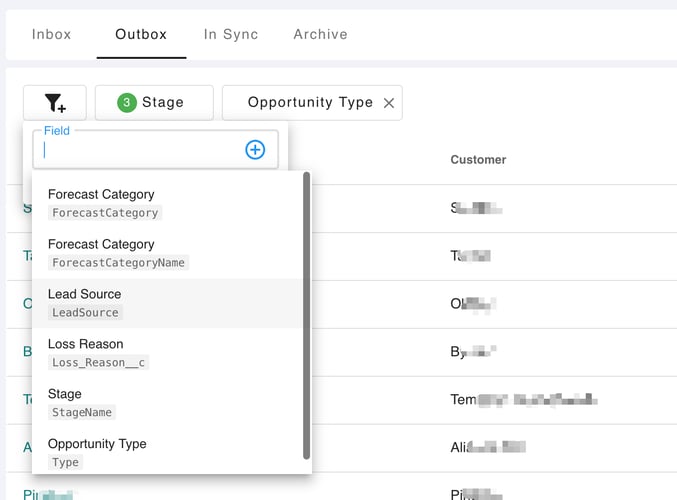
You can click the filter button to specify various filters to narrow down the scope:
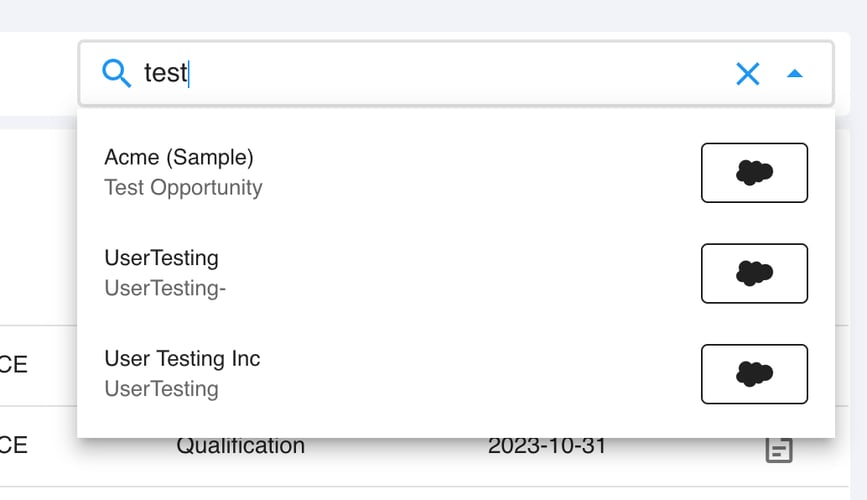
>  You can also use the search box on the top right:
>
You can also use the search box on the top right:
>  ## Share an Opportunity
Below is an example where we share a Salesforce opportunity with AWS.
1. Find an opportunity from the Outbox.
2. Click on the opportunity name (in **teal** color) which navigates to the detail page.
3. Click the `share` button on the top right.
4. In the pop-up dialog, fill in required fields. Also fill in optional fields as you need.
>
## Share an Opportunity
Below is an example where we share a Salesforce opportunity with AWS.
1. Find an opportunity from the Outbox.
2. Click on the opportunity name (in **teal** color) which navigates to the detail page.
3. Click the `share` button on the top right.
4. In the pop-up dialog, fill in required fields. Also fill in optional fields as you need.
> 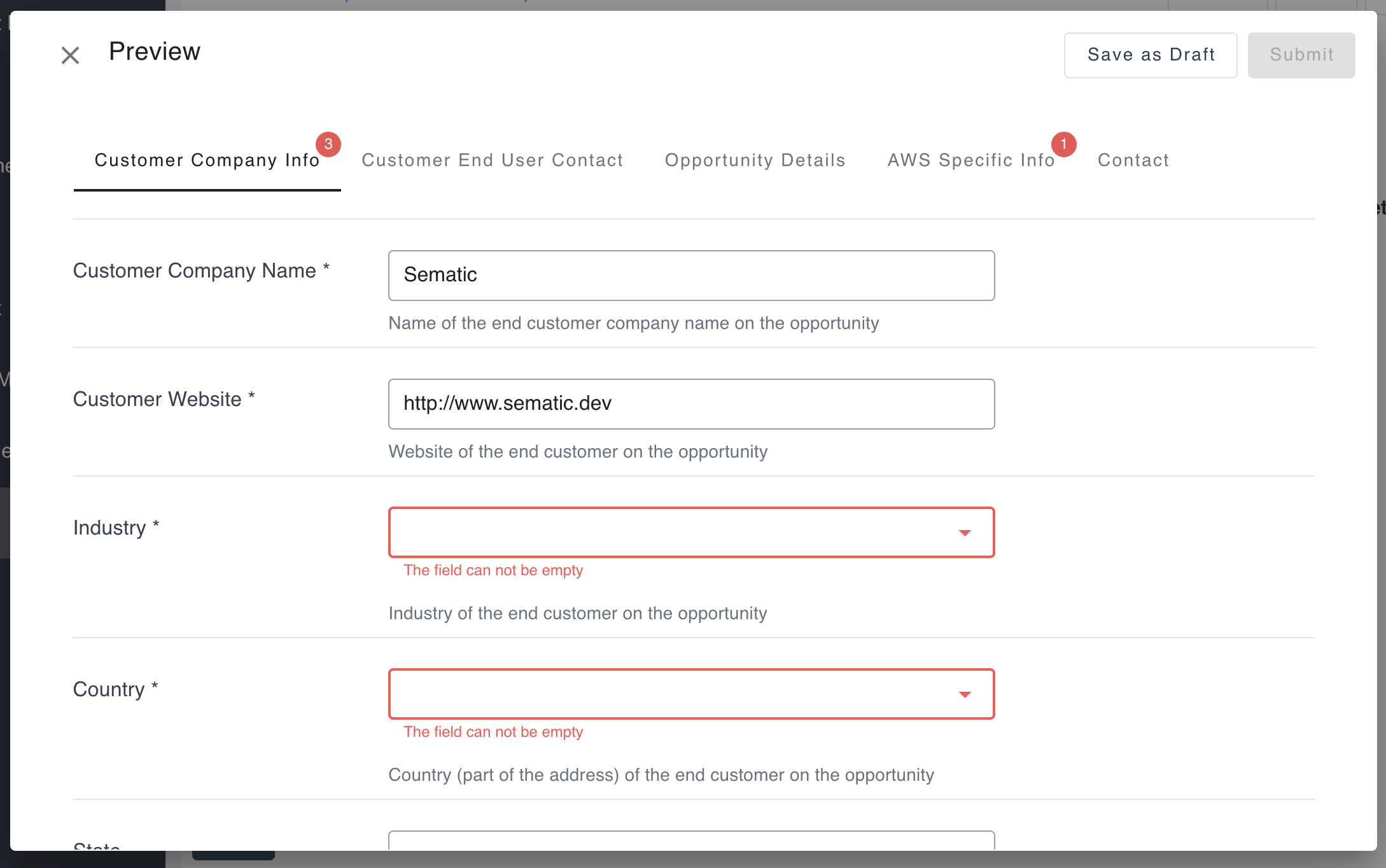 5. If all validation passed, the `Submit` button will be clickable. Click on it.
6. Suger sends this to AWS. This process usually takes ~5 seconds but sometimes it takes longer.
7. The shared opportunity will be moved to the "In Sync" tab.
>
5. If all validation passed, the `Submit` button will be clickable. Click on it.
6. Suger sends this to AWS. This process usually takes ~5 seconds but sometimes it takes longer.
7. The shared opportunity will be moved to the "In Sync" tab.
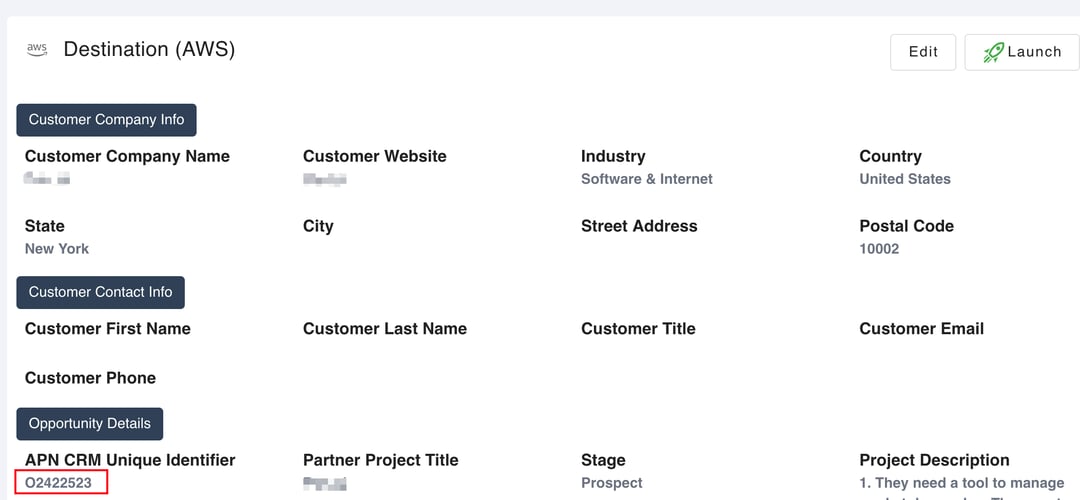
> 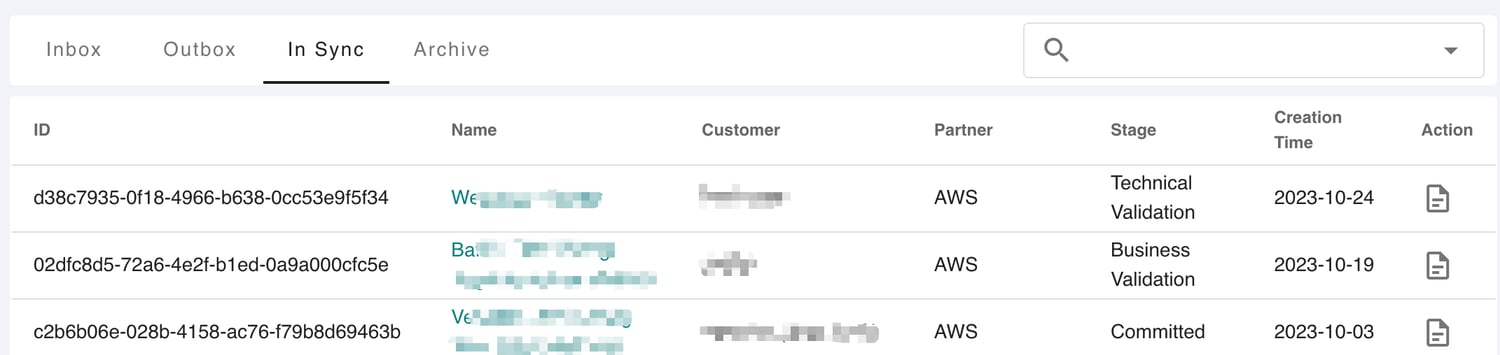 8. You can click on it to check the details. You should see the "APN CRM Unique Identifier" in the "Destination" section on the bottom.
>
8. You can click on it to check the details. You should see the "APN CRM Unique Identifier" in the "Destination" section on the bottom.
>  ## Bulk Share
You can share multiple opportunities at the same time.
This can be very efficient if your CRM data is in good quality (e.g., all postal codes are filled)
and the field mappings & templates are well-configured.
1. Click the `Bulk Share` button to enter the selection mode.
>
## Bulk Share
You can share multiple opportunities at the same time.
This can be very efficient if your CRM data is in good quality (e.g., all postal codes are filled)
and the field mappings & templates are well-configured.
1. Click the `Bulk Share` button to enter the selection mode.
>  2. Select those you want to share and click `Submit`.
3. A dialog will pop out showing the AWS opportunity we are about to submit.
>
2. Select those you want to share and click `Submit`.
3. A dialog will pop out showing the AWS opportunity we are about to submit.
> 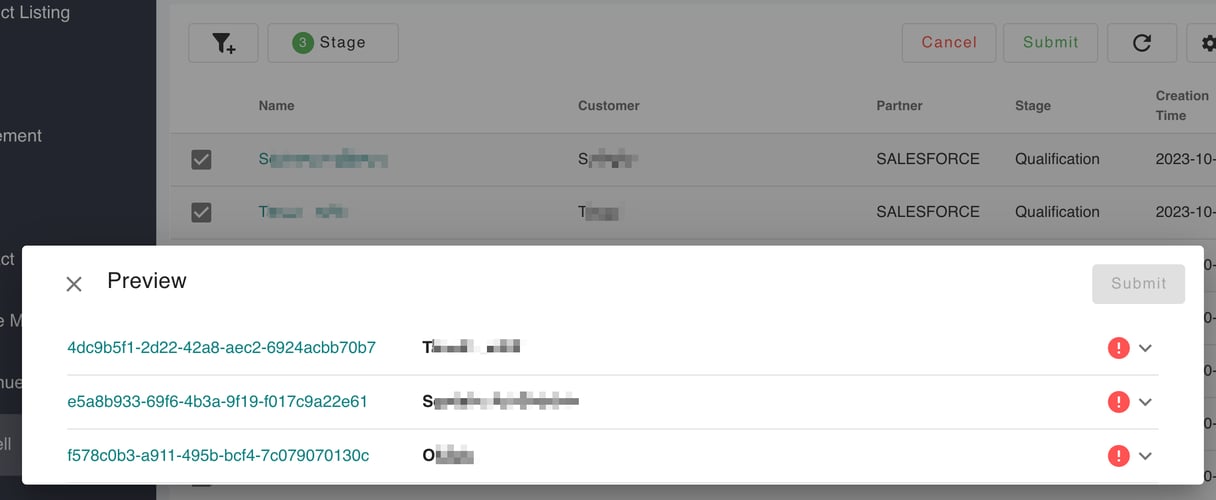 You can click on any of them to check the details.
4. If all validation passed, you can click the `Submit` button. Otherwise you'll need to manually fill them.
## Auto-Enrich Referrals
Save time and improve data quality by automatically filling in missing company and contact information when sharing opportunities with cloud partners. The auto enrichment feature helps ensure your referrals have complete information, increasing the chances of successful partner engagement.
### How It Works
When you preview an opportunity before sharing it with a cloud partner (AWS, Azure, or GCP), Suger can automatically fill in missing fields like company addresses, contact names, and more. This happens seamlessly in the background - you'll see the enriched data right in your preview.
**To enable auto enrichment:**
1. Go to **Settings** → **Cosell** → **Cosell Configs**
2. Find your partner configuration (AWS, Azure, or GCP)
3. Enable the **Auto-Enrich Referrals** option
You can click on any of them to check the details.
4. If all validation passed, you can click the `Submit` button. Otherwise you'll need to manually fill them.
## Auto-Enrich Referrals
Save time and improve data quality by automatically filling in missing company and contact information when sharing opportunities with cloud partners. The auto enrichment feature helps ensure your referrals have complete information, increasing the chances of successful partner engagement.
### How It Works
When you preview an opportunity before sharing it with a cloud partner (AWS, Azure, or GCP), Suger can automatically fill in missing fields like company addresses, contact names, and more. This happens seamlessly in the background - you'll see the enriched data right in your preview.
**To enable auto enrichment:**
1. Go to **Settings** → **Cosell** → **Cosell Configs**
2. Find your partner configuration (AWS, Azure, or GCP)
3. Enable the **Auto-Enrich Referrals** option
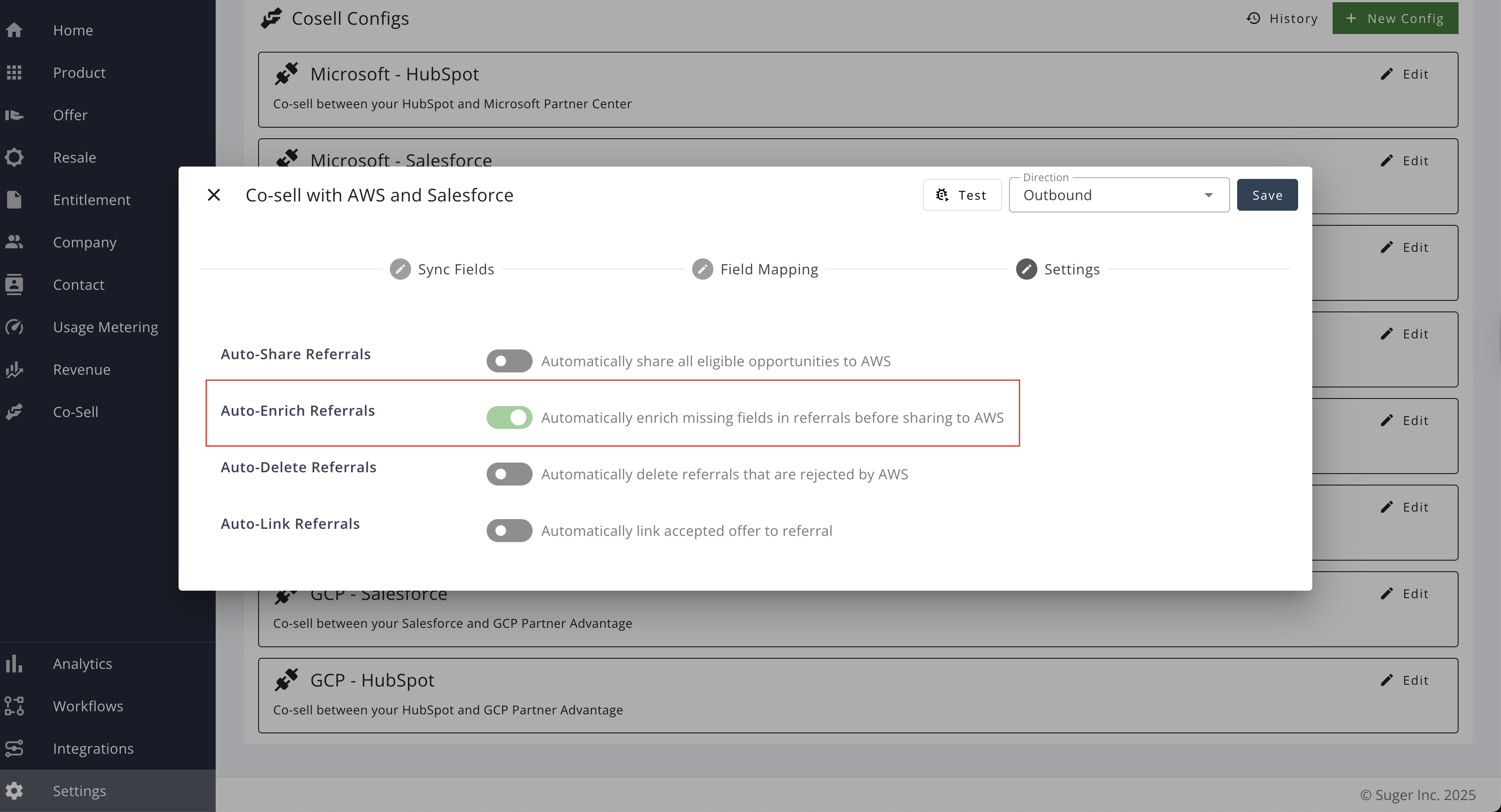 Once enabled, the enrichment will happen automatically whenever you preview opportunities for that partner. Your existing data is always preserved - only empty fields are filled in.
### What Information Is Needed
For the enrichment to work effectively, your CRM data needs to have some basic information about the company and contacts.
**For company information**, the service needs at least:
- Company name, or
- Company website/domain
**For contact information**, the service needs at least:
- Contact email address, or
- Contact first and last name (along with company information)
If these basic fields are missing in your CRM data, the enrichment service won't be able to find additional information for that record.
:::warning
In some cases, our enrichment service may not be able to find information for certain companies.
:::
### What Fields Can Be Enriched
The auto enrichment feature can fill in many commonly required fields for each cloud partner. Here's what can be automatically populated:
#### AWS
**Company Information:**
- Company name and website
- Full address (country, state, city, street address, postal code)
- Industry classification
**Contact Information:**
- Email address
- First and last name
- Job title
#### Azure
**Company Information:**
- Company name
- Full address (country, state, city, street address, postal code)
**Contact Information:**
- Email address
- First and last name
- Job title
#### GCP
**Company Information:**
- Organization name and domain
- Full address (country, state/province, city, postal code, street address)
- Industry classification
- Company region
- Employee count
**Contact Information:**
- Email address
- First and last name (given name and family name)
Once enabled, the enrichment will happen automatically whenever you preview opportunities for that partner. Your existing data is always preserved - only empty fields are filled in.
### What Information Is Needed
For the enrichment to work effectively, your CRM data needs to have some basic information about the company and contacts.
**For company information**, the service needs at least:
- Company name, or
- Company website/domain
**For contact information**, the service needs at least:
- Contact email address, or
- Contact first and last name (along with company information)
If these basic fields are missing in your CRM data, the enrichment service won't be able to find additional information for that record.
:::warning
In some cases, our enrichment service may not be able to find information for certain companies.
:::
### What Fields Can Be Enriched
The auto enrichment feature can fill in many commonly required fields for each cloud partner. Here's what can be automatically populated:
#### AWS
**Company Information:**
- Company name and website
- Full address (country, state, city, street address, postal code)
- Industry classification
**Contact Information:**
- Email address
- First and last name
- Job title
#### Azure
**Company Information:**
- Company name
- Full address (country, state, city, street address, postal code)
**Contact Information:**
- Email address
- First and last name
- Job title
#### GCP
**Company Information:**
- Organization name and domain
- Full address (country, state/province, city, postal code, street address)
- Industry classification
- Company region
- Employee count
**Contact Information:**
- Email address
- First and last name (given name and family name)