 button at any time to access the change log and review data audit records.
:::
### Prerequisites
Before you begin, make sure:
- You have admin access to **Suger Console > Settings**.
- Salesforce or HubSpot is already connected under **Settings > Integrations**.
## Display Setting of Co-sell Intelligence
Co-sell Intelligence surfaces AWS, Azure, and GCP engagement signals (Low/Medium/High)
directly in your CRM widget. Enable it before building specific configs so those signals
are available once your first config goes live.
>
button at any time to access the change log and review data audit records.
:::
### Prerequisites
Before you begin, make sure:
- You have admin access to **Suger Console > Settings**.
- Salesforce or HubSpot is already connected under **Settings > Integrations**.
## Display Setting of Co-sell Intelligence
Co-sell Intelligence surfaces AWS, Azure, and GCP engagement signals (Low/Medium/High)
directly in your CRM widget. Enable it before building specific configs so those signals
are available once your first config goes live.
> 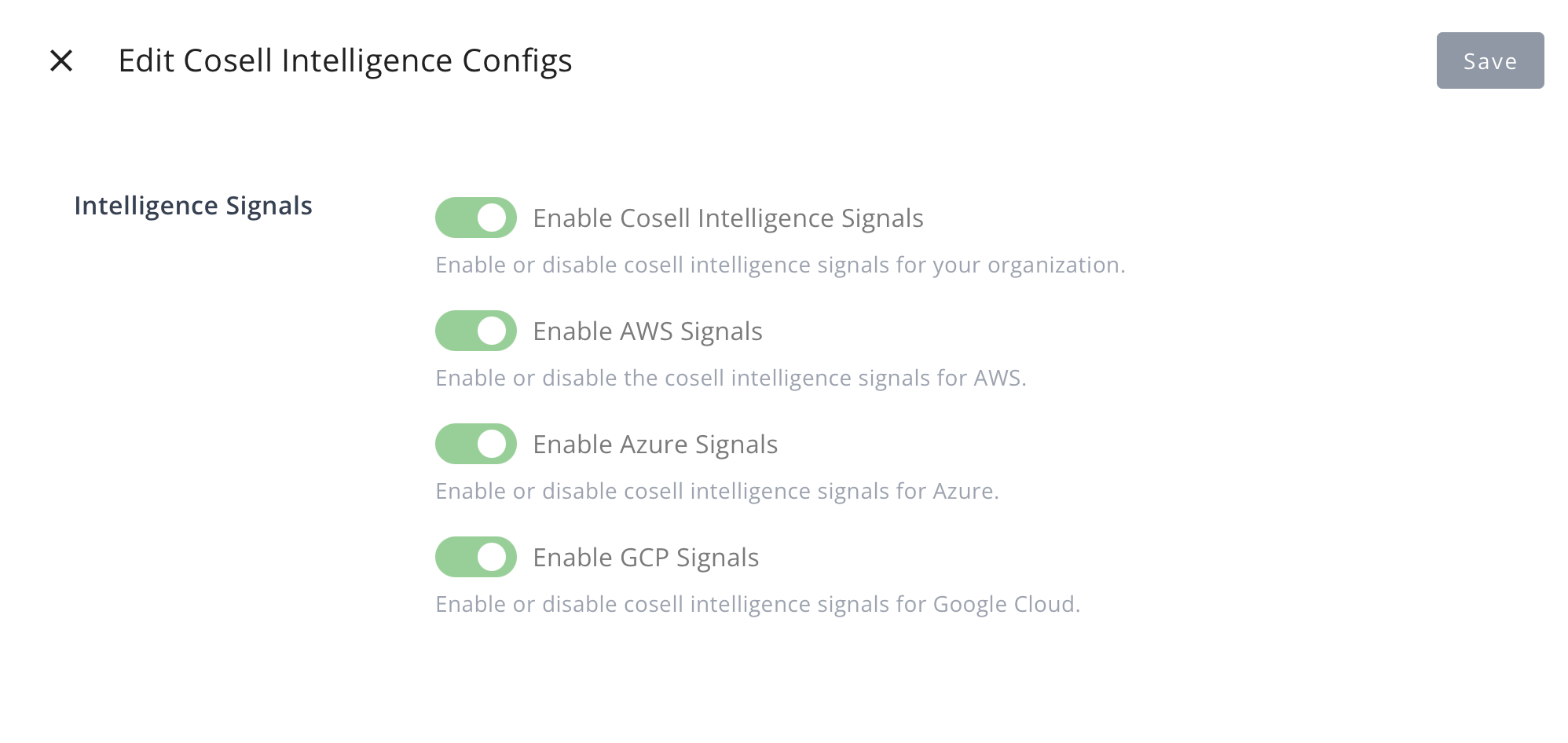 1. In the Suger Console, go to [**Settings > Co-sell**](https://console.suger.io/settings?tab=cosell), then click **Edit** on the **Co-sell Intelligence** section.

2. Toggle **Enable Cosell Intelligence Signals** to show or hide all the intelligence cards at once.
3. To show or hide signals from specific Cloud Partners, use the corresponding **AWS Signals**, **Azure Signals**, and **GCP Signals** toggles.

:::info
Signals only surface for partners you've toggled on individually — enabling the master toggle alone won't show any partner-specific data.
:::
## Create a new configuration
Each configuration is a dedicated bridge between one CRM source and one cloud partner network.
1. Go to [Suger Settings](https://console.suger.io/settings).
2. Choose "Co-Sell" in the submenu, and click the `New Config` button.
>
1. In the Suger Console, go to [**Settings > Co-sell**](https://console.suger.io/settings?tab=cosell), then click **Edit** on the **Co-sell Intelligence** section.

2. Toggle **Enable Cosell Intelligence Signals** to show or hide all the intelligence cards at once.
3. To show or hide signals from specific Cloud Partners, use the corresponding **AWS Signals**, **Azure Signals**, and **GCP Signals** toggles.

:::info
Signals only surface for partners you've toggled on individually — enabling the master toggle alone won't show any partner-specific data.
:::
## Create a new configuration
Each configuration is a dedicated bridge between one CRM source and one cloud partner network.
1. Go to [Suger Settings](https://console.suger.io/settings).
2. Choose "Co-Sell" in the submenu, and click the `New Config` button.
> 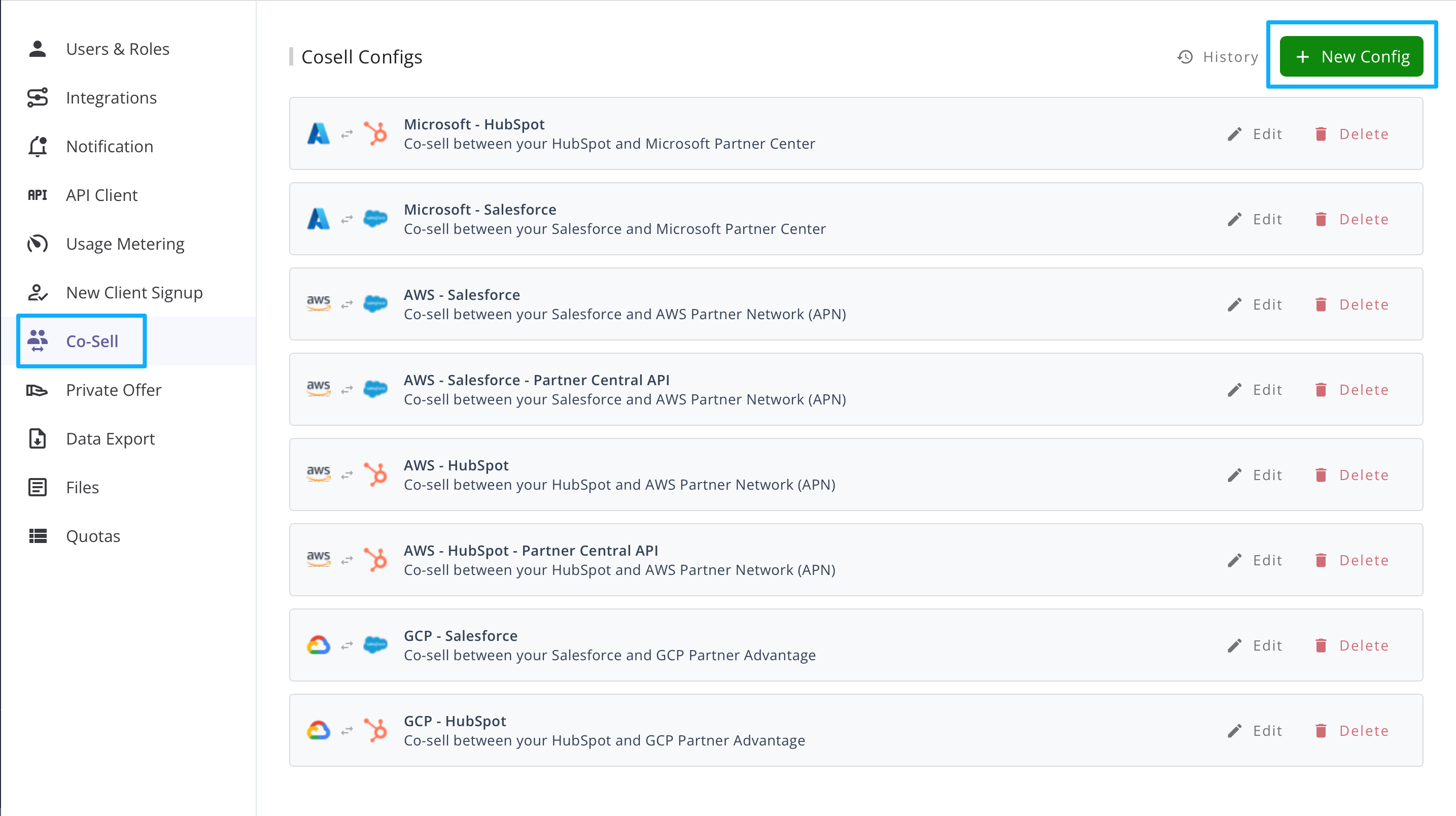 3. Choose the **CRM Partner** (Salesforce or HubSpot) and the **Cloud Partner** (AWS, Azure, or GCP) to proceed.
:::warning
Only one active configuration is allowed per hyperscaler (e.g., one for AWS, one for GCP). You can't run two AWS configs side by side, even across different CRMs. To change an existing configuration, edit it rather than creating a second one.
:::

## Outbound Setting
The Outbound Sync section defines the data flow **from your CRM platform to Cloud Partners**, indicating that information is pushed outward from the CRM system.
### Field Mapping
Field mapping configuration is used to control how fields are pre-filled when you create a new referral share from CRM to Cloud Partners. If the auto-share referrals setting is turned on, this configuration will be applied to all automatically shared referrals.
It also affects the Suger Connector in CRM software.
In the configuration table, the title of each row represents the field name in the Cloud Partner. You can use the search dropdown to select which CRM field should be mapped to it.
You can add or remove Cloud Partner fields to customize your own mapping rules.
Some fields may be marked with an asterisk (*), which means they are required fields and must be filled in before submission.
Use **Picklist Value Mapping** (if available) or **Expression Mode** to define complex data-mapping rules, including conditional logic, value conversions, and cross-field mappings.
See the related section for detailed documentation and examples.
For each partner field, choose one of four mapping methods:
| Mapping Method | Use case | Example |
| --- | --- | --- |
| **Default Value** | A hard-coded value sent for every referral. Best for information that's mandatory for the partner but identical across your company — Partner ID, alliances team alias, sales-lead email, listing ID. | `Sales_Lead_Email` → `alliances@company.com` |
| **Direct & Picklist Mapping** | Links a CRM field 1:1 to a partner field. For dropdowns, map every active CRM value to a partner-approved value. Best for standard fields like Close Date, or aligning deal stages to partner stages. | `Opportunity.CloseDate` → `Partner.Target_Close_Date` |
| **Expression Mode** | A dynamic logic engine using Go Templates (`text/template`) syntax — calculations, concatenations, fallbacks, and cross-field lookups. | `{{- multiply .Amount 0.8 -}}` (net revenue) or `{{.Name}} {{.Account.Name}}` (unique title) |
| **AI Generate** | Describe the value you want in a natural-language prompt and Suger generates it with AI when the referral is shared. You can reference source fields with `{{.FieldName}}`. Available on five supported AWS ACE fields: Industry Vertical, Partner Primary Need from AWS, Postal Code, Customer Business Problem, and Estimated AWS Monthly Recurring Revenue. | `Write a business problem statement based on {{.Description}}` |
:::info
For the **Customer Business Problem** field, Suger automatically instructs the AI to produce 500–1,800 characters and truncates any output over 1,800 characters. The built-in rule takes precedence over any other length guidance in the AI prompt.
:::
:::warning
You must map every active CRM stage (e.g., "Discovery") to a partner-approved value (e.g., "Prospecting"), or the sync will fail during stage transitions.
:::

### Sync Fields
The Sync Fields configuration controls **whether Suger will update an item to Cloud Partners at the next scheduled sync time** when a corresponding field value changes in the CRM.
To enable syncing for a specific field, turn on the **Enable Syncing** toggle on the right side of the field.
>
3. Choose the **CRM Partner** (Salesforce or HubSpot) and the **Cloud Partner** (AWS, Azure, or GCP) to proceed.
:::warning
Only one active configuration is allowed per hyperscaler (e.g., one for AWS, one for GCP). You can't run two AWS configs side by side, even across different CRMs. To change an existing configuration, edit it rather than creating a second one.
:::

## Outbound Setting
The Outbound Sync section defines the data flow **from your CRM platform to Cloud Partners**, indicating that information is pushed outward from the CRM system.
### Field Mapping
Field mapping configuration is used to control how fields are pre-filled when you create a new referral share from CRM to Cloud Partners. If the auto-share referrals setting is turned on, this configuration will be applied to all automatically shared referrals.
It also affects the Suger Connector in CRM software.
In the configuration table, the title of each row represents the field name in the Cloud Partner. You can use the search dropdown to select which CRM field should be mapped to it.
You can add or remove Cloud Partner fields to customize your own mapping rules.
Some fields may be marked with an asterisk (*), which means they are required fields and must be filled in before submission.
Use **Picklist Value Mapping** (if available) or **Expression Mode** to define complex data-mapping rules, including conditional logic, value conversions, and cross-field mappings.
See the related section for detailed documentation and examples.
For each partner field, choose one of four mapping methods:
| Mapping Method | Use case | Example |
| --- | --- | --- |
| **Default Value** | A hard-coded value sent for every referral. Best for information that's mandatory for the partner but identical across your company — Partner ID, alliances team alias, sales-lead email, listing ID. | `Sales_Lead_Email` → `alliances@company.com` |
| **Direct & Picklist Mapping** | Links a CRM field 1:1 to a partner field. For dropdowns, map every active CRM value to a partner-approved value. Best for standard fields like Close Date, or aligning deal stages to partner stages. | `Opportunity.CloseDate` → `Partner.Target_Close_Date` |
| **Expression Mode** | A dynamic logic engine using Go Templates (`text/template`) syntax — calculations, concatenations, fallbacks, and cross-field lookups. | `{{- multiply .Amount 0.8 -}}` (net revenue) or `{{.Name}} {{.Account.Name}}` (unique title) |
| **AI Generate** | Describe the value you want in a natural-language prompt and Suger generates it with AI when the referral is shared. You can reference source fields with `{{.FieldName}}`. Available on five supported AWS ACE fields: Industry Vertical, Partner Primary Need from AWS, Postal Code, Customer Business Problem, and Estimated AWS Monthly Recurring Revenue. | `Write a business problem statement based on {{.Description}}` |
:::info
For the **Customer Business Problem** field, Suger automatically instructs the AI to produce 500–1,800 characters and truncates any output over 1,800 characters. The built-in rule takes precedence over any other length guidance in the AI prompt.
:::
:::warning
You must map every active CRM stage (e.g., "Discovery") to a partner-approved value (e.g., "Prospecting"), or the sync will fail during stage transitions.
:::

### Sync Fields
The Sync Fields configuration controls **whether Suger will update an item to Cloud Partners at the next scheduled sync time** when a corresponding field value changes in the CRM.
To enable syncing for a specific field, turn on the **Enable Syncing** toggle on the right side of the field.
> 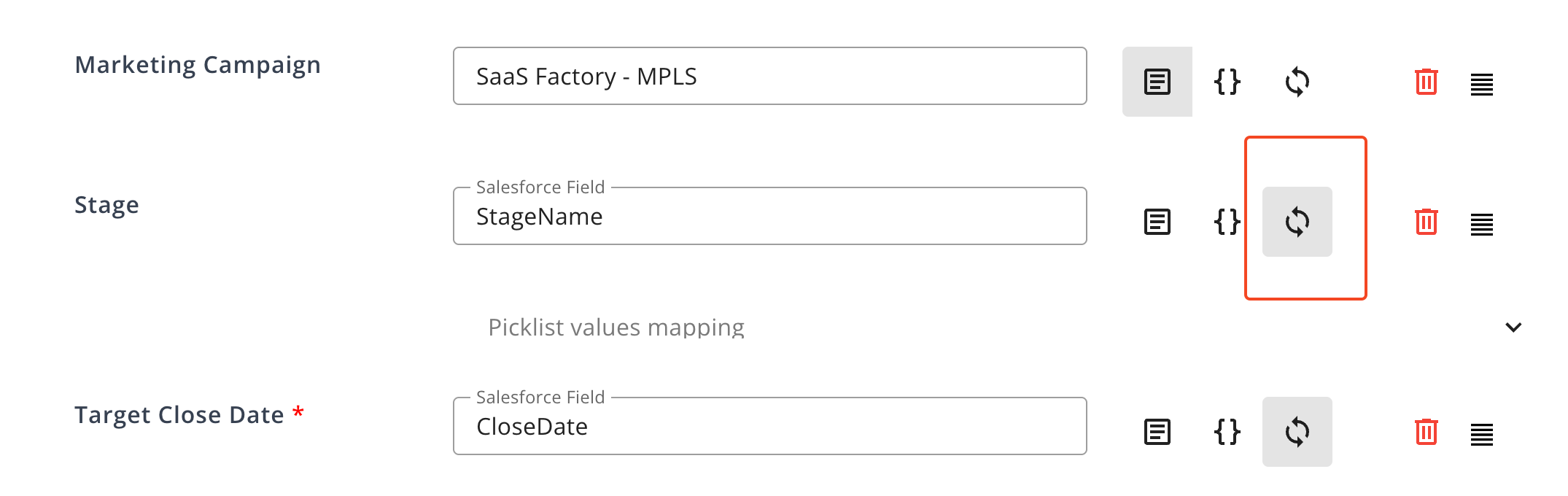 You can configure the following options:
* **Conditional sync with Expression Mode:** Click the {} icon next to a field to enable Expression Mode, which allows you to define **conditional synchronization rules** based on custom logic. Refer to the section below for details on using Expression Mode.
* **Picklist values mapping:** Use this feature to define custom value mappings between CRM and Cloud Partner fields. Refer to the related section below for details on using Picklist values mapping.
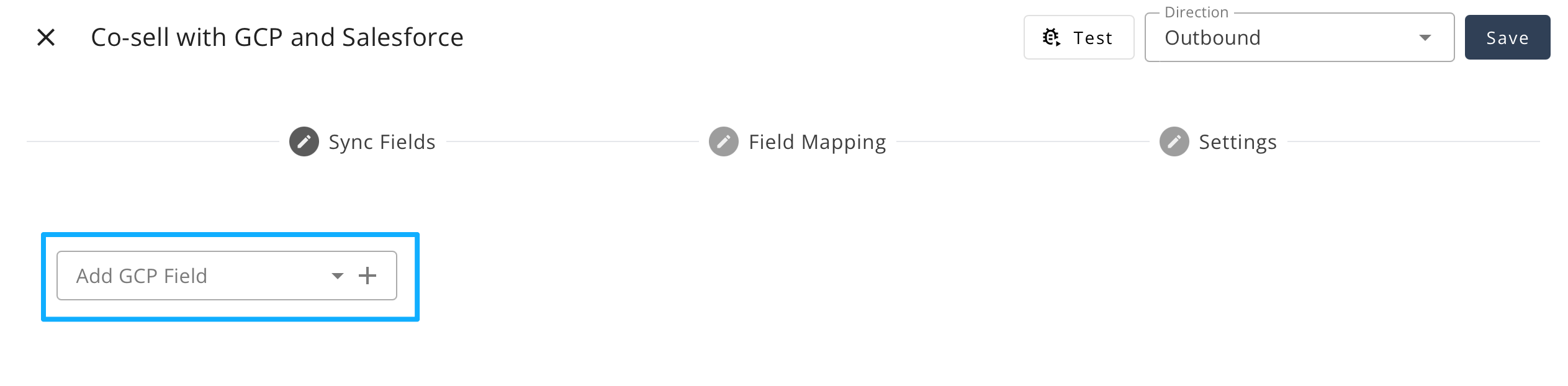
* **Add a Cloud Partner field:** Scroll down the page and search for a field name under the selected Cloud Partner in the lower-left panel. Click the field to add it to the configuration list.
>
You can configure the following options:
* **Conditional sync with Expression Mode:** Click the {} icon next to a field to enable Expression Mode, which allows you to define **conditional synchronization rules** based on custom logic. Refer to the section below for details on using Expression Mode.
* **Picklist values mapping:** Use this feature to define custom value mappings between CRM and Cloud Partner fields. Refer to the related section below for details on using Picklist values mapping.
* **Add a Cloud Partner field:** Scroll down the page and search for a field name under the selected Cloud Partner in the lower-left panel. Click the field to add it to the configuration list.
>  ### Settings
The referral automation settings allow you to automatically manage the referral sharing workflow from your CRM to Cloud Partner.

#### Auto-Share Referrals
Automatically share all eligible opportunities from your CRM to Cloud Partner.
When this option is enabled, any opportunity that meets the sharing criteria will be submitted without manual action.
#####
### Settings
The referral automation settings allow you to automatically manage the referral sharing workflow from your CRM to Cloud Partner.

#### Auto-Share Referrals
Automatically share all eligible opportunities from your CRM to Cloud Partner.
When this option is enabled, any opportunity that meets the sharing criteria will be submitted without manual action.
#####  HubSpot Only – List Setting
The Segment feature in HubSpot (previously called List) can be used as a **sync filter**.
To apply this filter, search for and add the **Segment ID** (also referred to as List ID) to include only items belonging to that segment in the sync process.
See [HubSpot documentation](https://knowledge.hubspot.com/segments/create-active-or-static-lists) for more details.
You can find the Segment ID in:
**HubSpot → CRM → Segments → \
HubSpot Only – List Setting
The Segment feature in HubSpot (previously called List) can be used as a **sync filter**.
To apply this filter, search for and add the **Segment ID** (also referred to as List ID) to include only items belonging to that segment in the sync process.
See [HubSpot documentation](https://knowledge.hubspot.com/segments/create-active-or-static-lists) for more details.
You can find the Segment ID in:
**HubSpot → CRM → Segments → \Full address (country, state, city, postal code)
Industry classification | Email address
First and last name
Job title | | **Azure** | Company name
Full address (country, state, city, street address, postal code) | Email address
First and last name
Job title | | **GCP** | Organization name and domain
Full address (country, state/province, city, street, postal code)
Industry classification
Region and employee count | Email address
First and last name (given name and family name) | :::note - Only empty fields are enriched; existing CRM data is never overwritten. - Enrichment accuracy depends on available company and contact data. - Some fields may vary by partner integration. ::: --- #### Auto-Delete Referrals Enable Auto-Delete to automatically remove referrals that are rejected by **the Cloud Partner**. When this option is turned on, once a referral is rejected, Suger will delete the corresponding **opportunity/deal** in your CRM and soft-delete the referral in the Suger Console. By default, soft-deleted referrals are **hidden from view** and **cannot be reused or referenced**. --- #### Auto-Link (AWS-Salesforce only) Automatically link accepted offer to referral. Note: The linked offer cannot be changed when the referral status is not **Approved** or referral stage is **Launched** or **Closed Lost**. When an offer is accepted, Suger will automatically link the offer to the AWS referral that is associated to the same SFDC opportunity. ## Inbound Setting The Inbound Sync section defines the data flow **from your Cloud Partners to the CRM platform**, indicating that information is sent to the CRM system. Suger continuously applies updates and changes made by Cloud Partners to the corresponding records in your CRM. In the Inbound Sync configuration, each tab (such as Opportunity, Opportunity(Salesforce)/Deals(HubSpot), Account(Salesforce)/Companies(HubSpot), and Contacts) represents an object that will be synchronized. When a new referral is received from a Cloud Partner, Suger automatically maps and writes the referral data into the corresponding fields of these CRM objects based on your field mapping configuration. The Settings tab defines general sync behaviors, while all other tabs specify which CRM objects and fields the inbound data should be populated into. :::note Inbound sync is not supported in the GCP Partner Network Hub. ::: ### Objects Tab
Tab names such as Opportunity (Salesforce) / Deals (HubSpot), Account (Salesforce) / Companies (HubSpot), Contacts, and more.
Setting in these tabs is to control how fields are pre-filled when you create a new referral share from Cloud Partners to CRM. If the auto-share referrals setting is turned on, this configuration will be applied to all automatically shared referrals. In the configuration table, the title of each row represents the field name in the CRM. You can use the search dropdown to select which Cloud Partner's field should be mapped to it. You can add or remove CRM fields to customize your own mapping rules. Use **Picklist Value Mapping** (if available) or **Expression Mode** to define complex data-mapping rules, including conditional logic, value conversions, and cross-field mappings. See the related section for detailed documentation and examples. #### Salesforce Only – Add Objects
>
Salesforce Only – Add Objects
> 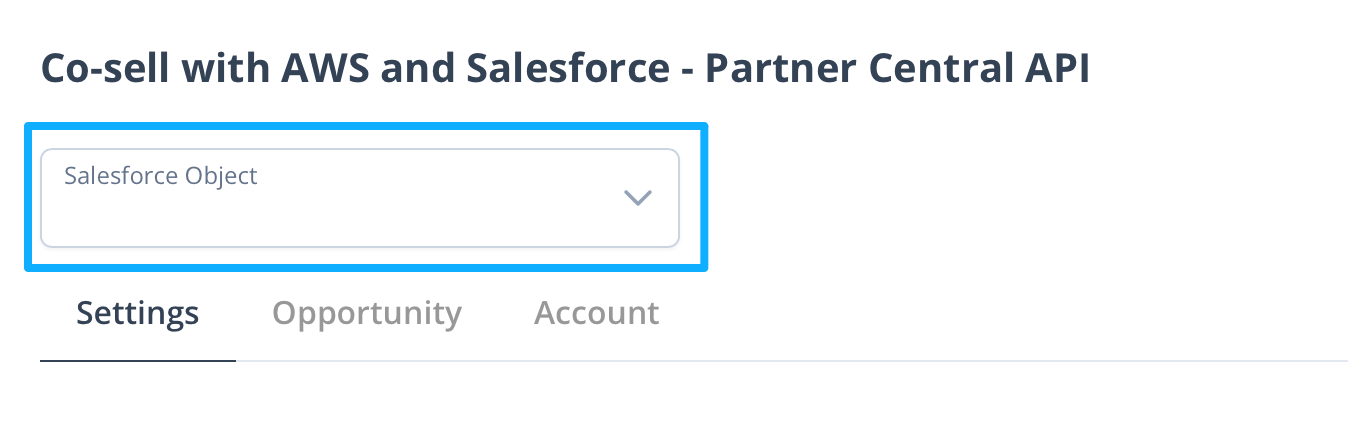 When syncing with Salesforce, you can use this field to search for and add more objects to sync, once the related field mappings have been completed. Mapping to custom Salesforce objects is supported, but typically requires a Solutions Engineering request to scope the trigger logic and data flow correctly. This isn't available for HubSpot.
### Setting
#### Auto-Accept Referrals
Automatically accept inbound referrals received from Cloud Partners.
When this option is enabled, Suger automatically changes the referral status to Accepted once it is received,
#### Auto-Delete Referrals
Enable Auto-Delete to automatically remove referrals that are rejected by **YOU (the ISV)**.
When this option is turned on, once a referral is rejected, Suger will delete the corresponding **opportunity/deal** in your CRM and soft-delete the referral in the Suger Console.
By default, soft-deleted referrals are **hidden from view** and **cannot be reused or referenced**.
#### Auto-Sync Contacts
Automatically synchronize contact information received from Cloud Partners to your CRM system.
When enabled, contact details from inbound referrals (such as name, title, email, or phone number) are added or updated in your CRM’s contact records. Set **SyncMode** to "None" if you prefer to manage contacts manually.
:::note
For AWS, contact information typically syncs 10–30 minutes after a referral is accepted, not immediately.
:::
## CRM-Specific Setup
The mapping methods and automations above apply to both CRMs. A few setup steps are specific to each CRM.
### Salesforce
Before configuring, confirm the Suger Salesforce package is installed and the Integration User is connected in your Suger Console:
- **Integration User access**: Salesforce must be connected to Suger with the **Suger Integrator** permission set, and that user needs **Read** and **Edit** access to any Salesforce fields you intend to map.
- **Widget installation**: The Suger Quick Panel must be added to your **Opportunity** page layout.
When defining outbound field mappings, pay special attention to these Salesforce fields:
- **Owner attribution**: Map `Owner.Email` so the correct sales rep is credited in the AWS/Azure/GCP portal.
- **Customer website**: `Account.Website` is used as the primary key for account matching and Auto-Enrichment.
- **Customer location**: AWS and Azure require valid country codes. Make sure `Billing.Country` is mapped correctly.
- **Close date**: `CloseDate` — partners reject dates in the past or more than two years in the future.
- **ACE IDs**: The `Partner CRM Unique ID` (Opportunity ID) is usually mapped by default and doesn't require manual configuration.
- **Project details**: `Description` maps to "Customer Problem" — the primary field partner managers read.
### HubSpot
Before configuring, confirm HubSpot is connected and verified under **Settings > Integrations**, and that the Suger App is added to your HubSpot Deal "Default View" (see [Set up the Suger App in HubSpot](/hubspot-app/hubspot-app-configuration/)).
To let Suger write the partner's status (e.g., "Active", "Declined") back to HubSpot, set up a **Referral State** property.
**In HubSpot — create a property group (if needed):**
1. Go to **Settings**, then **Properties** under **Data Management**.
2. Select **Deal properties** from the object dropdown, then open the **Groups** tab.
3. Reuse an existing group, or click **New Group** and create one.

**In HubSpot — create the property:**
1. On the **Properties** tab, click **New Property**.
2. Confirm the object type is **Deal**, and choose your group.
3. Label the property "Referral State" (or any name you prefer).
4. Set the field type to **Multiple Checkboxes**.
5. Add at least three options: **AWS**, **Azure**, and **GCP**. The option values must be consistent in case — they don't need to be any particular case, just character-for-character consistent.
6. Click **Create**.
**In the Suger Console — register the property:**
1. Go to [**Settings > Integrations**](https://console.suger.io/settings?tab=integrations) **> HubSpot card**, and click **Edit**.
2. In the **Advanced** section, find **Deal Referral State Property**.
3. Enter the property's **Label** (not its Internal Name). If it isn't listed, click the refresh icon to reload it.
4. Click **Verify**, then **Save**.

5. Back on the HubSpot integration, click **Sync** to populate the referral state on existing deals. This can take several minutes.
:::tip
Once populated, you can filter Co-Sell deals by Referral State: operator **IS NULL** finds deals never shared with a partner; **IS IN** + selected partners finds deals already shared.
:::
## Test Field Mapping
Use the
When syncing with Salesforce, you can use this field to search for and add more objects to sync, once the related field mappings have been completed. Mapping to custom Salesforce objects is supported, but typically requires a Solutions Engineering request to scope the trigger logic and data flow correctly. This isn't available for HubSpot.
### Setting
#### Auto-Accept Referrals
Automatically accept inbound referrals received from Cloud Partners.
When this option is enabled, Suger automatically changes the referral status to Accepted once it is received,
#### Auto-Delete Referrals
Enable Auto-Delete to automatically remove referrals that are rejected by **YOU (the ISV)**.
When this option is turned on, once a referral is rejected, Suger will delete the corresponding **opportunity/deal** in your CRM and soft-delete the referral in the Suger Console.
By default, soft-deleted referrals are **hidden from view** and **cannot be reused or referenced**.
#### Auto-Sync Contacts
Automatically synchronize contact information received from Cloud Partners to your CRM system.
When enabled, contact details from inbound referrals (such as name, title, email, or phone number) are added or updated in your CRM’s contact records. Set **SyncMode** to "None" if you prefer to manage contacts manually.
:::note
For AWS, contact information typically syncs 10–30 minutes after a referral is accepted, not immediately.
:::
## CRM-Specific Setup
The mapping methods and automations above apply to both CRMs. A few setup steps are specific to each CRM.
### Salesforce
Before configuring, confirm the Suger Salesforce package is installed and the Integration User is connected in your Suger Console:
- **Integration User access**: Salesforce must be connected to Suger with the **Suger Integrator** permission set, and that user needs **Read** and **Edit** access to any Salesforce fields you intend to map.
- **Widget installation**: The Suger Quick Panel must be added to your **Opportunity** page layout.
When defining outbound field mappings, pay special attention to these Salesforce fields:
- **Owner attribution**: Map `Owner.Email` so the correct sales rep is credited in the AWS/Azure/GCP portal.
- **Customer website**: `Account.Website` is used as the primary key for account matching and Auto-Enrichment.
- **Customer location**: AWS and Azure require valid country codes. Make sure `Billing.Country` is mapped correctly.
- **Close date**: `CloseDate` — partners reject dates in the past or more than two years in the future.
- **ACE IDs**: The `Partner CRM Unique ID` (Opportunity ID) is usually mapped by default and doesn't require manual configuration.
- **Project details**: `Description` maps to "Customer Problem" — the primary field partner managers read.
### HubSpot
Before configuring, confirm HubSpot is connected and verified under **Settings > Integrations**, and that the Suger App is added to your HubSpot Deal "Default View" (see [Set up the Suger App in HubSpot](/hubspot-app/hubspot-app-configuration/)).
To let Suger write the partner's status (e.g., "Active", "Declined") back to HubSpot, set up a **Referral State** property.
**In HubSpot — create a property group (if needed):**
1. Go to **Settings**, then **Properties** under **Data Management**.
2. Select **Deal properties** from the object dropdown, then open the **Groups** tab.
3. Reuse an existing group, or click **New Group** and create one.

**In HubSpot — create the property:**
1. On the **Properties** tab, click **New Property**.
2. Confirm the object type is **Deal**, and choose your group.
3. Label the property "Referral State" (or any name you prefer).
4. Set the field type to **Multiple Checkboxes**.
5. Add at least three options: **AWS**, **Azure**, and **GCP**. The option values must be consistent in case — they don't need to be any particular case, just character-for-character consistent.
6. Click **Create**.
**In the Suger Console — register the property:**
1. Go to [**Settings > Integrations**](https://console.suger.io/settings?tab=integrations) **> HubSpot card**, and click **Edit**.
2. In the **Advanced** section, find **Deal Referral State Property**.
3. Enter the property's **Label** (not its Internal Name). If it isn't listed, click the refresh icon to reload it.
4. Click **Verify**, then **Save**.

5. Back on the HubSpot integration, click **Sync** to populate the referral state on existing deals. This can take several minutes.
:::tip
Once populated, you can filter Co-Sell deals by Referral State: operator **IS NULL** finds deals never shared with a partner; **IS IN** + selected partners finds deals already shared.
:::
## Test Field Mapping
Use the  button to verify whether your field mapping configuration works as expected.
You can test **Inbound** and **Outbound** mappings separately by clicking the button within the corresponding tabs.
In an **Inbound test**, you can view referrals created in your **Cloud Partner’s** platform.
In an **Outbound test**, you can view referrals created in your **CRM**.
Click any row to inspect its **source data** and the **converted data** mapped to the target schema.
Review each key–value pair to ensure the mapping behaves as expected based on your configuration.
:::tip
The Share modal is your sandbox before finalizing any mapping — if data looks wrong or empty here, it'll be wrong in the partner portal. Open any opportunity and click **Share** to catch problems before they reach the partner.
:::
## Picklist Value Mapping
>
button to verify whether your field mapping configuration works as expected.
You can test **Inbound** and **Outbound** mappings separately by clicking the button within the corresponding tabs.
In an **Inbound test**, you can view referrals created in your **Cloud Partner’s** platform.
In an **Outbound test**, you can view referrals created in your **CRM**.
Click any row to inspect its **source data** and the **converted data** mapped to the target schema.
Review each key–value pair to ensure the mapping behaves as expected based on your configuration.
:::tip
The Share modal is your sandbox before finalizing any mapping — if data looks wrong or empty here, it'll be wrong in the partner portal. Open any opportunity and click **Share** to catch problems before they reach the partner.
:::
## Picklist Value Mapping
> 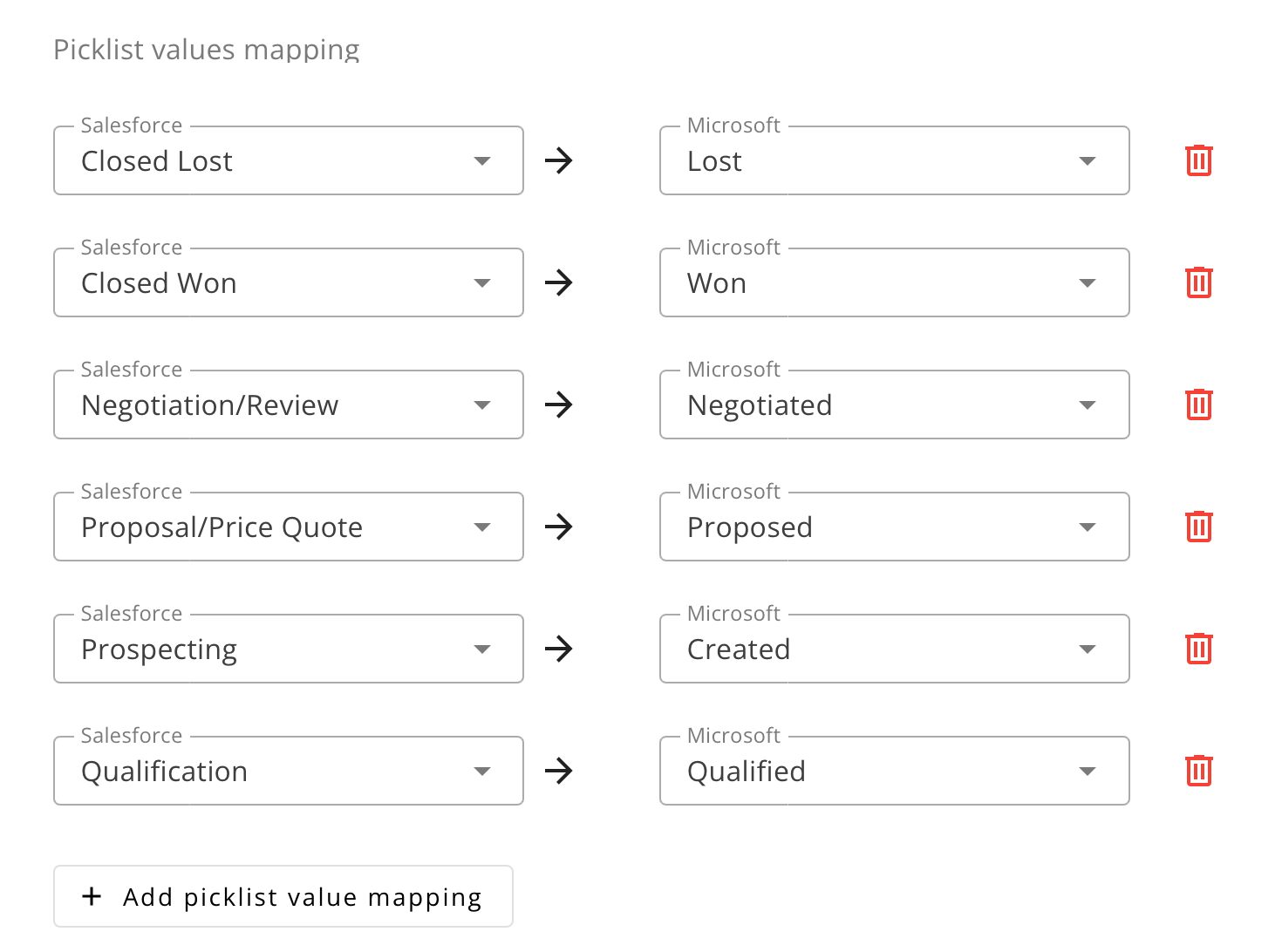 Some fields support Picklist Value Mapping, which allows you to define value correspondences between your CRM and Cloud Partner Platform.
This feature is used to create **simple one-to-one mappings** between different picklist values.
For example, the image above shows a Stage Name mapping where Salesforce stages are mapped to their corresponding Microsoft stages.
In other fields, you may need to enter values manually instead of selecting them from dropdown lists.
Users can add or remove mapping rows as needed to customize how each value aligns between the CRM and Cloud Partner.
## Expression Mode
Expression Mode lets you build advanced field-mapping logic—such as conditional rules, value transforms, fallbacks, and simple calculations—when syncing data between your CRM and Cloud Partner.
### How to enable
Click the `{}` button to the right of a field’s dropdown to switch that field to Expression Mode.
### What you can do
- Conditional mapping (if/else)
- Default/fallback values for empty fields
- String/number transforms and simple calculations
- Cross-field lookups (read one field to populate another)
#### Example — set a default country when empty
The snippet below writes the company country if present; otherwise it uses USA.
```
{{- if .companies.country -}}
{{ .companies.country }}
{{- else -}}
USA
{{- end -}}
```
#### Syntax
Expression Mode uses Go Templates (text/template).
**Reference:** https://pkg.go.dev/text/template
#### Validation & troubleshooting
- Invalid template syntax will cause the sync to fail for that field.
- Use the `Test` function to verify output before saving.
- Ensure referenced paths (e.g., .companies.country) exist in your inbound/outbound payload.
:::tip
Expression Mode applies per field. Other fields continue to use their own mapping or expressions independently.
:::
## Sync Timing & History
Once a referral is shared or accepted, Suger keeps it in sync across your CRM, Suger, and the cloud partner for the life of the deal.
- **Outbound syncs** (CRM → partner) run roughly every 6 hours.
- **Inbound syncs** (partner → CRM) run roughly every 3 hours, with new inbound referrals usually detected within minutes.
- You can trigger either sync manually at any time — actions taken directly in the Suger widget (such as sharing a new referral) run immediately rather than waiting on the schedule.
Referrals in an inactive state (Draft, Rejected, Expired, or Closed) are not re-synced. If the same field is updated in both your CRM and the partner portal between sync cycles, the most recent change wins — turn off a field's Sync Fields toggle if it shouldn't sync at all.
Click the **History** button on the Co-sell page for a timestamped log of configuration changes, including who changed the mapping logic and when. You can also review sync runs under Metrics > Logs, filtering Workflow Type to Sync.
## Troubleshooting Common Issues
| Issue | Cause | Resolution |
| --- | --- | --- |
| Engagement Scores missing in CRM | Co-sell Intelligence is off, or your org exceeded its retrieval quota | Check the toggle under **Settings > Co-sell**, then check usage in the **Quotas** tab |
| Can't create a second config for the same partner | Only one active configuration is allowed per hyperscaler | Edit the existing config instead of creating a new one, or deactivate it first |
| Field empty in the Share modal | The mapping points to a CRM field that's blank on that record | Populate the missing data in your CRM and refresh the modal, or add a Default Value in the configuration |
| Field highlighted in red in the Share modal | Data validation failure (e.g., text in a date field, invalid country code) | Use Expression Mode to reformat the data, or switch to a source field matching the partner's required data type |
| "unsupported partner: X" | Incorrect capitalization in Expression Mode or Apex actions | Use ALL CAPS for partner references: `AWS`, `AZURE`, `GCP`. In HubSpot, the checkbox option values must also match character-for-character |
| Referral status not updating in HubSpot | The Referral State property Label in Suger doesn't match the property in HubSpot | Re-enter the property's Label (not Internal Name) under **Integrations > HubSpot > Advanced > Deal Referral State Property** |
| Auto-Share failed to trigger | Invalid SOQL predicate (Salesforce) or incorrect ILS Segment ID (HubSpot) | Salesforce: click **Peek** to test syntax, use single quotes for strings. HubSpot: verify the ID matches the ILS Segment ID in Segment details |
| Sync failed after a stage change | A CRM stage was moved to a value not defined in Picklist Mapping | Locate the Stage field in the configuration and map every active CRM picklist value |
| Enrichment didn't fill fields | Missing a valid company website or domain on the CRM record | Populate the Website field on the Account/Company record — Suger uses it as the enrichment primary key |
| A change hasn't appeared yet | Waiting on the scheduled sync | Outbound runs roughly every 6 hours, inbound roughly every 3 hours. Trigger a manual sync if you need it sooner |
| Referral shows "Create Failed" / "Update Failed" | Sync error | Hover over the status in the referral list, or open the referral's detail page, for the specific partner error message |
## Frequently Asked Questions
**Q: Why isn't the Engagement Score showing in my CRM?**
Common causes are the Co-sell Intelligence toggle being disabled, or your organization exceeding its retrieval quota. Check both under **Settings > Co-sell**.
**Q: What happens if I delete a Co-sell configuration?**
Deletion is immediate and permanent. All associated mapping logic and access tokens are removed, with no way to recover it.
**Q: How do I handle fields with different names in different CRMs?**
Co-Sell configuration is unique per hyperscaler. You define the logic once for AWS pointing to Salesforce fields, and once for AWS pointing to HubSpot fields — full flexibility per CRM.
**Q: Does Suger support currency conversion in Expression Mode?**
Yes. Since some partners (like AWS) require revenue in specific currencies, you can write an expression that multiplies your CRM amount field by a conversion rate before it's sent to the partner.
**Q: What happens if I move a deal to a CRM stage I haven't mapped?**
The sync will fail for that update. Every active stage in your CRM should be mapped to a partner-approved value in Picklist Mapping.
**Q: Can I map data from custom objects instead of standard Opportunity/Deal objects?**
Mapping to custom Salesforce objects is supported, but typically requires a Solutions Engineering request to scope the trigger logic and data flow. This isn't available for HubSpot.
**Q: Will Auto-Enrich overwrite data my sales reps have already entered?**
No. Enrichment only populates fields that are currently empty. If a field already has data, Suger treats your CRM as the source of truth and skips it.
**Q: Can I automate deal sharing for only a subset of my team?**
Yes. Use Auto-Share criteria — SOQL for Salesforce or Segments for HubSpot — to limit automation to specific owners, regions, or product lines. Use Peek (Salesforce) to verify which records currently match before enabling it.
**Q: Why does a referral status show as "Expired"?**
A referral enters Expired when it isn't approved or rejected within the partner's time limit. This applies to AWS and Azure; GCP has no documented Expired state.
**Q: Where can I see why a referral failed to sync?**
Hover over a **Create Failed** or **Update Failed** status in the referral list, or open the referral's detail page, for the specific error message from the cloud partner.
**Q: Do Suger roles (Admin, Editor, Viewer) inherit from Salesforce or HubSpot?**
No. Suger roles are console-specific and don't inherit from CRM profiles or roles. Manage Suger permissions under **Settings > Users & Roles**.
:::info
For the unified Suger Status lifecycle and how it maps to each partner's native statuses and stages, see [Status & Stage](/cosell/cosell-status/).
:::
Some fields support Picklist Value Mapping, which allows you to define value correspondences between your CRM and Cloud Partner Platform.
This feature is used to create **simple one-to-one mappings** between different picklist values.
For example, the image above shows a Stage Name mapping where Salesforce stages are mapped to their corresponding Microsoft stages.
In other fields, you may need to enter values manually instead of selecting them from dropdown lists.
Users can add or remove mapping rows as needed to customize how each value aligns between the CRM and Cloud Partner.
## Expression Mode
Expression Mode lets you build advanced field-mapping logic—such as conditional rules, value transforms, fallbacks, and simple calculations—when syncing data between your CRM and Cloud Partner.
### How to enable
Click the `{}` button to the right of a field’s dropdown to switch that field to Expression Mode.
### What you can do
- Conditional mapping (if/else)
- Default/fallback values for empty fields
- String/number transforms and simple calculations
- Cross-field lookups (read one field to populate another)
#### Example — set a default country when empty
The snippet below writes the company country if present; otherwise it uses USA.
```
{{- if .companies.country -}}
{{ .companies.country }}
{{- else -}}
USA
{{- end -}}
```
#### Syntax
Expression Mode uses Go Templates (text/template).
**Reference:** https://pkg.go.dev/text/template
#### Validation & troubleshooting
- Invalid template syntax will cause the sync to fail for that field.
- Use the `Test` function to verify output before saving.
- Ensure referenced paths (e.g., .companies.country) exist in your inbound/outbound payload.
:::tip
Expression Mode applies per field. Other fields continue to use their own mapping or expressions independently.
:::
## Sync Timing & History
Once a referral is shared or accepted, Suger keeps it in sync across your CRM, Suger, and the cloud partner for the life of the deal.
- **Outbound syncs** (CRM → partner) run roughly every 6 hours.
- **Inbound syncs** (partner → CRM) run roughly every 3 hours, with new inbound referrals usually detected within minutes.
- You can trigger either sync manually at any time — actions taken directly in the Suger widget (such as sharing a new referral) run immediately rather than waiting on the schedule.
Referrals in an inactive state (Draft, Rejected, Expired, or Closed) are not re-synced. If the same field is updated in both your CRM and the partner portal between sync cycles, the most recent change wins — turn off a field's Sync Fields toggle if it shouldn't sync at all.
Click the **History** button on the Co-sell page for a timestamped log of configuration changes, including who changed the mapping logic and when. You can also review sync runs under Metrics > Logs, filtering Workflow Type to Sync.
## Troubleshooting Common Issues
| Issue | Cause | Resolution |
| --- | --- | --- |
| Engagement Scores missing in CRM | Co-sell Intelligence is off, or your org exceeded its retrieval quota | Check the toggle under **Settings > Co-sell**, then check usage in the **Quotas** tab |
| Can't create a second config for the same partner | Only one active configuration is allowed per hyperscaler | Edit the existing config instead of creating a new one, or deactivate it first |
| Field empty in the Share modal | The mapping points to a CRM field that's blank on that record | Populate the missing data in your CRM and refresh the modal, or add a Default Value in the configuration |
| Field highlighted in red in the Share modal | Data validation failure (e.g., text in a date field, invalid country code) | Use Expression Mode to reformat the data, or switch to a source field matching the partner's required data type |
| "unsupported partner: X" | Incorrect capitalization in Expression Mode or Apex actions | Use ALL CAPS for partner references: `AWS`, `AZURE`, `GCP`. In HubSpot, the checkbox option values must also match character-for-character |
| Referral status not updating in HubSpot | The Referral State property Label in Suger doesn't match the property in HubSpot | Re-enter the property's Label (not Internal Name) under **Integrations > HubSpot > Advanced > Deal Referral State Property** |
| Auto-Share failed to trigger | Invalid SOQL predicate (Salesforce) or incorrect ILS Segment ID (HubSpot) | Salesforce: click **Peek** to test syntax, use single quotes for strings. HubSpot: verify the ID matches the ILS Segment ID in Segment details |
| Sync failed after a stage change | A CRM stage was moved to a value not defined in Picklist Mapping | Locate the Stage field in the configuration and map every active CRM picklist value |
| Enrichment didn't fill fields | Missing a valid company website or domain on the CRM record | Populate the Website field on the Account/Company record — Suger uses it as the enrichment primary key |
| A change hasn't appeared yet | Waiting on the scheduled sync | Outbound runs roughly every 6 hours, inbound roughly every 3 hours. Trigger a manual sync if you need it sooner |
| Referral shows "Create Failed" / "Update Failed" | Sync error | Hover over the status in the referral list, or open the referral's detail page, for the specific partner error message |
## Frequently Asked Questions
**Q: Why isn't the Engagement Score showing in my CRM?**
Common causes are the Co-sell Intelligence toggle being disabled, or your organization exceeding its retrieval quota. Check both under **Settings > Co-sell**.
**Q: What happens if I delete a Co-sell configuration?**
Deletion is immediate and permanent. All associated mapping logic and access tokens are removed, with no way to recover it.
**Q: How do I handle fields with different names in different CRMs?**
Co-Sell configuration is unique per hyperscaler. You define the logic once for AWS pointing to Salesforce fields, and once for AWS pointing to HubSpot fields — full flexibility per CRM.
**Q: Does Suger support currency conversion in Expression Mode?**
Yes. Since some partners (like AWS) require revenue in specific currencies, you can write an expression that multiplies your CRM amount field by a conversion rate before it's sent to the partner.
**Q: What happens if I move a deal to a CRM stage I haven't mapped?**
The sync will fail for that update. Every active stage in your CRM should be mapped to a partner-approved value in Picklist Mapping.
**Q: Can I map data from custom objects instead of standard Opportunity/Deal objects?**
Mapping to custom Salesforce objects is supported, but typically requires a Solutions Engineering request to scope the trigger logic and data flow. This isn't available for HubSpot.
**Q: Will Auto-Enrich overwrite data my sales reps have already entered?**
No. Enrichment only populates fields that are currently empty. If a field already has data, Suger treats your CRM as the source of truth and skips it.
**Q: Can I automate deal sharing for only a subset of my team?**
Yes. Use Auto-Share criteria — SOQL for Salesforce or Segments for HubSpot — to limit automation to specific owners, regions, or product lines. Use Peek (Salesforce) to verify which records currently match before enabling it.
**Q: Why does a referral status show as "Expired"?**
A referral enters Expired when it isn't approved or rejected within the partner's time limit. This applies to AWS and Azure; GCP has no documented Expired state.
**Q: Where can I see why a referral failed to sync?**
Hover over a **Create Failed** or **Update Failed** status in the referral list, or open the referral's detail page, for the specific error message from the cloud partner.
**Q: Do Suger roles (Admin, Editor, Viewer) inherit from Salesforce or HubSpot?**
No. Suger roles are console-specific and don't inherit from CRM profiles or roles. Manage Suger permissions under **Settings > Users & Roles**.
:::info
For the unified Suger Status lifecycle and how it maps to each partner's native statuses and stages, see [Status & Stage](/cosell/cosell-status/).
:::