# Create Private Offer
You can create and manage all of your AWS Marketplace private offers via Suger Console or API
---
## Overview
There are several types of private offers can be created in AWS Marketplace. They are listed in the below table with various of feature availabilities.
| | Description | Expiry Date | End Date | Commit(s) | Usage Dimensions | Payment Installments | Multiple Currency |
| :------------------------------ | :-------------------------------------------------------------------------- | :----------------: | :---------------------------: | :----------------: | :----------------: | :------------------: | :---------------------------------: |
| **Subscription Offer** | Private offer for Subscription product (pay as you go, usage-based) | :white_check_mark: | :white_check_mark: | - | :white_check_mark: | - | - |
| **Contract Offer** | Private offer for Contract product (commit only) | :white_check_mark: | - | :white_check_mark: | - | :white_check_mark: | :white_check_mark: |
| **Combined Offer** | Private offer for Contract-Subscription Combined product | :white_check_mark: | - | :white_check_mark: | :white_check_mark: | :white_check_mark: | - |
| **Agreement Based Offer** | Private offer based on existing active agreement for manual renew or upsell | :white_check_mark: | - | :white_check_mark: | :white_check_mark: | :white_check_mark: | Available for contract based offers |
| **Professional Services Offer** | Private offer for Professional Services product | :white_check_mark: | | :white_check_mark: | | :white_check_mark: | :white_check_mark: |
| **Container Offer** | Private offer for Container product | :white_check_mark: | :white_check_mark: | :white_check_mark: | :white_check_mark: | :white_check_mark: | :white_check_mark: |
| **AMI Offer** | Private offer for AMI product | :white_check_mark: | :white_check_mark: | :white_check_mark: | :white_check_mark: | :white_check_mark: | |
| **Free Trial Offer** | Public Offer for free trial | - | by the end of Free Trial term | - | - | - | - |
:::danger
- You may create private offers either in the [AWS Marketplace Management Console](https://aws.amazon.com/marketplace/management/offers/) or the [Suger Console](https://console.suger.io/offer).
:::
## Prerequisites
Before you proceed, make sure both your AWS and Suger environments are ready. This prevents errors during offer creation and approval.
- **AWS requirements** — make sure your AWS account is set up with the following:
- **Active AWS Marketplace listing** — you must already have at least one public AWS Marketplace product (SaaS, AMI, Container, or Professional Services). Private offers must be created from an existing listing.
- **Registered AWS Marketplace Seller account** — your AWS account must be enrolled as a Marketplace Seller in the AWS Marketplace Management Portal (AMMP).
- **Completed company profile** — your business details in AWS Marketplace must be fully filled out.
- **Tax and banking setup completed** — your tax information and banking details must be added and verified in AWS Marketplace.
- **Required IAM permissions** — your AWS user or role must have permissions to create and manage Private Offers.
- **Suger requirements** — you need an **Admin** or **Editor** role. If you don't have access yet, ask your company admin to invite you to the organization. See [Manage Users and Roles](/get-started/account/).
- **Buyer requirement** — you must collect the buyer's **AWS Account ID (12-digit)**. This is required to target the private offer correctly.
## Quick Start: Create a Private Offer
This is the end-to-end workflow for creating any private offer in the Suger Console. The specific fields you fill in depend on your product's pricing model — see the per-type sections below for details.

### Step 1: Create the draft offer
1. Go to the **Offer** menu in the [Suger Console](https://console.suger.io/offer).
2. Click **+ New Private Offer**, then choose the **AWS product** you want to associate with the offer. Only products already connected to your AWS Marketplace account appear here.

### Step 2: Fill in basic information
This section defines who the offer is for and how it's tracked.
1. Enter the **Offer Name** — this custom name is displayed to the buyer.
2. Optionally link a **Salesforce** or **HubSpot** deal.
3. Select the **Buyer AWS Account(s)**.
4. **Add or create contacts** — internal or customer-facing people who should be notified.
5. Add an **Internal Description** — notes for your team only (not visible to the buyer).
### Step 3: Fill in the offer terms
This section defines how long the offer is valid and how long the contract runs after acceptance.
1. Set the **Expiry Date** — the deadline for the buyer to accept the offer.
2. Specify the **Contract Term Length** — the duration of the contract after acceptance.
3. (Optional) **Enable future start date** — used when the contract should begin on a fixed start date, any time after acceptance.
### Step 4: Fill in pricing information
Depending on your AWS product type, your private offer uses different pricing mechanics:
- **Subscription (usage-based)** — the customer pays based on actual usage. Set usage dimensions (what is being measured) and the unit price per dimension.
- **Contract (fixed commitment)** — the customer pre-pays or commits to a fixed spend. Set the total commit amount, currency, and optional payment installments.
- **Combined (contract + usage)** — a fixed baseline plus extra usage billing. Set the commit amount (base contract) and usage pricing (overage charges).
- **Reseller / CPPO (markup-based)** — you're not setting a base price, you're adding margin. Set a markup percentage or a custom payment structure.
See the per-type sections below for the full field breakdown of each pricing model.
### Step 5: Add legal terms
Select the agreement the buyer accepts:
- Standard Contract for AWS Marketplace, or
- a custom EULA.
### Step 6: Finalize and submit
1. Review the offer and make sure everything is correct.
2. Click **Create offer**.
:::tip
- You can use a generic SKU to avoid reaching AWS's SKU limit. For example, set the **Dimension Name** to `YourCompanyName Private Offer` and the **Description** to `Access to YourCompanyName Platform`.
:::
## Subscription Private Offer
To create a private offer for a subscription product, the ISV seller is allowed to customize the unit prices of the dimensions for usage metering. The private offer has both expiry date & end date. Click the button of `Create Offer` in the [Suger console offer page](https://console.suger.io/offer), select the target AWS Subscription SaaS product and fulfill the info listed as below:
- **Custom Offer Name**: Custom name for your offer will be displayed to the buyer.
- **Buyer(s)**: one or multiple buyer's AWS Account IDs who will receive the private offer and are capable to accept it.
- **Expiry Date**: The date before when the private offer needs to be accepted, otherwise, the offer expires.
- **End Date**: The date when the private offer subscription will end. This value must be greater than the upper offer expiry date.
:::warning
- Only for Subscription Private Offer: the price switches back to the public offer after the end date arrives.
:::
- **Usage Dimension Absolute Price**: Configure the absolute price of each usage metering dimensions. An example is shown below:
>  - **End User License Agreement**: Select the EULA between Standard AWS Marketplace Contract, Enterprise AWS Marketplace Contract or your custom contract.
## Contract Private Offer
To create a private offer for a contract product, the ISV seller is allowed to customize the commit amount. The private offer has both expiry date & contract term length. By default, the contract starts when the buyer accepts the offer. If a future start date is specified, the contract will commence from the designated time. Fulfill the info listed as below:
- **Custom Offer Name**: Custom name for your offer will be displayed to the buyer.
- **Buyer(s)**: one or multiple buyer's AWS Account IDs who will receive the private offer and are capable to accept it.
- **Expiry Date**: The date before when the private offer needs to be accepted, otherwise, the offer expires.
- **Start Date(optional)**: A future date when the contract will begin if the offer has been accepted.
- **Currency**: Choose a transaction currency for this offer. You will receive payment in the selected currency.
:::warning
- Before select non-USD currency, make sure you have configured your [non-USD disbursement preferences for multi currency](#multi-currency).
:::
- **Term Length**: In months. How long the buyer can use the contract commits sold in this offer.
- **Commit Amount**: How much the buyer need to pay for this contract private offer.
- **End User License Agreement**: Select the EULA between Standard AWS Marketplace Contract, Enterprise AWS Marketplace Contract or your custom contract.
## Contract + Subscription Combined Private Offer
The private offer for Contract + Subscription Combined product is similar to the combination of previous two types of private offer. You can customize both the commit amount and usage metering dimension prices for extra usage.
Fulfill the info listed as below:
- **Custom Offer Name**: Custom name for your offer will be displayed to the buyer.
- **Buyer(s)**: one or multiple buyer's AWS Account IDs who will receive the private offer and are capable to accept it.
- **Expiry Date**: The date before when the private offer needs to be accepted, otherwise, the offer expires.
- **Term Length**: In months. How long the buyer can use the contract commits sold in this offer.
- **Commit Amount**: How much the buyer need to pay for this contract private offer.
- **Usage Dimension Absolute Price**: Configure the absolute price of each usage metering dimensions.
- **End User License Agreement**: Select the EULA between Standard AWS Marketplace Contract, Enterprise AWS Marketplace Contract or your custom contract.
## Private Offer with Payment Installments
By enabling the payment installments, you can extend private offers with a custom payment schedule. The schedule can be spread over up to five years, and the customer makes payments in regular installments. After they are subscribed, your customers can see all the payments on the schedule and on their AWS invoice, helping them track their spending.
>
- **End User License Agreement**: Select the EULA between Standard AWS Marketplace Contract, Enterprise AWS Marketplace Contract or your custom contract.
## Contract Private Offer
To create a private offer for a contract product, the ISV seller is allowed to customize the commit amount. The private offer has both expiry date & contract term length. By default, the contract starts when the buyer accepts the offer. If a future start date is specified, the contract will commence from the designated time. Fulfill the info listed as below:
- **Custom Offer Name**: Custom name for your offer will be displayed to the buyer.
- **Buyer(s)**: one or multiple buyer's AWS Account IDs who will receive the private offer and are capable to accept it.
- **Expiry Date**: The date before when the private offer needs to be accepted, otherwise, the offer expires.
- **Start Date(optional)**: A future date when the contract will begin if the offer has been accepted.
- **Currency**: Choose a transaction currency for this offer. You will receive payment in the selected currency.
:::warning
- Before select non-USD currency, make sure you have configured your [non-USD disbursement preferences for multi currency](#multi-currency).
:::
- **Term Length**: In months. How long the buyer can use the contract commits sold in this offer.
- **Commit Amount**: How much the buyer need to pay for this contract private offer.
- **End User License Agreement**: Select the EULA between Standard AWS Marketplace Contract, Enterprise AWS Marketplace Contract or your custom contract.
## Contract + Subscription Combined Private Offer
The private offer for Contract + Subscription Combined product is similar to the combination of previous two types of private offer. You can customize both the commit amount and usage metering dimension prices for extra usage.
Fulfill the info listed as below:
- **Custom Offer Name**: Custom name for your offer will be displayed to the buyer.
- **Buyer(s)**: one or multiple buyer's AWS Account IDs who will receive the private offer and are capable to accept it.
- **Expiry Date**: The date before when the private offer needs to be accepted, otherwise, the offer expires.
- **Term Length**: In months. How long the buyer can use the contract commits sold in this offer.
- **Commit Amount**: How much the buyer need to pay for this contract private offer.
- **Usage Dimension Absolute Price**: Configure the absolute price of each usage metering dimensions.
- **End User License Agreement**: Select the EULA between Standard AWS Marketplace Contract, Enterprise AWS Marketplace Contract or your custom contract.
## Private Offer with Payment Installments
By enabling the payment installments, you can extend private offers with a custom payment schedule. The schedule can be spread over up to five years, and the customer makes payments in regular installments. After they are subscribed, your customers can see all the payments on the schedule and on their AWS invoice, helping them track their spending.
>  :::warning
- `Payment Installments` are only supported in [Contract Private Offer](#contract-private-offer), [Contract + Subscription Combined Private Offer](#contract--subscription-combined-private-offer), or [Agreement Based Private Offer](#agreement-based-private-offer).
- Common mistakes when configuring Payment Installments:
1. Multiple invoices on or before the offer expiration date **(only one is allowed)**.
2. The client/buyer's AWS Account is **not on net payment terms** with AWS, which is required to accept Payment Installments.
:::
## Agreement Based Private Offer
When you have an active entitlement of the [Contract](/aws-marketplace/pricing-model#contract) or [Combined](/aws-marketplace/pricing-model#combined) product with your buyer, you can manually renew or upsell the entitlement by creating an agreement-based private offer. Once the new private offer is accepted by the buyer, the entitlement will be updated immediately.
:::warning
- Only the entitlements of Contract or Combined products / private offers allows to create the agreement-based private offer. The subscription does not allow the agreement-based private offer, which means that no flexibility to manually renew or upsell in Subscription pricing model.
:::
The list of info required when creating the agreement-based private offer:
- **Custom Offer Name**: Custom name for your offer will be displayed to the buyer.
- **Expiry Date**: The date before when the private offer needs to be accepted, otherwise, the offer expires.
- **New End Date**: The date when the new private offer will end.
- **Currency**: The currency of the new agreement based offer will firstly inherite from the base agreement, then if it is not a usage based offer, you can change it to one of these supported currencies.
- **Commit Quantity**: The number of the commit plan, mostly it is 1.
- **Usage Dimension Absolute Price**: Configure the new absolute price of each usage metering dimensions.
- **Payment Scheduler**: You can specify one or multiple dates to bill the buyer with specified amount. The total amount of payment installments is the final commit amount of the new private offer. One example is shown below:
>
:::warning
- `Payment Installments` are only supported in [Contract Private Offer](#contract-private-offer), [Contract + Subscription Combined Private Offer](#contract--subscription-combined-private-offer), or [Agreement Based Private Offer](#agreement-based-private-offer).
- Common mistakes when configuring Payment Installments:
1. Multiple invoices on or before the offer expiration date **(only one is allowed)**.
2. The client/buyer's AWS Account is **not on net payment terms** with AWS, which is required to accept Payment Installments.
:::
## Agreement Based Private Offer
When you have an active entitlement of the [Contract](/aws-marketplace/pricing-model#contract) or [Combined](/aws-marketplace/pricing-model#combined) product with your buyer, you can manually renew or upsell the entitlement by creating an agreement-based private offer. Once the new private offer is accepted by the buyer, the entitlement will be updated immediately.
:::warning
- Only the entitlements of Contract or Combined products / private offers allows to create the agreement-based private offer. The subscription does not allow the agreement-based private offer, which means that no flexibility to manually renew or upsell in Subscription pricing model.
:::
The list of info required when creating the agreement-based private offer:
- **Custom Offer Name**: Custom name for your offer will be displayed to the buyer.
- **Expiry Date**: The date before when the private offer needs to be accepted, otherwise, the offer expires.
- **New End Date**: The date when the new private offer will end.
- **Currency**: The currency of the new agreement based offer will firstly inherite from the base agreement, then if it is not a usage based offer, you can change it to one of these supported currencies.
- **Commit Quantity**: The number of the commit plan, mostly it is 1.
- **Usage Dimension Absolute Price**: Configure the new absolute price of each usage metering dimensions.
- **Payment Scheduler**: You can specify one or multiple dates to bill the buyer with specified amount. The total amount of payment installments is the final commit amount of the new private offer. One example is shown below:
>  - **End User License Agreement**: Select the EULA between Standard AWS Marketplace Contract, Enterprise AWS Marketplace Contract or your custom contract.
## Professional Services Private Offer
To create a private offer for a professional services product, the ISV seller can customize the commit price and payment installments. The private offer includes both an expiry date and a contract term length. The offer becomes active when the buyer accepts it.
Fulfill the info listed as below:
- **Custom Offer Name**: Custom name for your offer will be displayed to the buyer.
- **Buyer(s)**: one or multiple buyer's AWS Account IDs who will receive the private offer and are capable to accept it.
- **Expiry Date**: The date before when the private offer needs to be accepted, otherwise, the offer expires.
- **Term Length**: In months. How long the buyer can use the contract commits sold in this offer.
- **Currency**: Choose a transaction currency for this offer. You will receive payment in the selected currency.
:::warning
- Before select non-USD currency, make sure you have configured your [non-USD disbursement preferences for multi currency](#multi-currency).
:::
- **Commit Price**: How much the buyer need to pay for each commit.
>
- **End User License Agreement**: Select the EULA between Standard AWS Marketplace Contract, Enterprise AWS Marketplace Contract or your custom contract.
## Professional Services Private Offer
To create a private offer for a professional services product, the ISV seller can customize the commit price and payment installments. The private offer includes both an expiry date and a contract term length. The offer becomes active when the buyer accepts it.
Fulfill the info listed as below:
- **Custom Offer Name**: Custom name for your offer will be displayed to the buyer.
- **Buyer(s)**: one or multiple buyer's AWS Account IDs who will receive the private offer and are capable to accept it.
- **Expiry Date**: The date before when the private offer needs to be accepted, otherwise, the offer expires.
- **Term Length**: In months. How long the buyer can use the contract commits sold in this offer.
- **Currency**: Choose a transaction currency for this offer. You will receive payment in the selected currency.
:::warning
- Before select non-USD currency, make sure you have configured your [non-USD disbursement preferences for multi currency](#multi-currency).
:::
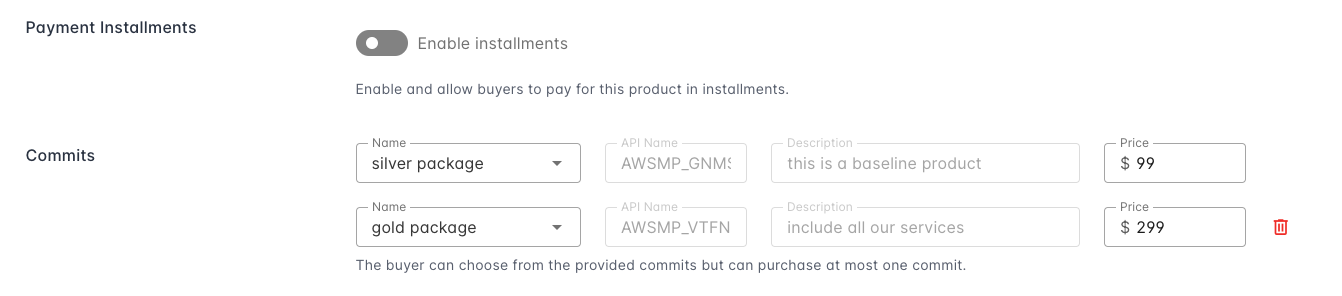
- **Commit Price**: How much the buyer need to pay for each commit.
>  :::warning
- You can specify multiple commits in the private offer, but the buyer can only select one of them to purchase.
:::
- **Payment Scheduler**: You can specify one or multiple dates to bill the buyer with specified amount. The total amount of payment installments is the final commit amount of the new private offer. One example is shown below:
>
:::warning
- You can specify multiple commits in the private offer, but the buyer can only select one of them to purchase.
:::
- **Payment Scheduler**: You can specify one or multiple dates to bill the buyer with specified amount. The total amount of payment installments is the final commit amount of the new private offer. One example is shown below:
>  - **End User License Agreement**: Select or upload your custom contract.
## Container Private Offer
To create a private offer for a container product, you can choose pricing model depends on the product's pricing model and it's dimension types.
:::tip
- AWS supports free private offers for container products with Free pricing or only RecurringPayMonthly pricing. BYOL container products are still not supported.
- Hourly pricing products behave very similarly to Usage metering pricing products when creating private offers. The difference is that the former only have one dimension called Hours.
:::
| Product Pricing Model | Product Dimension Type | Offer Pricing Model | Expire Date | Contract Duration | Usage End Date | Commit(s) | Payment Installments | Usage Dimensions | Multiple Currency |
| -------------------------------------- | ---------------------- | -------------------------------------- | ------------------ | ------------------ | ------------------ | ------------------ | -------------------- | ------------------ | ------------------ |
| Contract pricing | Entitled | Contract pricing with installment plan | :white_check_mark: | :white_check_mark: | | | :white_check_mark: | | :white_check_mark: |
| Contract pricing | Entitled | Contract pricing with upfront payment | :white_check_mark: | :white_check_mark: | | :white_check_mark: | | | :white_check_mark: |
| Usage metering pricing, Hourly pricing | ExternallyMetered | Contract pricing with installment plan | :white_check_mark: | :white_check_mark: | | | :white_check_mark: | :white_check_mark: | |
| Usage metering pricing, Hourly pricing | ExternallyMetered | Contract pricing with upfront payment | :white_check_mark: | :white_check_mark: | :white_check_mark: | :white_check_mark: | | :white_check_mark: | |
| Usage metering pricing, Hourly pricing | ExternallyMetered | Usage pricing | :white_check_mark: | | :white_check_mark: | | | :white_check_mark: | |
## AMI Private Offer
To create a private offer for a AMI product with pricing model of Hourly pricing or Free, you can choose a target pricing model for the offer.
:::warning
- Currently AWS does not support creating private offers for AMI products with pricing model BYOL.
- You will find that the form of creating a private offer for AMI Product is basically the same as the Container Product with Usage metering pricing model.
:::
| Product Pricing Model | Product Dimension Type | Offer Pricing Model | Expire Date | Contract Duration | Usage End Date | Commit(s) | Payment Installments | Usage Dimensions | Multiple Currency |
| --------------------- | ---------------------- | -------------------------------------- | ------------------ | ------------------ | ------------------ | ------------------ | -------------------- | ------------------ | ----------------- |
| Hourly pricing, Free | Metered | Contract pricing with installment plan | :white_check_mark: | :white_check_mark: | | | :white_check_mark: | :white_check_mark: | |
| Hourly pricing, Free | Metered | Contract pricing with upfront payment | :white_check_mark: | :white_check_mark: | :white_check_mark: | :white_check_mark: | | :white_check_mark: | |
| Hourly pricing, Free | Metered | Usage pricing | :white_check_mark: | | :white_check_mark: | | | :white_check_mark: | |
## Free Trial Public Offer
Visit the [AWS Marketplace Free Trial Offer console](https://aws.amazon.com/marketplace/management/offers?tabId=publicFreeTrials), and click the button `Create free trial offer`. Select the product and enter the amount of days as the Free Trial term length. The offer may take ~1 hour before being effective & public visible.
:::danger
- During the Free Trial term, the buyers won't be charged on the commit or usage metering.
:::
:::danger
- The Free Trial entitlement will be terminated/cancelled automatically by the end of Free Trial term.
:::
## Resale Private Offer
As a Reseller on AWS, you can create the resale private offer based on a ResaleAuthorization which you received from other ISV/Sellers.
Click the button of `New Private Offer` in the [Suger console offer page](https://console.suger.io/offer), enable `As Reseller` to fill in the details to finalize the private resale offer.
- **Custom Offer Name**: Custom name for your offer will be displayed to the buyer.
- **Buyer(s)**: One or multiple buyer's AWS Account IDs who will receive the private offer and are capable to accept it.
- **Expiry Date**: The date before when the private offer needs to be accepted, otherwise, the offer expires.
- **End Date**: The date when the private offer subscription will end. This value must be greater than the upper offer expiry date.
- **Markup Options**: The markup will be applied to the wholesale pricing to generate the contract pricing, including the customer price and partner margin.
For contract private reseller offer with predefined installments, you can choose between `Markup Percentage` and `Custom Payments` to set the markup, and for other private offers, the only available option is `Markup Percentage`, so this field will be hidden.
>
- **End User License Agreement**: Select or upload your custom contract.
## Container Private Offer
To create a private offer for a container product, you can choose pricing model depends on the product's pricing model and it's dimension types.
:::tip
- AWS supports free private offers for container products with Free pricing or only RecurringPayMonthly pricing. BYOL container products are still not supported.
- Hourly pricing products behave very similarly to Usage metering pricing products when creating private offers. The difference is that the former only have one dimension called Hours.
:::
| Product Pricing Model | Product Dimension Type | Offer Pricing Model | Expire Date | Contract Duration | Usage End Date | Commit(s) | Payment Installments | Usage Dimensions | Multiple Currency |
| -------------------------------------- | ---------------------- | -------------------------------------- | ------------------ | ------------------ | ------------------ | ------------------ | -------------------- | ------------------ | ------------------ |
| Contract pricing | Entitled | Contract pricing with installment plan | :white_check_mark: | :white_check_mark: | | | :white_check_mark: | | :white_check_mark: |
| Contract pricing | Entitled | Contract pricing with upfront payment | :white_check_mark: | :white_check_mark: | | :white_check_mark: | | | :white_check_mark: |
| Usage metering pricing, Hourly pricing | ExternallyMetered | Contract pricing with installment plan | :white_check_mark: | :white_check_mark: | | | :white_check_mark: | :white_check_mark: | |
| Usage metering pricing, Hourly pricing | ExternallyMetered | Contract pricing with upfront payment | :white_check_mark: | :white_check_mark: | :white_check_mark: | :white_check_mark: | | :white_check_mark: | |
| Usage metering pricing, Hourly pricing | ExternallyMetered | Usage pricing | :white_check_mark: | | :white_check_mark: | | | :white_check_mark: | |
## AMI Private Offer
To create a private offer for a AMI product with pricing model of Hourly pricing or Free, you can choose a target pricing model for the offer.
:::warning
- Currently AWS does not support creating private offers for AMI products with pricing model BYOL.
- You will find that the form of creating a private offer for AMI Product is basically the same as the Container Product with Usage metering pricing model.
:::
| Product Pricing Model | Product Dimension Type | Offer Pricing Model | Expire Date | Contract Duration | Usage End Date | Commit(s) | Payment Installments | Usage Dimensions | Multiple Currency |
| --------------------- | ---------------------- | -------------------------------------- | ------------------ | ------------------ | ------------------ | ------------------ | -------------------- | ------------------ | ----------------- |
| Hourly pricing, Free | Metered | Contract pricing with installment plan | :white_check_mark: | :white_check_mark: | | | :white_check_mark: | :white_check_mark: | |
| Hourly pricing, Free | Metered | Contract pricing with upfront payment | :white_check_mark: | :white_check_mark: | :white_check_mark: | :white_check_mark: | | :white_check_mark: | |
| Hourly pricing, Free | Metered | Usage pricing | :white_check_mark: | | :white_check_mark: | | | :white_check_mark: | |
## Free Trial Public Offer
Visit the [AWS Marketplace Free Trial Offer console](https://aws.amazon.com/marketplace/management/offers?tabId=publicFreeTrials), and click the button `Create free trial offer`. Select the product and enter the amount of days as the Free Trial term length. The offer may take ~1 hour before being effective & public visible.
:::danger
- During the Free Trial term, the buyers won't be charged on the commit or usage metering.
:::
:::danger
- The Free Trial entitlement will be terminated/cancelled automatically by the end of Free Trial term.
:::
## Resale Private Offer
As a Reseller on AWS, you can create the resale private offer based on a ResaleAuthorization which you received from other ISV/Sellers.
Click the button of `New Private Offer` in the [Suger console offer page](https://console.suger.io/offer), enable `As Reseller` to fill in the details to finalize the private resale offer.
- **Custom Offer Name**: Custom name for your offer will be displayed to the buyer.
- **Buyer(s)**: One or multiple buyer's AWS Account IDs who will receive the private offer and are capable to accept it.
- **Expiry Date**: The date before when the private offer needs to be accepted, otherwise, the offer expires.
- **End Date**: The date when the private offer subscription will end. This value must be greater than the upper offer expiry date.
- **Markup Options**: The markup will be applied to the wholesale pricing to generate the contract pricing, including the customer price and partner margin.
For contract private reseller offer with predefined installments, you can choose between `Markup Percentage` and `Custom Payments` to set the markup, and for other private offers, the only available option is `Markup Percentage`, so this field will be hidden.
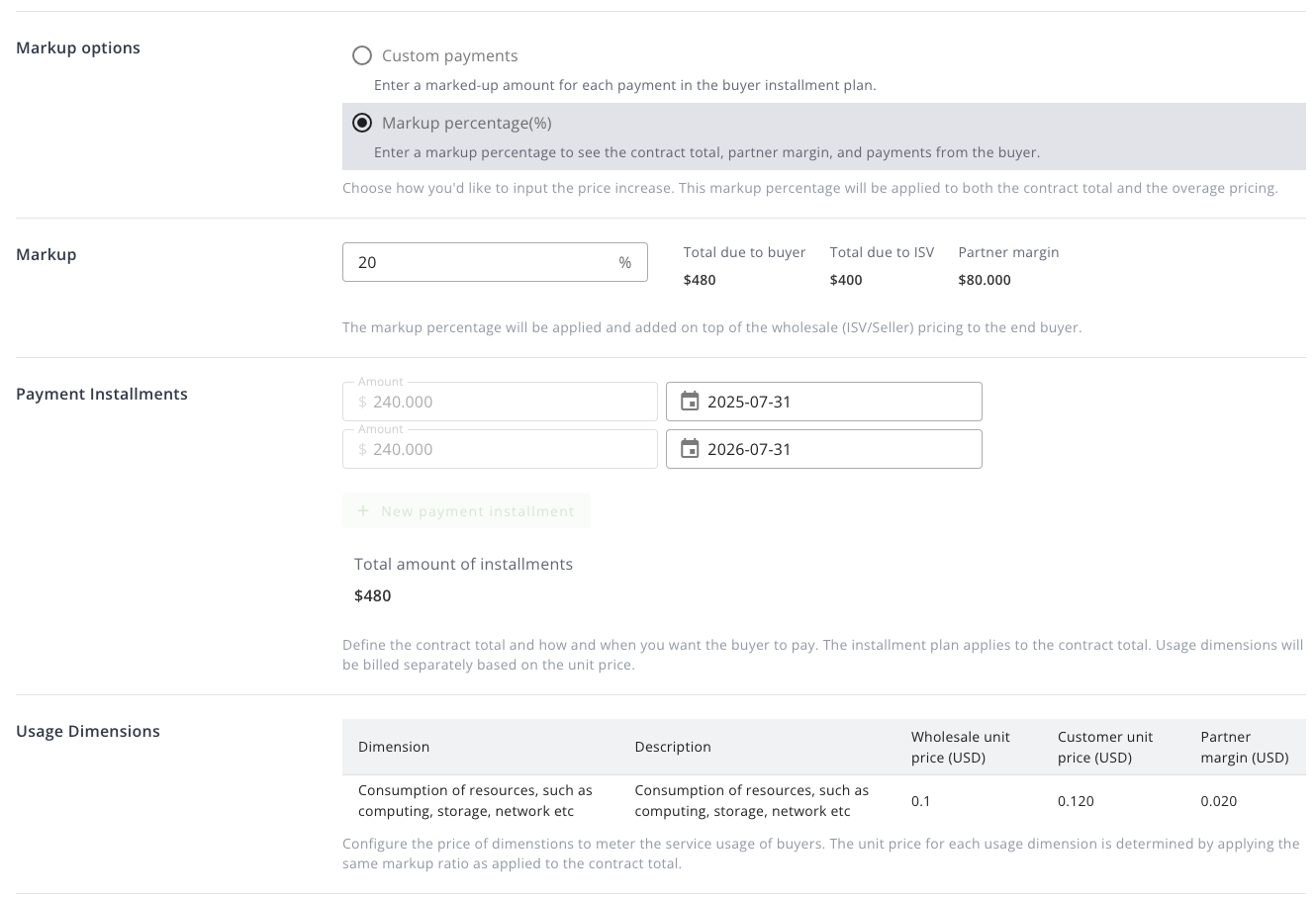
>  - **Markup Percentage**: By providing a percentage, the contract pricing (including customer price and partner margin) will be calculated based on the wholesale pricing. If the offer has predefined installments, every installment amount will be updated automatically based on the markup percentage.
>
- **Markup Percentage**: By providing a percentage, the contract pricing (including customer price and partner margin) will be calculated based on the wholesale pricing. If the offer has predefined installments, every installment amount will be updated automatically based on the markup percentage.
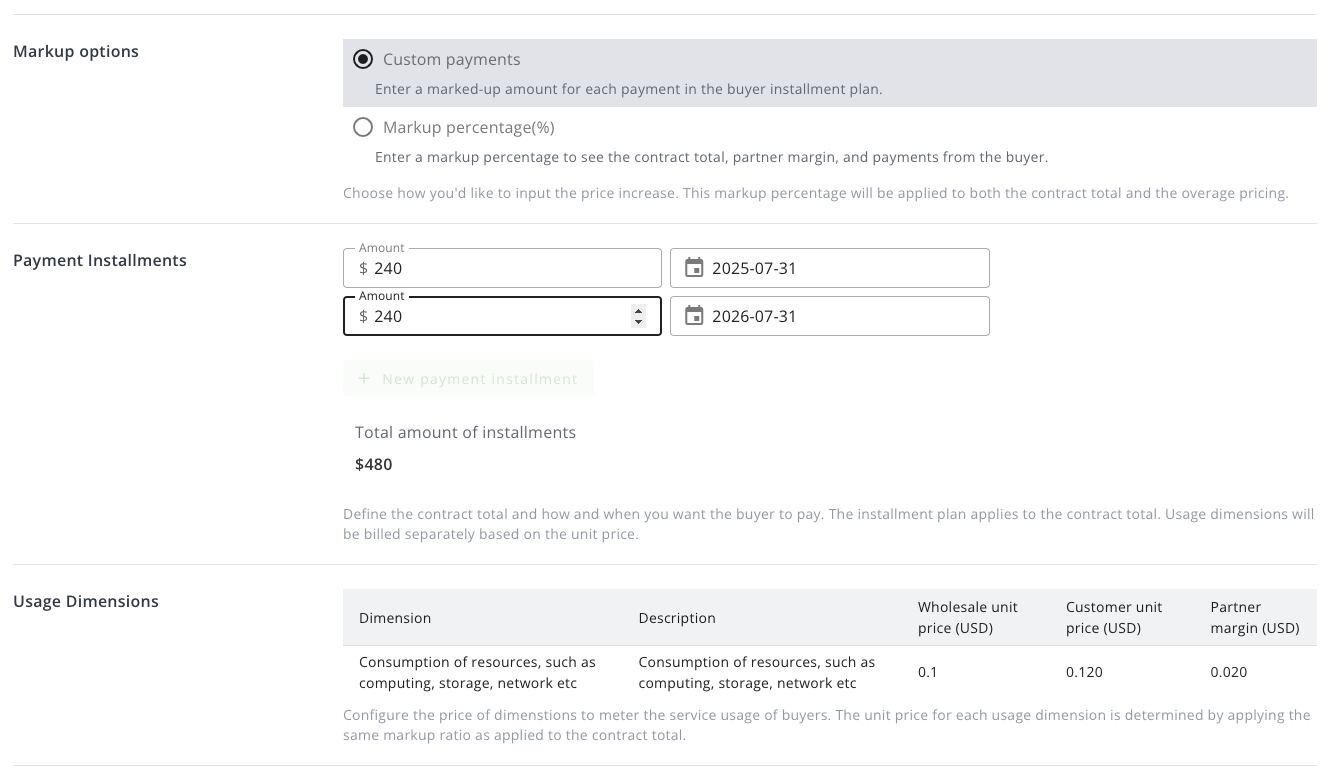
>  - **Custom Payments**: Instead of providing a percentage, you can set the custom payments for each installment. The sum of all installments will be the contract price. The implicit markup percentage will be calculated based on the custom payments and the wholesale pricing, usage dimensions prices will be updated automatically based on the implicit markup percentage.
>
- **Custom Payments**: Instead of providing a percentage, you can set the custom payments for each installment. The sum of all installments will be the contract price. The implicit markup percentage will be calculated based on the custom payments and the wholesale pricing, usage dimensions prices will be updated automatically based on the implicit markup percentage.
>  - **End User License Agreement**: Select the EULA between Standard AWS Marketplace Contract, Enterprise AWS Marketplace Contract or your custom contract.
## Contract Private Reseller Offer
To create a private reseller offer for a contract product (or contract + subscription combined), there are two pricing models to choose from `Contract pricing with installment plan` and `Contract pricing with upfront payment`, it is similar to creating normal contract private offers.
>
- **End User License Agreement**: Select the EULA between Standard AWS Marketplace Contract, Enterprise AWS Marketplace Contract or your custom contract.
## Contract Private Reseller Offer
To create a private reseller offer for a contract product (or contract + subscription combined), there are two pricing models to choose from `Contract pricing with installment plan` and `Contract pricing with upfront payment`, it is similar to creating normal contract private offers.
>  The private reseller offer has both expiry date & contract term length. By default, the contract starts when the buyer accepts the offer. If a future start date is specified, the contract will commence from the designated time. Fulfill the info listed as below:
- **Custom Offer Name**: Custom name for your offer will be displayed to the buyer.
- **Buyer(s)**: one or multiple buyer's AWS Account IDs who will receive the private offer and are capable to accept it.
- **Expiry Date**: The date before when the private offer needs to be accepted, otherwise, the offer expires.
- **Start Date(optional)**: A future date when the contract will begin if the offer has been accepted. It should be noted that for pricing model `Contract pricing with upfront payment`, you must set the start date.
- **Contract Duration**: The duration options comes from the ResaleAuthorization which current offer based on.
- **End User License Agreement**: Select the EULA between Standard AWS Marketplace Contract, Enterprise AWS Marketplace Contract or your custom contract.
### Contract pricing with upfront payment
#### Set markup percentage
It is the default pricing model for contract private reseller offer. After setting the start date and contract duration, you need to set the markup percentage, it will affect partner margin and customer price of all commits. If usage dimensions exist in this offer, they will be affected too.
Start date must be set in this pricing model.
>
The private reseller offer has both expiry date & contract term length. By default, the contract starts when the buyer accepts the offer. If a future start date is specified, the contract will commence from the designated time. Fulfill the info listed as below:
- **Custom Offer Name**: Custom name for your offer will be displayed to the buyer.
- **Buyer(s)**: one or multiple buyer's AWS Account IDs who will receive the private offer and are capable to accept it.
- **Expiry Date**: The date before when the private offer needs to be accepted, otherwise, the offer expires.
- **Start Date(optional)**: A future date when the contract will begin if the offer has been accepted. It should be noted that for pricing model `Contract pricing with upfront payment`, you must set the start date.
- **Contract Duration**: The duration options comes from the ResaleAuthorization which current offer based on.
- **End User License Agreement**: Select the EULA between Standard AWS Marketplace Contract, Enterprise AWS Marketplace Contract or your custom contract.
### Contract pricing with upfront payment
#### Set markup percentage
It is the default pricing model for contract private reseller offer. After setting the start date and contract duration, you need to set the markup percentage, it will affect partner margin and customer price of all commits. If usage dimensions exist in this offer, they will be affected too.
Start date must be set in this pricing model.
>  ### Contract pricing with installment plan
#### Select contract duration and set commit quantity
If you select pricing with installment plan, it means you have to specify the quantity for each commit to get the contract amount. Different contract duration has different commit unit price. In this pricing model, commit unit price can not be configured.
>
### Contract pricing with installment plan
#### Select contract duration and set commit quantity
If you select pricing with installment plan, it means you have to specify the quantity for each commit to get the contract amount. Different contract duration has different commit unit price. In this pricing model, commit unit price can not be configured.
>  #### Setup markup
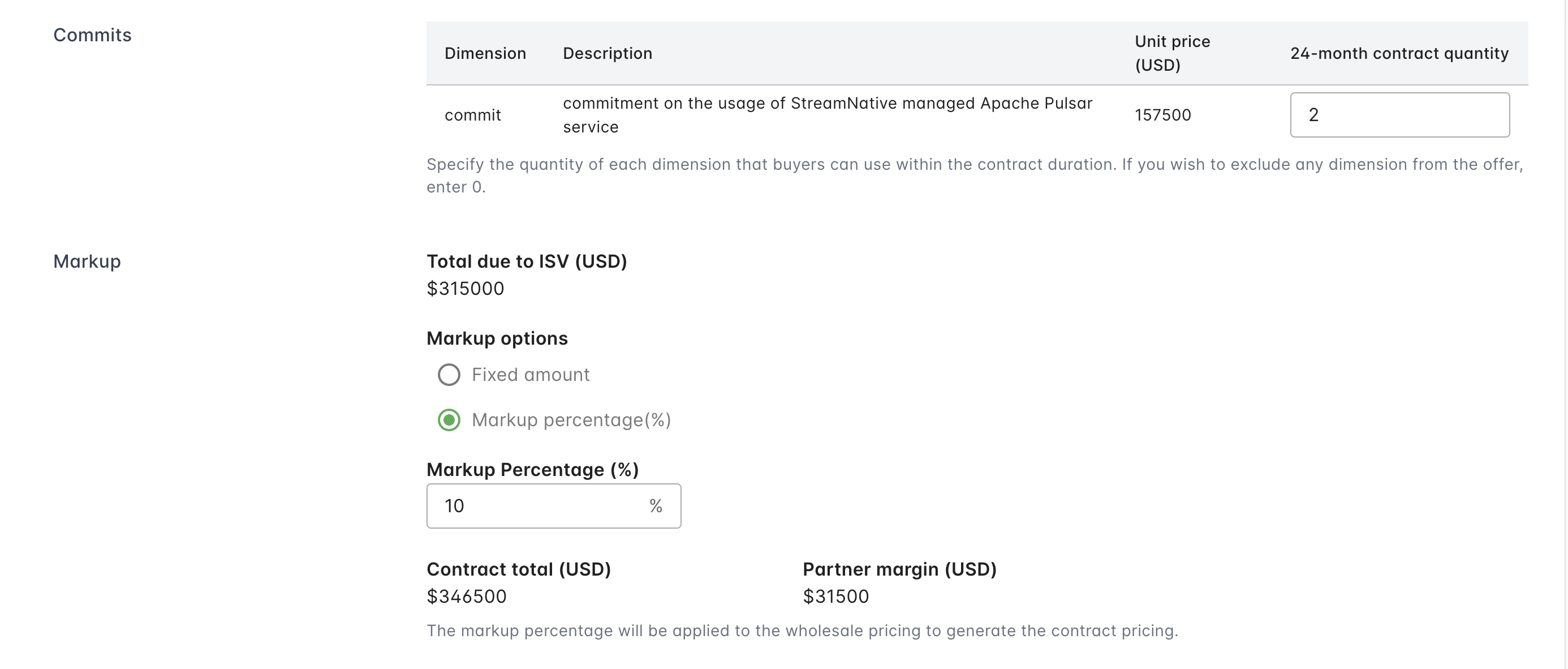
You can set the markup by specifying the total contract price or setting a percentage. When setting the markup, you can see the latest value of the partner margin.
>
#### Setup markup
You can set the markup by specifying the total contract price or setting a percentage. When setting the markup, you can see the latest value of the partner margin.
>  >
>  #### Add payment installment
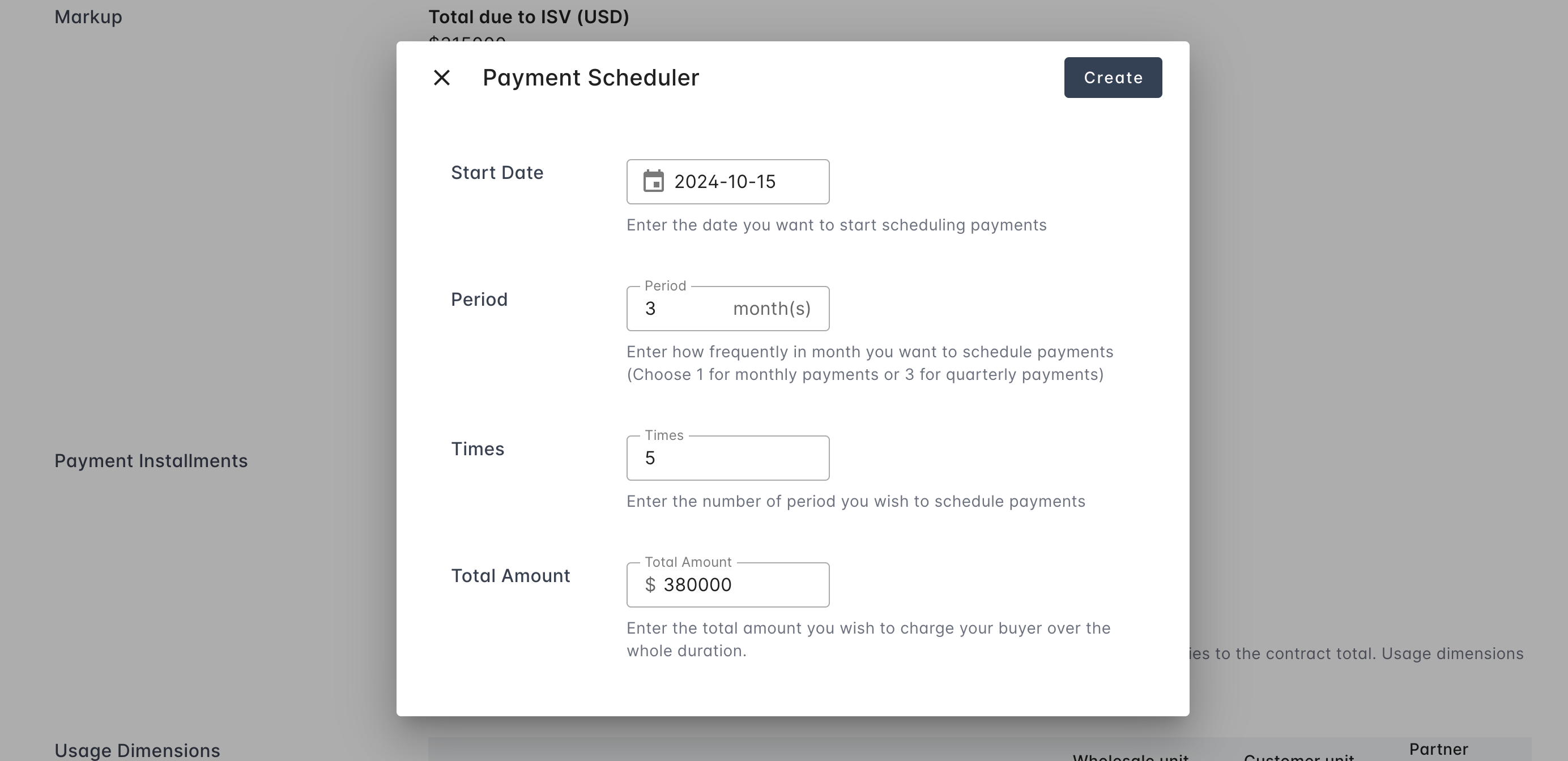
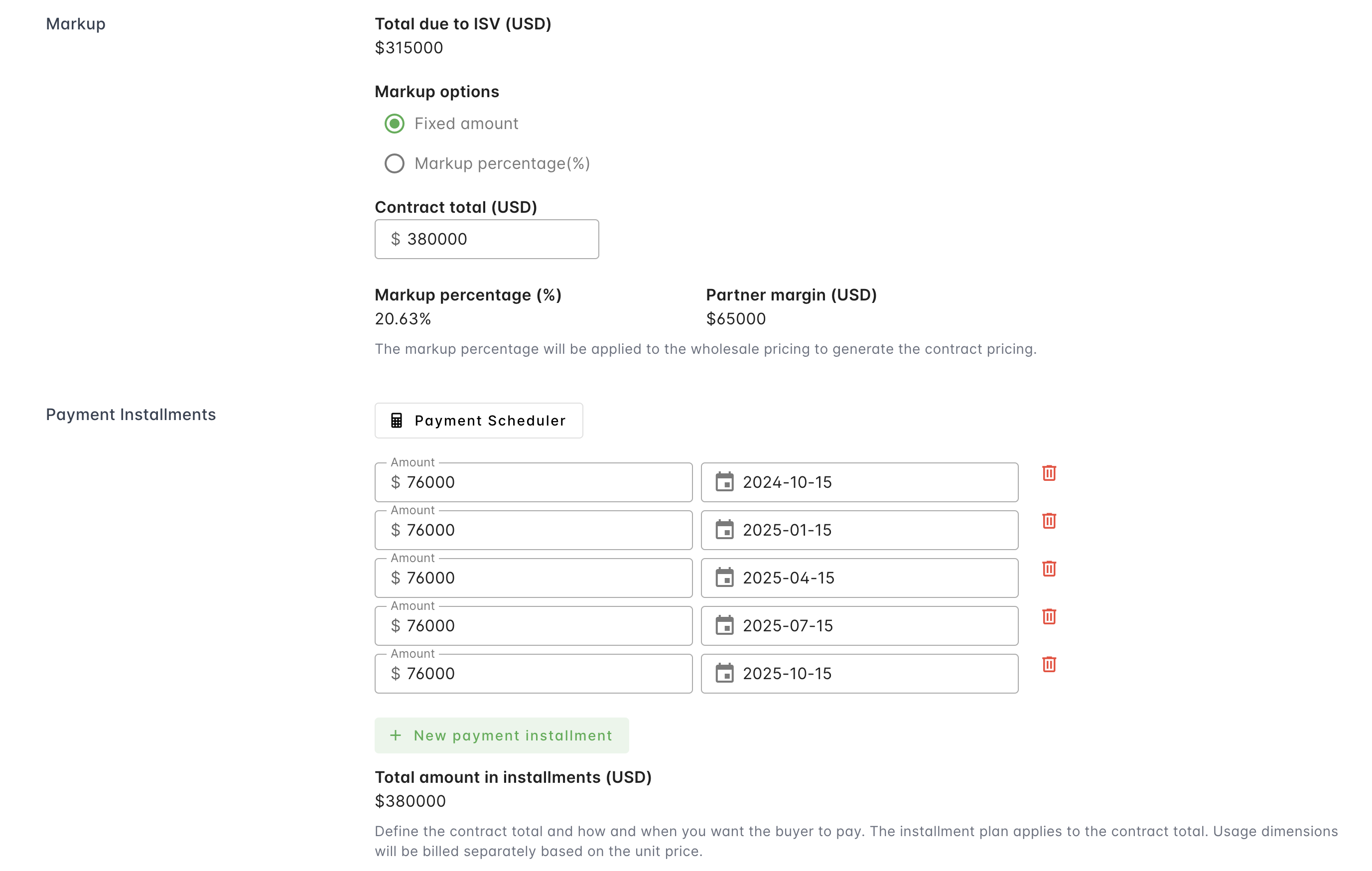
Then you need to add installment according to the contract total amount and contraction duration. Using the `Payment Scheduler` tool will make it easy.
>
#### Add payment installment
Then you need to add installment according to the contract total amount and contraction duration. Using the `Payment Scheduler` tool will make it easy.
>  >
>  #### Review usage dimensions
Usage dimensions' price will be updated automatically according to the previous markup settings.
>
#### Review usage dimensions
Usage dimensions' price will be updated automatically according to the previous markup settings.
>  ## Multi Currency
Sellers can now create private offers in EUR, GBP, JPY, and AUD for all pricing types (including contract, usage-based, and contract with consumption) and receive their disbursements in the offer currency. Additionally, sellers are no longer required to have a US-domiciled bank account. Instead, they can choose to receive payments into one or more bank accounts located in [any seller eligible jurisdiction](https://docs.aws.amazon.com/marketplace/latest/userguide/user-guide-for-sellers.html#eligible-jurisdictions). For channel partner private offers (CPPO), the seller, channel partner, and buyer must all transact in the same currency. Sellers need to issue a resale authorization in the negotiated currency, and the channel partner then creates the CPPO in that currency.
:::info
- **Enter the amount in the offer's currency — don't pre-convert it yourself.** AWS displays a USD-equivalent alongside your entered amount for reference only.
:::
**How currency affects FX risk:**
- If you denominate the offer in a specific currency (for example, GBP), the buyer sees, accepts, and gets invoiced in that currency at a fixed rate locked at acceptance — no FX risk for the buyer over the contract term.
- If you keep the offer in USD but the buyer pays in another currency, the exchange rate is variable and recalculated at each invoice date (not locked for the term). For multi-year deals where the buyer wants FX certainty, denominate the offer directly in their currency instead.
- If you're setting up non-USD disbursement for the first time, make sure your AWS seller account has a SWIFT-enabled disbursement method and keeps USD on file. KYC verification for non-USD payouts can take several days — plan ahead if the offer's expiry date is close.
- For CPPO / reseller offers specifically: the seller, channel partner, and buyer must all transact in the same currency. Confirm the resale authorization's currency before setting pricing.
:::tip
- Make sure you have configured your non-USD disbursement preferences. To enable a specific currency, follow this [guide](https://docs.aws.amazon.com/marketplace/latest/userguide/disbursement.html) to set your bank disbursement methods in [AWS Marketplace Management Portal Settings](https://aws.amazon.com/marketplace/management/seller-settings/account).
- Multi-currency support is available for all private offer pricing types, including contract-only, usage-based, contract with consumption, Professional Services, and CPPO offers.
- `USD` is the only default currency to create all public offers.
:::
This functionality is available worldwide for all AWS Marketplace sellers for all private offer pricing types, including usage-based and contract with consumption pricing. Public offers remain in USD only. To get started, sellers need to provide bank accounts with SWIFT codes and associate currency preferences. To learn more, please visit the documentation on [local currency offers and disbursements](https://external-aws-mp-isvs.s3.amazonaws.com/Internationalization/Local_Currency_Cheatsheet_Seller.pdf).
## Share the Offer and Track Its Status
Once you click **Create**, the offer is sent to AWS and prepared for the buyer. You can track its status from the **Offers** page in the Suger Console.
### Status flow in the Console
1. Immediately after creation, the offer appears in the list with the status `Pending_Create`.
2. Wait up to **5 minutes**, then refresh the page. The status updates to one of the following:
- `Create_Success` — the offer was successfully created in AWS Marketplace but has **not yet been sent** to the buyer.
- `Pending Acceptance` — the offer has been **pushed to AWS** and the buyer has been notified.
3. When the buyer accepts the offer, the status changes to `Accepted`. An **Offer** object and **Entitlement** record are also generated within Suger to reflect the successful transaction.
4. Click on the offer in the list to open its full detail page, where you'll find all offer information, status history, pricing breakdown, and entitlement tracking.
:::tip
- Entitlements created after offer acceptance are also visible under the **Entitlements** section in the Suger Console, giving you full visibility into access provisioning.
:::
### Send the offer link to the buyer
1. Open the created offer.
2. Click **Actions**, then **Copy offer URL**.
3. Share the URL directly with the buyer so they can log into their AWS account, review the terms, and accept the offer.
## FAQ
- #### What is the correct AWS Account ID format and how do I collect it from buyers?
The AWS Account ID must be exactly 12 digits (no dashes or spaces). This is different from other AWS identifiers. You can find it in the AWS Console under "My Account", or ask your buyer to provide it from their AWS billing dashboard. Make sure you're not confusing it with other AWS IDs like IAM user IDs or resource ARNs.
- #### Why doesn't my offer status match between Suger and AWS, and when will I get acceptance notifications?
Status sync delays can occur due to AWS API timing or integration issues. Offers typically sync within 15–30 minutes, but can take longer during high-traffic periods. For acceptance notifications, ensure your notification settings are properly configured in Suger settings. If you see discrepancies (for example, `Pending` in Suger but `Expired` in AWS), wait for the next sync cycle or contact support to manually refresh the status.
- #### Can I create an AWS private offer in a currency other than USD?
Yes. Private offers support USD, EUR, GBP, AUD, and JPY (INR is India-only). Enter the amount in your chosen currency — AWS shows a USD-equivalent for reference, but don't convert it yourself. For CPPO/reseller offers, the seller, channel partner, and buyer must all use the same currency.
- #### How do we find out when a private offer gets accepted?
Once the offer is accepted, you will be notified via email. Additionally, the offer status on Suger will be updated to Accepted.
- #### How do I cancel a private offer?
A button called 'cancel offer' is on the offer details page inside the console.
- #### How does payment for a private offer work?
For a flat commit, the customer will be invoiced based on the payment scheduled. If no payment is scheduled, they will be invoiced on acceptance day or a few days after. Then, the disbursement will happen based on their payment terms with the cloud provider. The cloud provider will typically disburse those funds a few days following the disbursement to AWS.
- #### I created an offer with the wrong EULA. Can it be updated?
Once an offer is created, it cannot be updated. So, the route here is to cancel it and recreate it again. You can clone it and attach the correct EULA to the new one.
- #### We have a customer who purchased our product and is now looking to add another group of users (an expansion to the current offer). What is the best way to do this?
In this case, you would have to create an Agreement-Based Offer (ABO), which we call an Upsell/Renewal Offer in Suger.
- #### We are doing a renewal. If the offer has expired, do we have to make an Agreement-Based offer or a New offer?
In this case, you make a regular private offer.
- #### We need to extend the expiry of our private offer by two weeks, but it's failing. What should I do?
Extending this offer will not work in this case because you have a payment installment date set before this two-week extension. You'll need to create a new offer with a first installment date to set as the expiration date.
- #### I tried creating an offer via AWS on Suger and got this error: 'Failed to create offer: Offer PaymentTerms.Schedule.ChargeOn is not valid'.
You probably set your offer charge date to a past date; it must be in the future.
- #### We have a customer who provided the wrong AWS account number, and we need to update the offer. Assuming we cannot change the AWS account number on an offer, what is the best way to update the offer?
You can clone the existing offer, update the AWS account number, push the new offer to the customer, and then cancel the previous one.
- #### We didn't find any acceptance confirmation in AWS Marketplace and didn't get any email notifications. Could you please check that the Private Offer was correctly accepted and help us set up proper email notifications?
Whenever you see an Entitlement associated with an Offer, it means that it has been accepted. We can funnel notifications into your Slack channel for internal purposes. For external people (end buyers), you can add contacts when you first create the offer, OR you can add notification contacts after the offer has been created.
- #### We have a rip-and-replace AWS offer sent to a customer who has an existing offer with us through AWS, but they cannot accept it due to this message "You already have a contract for this product".
To process an upsell or renewal for a customer with an existing offer, you have to do it from the existing agreement/entitlement. To do this, you can go to the specific entitlement, click the upsell/renew button, and enter the upsell details.
This will allow the customer to accept the new agreement, given the change in terms. Please note that if an installment has already been paid, the upsell will be net of the amount already paid; the second installment will be the total amount for the second year of the upsell.
- #### When a customer accepts an offer, we alert the customer and our Account Executive. Is someone from AWS also notified?
They'll only get visibility of it when you Launch the Opportunity and link that Opportunity to the Offer during the Launch process.
- #### Can we set a future start date for a renewal offer the same as for initial private offers, or will the effective start date always be the acceptance date?
For renewal Offers, the start date will always be the acceptance date. You can control the end of the contract only.
- #### What is the lifecycle of an entitlement? The customer cannot cancel, so when we receive "Pending cancel" and "Cancel" event notifications? What happens at the end of the term if there's no auto-renewal?
When a private offer is accepted, it automatically generates an entitlement/agreement.
The customer has control over that agreement to either continue subscribed or unsubscribe. If they unsubscribe to your product, you will receive a notification from AWS within hours that the agreement was canceled. (You will receive both PENDING CANCEL and CANCEL webhook events from Suger. The time gap between these two events usually be 1 hour)
As for no auto-renewal, the contract will expire after the contract end date, and you'll receive a notification from AWS stating that the agreement was canceled. If you wish to renew with this customer, you must create a new Private Offer.
- #### Our customer has an active offer with an end date of June 14th. If I set the new offer with a June 15th start date, can they accept it early in June 5th without any issue?
Yes, they can accept the offer on June 5th, as long as the start date is AFTER the end of the ongoing contract.
- #### Does AWS Marketplace have Auto-renew available for offers?
When the end buyers self-serve and purchase the public SaaS listing, they can choose auto-renewal or not and switch it later. However, the seller/ISV can't edit it.
- #### When we generate a Private Offer link for our customers, who else (besides the customer and our Account Executive) gets notified? Does someone on the AWS side get notified, too?
They don't get notified. Only the contacts you add during the private offer creation.
During the creation process, you could add your success manager, PDM, or any other AWS Rep as a contact for those Offers.
- #### Why does the point of Contact (POC) not automatically appear as a contact on private offers when the deal is a renewal?
The offer in the renewal deal is created from entitlement instead of opportunity, so the contacts are not auto-populated from the opportunity owner.
- #### Does the opportunity owner (the Account Executive or Account Manager) get an email when the offer is accepted? or do they get the email letting them know the offer is ready?
Yes, the contacts of the offer shall be notified with Offer Ready & Accept events.
## Multi Currency
Sellers can now create private offers in EUR, GBP, JPY, and AUD for all pricing types (including contract, usage-based, and contract with consumption) and receive their disbursements in the offer currency. Additionally, sellers are no longer required to have a US-domiciled bank account. Instead, they can choose to receive payments into one or more bank accounts located in [any seller eligible jurisdiction](https://docs.aws.amazon.com/marketplace/latest/userguide/user-guide-for-sellers.html#eligible-jurisdictions). For channel partner private offers (CPPO), the seller, channel partner, and buyer must all transact in the same currency. Sellers need to issue a resale authorization in the negotiated currency, and the channel partner then creates the CPPO in that currency.
:::info
- **Enter the amount in the offer's currency — don't pre-convert it yourself.** AWS displays a USD-equivalent alongside your entered amount for reference only.
:::
**How currency affects FX risk:**
- If you denominate the offer in a specific currency (for example, GBP), the buyer sees, accepts, and gets invoiced in that currency at a fixed rate locked at acceptance — no FX risk for the buyer over the contract term.
- If you keep the offer in USD but the buyer pays in another currency, the exchange rate is variable and recalculated at each invoice date (not locked for the term). For multi-year deals where the buyer wants FX certainty, denominate the offer directly in their currency instead.
- If you're setting up non-USD disbursement for the first time, make sure your AWS seller account has a SWIFT-enabled disbursement method and keeps USD on file. KYC verification for non-USD payouts can take several days — plan ahead if the offer's expiry date is close.
- For CPPO / reseller offers specifically: the seller, channel partner, and buyer must all transact in the same currency. Confirm the resale authorization's currency before setting pricing.
:::tip
- Make sure you have configured your non-USD disbursement preferences. To enable a specific currency, follow this [guide](https://docs.aws.amazon.com/marketplace/latest/userguide/disbursement.html) to set your bank disbursement methods in [AWS Marketplace Management Portal Settings](https://aws.amazon.com/marketplace/management/seller-settings/account).
- Multi-currency support is available for all private offer pricing types, including contract-only, usage-based, contract with consumption, Professional Services, and CPPO offers.
- `USD` is the only default currency to create all public offers.
:::
This functionality is available worldwide for all AWS Marketplace sellers for all private offer pricing types, including usage-based and contract with consumption pricing. Public offers remain in USD only. To get started, sellers need to provide bank accounts with SWIFT codes and associate currency preferences. To learn more, please visit the documentation on [local currency offers and disbursements](https://external-aws-mp-isvs.s3.amazonaws.com/Internationalization/Local_Currency_Cheatsheet_Seller.pdf).
## Share the Offer and Track Its Status
Once you click **Create**, the offer is sent to AWS and prepared for the buyer. You can track its status from the **Offers** page in the Suger Console.
### Status flow in the Console
1. Immediately after creation, the offer appears in the list with the status `Pending_Create`.
2. Wait up to **5 minutes**, then refresh the page. The status updates to one of the following:
- `Create_Success` — the offer was successfully created in AWS Marketplace but has **not yet been sent** to the buyer.
- `Pending Acceptance` — the offer has been **pushed to AWS** and the buyer has been notified.
3. When the buyer accepts the offer, the status changes to `Accepted`. An **Offer** object and **Entitlement** record are also generated within Suger to reflect the successful transaction.
4. Click on the offer in the list to open its full detail page, where you'll find all offer information, status history, pricing breakdown, and entitlement tracking.
:::tip
- Entitlements created after offer acceptance are also visible under the **Entitlements** section in the Suger Console, giving you full visibility into access provisioning.
:::
### Send the offer link to the buyer
1. Open the created offer.
2. Click **Actions**, then **Copy offer URL**.
3. Share the URL directly with the buyer so they can log into their AWS account, review the terms, and accept the offer.
## FAQ
- #### What is the correct AWS Account ID format and how do I collect it from buyers?
The AWS Account ID must be exactly 12 digits (no dashes or spaces). This is different from other AWS identifiers. You can find it in the AWS Console under "My Account", or ask your buyer to provide it from their AWS billing dashboard. Make sure you're not confusing it with other AWS IDs like IAM user IDs or resource ARNs.
- #### Why doesn't my offer status match between Suger and AWS, and when will I get acceptance notifications?
Status sync delays can occur due to AWS API timing or integration issues. Offers typically sync within 15–30 minutes, but can take longer during high-traffic periods. For acceptance notifications, ensure your notification settings are properly configured in Suger settings. If you see discrepancies (for example, `Pending` in Suger but `Expired` in AWS), wait for the next sync cycle or contact support to manually refresh the status.
- #### Can I create an AWS private offer in a currency other than USD?
Yes. Private offers support USD, EUR, GBP, AUD, and JPY (INR is India-only). Enter the amount in your chosen currency — AWS shows a USD-equivalent for reference, but don't convert it yourself. For CPPO/reseller offers, the seller, channel partner, and buyer must all use the same currency.
- #### How do we find out when a private offer gets accepted?
Once the offer is accepted, you will be notified via email. Additionally, the offer status on Suger will be updated to Accepted.
- #### How do I cancel a private offer?
A button called 'cancel offer' is on the offer details page inside the console.
- #### How does payment for a private offer work?
For a flat commit, the customer will be invoiced based on the payment scheduled. If no payment is scheduled, they will be invoiced on acceptance day or a few days after. Then, the disbursement will happen based on their payment terms with the cloud provider. The cloud provider will typically disburse those funds a few days following the disbursement to AWS.
- #### I created an offer with the wrong EULA. Can it be updated?
Once an offer is created, it cannot be updated. So, the route here is to cancel it and recreate it again. You can clone it and attach the correct EULA to the new one.
- #### We have a customer who purchased our product and is now looking to add another group of users (an expansion to the current offer). What is the best way to do this?
In this case, you would have to create an Agreement-Based Offer (ABO), which we call an Upsell/Renewal Offer in Suger.
- #### We are doing a renewal. If the offer has expired, do we have to make an Agreement-Based offer or a New offer?
In this case, you make a regular private offer.
- #### We need to extend the expiry of our private offer by two weeks, but it's failing. What should I do?
Extending this offer will not work in this case because you have a payment installment date set before this two-week extension. You'll need to create a new offer with a first installment date to set as the expiration date.
- #### I tried creating an offer via AWS on Suger and got this error: 'Failed to create offer: Offer PaymentTerms.Schedule.ChargeOn is not valid'.
You probably set your offer charge date to a past date; it must be in the future.
- #### We have a customer who provided the wrong AWS account number, and we need to update the offer. Assuming we cannot change the AWS account number on an offer, what is the best way to update the offer?
You can clone the existing offer, update the AWS account number, push the new offer to the customer, and then cancel the previous one.
- #### We didn't find any acceptance confirmation in AWS Marketplace and didn't get any email notifications. Could you please check that the Private Offer was correctly accepted and help us set up proper email notifications?
Whenever you see an Entitlement associated with an Offer, it means that it has been accepted. We can funnel notifications into your Slack channel for internal purposes. For external people (end buyers), you can add contacts when you first create the offer, OR you can add notification contacts after the offer has been created.
- #### We have a rip-and-replace AWS offer sent to a customer who has an existing offer with us through AWS, but they cannot accept it due to this message "You already have a contract for this product".
To process an upsell or renewal for a customer with an existing offer, you have to do it from the existing agreement/entitlement. To do this, you can go to the specific entitlement, click the upsell/renew button, and enter the upsell details.
This will allow the customer to accept the new agreement, given the change in terms. Please note that if an installment has already been paid, the upsell will be net of the amount already paid; the second installment will be the total amount for the second year of the upsell.
- #### When a customer accepts an offer, we alert the customer and our Account Executive. Is someone from AWS also notified?
They'll only get visibility of it when you Launch the Opportunity and link that Opportunity to the Offer during the Launch process.
- #### Can we set a future start date for a renewal offer the same as for initial private offers, or will the effective start date always be the acceptance date?
For renewal Offers, the start date will always be the acceptance date. You can control the end of the contract only.
- #### What is the lifecycle of an entitlement? The customer cannot cancel, so when we receive "Pending cancel" and "Cancel" event notifications? What happens at the end of the term if there's no auto-renewal?
When a private offer is accepted, it automatically generates an entitlement/agreement.
The customer has control over that agreement to either continue subscribed or unsubscribe. If they unsubscribe to your product, you will receive a notification from AWS within hours that the agreement was canceled. (You will receive both PENDING CANCEL and CANCEL webhook events from Suger. The time gap between these two events usually be 1 hour)
As for no auto-renewal, the contract will expire after the contract end date, and you'll receive a notification from AWS stating that the agreement was canceled. If you wish to renew with this customer, you must create a new Private Offer.
- #### Our customer has an active offer with an end date of June 14th. If I set the new offer with a June 15th start date, can they accept it early in June 5th without any issue?
Yes, they can accept the offer on June 5th, as long as the start date is AFTER the end of the ongoing contract.
- #### Does AWS Marketplace have Auto-renew available for offers?
When the end buyers self-serve and purchase the public SaaS listing, they can choose auto-renewal or not and switch it later. However, the seller/ISV can't edit it.
- #### When we generate a Private Offer link for our customers, who else (besides the customer and our Account Executive) gets notified? Does someone on the AWS side get notified, too?
They don't get notified. Only the contacts you add during the private offer creation.
During the creation process, you could add your success manager, PDM, or any other AWS Rep as a contact for those Offers.
- #### Why does the point of Contact (POC) not automatically appear as a contact on private offers when the deal is a renewal?
The offer in the renewal deal is created from entitlement instead of opportunity, so the contacts are not auto-populated from the opportunity owner.
- #### Does the opportunity owner (the Account Executive or Account Manager) get an email when the offer is accepted? or do they get the email letting them know the offer is ready?
Yes, the contacts of the offer shall be notified with Offer Ready & Accept events.